
Clear Your To-Do List in the Action Center
Work through your company’s to-do list: choose an urgency level, read the issue, fix the underlying record, and dismiss only what doesn’t apply with a reason.
By TruckTA Team · Product guidance
Reviewed by TruckTA ·
This tutorial uses an AI-generated voice. The video and article explain the same reviewed TruckTA workflow.
Put the workflow to work
Solve the task with TruckTA
In this article
Last updated: November 2026
A long Action Center to-do list needs more than a lower count. Fix the record behind each real issue so the item closes automatically. For something that doesn’t apply to your company, dismiss it with a short reason instead.
This guide accompanies “Clear Your To-Do List in the Action Center.” Follow the same workflow: choose what needs attention, read the issue, correct a missing driver detail, and set aside an unnecessary second-owner item.
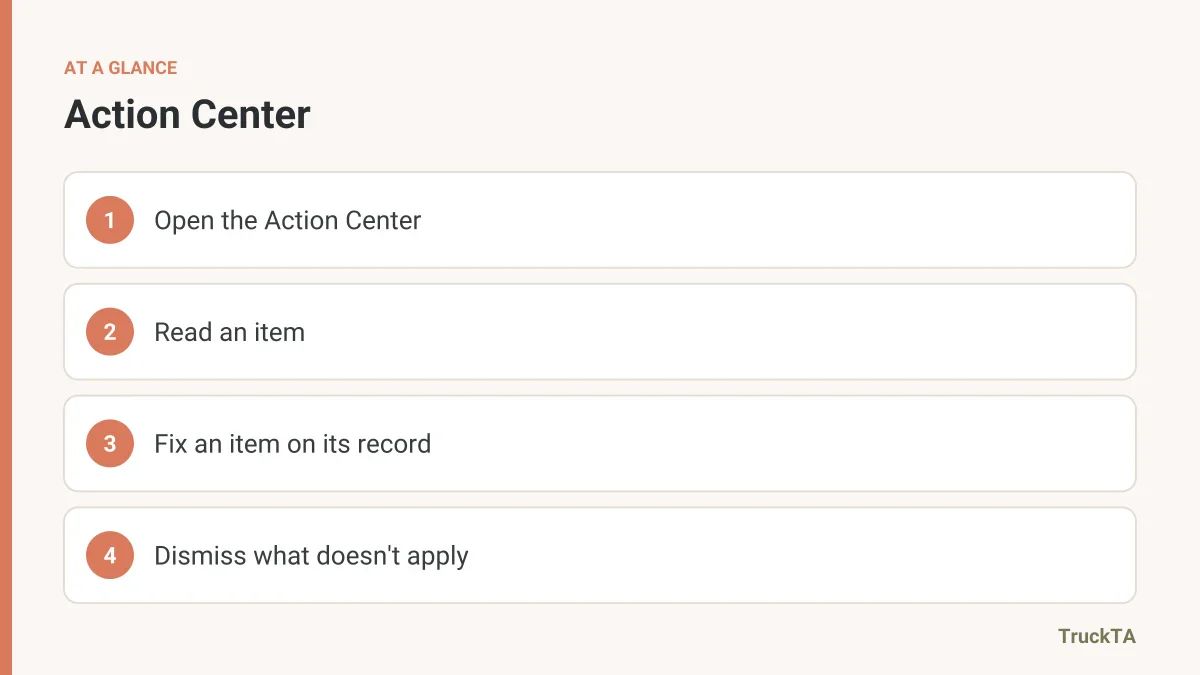
Open the Action Center
Start from the Dashboard
From the Dashboard, select Action Center in the sidebar. The large number shows how many items need attention right now. Treat that count as your starting point, not as a reason to clear rows without reading them.
First, look at Needs attention. Then use the urgency cards to narrow the work in front of you. You don’t need to tackle the full list at once; select a card to see only items at that urgency.
Choose the urgent work first
Start with Critical and High. In this workflow, Critical means fix today, while High means fix this week. These labels give you a starting order when the list contains more work than you can address immediately.
For now, choose the urgency you’re going to work through. Later, the walkthrough uses Low to find the least urgent items. Keep the choice tied to the work you need to address, rather than whichever row looks easiest to remove.
For a separate resource to keep alongside this walkthrough, see Fleet Management Checklist. Here, stay focused on the items shown in your company’s list and the correction each one asks you to make.
Read an item
Read the issue before opening the record
Items are grouped by kind of issue. Each group explains why the issue matters and provides How to fix guidance. Under that explanation, every row represents a record that needs the correction.
First, read the group’s explanation. Then connect that instruction to the individual row. The group tells you what needs fixing; the row tells you which record needs the work. Keep both in view before choosing where to go next.
For example, a missing date of hire points to a specific driver detail. Your task isn’t simply to make the alert disappear. It’s to enter the missing information on the driver’s record, where that information belongs.
Search for the driver you’re working on
To work through one driver, use Search by name, load or issue and search by name. The video searches for Dana Brooks. That brings the work into focus: Dana’s open items, rather than the wider company list.
Next, find the missing date of hire item in Dana’s results. Read it against the group’s How to fix guidance. You now have a specific record and a specific missing detail to address.
At this point, select Open driver on the item. That’s the handoff from reading the issue to correcting the record. Don’t substitute dismissal for a missing detail that you actually need to enter.
For separate reading, keep Car-Hauling Recordkeeping Checklist: Records to Build Before Your First Move handy. Continue this walkthrough with the driver item you’ve selected, rather than moving into a different office task.
Fix an item on its record
Enter the missing date of hire
TruckTA opens the driver’s profile right where the fix goes. On the Employment card, select Edit. Then enter the missing date in Date of Hire and select Save.
The distinction matters: you’re editing Dana’s employment information, not changing the alert itself. Keep your attention on the requested field. In this example, the missing date is the detail that prompted the item.
After entering the date, finish with Save before returning to the list. The walkthrough’s correction happens on the driver profile. There’s no separate manual closing step for the fixed item.
Return and check the result
Now open Action Center again. In the video, the count drops by one after a moment. Search for Dana again and look for the date of hire issue that sent you to the profile.
The missing date of hire item is gone. It closed itself once the record was fixed. That’s the result to check: the specific issue you corrected no longer appears in the driver’s open items.
Notice what you didn’t do: dismiss a valid issue merely to reduce the count. Instead, you supplied the missing detail and checked the result. The lower count follows the correction, rather than standing in for it.
For another driver-related resource, see Car Hauler Driver Readiness Checklist: Qualification File to First Dispatch. The task in this walkthrough remains the missing employment detail and its automatic closeout.
Dismiss what doesn't apply
Decide whether the item is a real problem
Some items aren’t a real problem for your company. To follow the video’s example, select Low to see the least urgent ones. The item shown asks for a second owner.
If your company doesn’t need a second owner, use the dismissal workflow. However, don’t treat Low as an instruction to dismiss. The decision rests on whether the requested change applies to your company, not on urgency alone.
For this item, select More, then Dismiss. You’re choosing a different outcome from the driver correction: the requested change isn’t needed, so you’ll record why you’re setting the item aside.
Save a reason with the dismissal
Next, write a short explanation in Reason, then select Save. Keep the explanation tied to the item. For the second-owner example, explain why your company doesn’t need the additional owner rather than leaving a vague note.
After you save, the item leaves the list and the count drops by one. It stays under Closed, together with your reason. The dismissal therefore retains the explanation for why you set the item aside.
However, dismissal doesn’t mean the item can never return. It only comes back if something changes. Keep that distinction in mind when deciding whether the item truly doesn’t apply to your company.
Try this workflow in TruckTA: open your company’s list, select a Critical or High item, and read its How to fix guidance before opening the record.
Frequently asked questions
Do the urgency cards contain separate sets of tasks?
The cards sort the same items by urgency. Selecting a card shows only the items at that urgency.
Does searching for a driver show only the missing date of hire issue?
The video’s search for Dana Brooks shows everything open for that driver. The missing date of hire is the item selected for the demonstration.
Which video should I watch next?
The next video named in this walkthrough is “See What’s Expiring and Fix It.”
Read the video transcript
The Action Center is your company's to-do list. In two minutes, you'll fix an item and watch it close by itself. From the Dashboard, open Action Center in the sidebar. The big number shows how many items need attention right now. These cards sort the same items by urgency. Critical means fix today. High means fix this week. Select a card to see only those items. Items are grouped by kind of issue. Each group says why it matters, and How to fix it. Under that, every row is one record that needs the fix. To work through one driver, search by name. Here's everything open for Dana Brooks. The date of hire is missing. Select Open driver. TruckTA opens the driver's profile, right where the fix goes. Select Edit on the Employment card. Type the date of hire, then select Save. Now open Action Center again. In a moment, the count drops by one. Search for Dana again, and the date of hire item is gone. You didn't close it. It closed itself once the record was fixed. Some items aren't a real problem for your company. Select Low to see the least urgent ones. This one asks for a second owner. If you don't need one, select More, then Dismiss. Write a short reason, and select Save. The item leaves the list, and the count drops by one. It's kept under Closed, with your reason, and only comes back if something changes. Start with Critical and High. Fix each item on its record. Dismiss only with a reason. Next, watch See What's Expiring and Fix It.
Put it into practice
Keep your operation moving with TruckTA.
More ways to use TruckTA
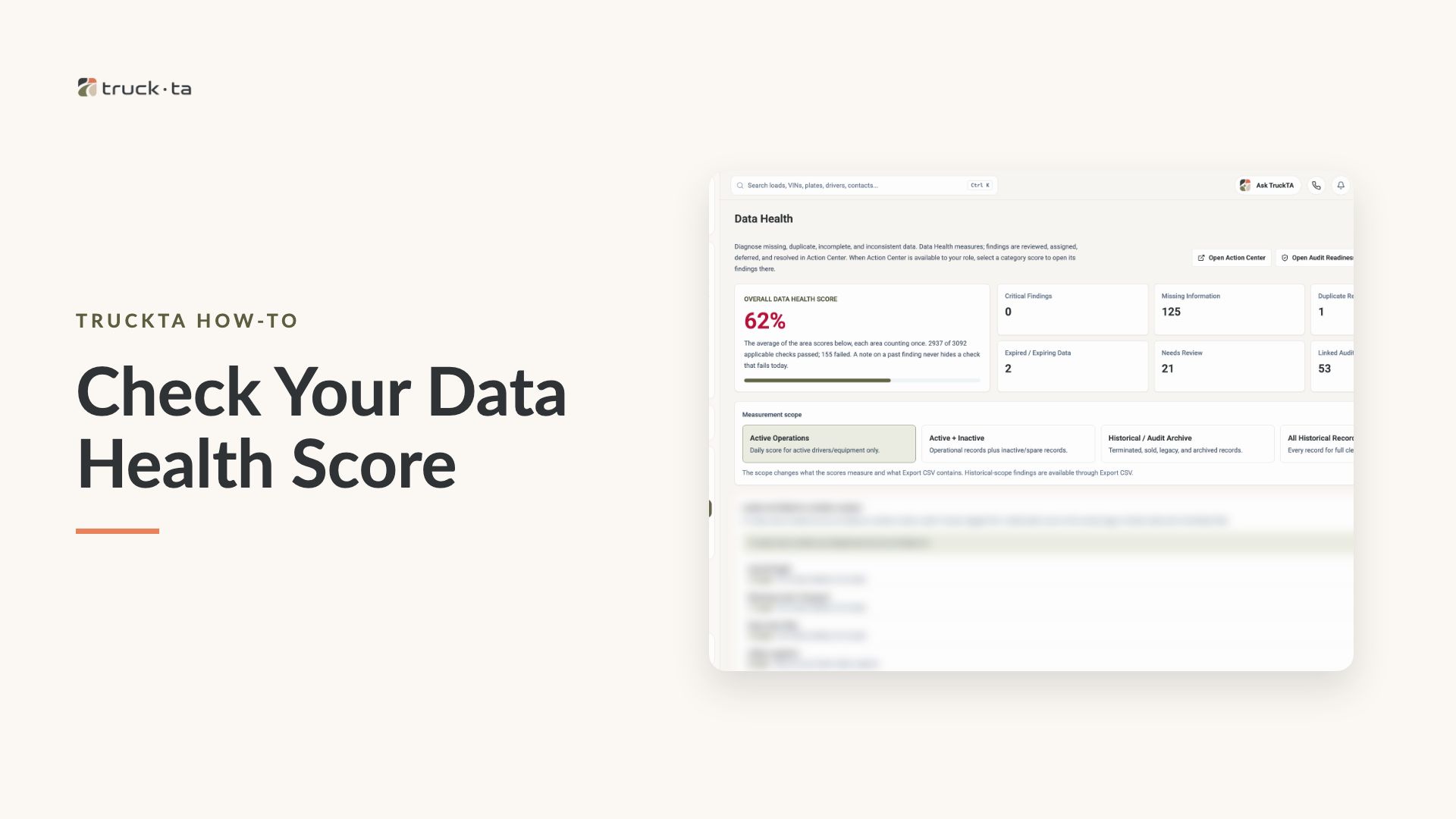
Check Your Data Health Score in TruckTA
Read your TruckTA score, find the area pulling it down, and follow a missing driver license detail from Action Center through the saved correction.
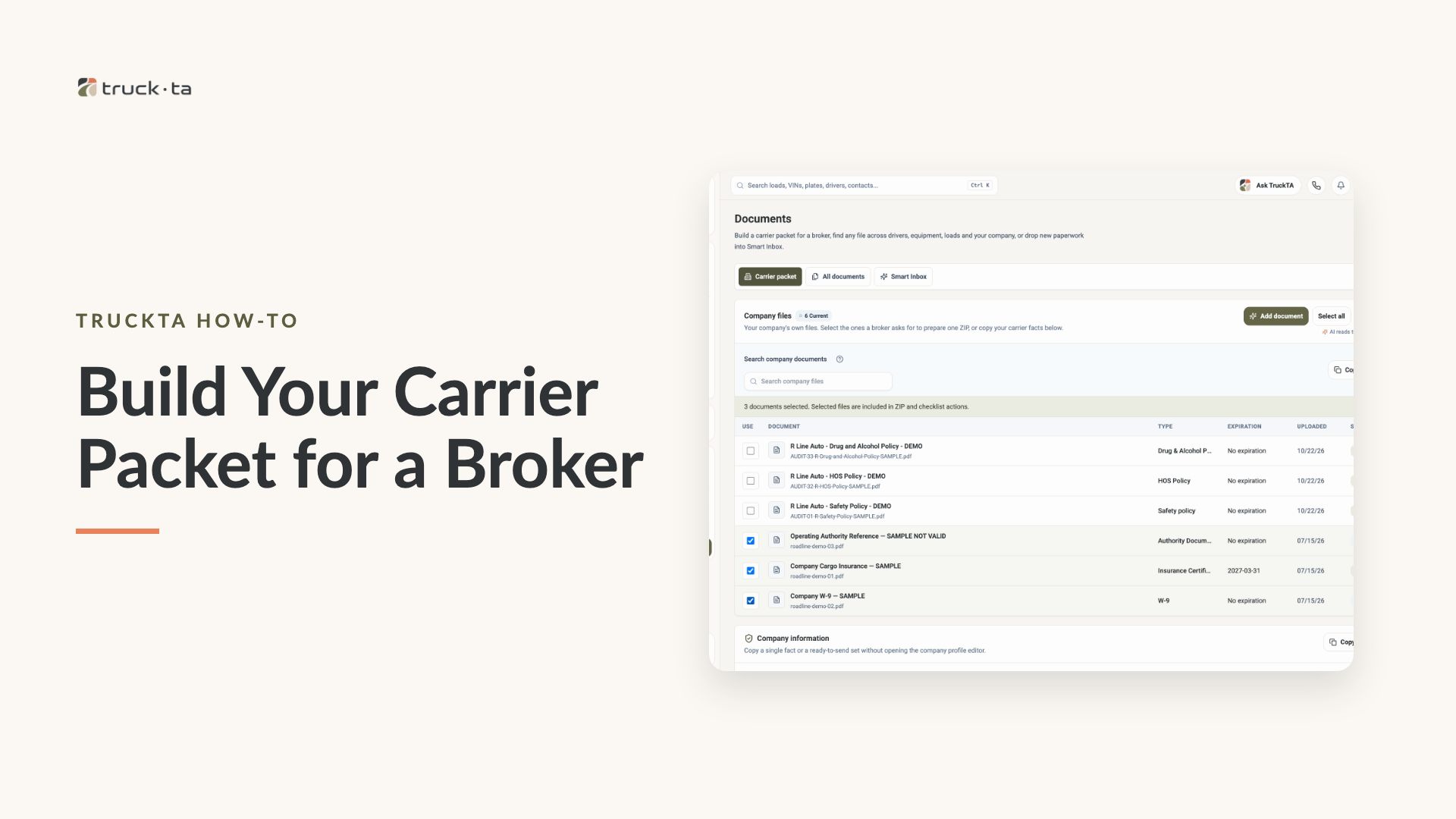
Build Your Carrier Packet for a Broker in TruckTA
Gather your W-9, insurance and authority into a ZIP from TruckTA’s Documents page, prepare the setup message, then finish sending it in your own email app.
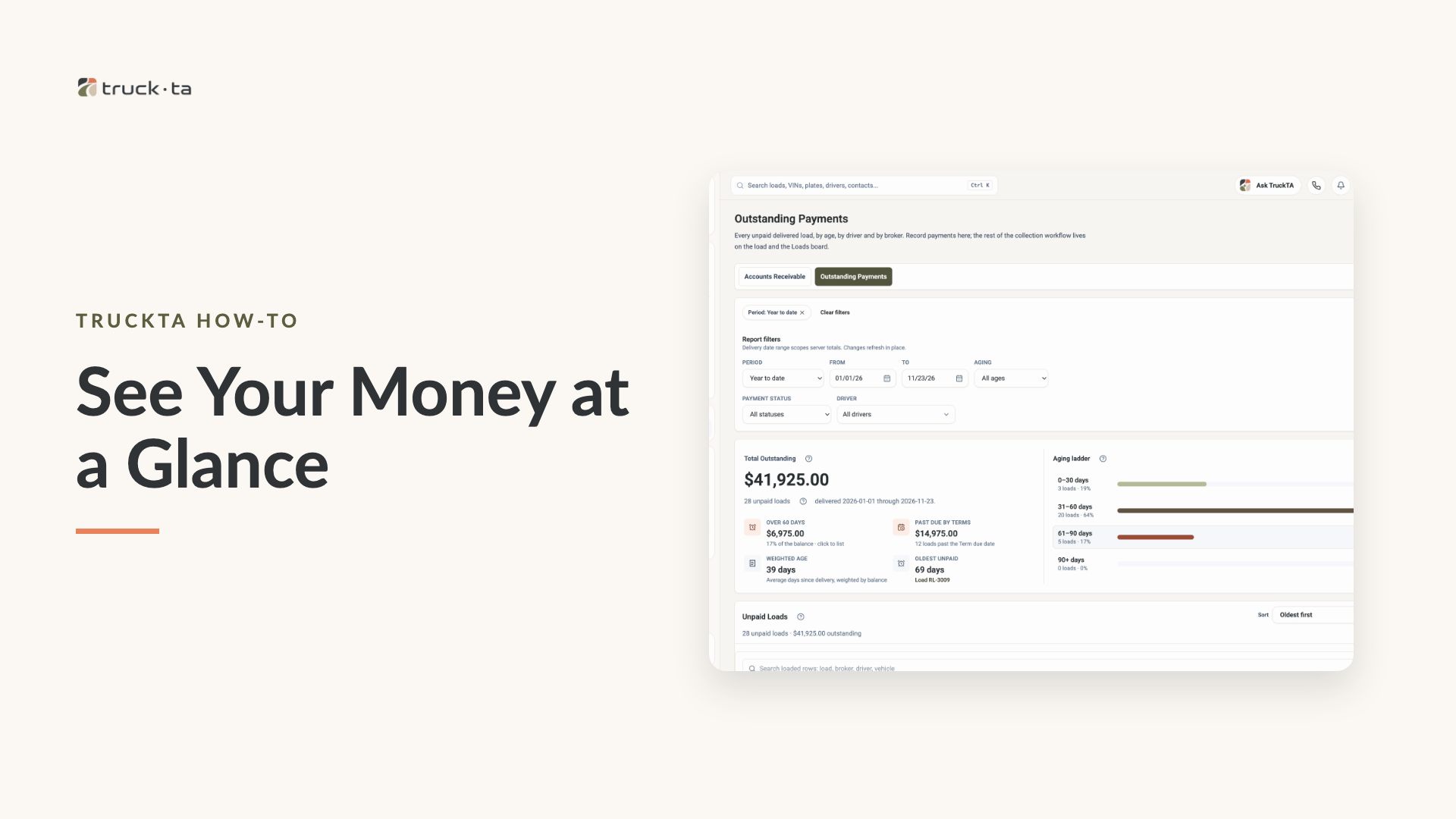
See Your Money at a Glance in TruckTA
Open Finance Center to see delivered loads needing invoices, unpaid balances, this week’s driver pay, and truck earnings. Then choose your next step.