
Build Your Carrier Packet for a Broker in TruckTA
Gather your W-9, insurance and authority into a ZIP from TruckTA’s Documents page, prepare the setup message, then finish sending it in your own email app.
By TruckTA Team · Product guidance
Reviewed by TruckTA ·
This tutorial uses an AI-generated voice. The video and article explain the same reviewed TruckTA workflow.
Put the workflow to work
Solve the task with TruckTA
In this article
Last updated: November 2026
A broker has asked for your W-9, insurance certificate and operating authority. Build your Carrier Packet from TruckTA’s Documents page: choose the files, download a ZIP, and prepare the setup email. You’ll finish in your own email app, attaching the ZIP yourself before sending.
Follow the walkthrough below alongside the how-to video. First, handle the company paperwork; then build the message that goes with it. Keep the broker’s request beside you so you can match the selected files to what they actually asked for.
Open Documents for Your Carrier Packet
Find the Carrier packet tab and Company files
From the Dashboard, select Documents in the sidebar. It opens on the Carrier packet tab. Look for Company files, which lists your company’s own paperwork. This is the starting point for selecting the documents you’ll share with the broker.
For now, stay with the file list rather than scrolling to the email builder. You’re handling the paperwork portion of the request first. The message comes later, after you’ve selected and downloaded the documents that belong in this setup package.
If broker verification is also on your task list, see How to Verify a Broker Before Accepting a Car Haul Load. Here, the job is narrower: prepare the company files and accompanying email for the setup request already in front of you.
Check Status before choosing the paperwork
Before selecting files, check the Status column. Pay particular attention to whether the insurance certificate is still valid. Don’t move straight from recognizing a file’s name to including it; review its status before deciding what to send.
Keep your company files current so you’re choosing from the paperwork you intend to share. For the separate recordkeeping task, bookmark Car-Hauling Recordkeeping Checklist: Records to Build Before Your First Move. Then return to the files needed for this broker’s request.
Pick the Files and Download the ZIP
Tick the Use boxes for the requested files
Next, tick the box in the Use column for each file the broker requested. The example selects the authority document, cargo insurance and W-9. Match your choices to the request instead of treating every available company file as something to include.
Work through the requested documents against the rows in Company files. For example, when the request names authority, insurance and W-9, locate each corresponding file and tick its Use box. Your selections determine which documents TruckTA packs together.
Prepare the archive, then download it
After choosing the files, select Prepare ZIP. TruckTA packs the selected documents into one archive. Wait until it says the ZIP is ready before taking the next action. Preparing the archive and downloading it are separate parts of this workflow.
Once it’s ready, select Download ZIP. One file containing the selected paperwork saves to your computer. Keep that downloaded archive available while you build the email; it’s the file you’ll need when you reach your own email program.
At this point, the document portion of your Carrier Packet is on your computer. You can turn your attention to the wording that accompanies it. Leave the downloaded archive available rather than getting sidetracked by another paperwork task.
Build the Carrier Setup Email
Open Build a share packet and select Carrier Setup
Now scroll down and open Build a share packet. Select Carrier Setup. TruckTA writes the setup email for you, so you can review a prepared message rather than start with an empty email and type the company details yourself.
The message lists your company name, DOT and MC numbers, tax ID, address and phone. At the end, it adds a checklist of your files. Read the company details first, then continue through the file list at the bottom.
As you review, compare the file list with the paperwork you chose for this request. Give those final lines the same attention as the company details. They’re part of the message you’re preparing, not just something to scroll past.
Edit a value or remove a line
Every line can be changed. Edit a value that needs correction, or remove a line you don’t want to share. You control the message’s wording; you don’t have to keep a detail simply because it appears in the generated version.
For example, if a phone value needs correcting, edit that value. If you don’t want a particular detail included at all, remove its line instead. Make the change that fits your intention rather than deleting information you only meant to correct.
Send It From Your Own Email App
Enter Recipient email and check Subject
Next, type the broker’s address into Recipient email. The Subject is already filled in. Read the recipient and subject alongside the message you’ve prepared, then select Open email draft to continue in your own email program.
Your email app opens with the message. However, opening that draft isn’t a send confirmation. You’ve moved from preparing the message in TruckTA to finishing it in the program you use for email. The sending step still belongs to you.
Attach the downloaded ZIP and send
Finally, attach the ZIP you downloaded to the open email draft. Read the complete email over once, with the attachment in place, and send it from your email app. That brings the prepared message and company paperwork together for the broker.
For a separate dispatch task afterward, see A Practical Car-Hauling Dispatch Workflow From Booking to Proof of Delivery. Keep unrelated load instructions out of this setup message so the broker can focus on the company paperwork they requested.
Try building your next Carrier Packet in TruckTA with the broker request you’re handling now. Open Documents and begin with Company files, then use Carrier Setup to prepare the message you’ll finish in your own email app.
Frequently asked questions
Does this walkthrough show how to upload a missing company file?
No. It starts with paperwork already listed under Company files. Uploading or replacing a missing document is outside this walkthrough.
Can I follow this guide to fill out my W-9?
This guide covers packaging an existing W-9 with your other company files. It does not cover completing the form or deciding what information belongs on it.
What should I do if Open email draft doesn’t launch my email program?
The walkthrough does not include troubleshooting for that situation. Check your email program’s setup guidance before continuing; opening a draft and sending a message are separate actions.
Read the video transcript
Brokers ask every new carrier for the same papers. Here's how to send your W-9, insurance and authority in one ZIP, with the email already written. From the Dashboard, select Documents in the sidebar. It opens on the Carrier packet tab. Company files lists your company's own paperwork. Check the Status column before you send anything. A broker wants an insurance certificate that's still valid. Tick the box in the Use column for each file the broker asked for. Here, that's the authority document, the cargo insurance, and the W-9. Select Prepare ZIP. In a few seconds, TruckTA packs the three files into one. When it says the ZIP is ready, select Download ZIP. One file with everything the broker needs is saved to your computer. Scroll down and open Build a share packet. Then select Carrier Setup. TruckTA writes the setup email for you. It lists your company name, DOT and MC numbers, tax ID, address and phone. At the end, it adds a checklist of your files. Every line can be changed. Edit a value, or remove a line you don't want to share. Type the broker's address in Recipient email. The subject is already filled in. Then select Open email draft. Your own email app opens with this message. Attach the ZIP you downloaded, read it over once, and send it. Keep your company files current. Use Carrier Setup for the email. And attach the ZIP before you send. Your next carrier packet takes a minute.
Put it into practice
Keep your operation moving with TruckTA.
More ways to use TruckTA
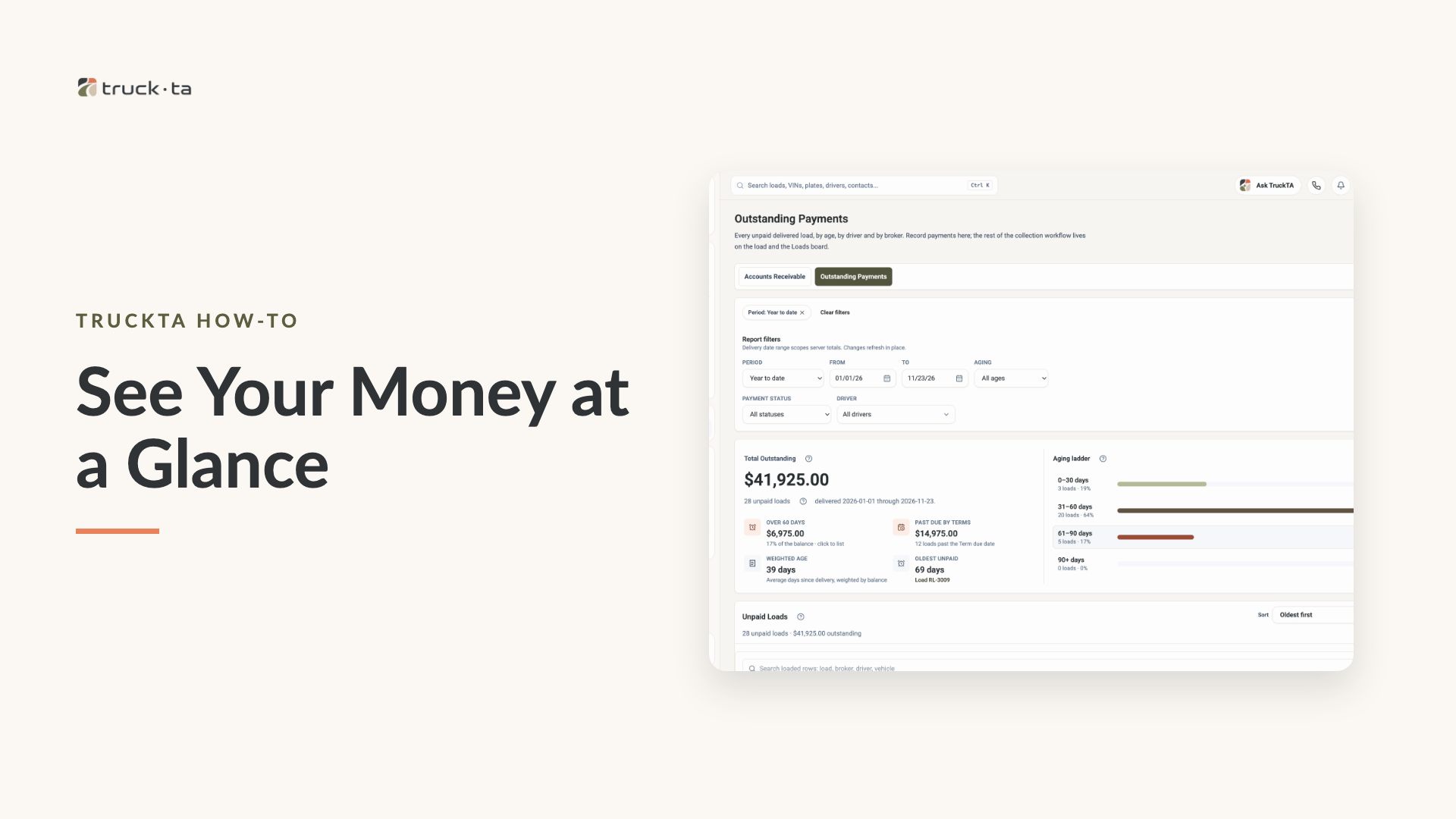
See Your Money at a Glance in TruckTA
Open Finance Center to see delivered loads needing invoices, unpaid balances, this week’s driver pay, and truck earnings. Then choose your next step.
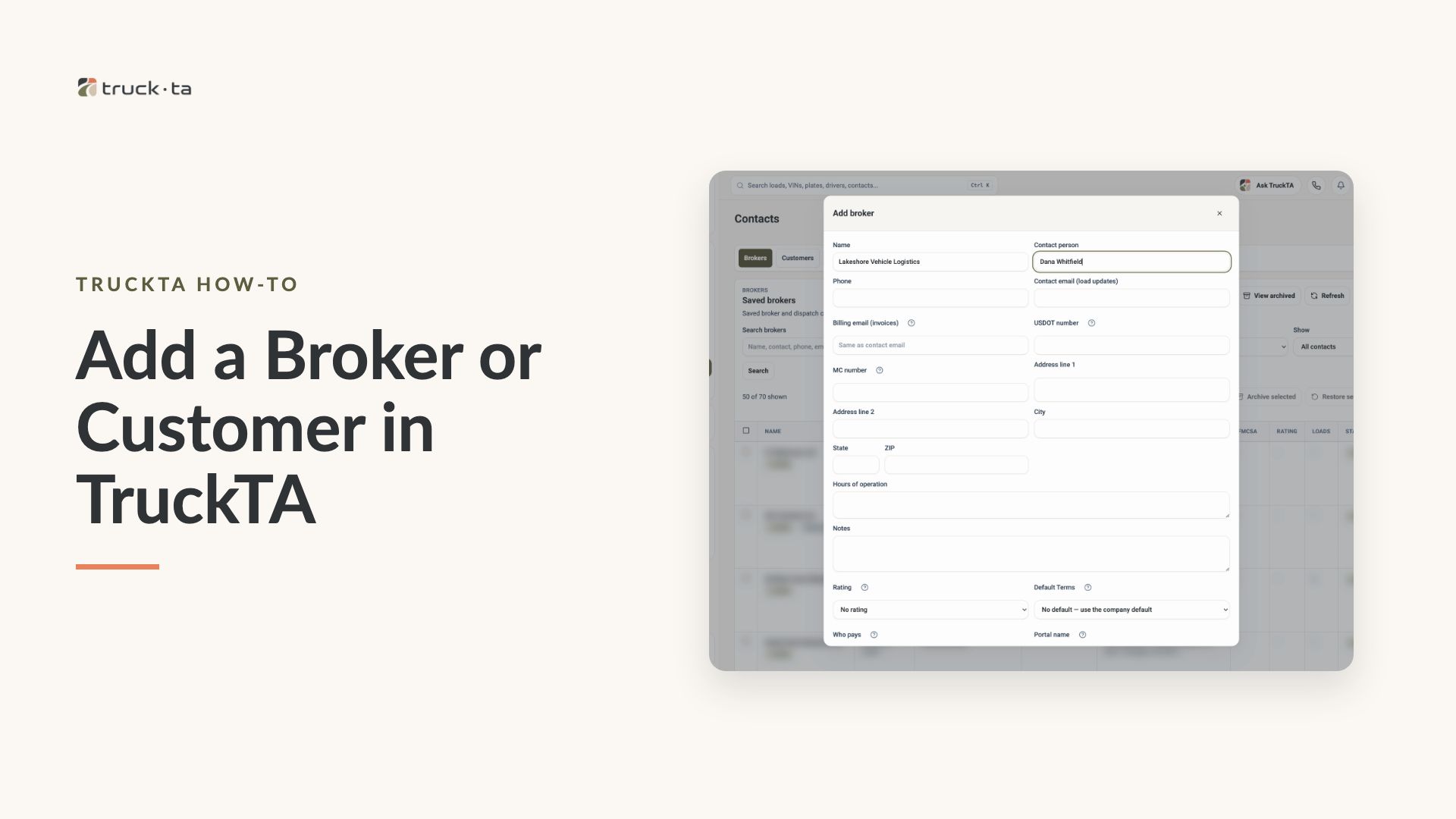
Add a Broker or Customer in TruckTA
Save brokers, pickup and delivery places, and the people you work with in TruckTA. Then select those saved contacts when you create a new load.
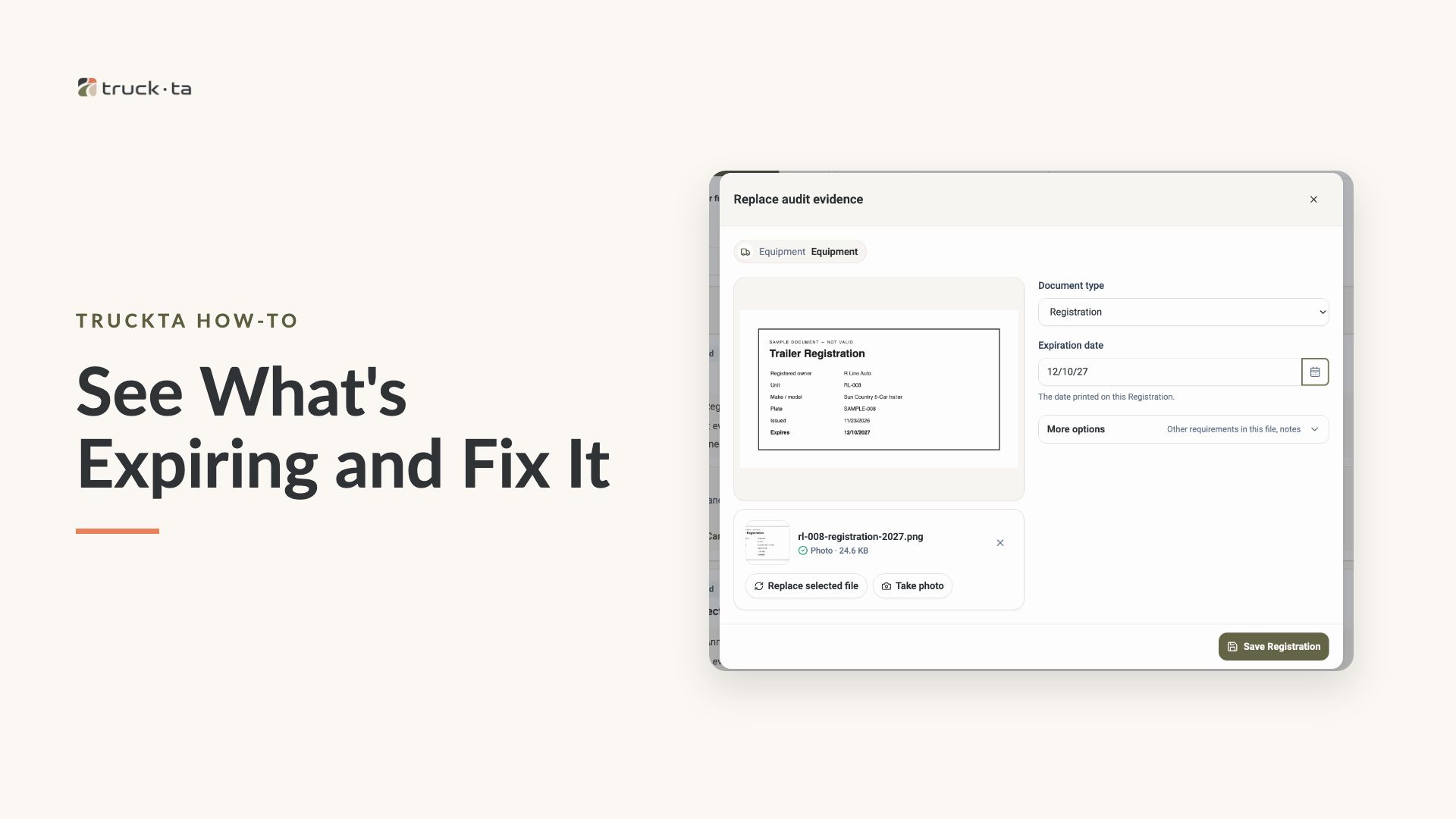
See What's Expiring and Fix It in TruckTA
Use Audit Readiness in TruckTA to find expiring documents, replace a registration, and confirm that the Expired / expiring count goes down.