
See What's Expiring and Fix It in TruckTA
Use Audit Readiness in TruckTA to find expiring documents, replace a registration, and confirm that the Expired / expiring count goes down.
By TruckTA Team · Product guidance
Reviewed by TruckTA ·
This tutorial uses an AI-generated voice. The video and article explain the same reviewed TruckTA workflow.
Put the workflow to work
Solve the task with TruckTA
In this article
Last updated: November 2026
You need to find your expiring truck documents and replace them before they run out. In TruckTA, open Audit Readiness from the Compliance Center, filter by Expiring soon, and replace the document on its card. After saving, check that the item clears and the count goes down.
This walkthrough follows the registration replacement in “See What's Expiring and Fix It.” You'll identify the trailer record, upload the new registration, and enter its expiration date. Keep the new document handy when you're ready to make the replacement.
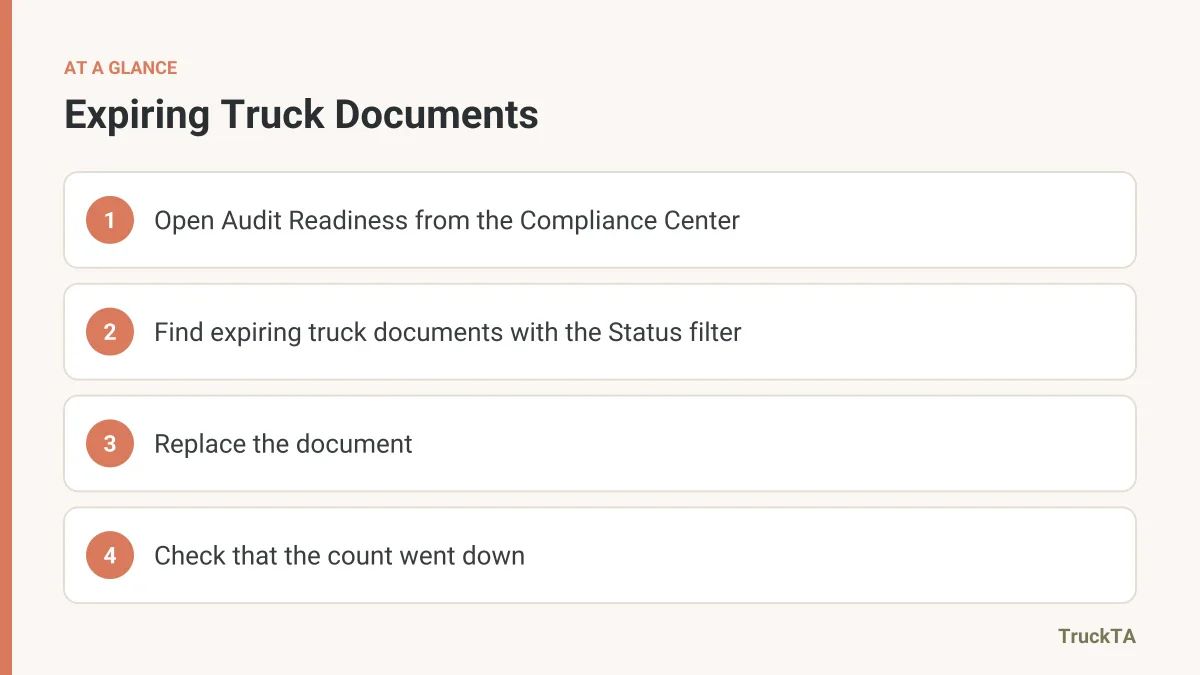
Open Audit Readiness from the Compliance Center
Start with the Expired / expiring card
First, go to the Compliance Center. Select Audit Readiness, which sits right below it in the sidebar. This is the starting point for finding the documents that need attention and replacing the registration shown in this walkthrough.
At the top, you'll see your readiness score. Next to it is the Expired / expiring card. That card counts documents that have already expired or are about to expire. For this task, pay attention to that document count.
Before moving down the page, note the count you see. You'll compare it after saving the replacement. The score and the document count sit beside each other, but the count is the confirmation used in this workflow.
For related reading, see Car-Hauling Recordkeeping Checklist: Records to Build Before Your First Move.
Find expiring truck documents with the Status filter

Choose Expiring soon and read the matching card
Next, scroll down to the filters. Under Status, choose Expiring soon. The list now shows only those items, so you can work from the documents approaching expiration rather than the combined count at the top.
Each card tells you what needs attention, which record it belongs to, and when it expires. Read those details together. You're looking for the document and its associated record, not just an expiration date that catches your eye.
For example, the trailer registration in this walkthrough expires on December 10th. Its card connects that registration to the trailer record. When the new registration arrives, that is the card you'll use to make the replacement.
However, the filtered list and the top card serve different purposes. Expiring soon narrows the list to approaching expirations. Expired / expiring counts both expired documents and those about to expire. Keep that distinction in mind when reading the page.
Related reading: Car-Hauling Equipment Checklist: Launch-Ready Review for Fleets and Drivers.
Replace the document

Upload the new registration from its card
When the new registration arrives, select Replace on that card. Start from the item you identified in the filtered list. The replacement action belongs to the card, so keep your attention on the trailer record you're updating.
Then add the new registration. You can drop the file into the upload area or click to browse your files. Choose either method to supply the replacement document; you don't need to use both.
At this point, you're moving from finding expiring truck documents to replacing the selected file. Keep the new registration available for the next part: entering the expiration date printed on that document.
Enter the new expiration date and save
Next, type the new expiration date. Use the date printed on the replacement registration, not the date on the old card. The December 10th date in the example identifies the registration that needs attention; it isn't a replacement date to copy.
Once you've added the file and entered its expiration date, select Save Registration. Uploading the file and saving the registration are separate actions in this sequence. Continue through the save before checking whether the item has cleared.
Check that the count went down
Confirm the replacement cleared
After you save the new registration, it leaves the Expiring soon list. Check the Expired / expiring card as well: its count goes down by one. Those are the changes to look for after completing this replacement.
The list change relates to the registration you just updated. The count change gives you the matching confirmation at the top of Audit Readiness. Compare it with the count you noted before opening the replacement.
Make the next review a weekly task
Check Audit Readiness once a week and replace documents before they run out. If something has already expired, choose Expired under Status and fix it first. That gives you a clear priority when returning to the page.
For related reading, see Fleet Management Checklist.
Try this workflow in TruckTA: open Audit Readiness and choose Expiring soon to find your expiring truck documents. If a replacement registration has arrived, select its card and put the process into practice.
Frequently asked questions
What happens to the old registration after I replace it?
TruckTA keeps the old copy as history. Replacing the registration doesn't discard that previous copy.
Are registrations the only documents mentioned in this workflow?
Registrations, inspections, and medical cards are all mentioned as documents that expire. The replacement example here follows a trailer registration.
Does a lower count mean every expired or expiring document has cleared?
Not necessarily. The registration replacement reduces the Expired / expiring count by one. That change confirms the selected registration cleared; it doesn't mean the other items counted on the card have been replaced.
Read the video transcript
Registrations, inspections and medical cards all run out. In a few minutes, you'll see what's expiring in TruckTA, replace it, and watch it clear. You're in the Compliance Center. To see what's expiring, select Audit Readiness. It's right below, in the sidebar. At the top is your readiness score. Next to it, the Expired / expiring card counts documents that are expired, or about to expire. Scroll down to the filters. Under Status, choose Expiring soon. The list now shows only those items. Each card tells you what needs attention, which record it belongs to, and when it expires. This trailer's registration runs out on December 10th. When the new document arrives, select Replace on that card. Drop in the new registration, or click to browse your files. Type the new expiration date, the one printed on the document. Then select Save Registration. The registration leaves the list, and the Expired / expiring count goes down by one. The old copy is kept as history. Check Audit Readiness once a week. Replace documents before they run out. And if something has already expired, choose Expired and fix it first.
Put it into practice
Keep your operation moving with TruckTA.
More ways to use TruckTA
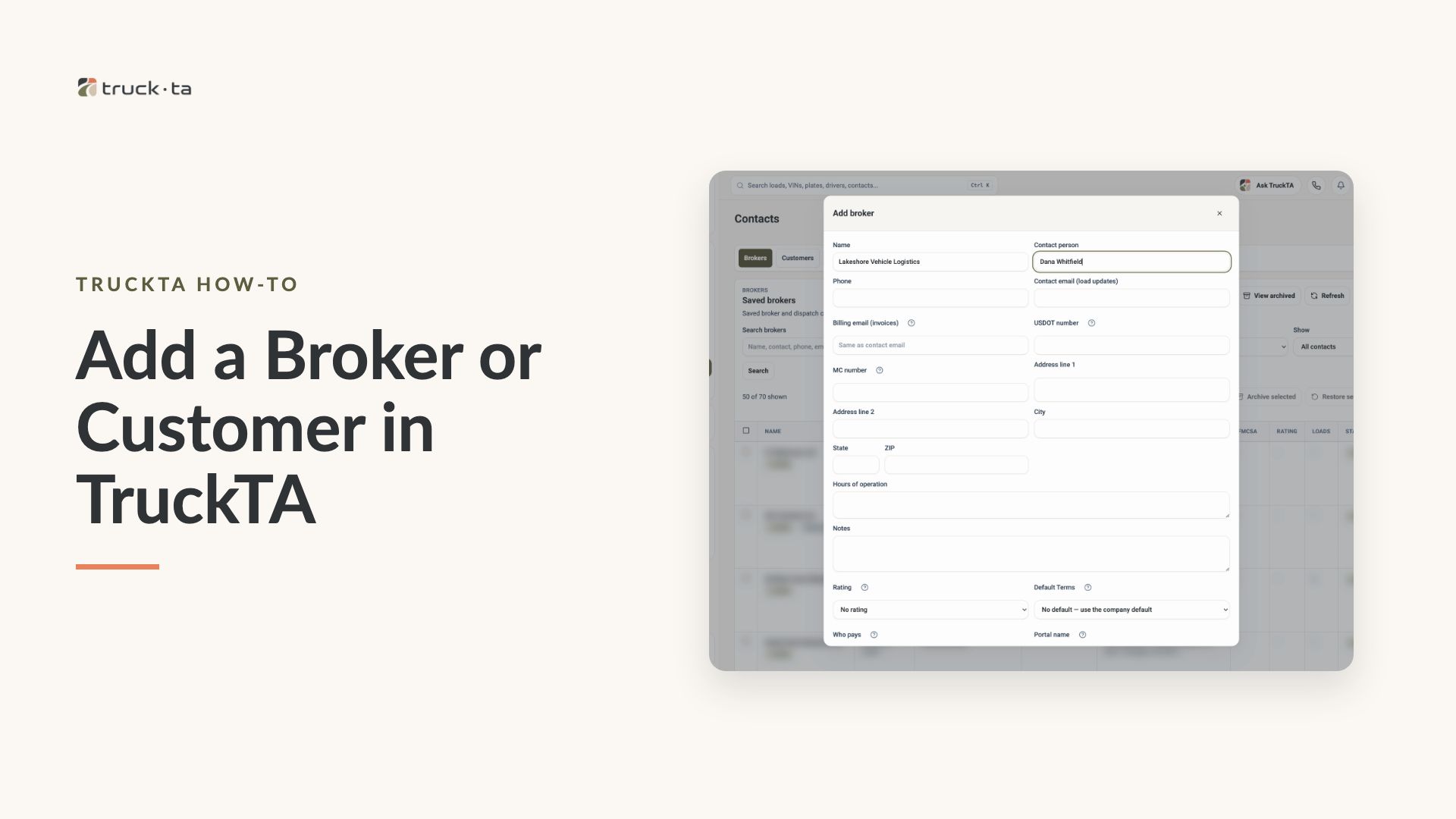
Add a Broker or Customer in TruckTA
Save brokers, pickup and delivery places, and the people you work with in TruckTA. Then select those saved contacts when you create a new load.
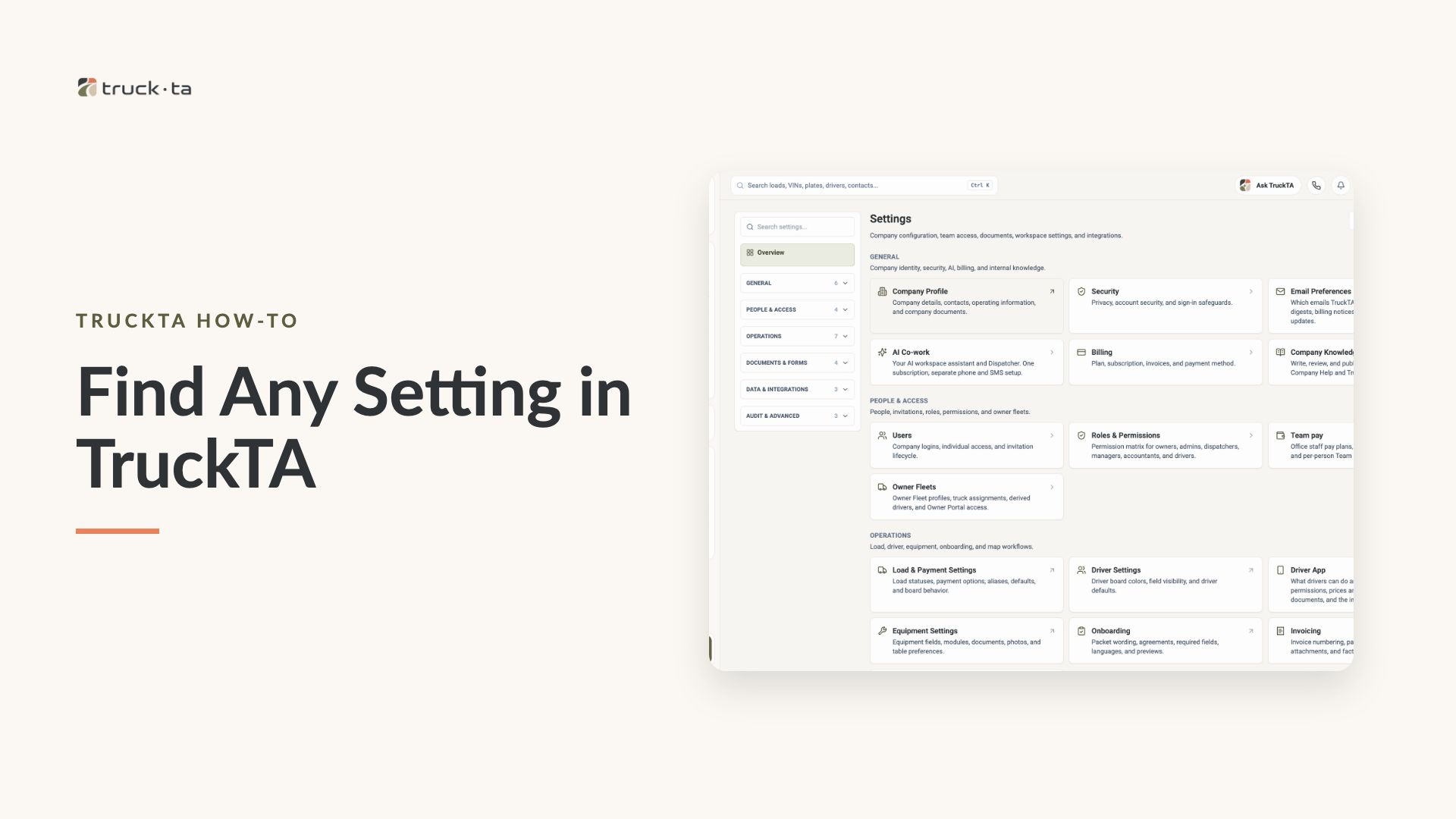
Find Any Setting in TruckTA
Find the company setting you need by browsing sections or searching, open its page, and use the right control to get back to Settings.
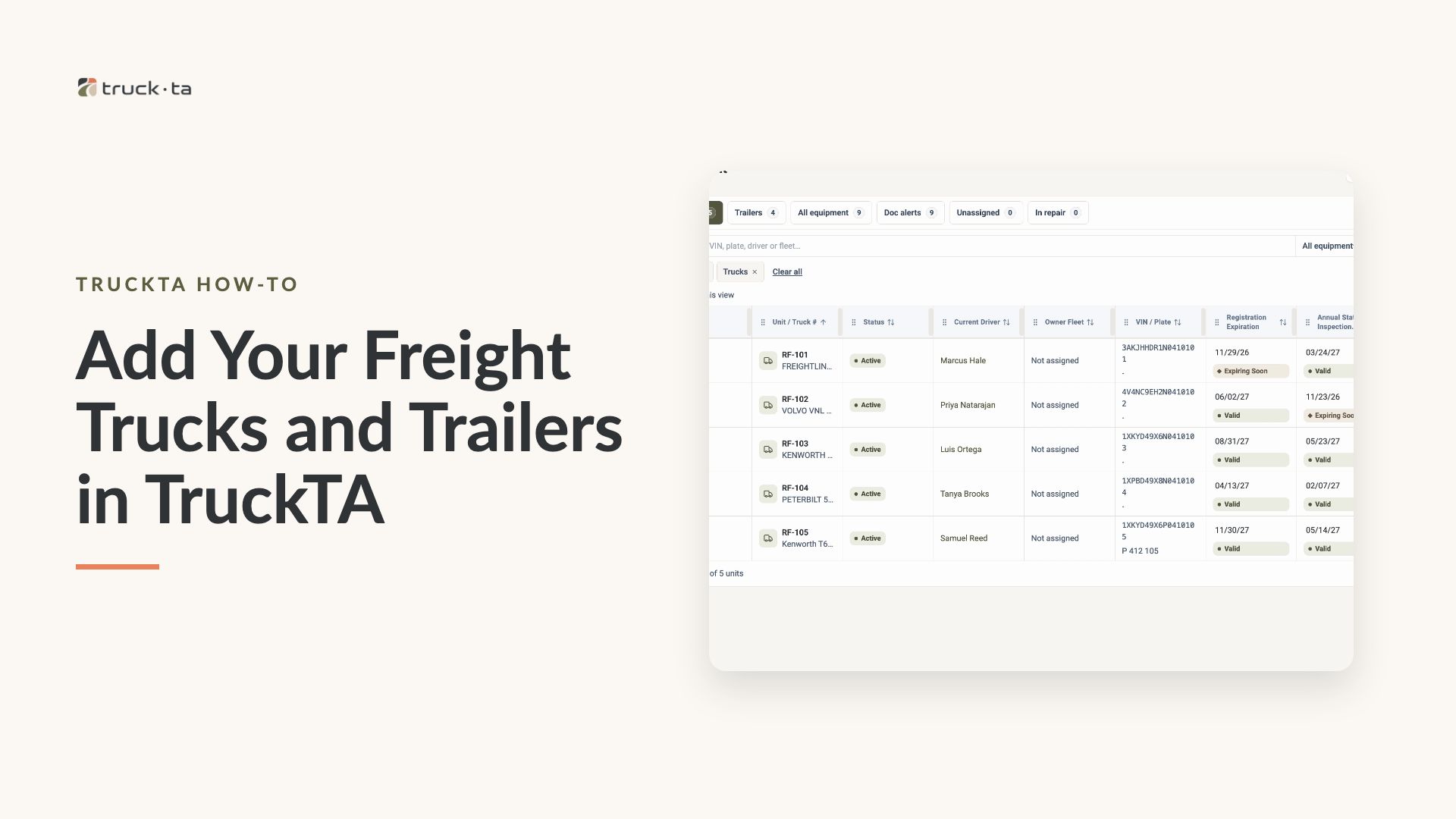
Add Your Freight Trucks and Trailers in TruckTA
Add your freight truck and trailer in TruckTA, enter registration and inspection dates, save equipment documents, and pair both units through their shared driver.