
Find Any Setting in TruckTA
Find the company setting you need by browsing sections or searching, open its page, and use the right control to get back to Settings.
By TruckTA Team · Product guidance
Reviewed by TruckTA ·
This tutorial uses an AI-generated voice. The video and article explain the same reviewed TruckTA workflow.
Put the workflow to work
Solve the task with TruckTA
In this article
Last updated: November 2026
Need to change a company setting but don’t know where to find it? Open TruckTA Settings from the bottom of the Dashboard sidebar, then browse the sections or search for the setting. Select the result to open its page. To return, use Overview inside Settings or Back to settings from a page opened outside it.
This walkthrough follows the “Find Any Setting in TruckTA” video. You’ll follow the browsing example with Reminders, the search example with payment terms, and the return path from Load & Payment Settings. The task here is finding and opening the right page.
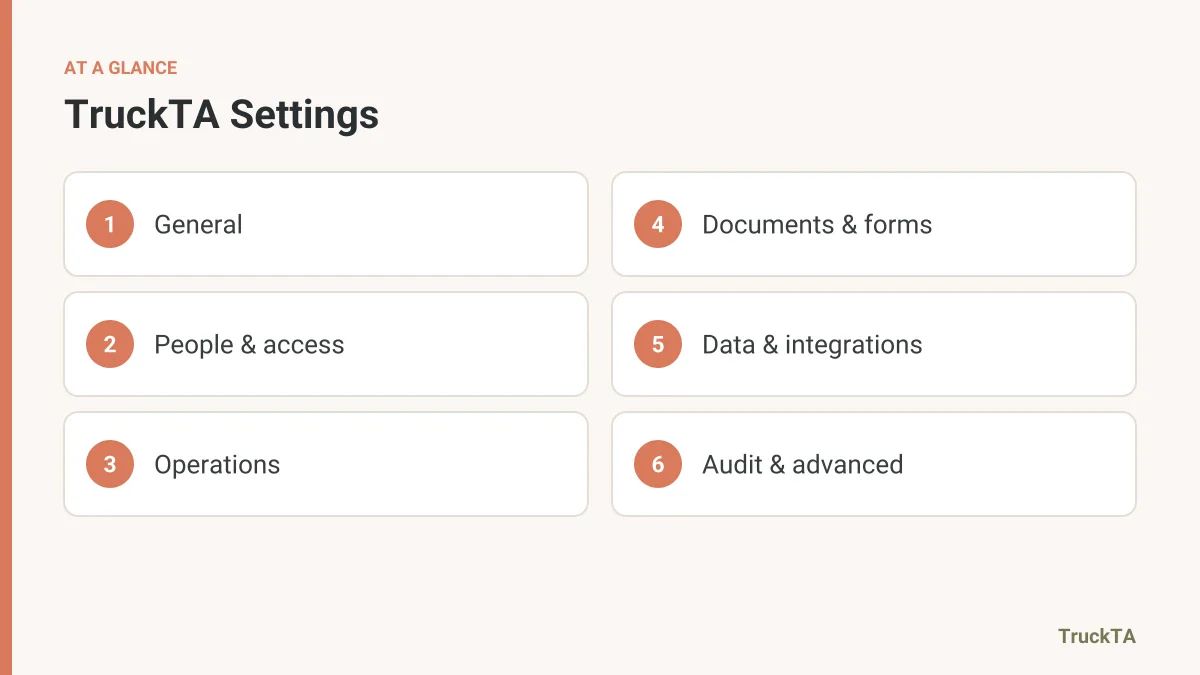
Open Settings
Start at the bottom of the Dashboard sidebar
From the Dashboard, look at the bottom of the sidebar and select Settings. Every company setting lives on this page. Start here whether you’re looking for a familiar page or only know the setting you need.
Once the page opens, you’ll see cards grouped into sections. Each card names an area and tells you what’s inside. Read those descriptions before choosing a card, especially when the setting’s name differs from the page name.
For example, Invoicing covers invoice numbering, payment terms, remit-to, and factoring. If your task concerns payment terms, that description points you toward Invoicing without requiring you to open a page just to see whether it’s the right one.
Browse by section
Use the section names and page counts
When you know the general area, browse the sections. TruckTA Settings groups company settings into these six sections. The list on the left uses the same section names, so you can use it to choose an area.
- General
- People & access
- Operations
- Documents & forms
- Data & integrations
- Audit & advanced
The number beside each section shows how many pages it holds. Use that number as a page count while you browse. Then choose the section by name rather than trying to remember where an individual card sits.
Open Documents & forms, then Reminders
To follow the browsing example, select Documents & forms in the list on the left. Then choose Reminders. The Reminders page opens, taking you from the section to the specific page you wanted.
Once it opens, Reminders stays highlighted on the left. That highlight tells you where you are. If you pause to answer a driver or dispatcher, look for the highlighted page when you turn back to the task.
Search for a setting
Try the payment-terms example
If you don’t know which section holds a setting, use Search settings. You don’t have to start by choosing a section. In the video’s example, the starting point is the term net 30, rather than a section name.
Select Search settings and type net 30. The results show whole sections and the settings inside them. Next, look for Payment terms and remit-to in Invoicing. Select that result, and the Invoicing page opens.
Notice the difference between the result and its destination. You searched for net 30 and selected Payment terms and remit-to; the page that opens is Invoicing. That’s the path to follow when practicing this search example.
Get back to TruckTA Settings
Select Overview from a settings page
After opening Invoicing through search, select Overview at the top of the list. You’re back on the Settings page. This is the return control shown for moving from a page inside Settings to the overview.
At this point, you’ve completed the search-and-return path in TruckTA Settings. The next example uses a different return control because some cards take you to a page outside Settings. Look for the card’s small arrow before opening it.
Use Back to settings from an outside page
A small arrow in a card’s corner marks a page that opens outside Settings. To follow this example, select Load & Payment Settings. Then, when you want to return, select Back to settings.
The distinction is the return control: Overview brings you back from within Settings, while Back to settings returns you from the outside page shown in this example. Follow the control for the page you’ve opened.
Reopen a page with Jump back in
Back on the Settings page, look at the top under Jump back in. The pages you’ve opened now appear there. Select one to go straight back to it when you need to revisit that page.
Keep the video’s three reminders in mind: browse the sections when you know the area, search when you don’t, and select Overview to come back. Those are the basic choices to remember the next time you need a setting.
Try the workflow in TruckTA: open Settings from the Dashboard, search for net 30, and open Payment terms and remit-to in Invoicing. Then select Overview to return.
Frequently asked questions
What’s a useful search example to try first?
Try net 30. Select Search settings, enter the term, and choose Payment terms and remit-to in Invoicing.
How can I tell a colleague where to find Reminders?
Give them the browsing path: from the Dashboard, select Settings at the bottom of the sidebar, select Documents & forms, then choose Reminders.
Which return control should I use after opening Load & Payment Settings?
Select Back to settings. Load & Payment Settings is the video’s example of a card that opens a page outside Settings.
Read the video transcript
Every company setting in TruckTA lives on one page. In the next few minutes, you'll learn to find the setting you need, and open it in seconds. From the Dashboard, select Settings at the bottom of the sidebar. The Settings page groups everything into six sections, from General down to Audit and advanced. Each card names one area and tells you what's inside. Invoicing, for example, covers invoice numbering, payment terms, remit-to, and factoring. The list on the left has the same sections. The number beside each one shows how many pages it holds. Select Documents and forms to open it. Then choose Reminders. The Reminders page opens. On the left, Reminders stays highlighted, so you always know where you are. Not sure which section a setting is in? Search for it. Select Search settings and type net 30. The results show whole sections, and the settings inside them. Payment terms and remit-to is in Invoicing. Select it, and the Invoicing page opens. To go back, select Overview at the top of the list. You're on the Settings page again. Some cards open a page outside Settings. A small arrow in the corner marks them. Select Load and Payment Settings. To return, select Back to settings. The pages you've opened now show at the top, under Jump back in. Select one to go straight back to it. Browse the sections when you know the area. Search when you don't. And select Overview to come back anytime.
Put it into practice
Keep your operation moving with TruckTA.
More ways to use TruckTA
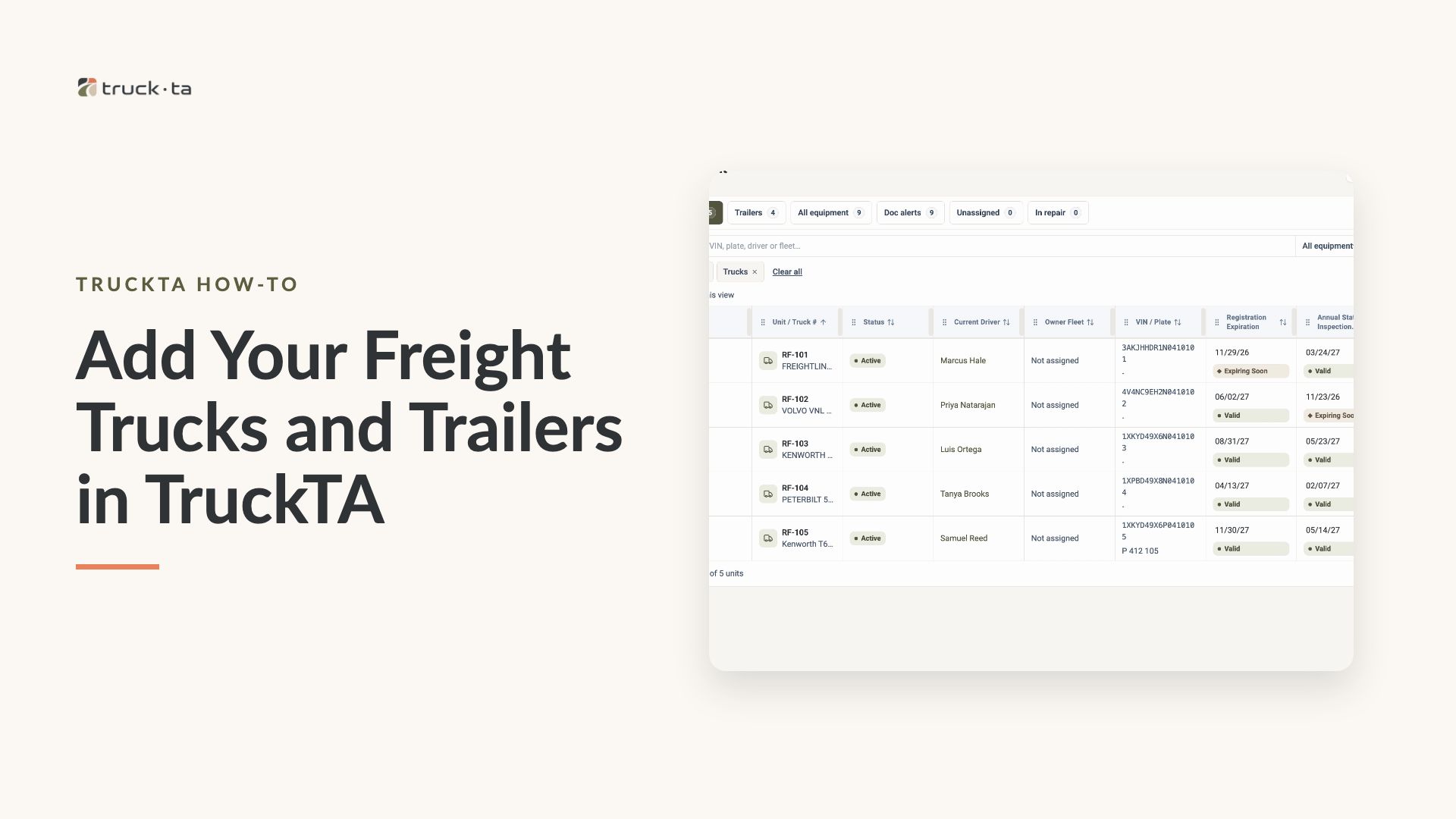
Add Your Freight Trucks and Trailers in TruckTA
Add your freight truck and trailer in TruckTA, enter registration and inspection dates, save equipment documents, and pair both units through their shared driver.
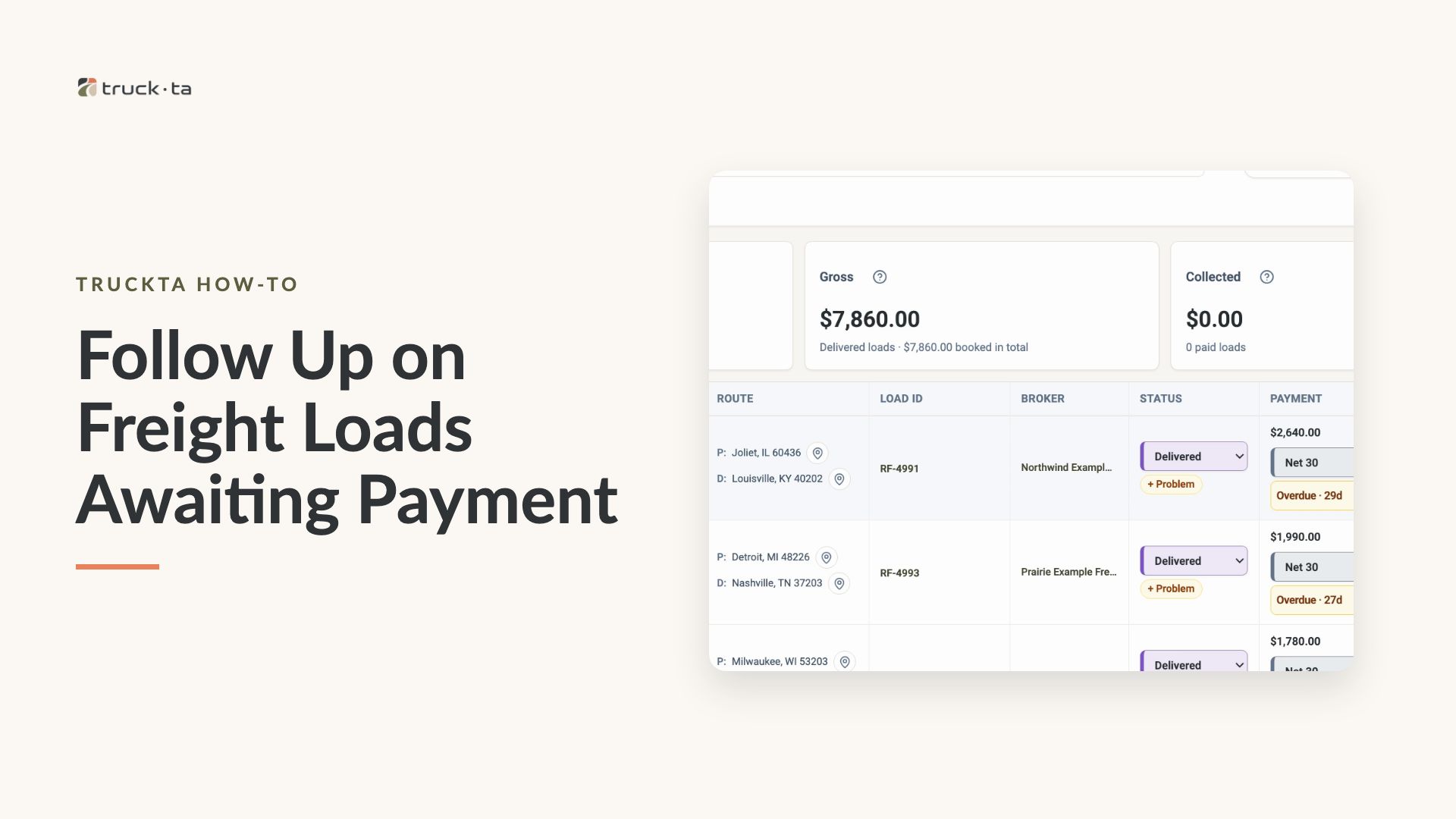
Follow Up on Freight Loads Awaiting Payment
Find unpaid freight loads in TruckTA, put overdue invoices first, and record full or partial broker payments as the money arrives.
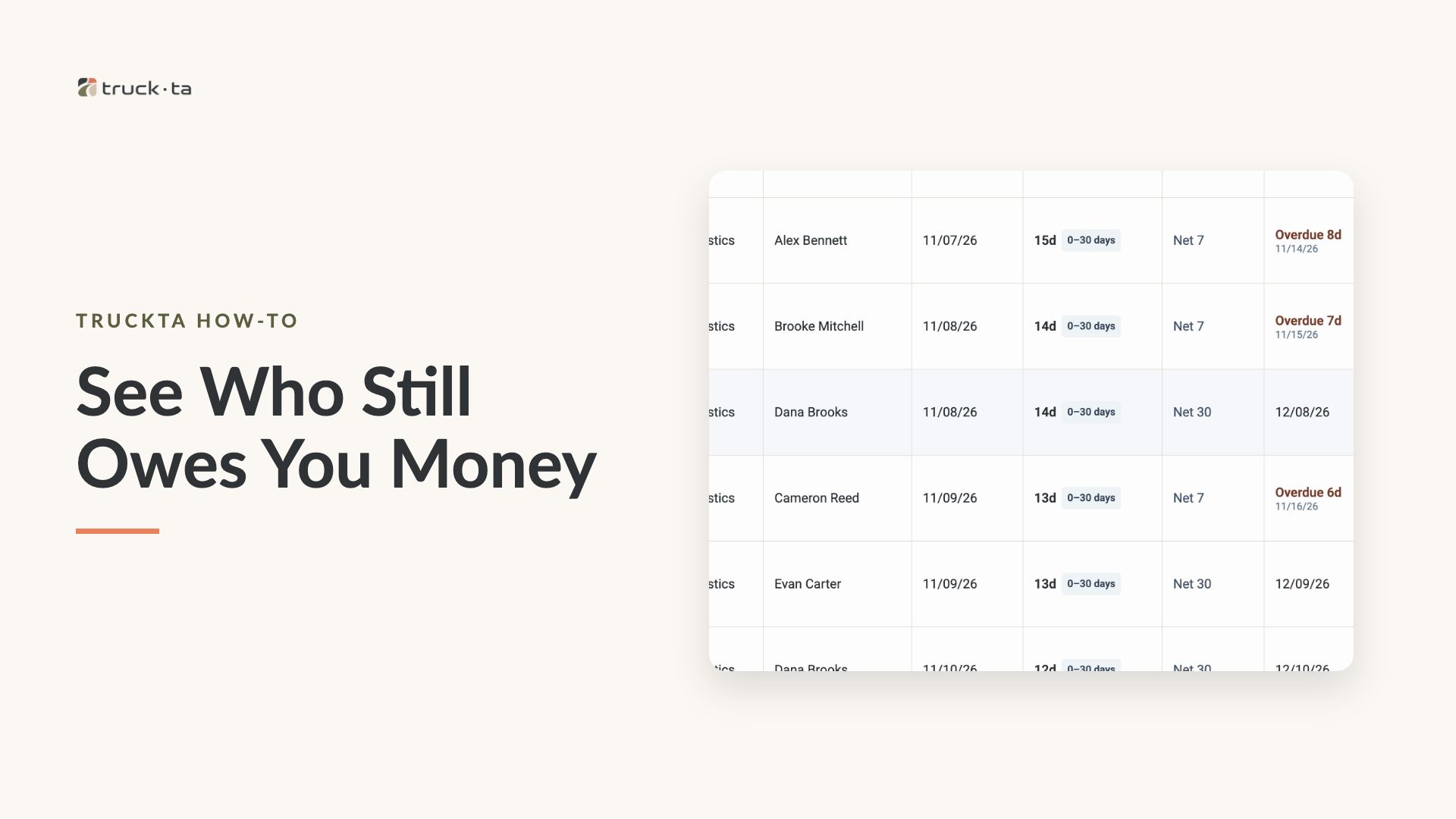
See Who Still Owes You Money
Find unpaid delivered loads in TruckTA, separate aging from overdue balances, identify who needs a call, and record a broker payment when it arrives.