
See Who Still Owes You Money
Find unpaid delivered loads in TruckTA, separate aging from overdue balances, identify who needs a call, and record a broker payment when it arrives.
By TruckTA Team · Product guidance
Reviewed by TruckTA ·
This tutorial uses an AI-generated voice. The video and article explain the same reviewed TruckTA workflow.
Put the workflow to work
Solve the task with TruckTA
In this article
Last updated: November 2026
Delivered loads are off the truck, but the money still hasn't arrived. To check outstanding payments in TruckTA, open Finance Center, select Outstanding, review the late loads, and record each payment when the broker pays.
This walkthrough accompanies “See Who Still Owes You Money” and follows the same sequence. For a related billing resource, keep Car Hauling Accounts Receivable Checklist: From POD to Payment alongside your review.
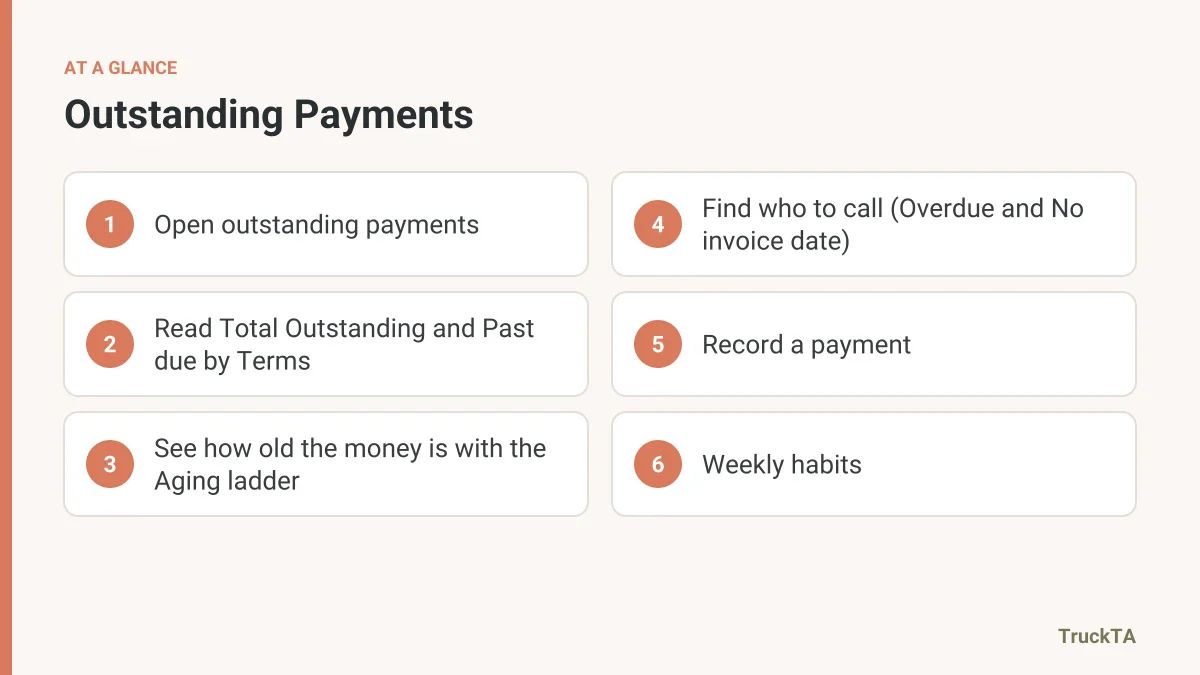
Open outstanding payments
Start from the Dashboard
From the Dashboard, open Finance Center in the sidebar. Then select the Outstanding card. This is where you can see what's still owed on delivered loads and record payments against those loads.
Start with the money still unpaid, rather than treating delivery as the end of the job. Next, read the totals before choosing which loads to examine. The total balance and the late balance answer different questions.
Read Total Outstanding and Past due by Terms
Separate everything owed from what's late
Total Outstanding is everything you're still owed on delivered loads. Past due by Terms is the portion already late, based on each load's payment terms. Read the first as the whole balance and the second as the late portion.
However, don't treat every unpaid load as overdue. A load belongs in the total because it hasn't been paid; its payment terms determine whether it's late. That distinction matters when you decide which broker needs a payment call.
See how old the money is with the Aging ladder
Choose a delivery-age bucket
The Aging ladder splits the money by how many days have passed since delivery. Older money sits lower on the ladder. Next, click a bucket to list only the loads in that delivery-age group.
For example, the video selects loads delivered in the last 30 days. Use that view to narrow the list you're reading, rather than working through every unpaid delivered load together.
However, delivery age isn't the same as lateness. The ladder measures time since delivery, while Past due by Terms uses payment terms. When reviewing outstanding payments, keep those measures separate: how old the load is, and when payment is due.
Find who to call (Overdue and No invoice date)

Read the broker and payment status together
Each row shows the broker, how old the load is, and when payment is due. A red Overdue label means the due date has passed. Call about those loads first, using the broker shown on the row.
By contrast, No invoice date means you haven't sent the invoice yet, so the payment clock hasn't started. Don't read that label as another way of saying overdue. It points to an invoice that hasn't been sent.
For related billing work, keep Car Hauler Load File Checklist for Billing handy. Here, focus on the distinction in front of you: a passed due date versus an invoice not yet sent.
Record a payment
Enter the payment against the load
When a broker pays, select Record payment on that load. The form fills in the balance that's left. Then choose how you were paid. For the check payment shown in the video, choose Check and type the check number.
Next, select Save Collection. The load leaves the list, and the total above it goes down by that amount. Those are the changes shown after saving the payment in this walkthrough.
Weekly habits
Keep the review and payment entry on different schedules
Check outstanding payments every week, but record each payment the day it arrives. That separates your regular review from payment entry. You don't need to hold an arrived payment until the next weekly review.
For a separate month-end resource, bookmark Monthly Bookkeeping Checklist for a Trucking Company: Month-End Closeout. Keep this walkthrough focused on the delivered loads still awaiting payment and the payments ready to record.
Now try the workflow in TruckTA: open Finance Center from your Dashboard and select the Outstanding card. Start with the total owed, then work into the loads that need your attention.
Frequently asked questions
Does this walkthrough cover recording a partial payment?
No. It shows the form filling in the remaining balance and the load leaving the list after Save Collection. Partial-payment handling isn't established here.
Can I send an invoice from this view?
Invoice sending isn't demonstrated in this walkthrough. It explains the No invoice date label, but doesn't provide an invoice-sending action or sequence.
Does this workflow send automatic payment reminders?
Automatic reminders aren't established in this walkthrough. The follow-up action shown is to call about overdue loads.
Read the video transcript
Delivered loads that aren't paid yet add up fast. Outstanding Payments shows what you're owed, how long it's been, and lets you record each payment. From the Dashboard, open Finance Center in the sidebar. Then select the Outstanding card. Total Outstanding is everything you're still owed on delivered loads. Past due by Terms is the part that's already late, based on each load's payment terms. The Aging ladder splits that money by how many days have passed since delivery. The older the money, the lower it sits on the ladder. Click a bucket to list just those loads. Here, it's the loads delivered in the last 30 days. Each row shows the broker, how old the load is, and when payment is due. Red Overdue means the due date has passed. Call about the overdue loads first. No invoice date means you haven't sent the invoice yet, so the payment clock hasn't started. When a broker pays, select Record payment on that load. The form fills in the balance that's left. Choose how you were paid, like Check, and type the check number. Then select Save Collection. The load leaves the list, and the total above it goes down by that amount. Check Outstanding Payments every week. Call about the overdue loads first. And record each payment the day it arrives.
Put it into practice
Keep your operation moving with TruckTA.
More ways to use TruckTA
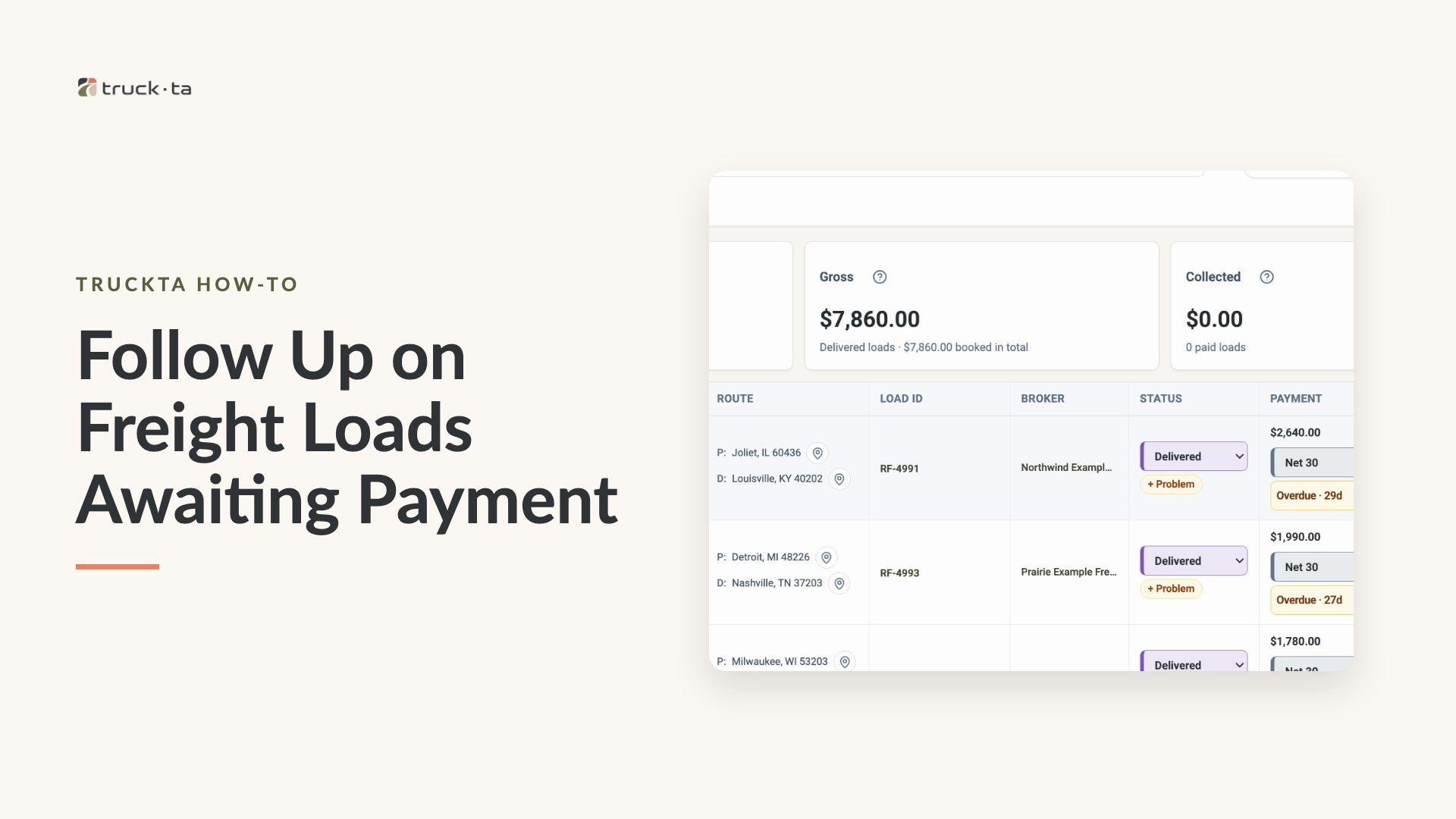
Follow Up on Freight Loads Awaiting Payment
Find unpaid freight loads in TruckTA, put overdue invoices first, and record full or partial broker payments as the money arrives.
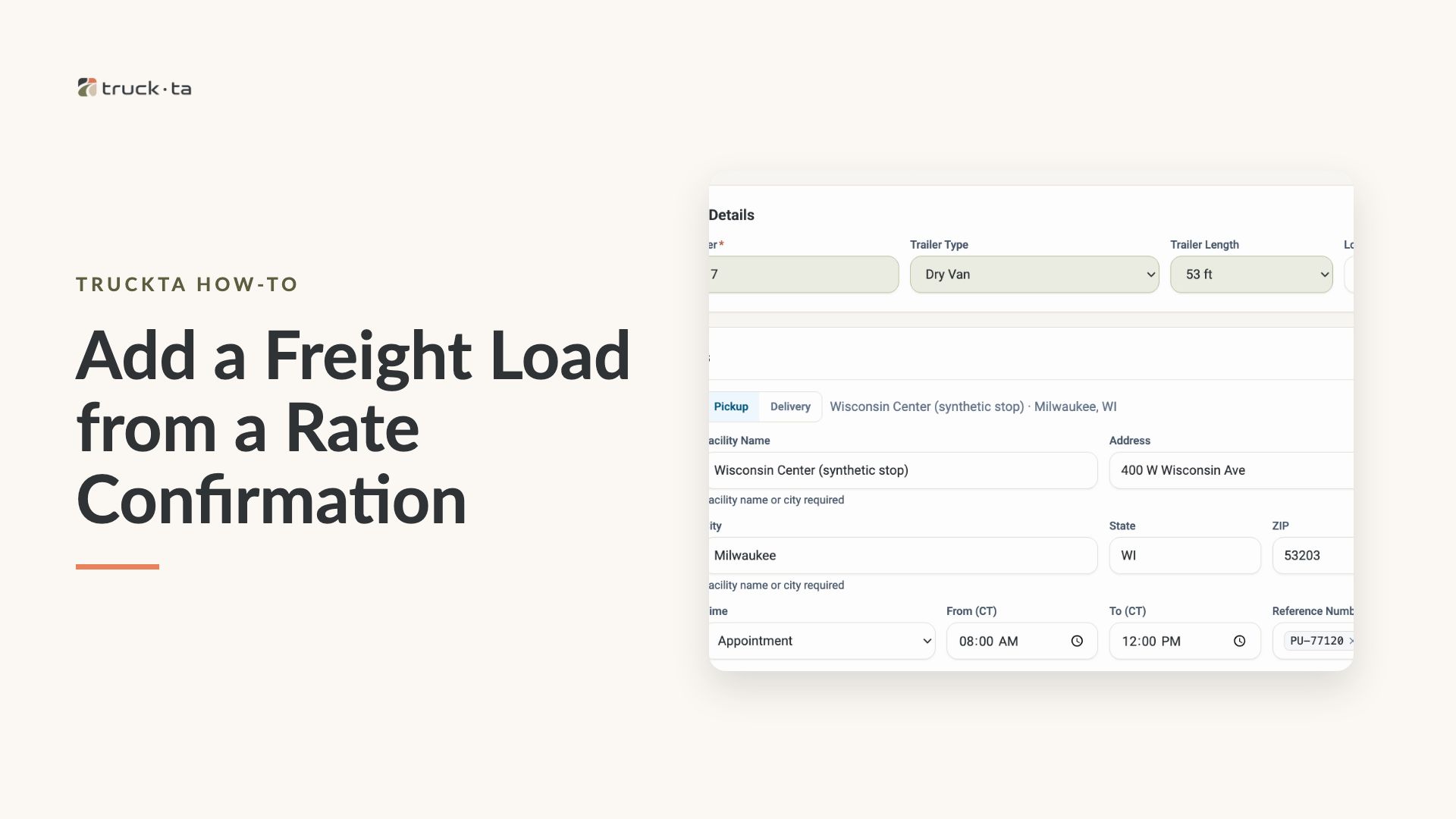
Add a Freight Load from a Rate Confirmation
Use your broker's PDF or photo to fill a freight load in TruckTA, check the highlighted fields, assign the driver, and confirm the dates.
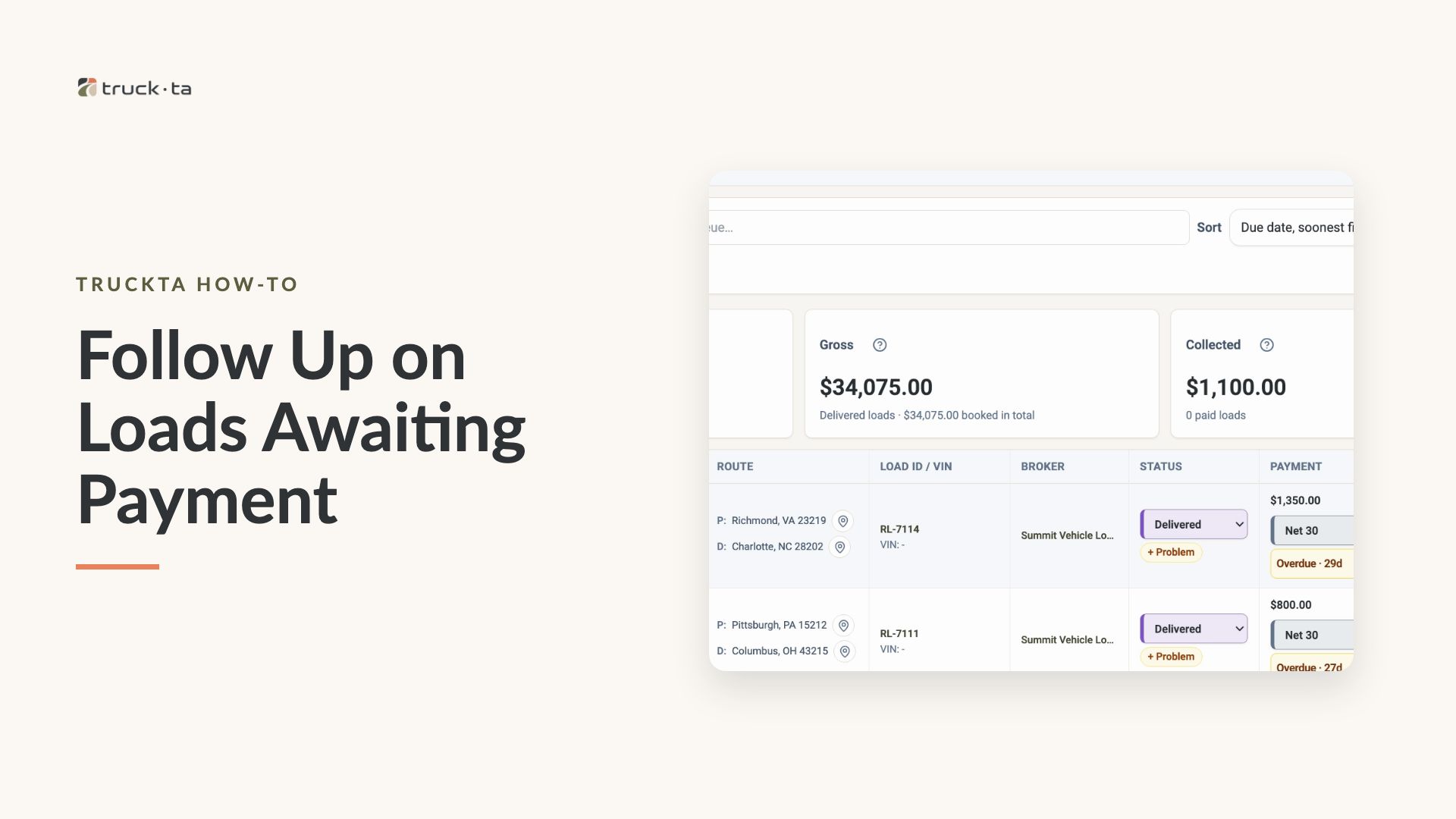
Follow Up on Loads Awaiting Payment
See which loads still need payment, bring overdue invoices to the top, and record full or partial payments in TruckTA.