
See Your Money at a Glance in TruckTA
Open Finance Center to see delivered loads needing invoices, unpaid balances, this week’s driver pay, and truck earnings. Then choose your next step.
By TruckTA Team · Product guidance
Reviewed by TruckTA ·
This tutorial uses an AI-generated voice. The video and article explain the same reviewed TruckTA workflow.
Put the workflow to work
Solve the task with TruckTA
In this article
Last updated: November 2026
You need to know which delivered loads need billing, what’s still unpaid, and what this week’s driver pay looks like. For a quick look at your Trucking Company Finances, open Finance Center from the Dashboard sidebar. The cards point you toward the work behind each total.
This guide accompanies “See Your Money at a Glance.” Follow the same route as the video: check money you’re waiting for, review this week’s pay and trucks, then choose the next how-to for the task you need to handle.
Open Finance Center for Trucking Company Finances
Start from the Dashboard sidebar
From the Dashboard, select Finance Center in the sidebar. You’ll land on four cards: Accounts Receivable, Outstanding, Driver Settlements, and Truck Summary. Each shows a total, includes a short explanation, and opens the page behind it.
First, read the explanation beneath the figure rather than treating every amount as the same kind of money. A delivered load waiting for an invoice calls for a different next step than reviewing the amount you’ll pay drivers.
Keep the reporting periods separate
Accounts Receivable and Outstanding show year-to-date totals. By contrast, Driver Settlements and Truck Summary cover the current week. Keep those periods in mind as you move across the screen, especially when you’re checking both customer balances and weekly pay.
For a separate month-end task, bookmark Monthly Bookkeeping Checklist for a Trucking Company: Month-End Closeout. For now, stay with the Finance Center cards and open the one that matches the question you need answered.
Money you’re waiting for

Read Accounts Receivable, then Outstanding
Start with Accounts Receivable. The first number tells you how many delivered loads still need an invoice. The second shows what those loads are worth, this year so far. Read the count and value together before opening the card.
Next, look at Outstanding. This is money for delivered loads that hasn’t been paid yet. The line underneath shows how many loads remain unpaid. Here, the question is what you’re still waiting to receive, rather than which loads need an invoice.
For example, when you sit down to bill delivered loads, start with Accounts Receivable. If you’re checking unpaid balances instead, turn to Outstanding. Choose by the task, not simply by whichever figure catches your eye first.
Open the loads behind the totals
Select Accounts Receivable to see those loads. Invoice Needed shows the same total, and the list below contains each load waiting for an invoice. You’ve now moved from the overview to the individual loads behind that billing work.
Then return to Finance Center and select Outstanding. The page behind this card is Outstanding Payments. It shows every unpaid load by age, so you can spot balances that are getting old rather than stopping at the overall amount.
That’s the useful distinction when reviewing your Trucking Company Finances: a total tells you where to look; the load list gives you something specific to follow up on. Keep your attention on the question that brought you into the page.
For related reading, save Car Hauler Load File Checklist for Billing. However, there’s no need to leave this walkthrough yet. Return to Finance Center when you’re ready to check the weekly side.
This week’s pay and trucks

Read Driver Settlements before opening the pay run
Back in Finance Center, look at Driver Settlements. This card shows what you’ll pay your drivers for loads delivered this week, after expenses. It answers the weekly pay question, separate from the customer money shown on the earlier cards.
Next, select Driver Settlements to open the pay run. Pay attention to the week when the page opens. The card covers this week, but the pay run starts on last week. You need to move it forward.
Use the arrow to move to this week
Select the arrow to move from last week to this week. Net to pay now shows this week’s amount. Make that change before reading the pay run as the detail behind the current-week Driver Settlements card.
For example, if you open the pay run to answer a question about this week’s driver pay, change the week first. Otherwise, you’re reading last week’s pay run while thinking about the current-week figure you just saw.
Return for Truck Summary
Then go back to Finance Center once more and check Truck Summary. This card shows what your trucks earned this week, how many trucks ran, and which unit earned the most. Read those details as the weekly truck view.
You might arrive with a specific question: which unit earned the most this week? Truck Summary gives you that answer alongside the earnings and truck count. Keep that question separate from the driver-pay amount you checked in the pay run.
Where to go next
Choose the how-to that matches the work
Check these cards at the start of every week, then go where the numbers point. Your Trucking Company Finances review doesn’t need to become every finance task at once. Choose the next video according to what needs attention.
- To follow up on unpaid loads, watch “See Who Still Owes You Money”.
- To bill a load, watch “Create and Email an Invoice”.
- To pay a driver, watch “Pay Your Driver with a Settlement”.
- For fuel, watch “Fuel Center: Set Up Cards and Import Monthly Purchases”.
For related fuel reading, you can also bookmark Meet Fuel Center: Your Fuel Purchases, Clearly Connected. Keep it as a separate next step rather than interrupting the card review to start another workflow.
Put the overview to work
Try TruckTA for your next weekly money check: open Finance Center from the Dashboard sidebar, then select the card behind your immediate question. Use that starting point to organize your follow-up instead of jumping between unrelated tasks.
Frequently asked questions
What should I include when sharing a quick money update with someone in the office?
Name the card, the period you checked, and the question that needs follow-up. For example, distinguish a year-to-date unpaid-balance question from a current-week driver-pay question. That keeps the handoff specific without turning it into a full report.
Should I finish every finance task during the weekly check?
Treat the check as a way to choose your next task. You can review the overview first, then set aside time for the billing, unpaid-load, settlement, or fuel workflow that needs your attention.
How should I split follow-up work between an owner and an office manager?
Agree on who will handle each question raised by the review. Keep the assignment concrete, such as reviewing a particular unpaid load or checking the current week’s pay run, rather than giving someone a broad instruction to look at the finances.
Read the video transcript
The Finance Center shows where your money stands, on one screen. You'll see what needs an invoice, what's still unpaid, and what this week looks like. From the Dashboard, open Finance Center in the sidebar. You land on four cards. Each one shows a total, a short line that explains it, and opens the page behind it. Start with Accounts Receivable. The first number is how many delivered loads still need an invoice. The second is what those loads are worth, this year so far. Next to it is Outstanding. That's money for delivered loads that hasn't been paid yet. The line under it shows how many loads are unpaid. Select Accounts Receivable to see those loads. Invoice Needed shows the same total, and the list below has each load that's waiting for an invoice. Now go back to Finance Center and select Outstanding. Outstanding Payments shows every unpaid load by age, so you can spot the balances that are getting old. Go back to Finance Center. Driver Settlements is what you'll pay your drivers for the loads delivered this week, after expenses. Select it to open the pay run. It starts on last week, so select the arrow to move to this week. Net to pay now shows this week's amount. Go back to Finance Center once more. Truck Summary shows what your trucks earned this week, how many trucks ran, and which unit earned the most. Check these cards at the start of every week, then go where the numbers point. To follow up on unpaid loads, watch See Who Still Owes You Money. To bill a load, watch the invoice video. To pay a driver, watch Pay Your Driver with a Settlement. And for fuel, watch the Fuel Center video.
Put it into practice
Keep your operation moving with TruckTA.
More ways to use TruckTA
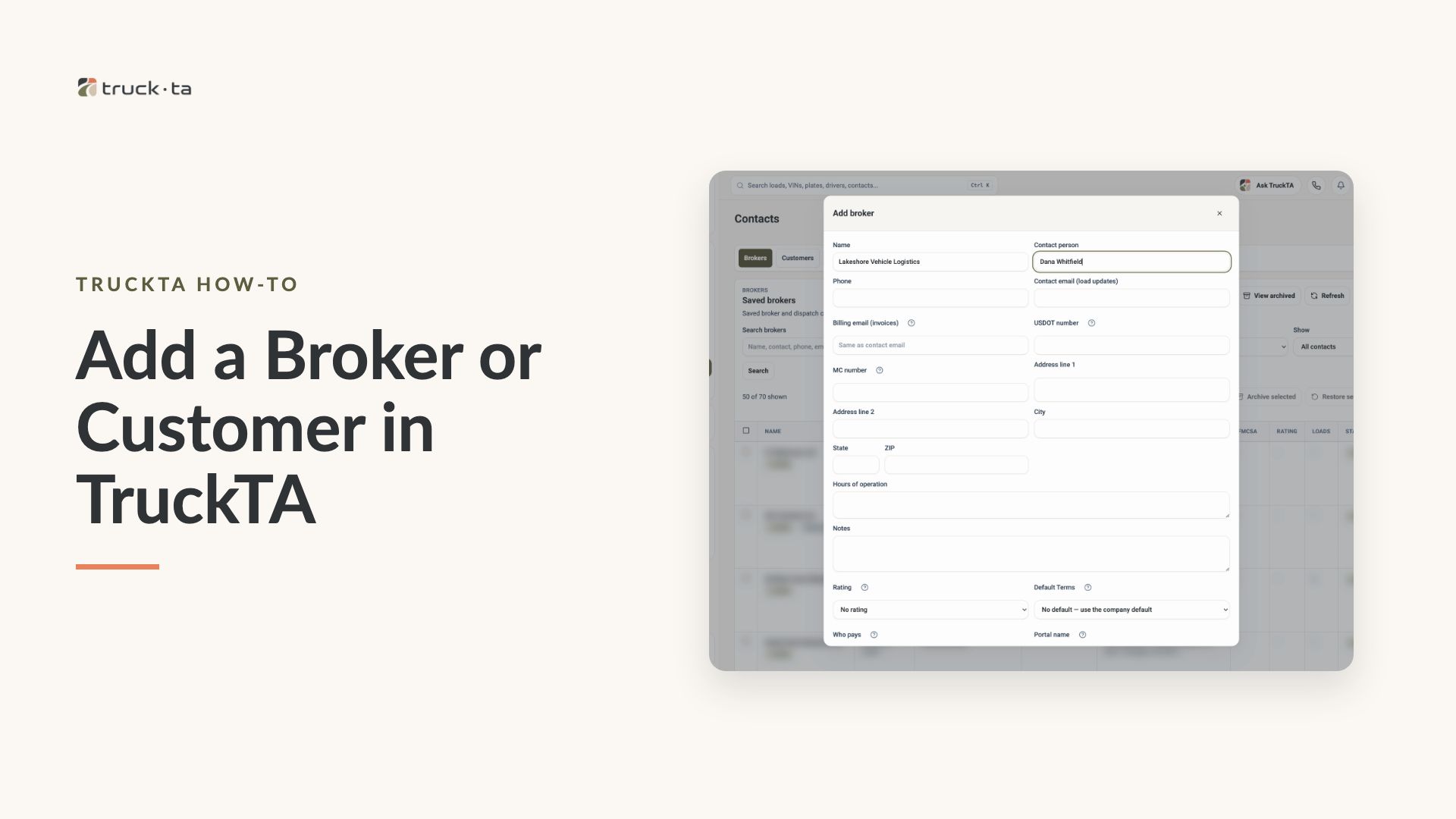
Add a Broker or Customer in TruckTA
Save brokers, pickup and delivery places, and the people you work with in TruckTA. Then select those saved contacts when you create a new load.
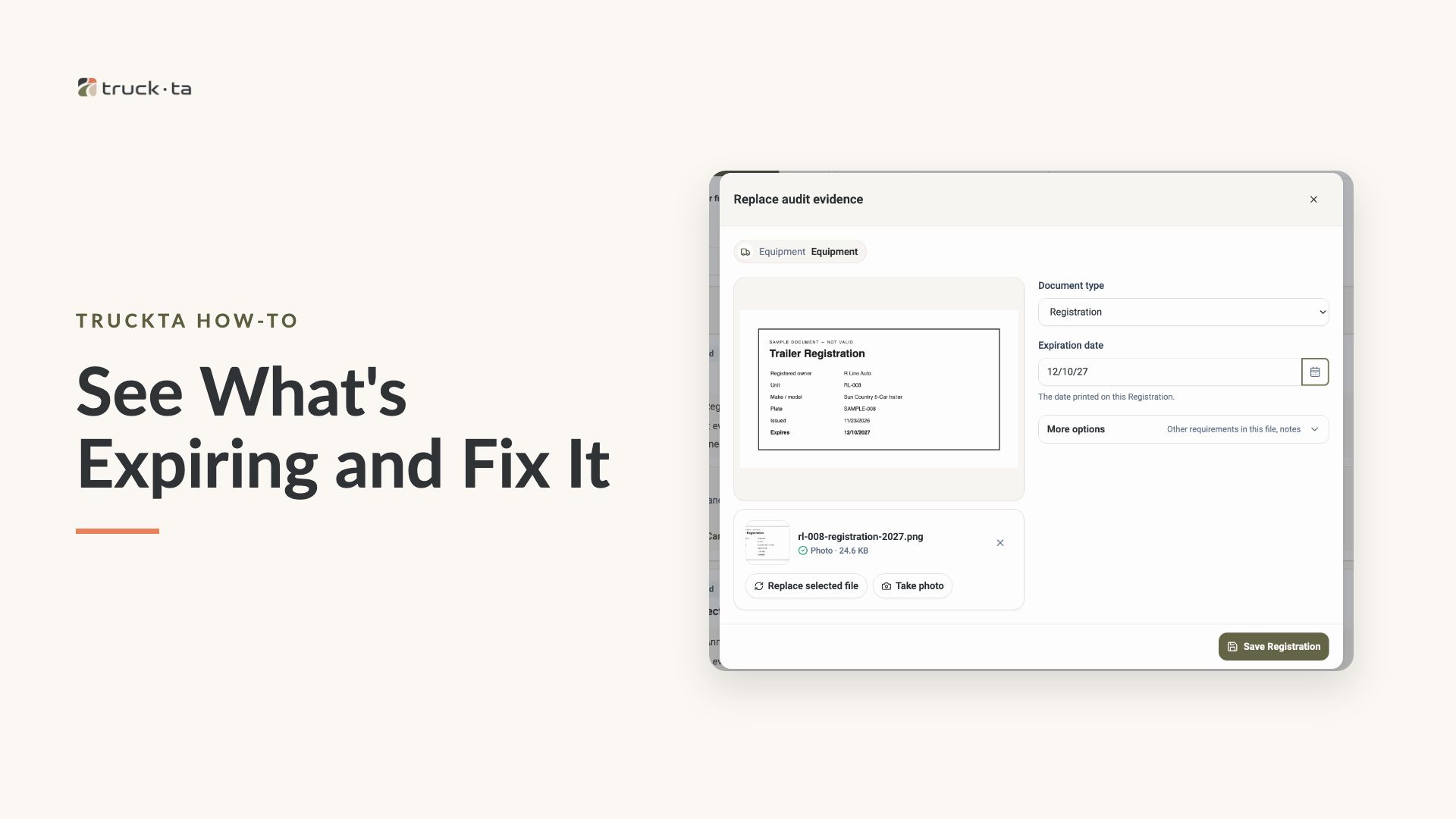
See What's Expiring and Fix It in TruckTA
Use Audit Readiness in TruckTA to find expiring documents, replace a registration, and confirm that the Expired / expiring count goes down.
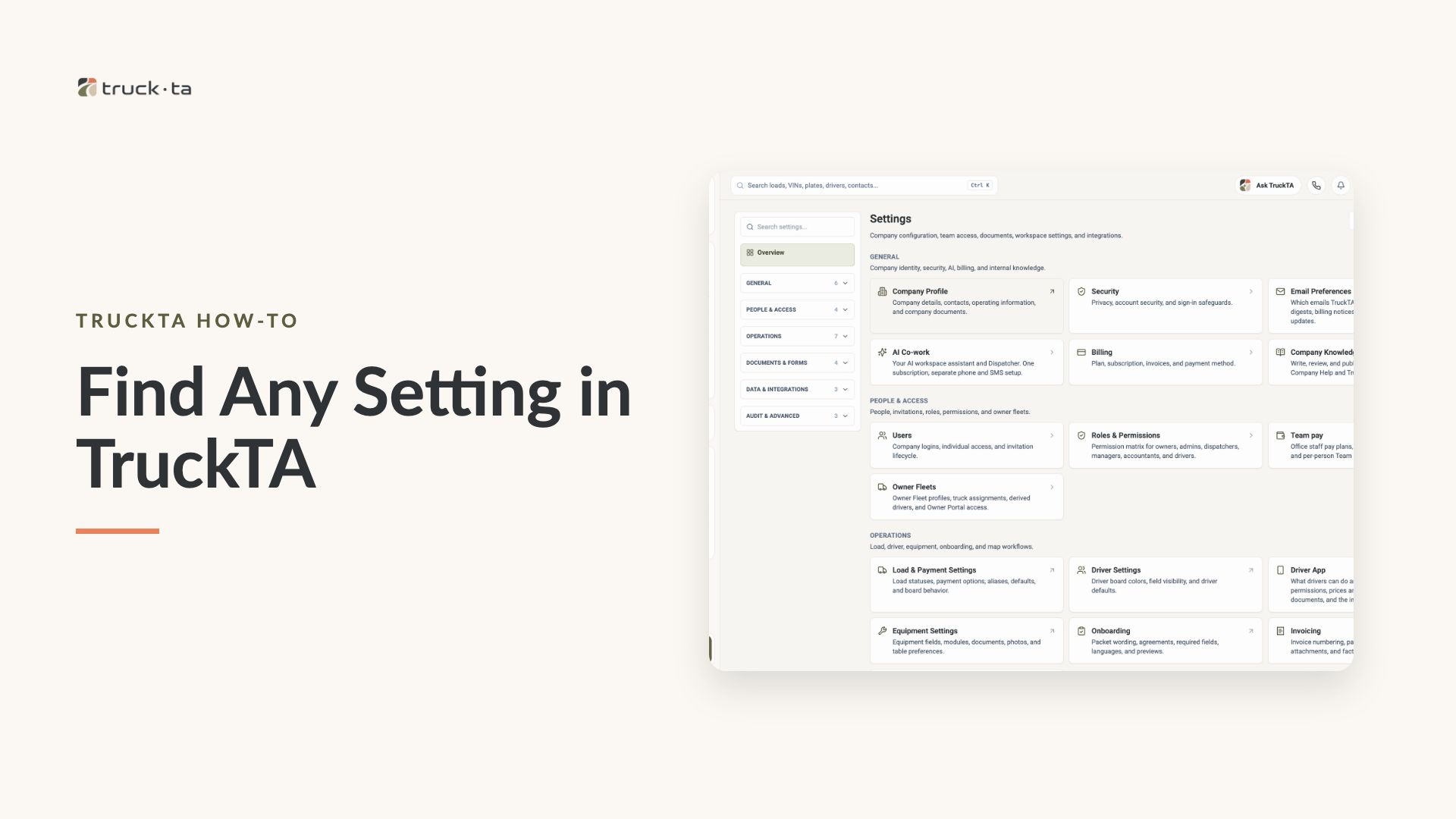
Find Any Setting in TruckTA
Find the company setting you need by browsing sections or searching, open its page, and use the right control to get back to Settings.