
Check Your Data Health Score in TruckTA
Read your TruckTA score, find the area pulling it down, and follow a missing driver license detail from Action Center through the saved correction.
By TruckTA Team · Product guidance
Reviewed by TruckTA ·
This tutorial uses an AI-generated voice. The video and article explain the same reviewed TruckTA workflow.
Put the workflow to work
Solve the task with TruckTA
In this article
Last updated: November 2026
A low Data Health Score means your records are missing details. To raise it, find the area pulling it down and correct the record behind the problem. This walkthrough follows the missing driver license example in the TruckTA video “Check Your Data Health Score.”
You’ll read the overall result, open the driver problems, save the missing details, and check what changed. For related reading, bookmark Car-Hauling Recordkeeping Checklist: Records to Build Before Your First Move. For now, work through the correction shown in the video.
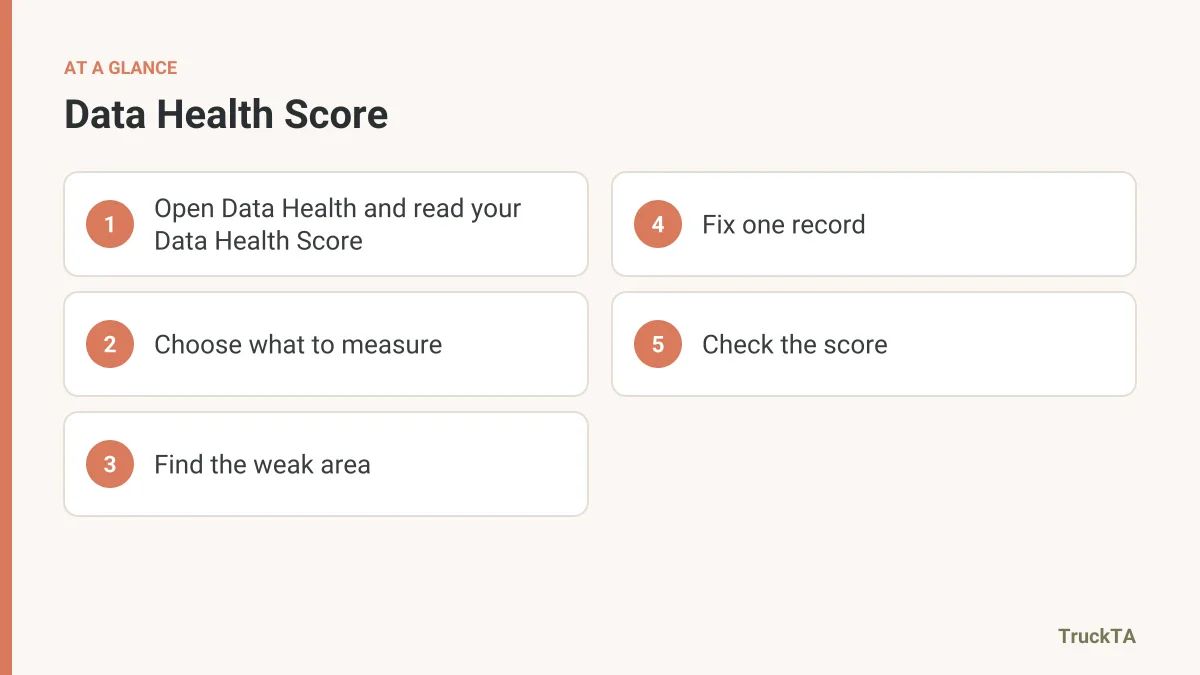
Open Data Health and read your Data Health Score
From the Dashboard, select Data Health in the sidebar. The big number is your overall score. It’s the average of the area scores farther down the page, rather than the score for a particular driver or equipment record.
Separate check results from problem counts
First, look under the overall score. You can see how many checks passed and how many failed. Read both counts before moving on: they show the check results behind the summary you’re reviewing.
Beside the score, the count cards show each kind of problem, such as missing information. These cards count problems by kind. The area cards farther down serve a different purpose: they show scores for individual areas.
For example, a missing-information count tells you what kind of work is waiting. It doesn’t identify the driver to edit. That comes later, after you choose an area and follow its problems into Action Center.
Choose what to measure
Next, look at Measurement scope. This setting decides which records are counted. Leave it on Active Operations. That’s your daily score for active drivers and equipment, and it’s the scope used for this walkthrough.
Leave Active Operations selected
Before investigating a low result, check this setting so you know what you’re measuring. The question here is which records count toward your Data Health Score, not which missing detail you should fix first.
If you’re following along as an owner, dispatcher, or office manager, stay with that active-driver and equipment view. There’s no scope change in this example. The next action is to scroll down, not choose a different measurement.
Find the weak area

Scroll down to the area scores. Each card shows a score and how many checks passed. Compare the area results to find the weak spot, then use that card as the starting point for your cleanup.
Open Drivers in Action Center
For this example, select the Drivers card. Action Center opens with only driver problems. You’ve moved from the overall view to the issues within Drivers, without mixing in problems from the other areas.
Next, read the problem groups. Each group says what’s wrong and how to fix it. Use those explanations to understand the missing driver information before opening a record, rather than guessing from the area score.
In the video, License number missing appears at the top. That’s the group used for the correction. At this point, you have a specific task to follow: find the listed driver and supply the missing license details.
Fix one record

Within License number missing, find Alex Bennett, the driver used in the walkthrough. Then select Open driver. You’ll make the correction in that driver’s record, rather than trying to adjust the score or dismiss the problem.
Edit License and Compliance
On the driver page, find License and Compliance and select Edit next to it. Type the driver’s license number and the state. Then select Save to complete the edit shown in the video.
Although the group is called License number missing, the demonstrated correction includes the state too. Keep both details in view as you follow along. The example doesn’t stop after entering only the license number.
This is the record change behind the Data Health Score improvement. The work happens in the driver’s saved details. You’re filling the missing information identified through Action Center, not entering a new score anywhere.
Check the driver’s Overview tab
After saving, select the Overview tab and find the driver’s Data Health box. In the example, both license problems are gone. This is the first place the walkthrough checks the result of the edit.
For separate reading after this task, save Car Hauler Driver Readiness Checklist: Qualification File to First Dispatch. Next, return to the score page to see the result for the Drivers area.
Check the score
Now select Data Health in the sidebar again. Look at the Drivers card. In the walkthrough, its score has gone up, and it shows two more checks passed after the license number and state were saved.
Compare the area you worked on
Use the Drivers card for this comparison because that’s where you made the correction. Read the area score and passed-check count together. The overall average is a broader view; this card shows the result for Drivers.
Going forward, check your Data Health Score every week and start with the lowest area. For related reading, bookmark Fleet Management Checklist. Let the area results guide where you put your attention during that weekly review.
Try this workflow in TruckTA: open Data Health and select the Drivers card to find a record needing attention. Follow its problem group to the record, make the correction, and check the driver’s Overview before returning to the area score.
Frequently asked questions
What if my first driver problem isn’t a missing license number?
Read the explanation in that Action Center group. Each group says what’s wrong and how to fix it. Follow the instructions for the problem you have rather than applying the license-number edit to a different issue.
Which driver should I open if Alex Bennett isn’t in my list?
Alex Bennett is the driver used in the video example. In your own records, open the driver listed under the problem you’re addressing.
Should I expect a fixed point increase from this correction?
Use the result displayed on your Drivers card rather than assuming a fixed increase. The demonstrated result is a higher Drivers score and two more checks passed; it isn’t a promise of a particular point gain for your records.
Read the video transcript
A low Data Health score means records are missing details. Here's how to find the area pulling your score down, and fix one record. From the Dashboard, select Data Health in the sidebar. The big number is your overall score. It's the average of the area scores further down. Under the score, you can see how many checks passed and how many failed. The cards beside it count each kind of problem, like missing information. Measurement scope decides which records are counted. Leave it on Active Operations. That's your daily score for active drivers and equipment. Scroll down to the area scores. Each card shows a score, and how many checks passed. Here, we will start with Drivers. Select the Drivers card. Action Center opens with only driver problems. Each group says what's wrong, and how to fix it. License number missing is at the top. Find Alex Bennett in that group, and select Open driver. Next to License and Compliance, select Edit. Type the license number and the state. Then select Save. Now select the Overview tab. In the Data Health box, both license problems are gone. You don't need to close them yourself. Select Data Health in the sidebar again. The Drivers card has gone up, with two more checks passed. Check your score every week. Start with the lowest area. And fix the record itself, so the problem closes on its own. Your score climbs as you go.
Put it into practice
Keep your operation moving with TruckTA.
More ways to use TruckTA
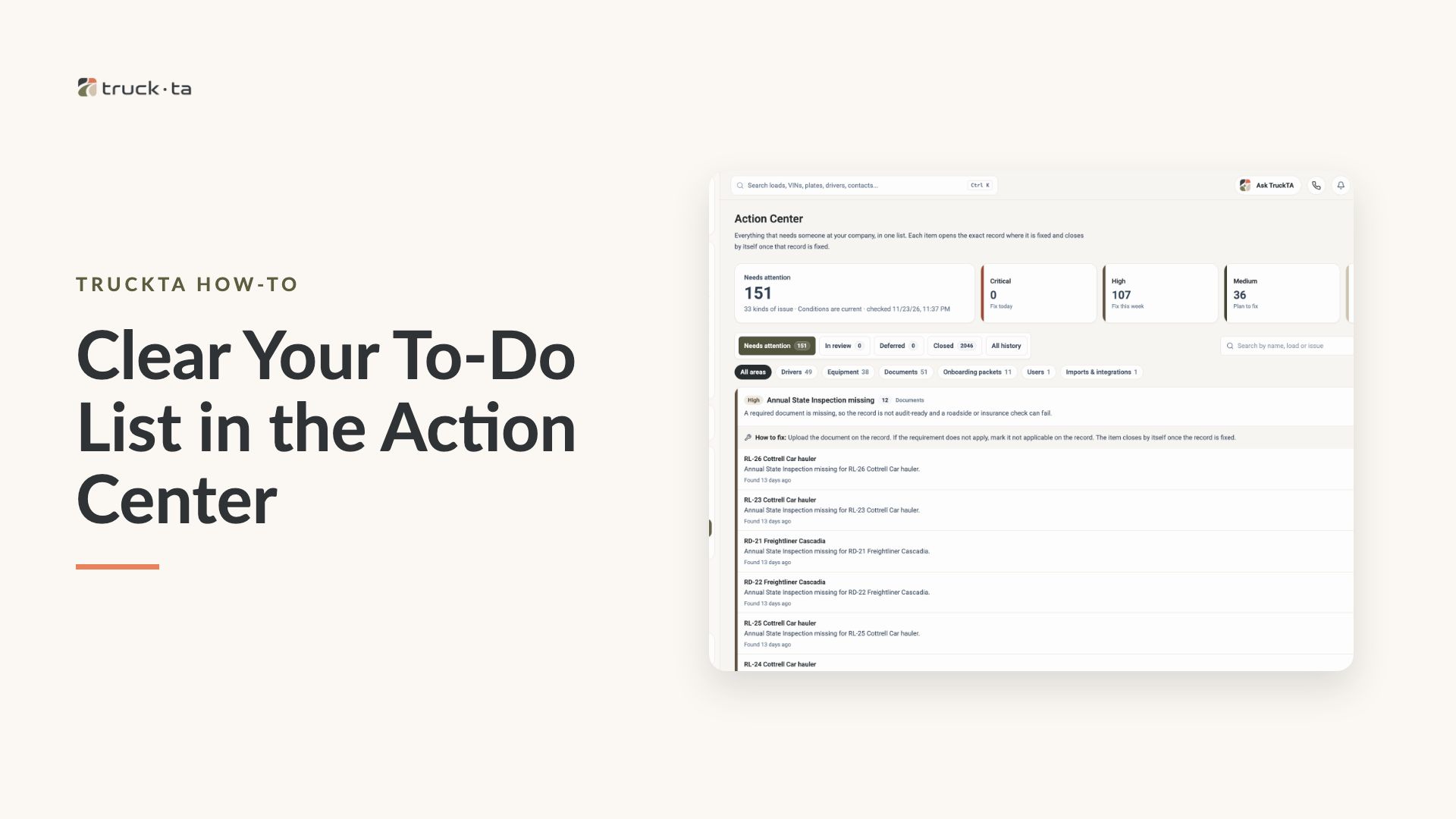
Clear Your To-Do List in the Action Center
Work through your company’s to-do list: choose an urgency level, read the issue, fix the underlying record, and dismiss only what doesn’t apply with a reason.
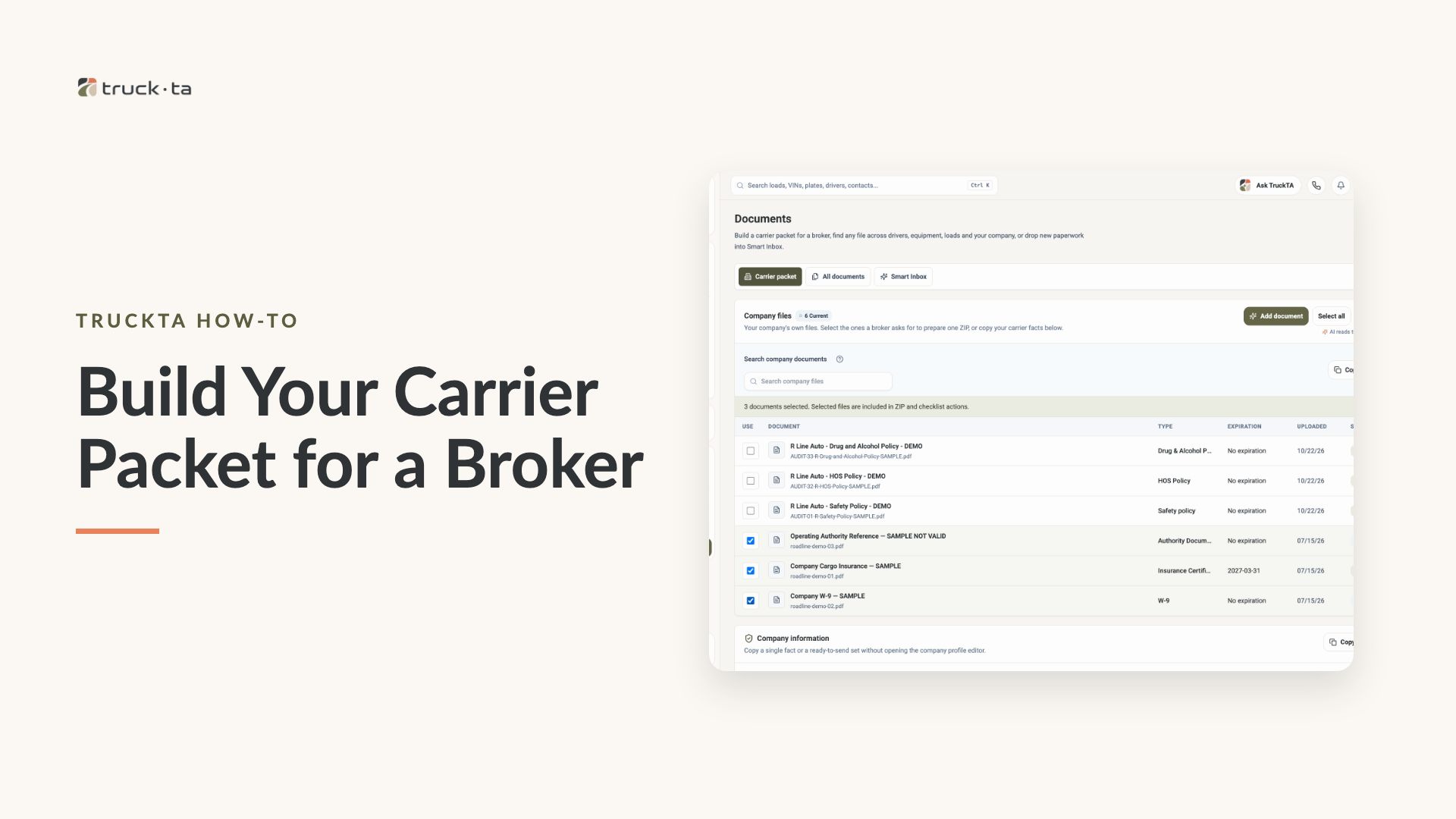
Build Your Carrier Packet for a Broker in TruckTA
Gather your W-9, insurance and authority into a ZIP from TruckTA’s Documents page, prepare the setup message, then finish sending it in your own email app.
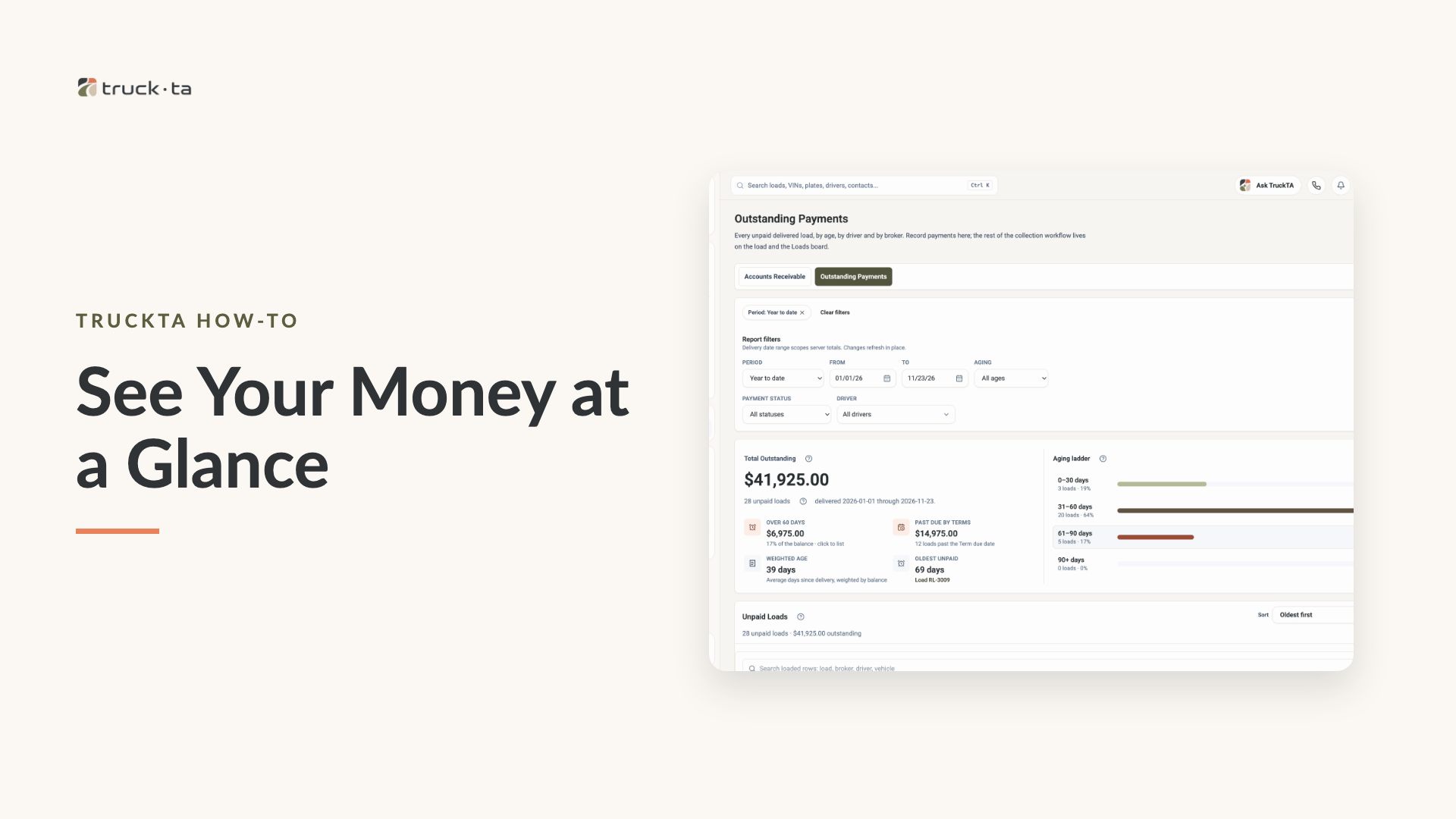
See Your Money at a Glance in TruckTA
Open Finance Center to see delivered loads needing invoices, unpaid balances, this week’s driver pay, and truck earnings. Then choose your next step.