Fleet Management Spreadsheet
Build a fleet workbook that connects equipment, bookings, vehicle assignments, and exceptions. Then test the handoffs before deciding whether to move to a TMS.
By TruckTA Editorial Team · TruckTA Resources

In this article
- 1. Step 1: Give your fleet management spreadsheet a clear job
- 2. Step 2: Build connected tabs and usable fields
- 3. Step 3: Run a pickup exception through the sheet
- 4. Step 4: Track the breakdowns that create extra work
- 5. Step 5: Test a TMS with representative records
- 6. Step 6: Move editing without creating competing records
- 7. Frequently asked questions
Last updated: November 2026
Your fleet management spreadsheet stops helping when dispatch and billing work from different versions of the same load. Build a shared workbook with stable IDs, separate assignment records, and named owners. Then test it against a missing gate release, a split booking, and a delivery awaiting paperwork.
You don’t need to switch systems just because you added another truck. Instead, use the layout below to connect the work first. Repeated entry and broken handoffs can then give you specific problems to test in a transportation management system, or TMS.
Step 1: Give your fleet management spreadsheet a clear job
Separate active work from supporting files
Make the workbook answer practical questions: What’s assigned? What’s blocked? Who owns the next action? Where’s the supporting record? Keep condition photos, receipts, and release confirmations in a controlled shared location rather than scattering copies across tabs.
For example, a load row can point to its booking folder. An exception row can link directly to the missing gate release request. Give files descriptive names so the incoming dispatcher can find the right record without opening every attachment.
Choose a workbook owner to control columns, status labels, and access. For the ownership discussion, keep Car Hauler Dispatcher Responsibilities: Assignment to POD alongside your setup notes. Assign operational fields to named staff, including backup coverage when someone’s away.
Decide what each row means
A booking isn’t a truck’s entire day, and a transported vehicle isn’t fleet equipment. Separate those records before entering live work. Likewise, keep assignments separate from bookings so a truck change doesn’t erase the original movement plan.
Keep your internal load ID separate from the broker’s reference. Use the internal ID to connect tabs, even if the booking contact changes the reference later. Record your naming convention in setup notes and don’t recycle IDs.
Step 2: Build connected tabs and usable fields
Copy this workbook layout
Use this layout as a free fleet management spreadsheet starting point, not a downloadable product. Create the tabs, then turn the suggested field names into column headers. Add a field only when you know who will maintain it.
| Tab | Each row represents | Suggested column headers |
|---|---|---|
| Equipment | A fleet truck or trailer | Equipment ID; Type; Configuration; Planning status; Status reason; Location; Checked at; Checked by; Record link |
| Loads | A booking | Load ID; Broker reference; Customer; Lane; Booking status; Billing readiness; File link; Updated at; Updated by |
| Transported vehicles | A vehicle within a booking | Vehicle record ID; Load ID; VIN; Description; Original pickup; Final delivery; Condition report link; Delivery evidence link |
| Assignments | A planned or actual movement of a transported vehicle | Assignment ID; Load ID; Vehicle record ID; Previous assignment ID; Driver ID; Truck ID; Trailer ID; Origin; Destination; Pickup window; Delivery window; Movement status; Updated at; Updated by |
| Exceptions | An issue needing action | Exception ID; Load ID; Assignment ID; Vehicle record ID; Equipment ID; Issue; Impact; Owner; Next action; Follow-up due; Status; Evidence link; Closed at |
| Lists | An approved entry value | List name; Allowed value; Meaning; Maintained by |
In Lists, maintain approved driver IDs and status labels. Draw truck and trailer choices from Equipment. For movement status, you might use Planned, Assigned, At pickup, Loaded, Delivered, and Canceled. Define those labels as your team’s workflow.
Connect assignments without duplicating bookings
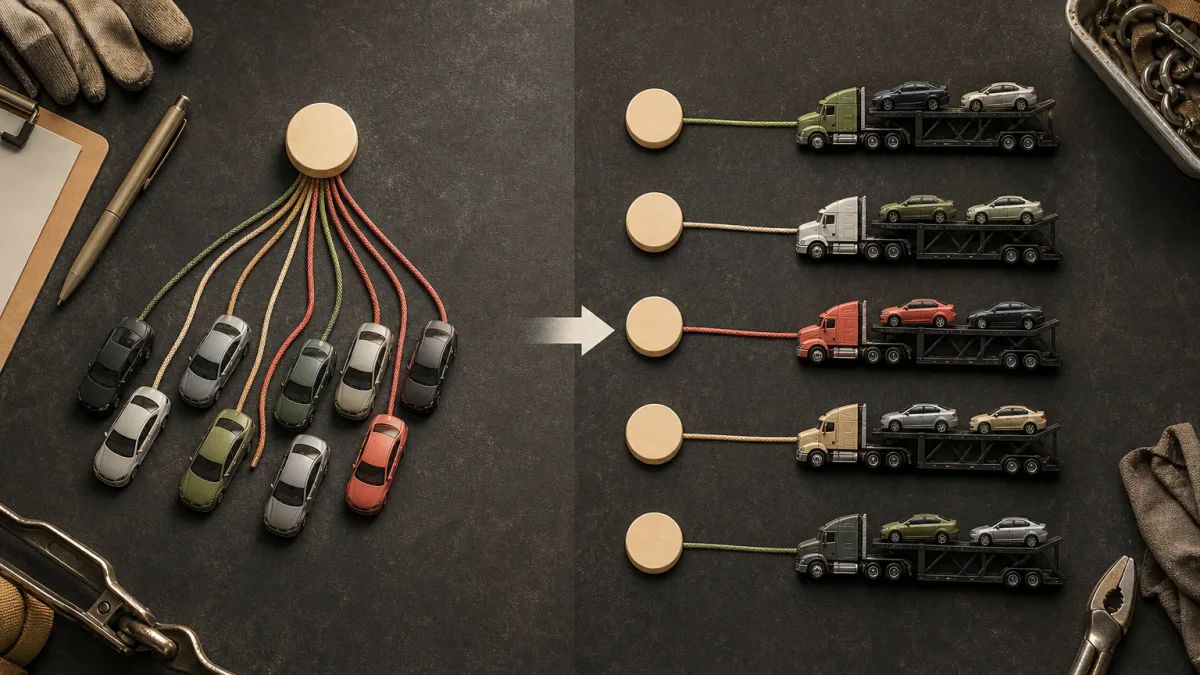
In this design, each assignment identifies a transported vehicle and its movement. Vehicles traveling together share equipment and appointment details, but keep separate assignment IDs. That lets you record a pickup exception against the affected unit rather than the whole booking.
For a later movement, add another assignment and populate Previous assignment ID. If you replace a planned assignment, mark it Canceled before adding its replacement. Keep the earlier row so your team can distinguish the original plan from what happened.
Meanwhile, keep billing readiness on Loads, separate from assignment movement status. A vehicle marked Delivered may still lack delivery evidence. Use Car Hauler Load File Checklist for Billing when agreeing on your billing handoff, then document the selected readiness labels.
Make ordinary mistakes easier to catch
Store VINs and IDs as text. Use consistent date formats and include time zones with appointment windows. Then add controlled choices for statuses, protect calculated columns, and distinguish input cells visually. Don’t make color the only explanation for a blocked row.
For your fleet management Excel spreadsheet template, start with filtered tables and simple checks. Flag duplicate IDs, assignments missing a truck, and exceptions past their follow-up time. Test each check with a deliberately incomplete sample row before relying on it.
Step 3: Run a pickup exception through the sheet

Record the change where dispatch will look
Now test your fleet management spreadsheet with a hypothetical pickup problem. The driver reaches the yard, but the gate release is missing. Keep the assignment at At pickup and open an exception linked to that assignment and vehicle.
Assign a dispatcher by name and write the next action: request the release from the booking contact. Meanwhile, record the impact separately, such as a pickup window at risk. Add a follow-up time instead of leaving the issue at “waiting.”
When the release arrives, attach its link and close that exception. Then change the movement status only after the driver reports the corresponding milestone. Receiving the release doesn’t mean the vehicle has been loaded.
Next, introduce an early gate closing into the exercise. Update the affected appointment and open a separate action if the revised plan needs confirmation. Your incoming dispatcher should be able to identify the changed window and the person chasing it.
Keep the planning test within its scope
Keep HOS calculations outside this workbook exercise. FMCSA states that logs must be kept current by showing each change in duty status (opens in a new tab). Verify current requirements and their applicability with FMCSA before changing your recordkeeping procedures.
For the handoff test, ask the incoming dispatcher to find blocked assignments without calling the outgoing dispatcher. Then ask them to open the supporting evidence. Record missing context as a field or ownership problem, not a memory test.
Step 4: Track the breakdowns that create extra work
Log incidents instead of guessing at a truck-count limit
Keep the workbook while your team can maintain it reliably. Instead of choosing an arbitrary fleet-size trigger, track the corrections it requires. Use a separate test log with fields for the task, people involved, correction, consequence, and suspected cause.
For example, record that billing requested delivery evidence already saved by dispatch, then identify the broken link. “Spreadsheet is slow” doesn’t tell you what to fix. Look for specific breakdowns like these:
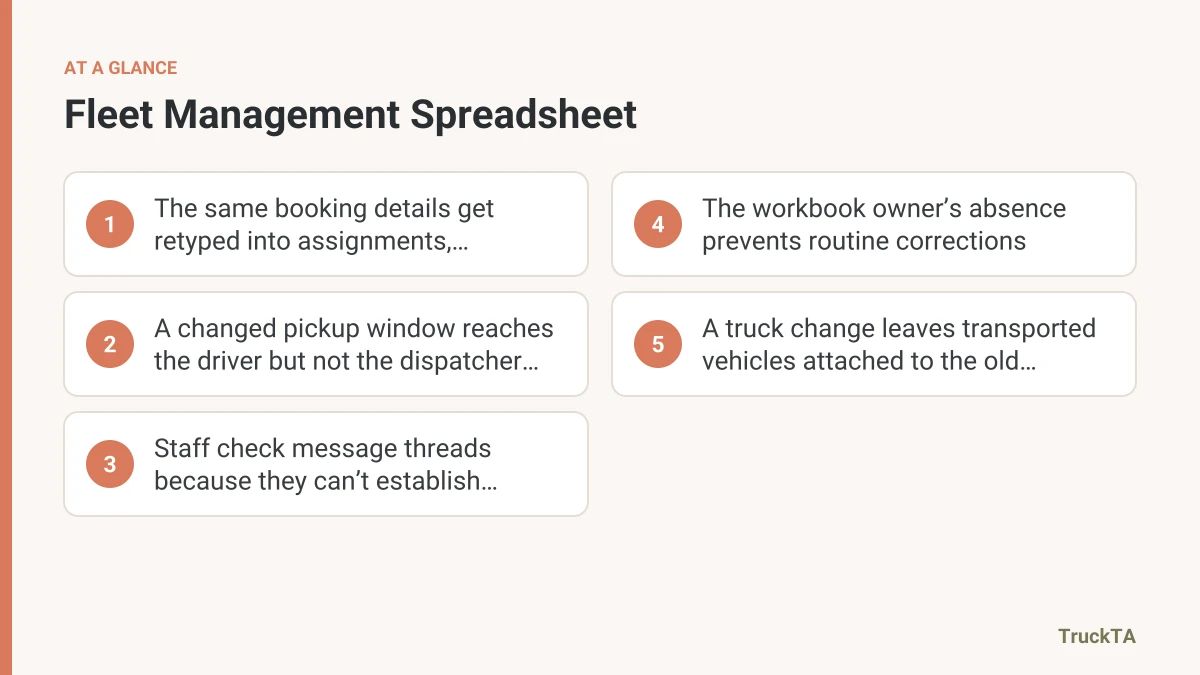
- The same booking details get retyped into assignments, customer updates, and billing records.
- A changed pickup window reaches the driver but not the dispatcher planning the next appointment.
- Staff check message threads because they can’t establish which assignment status is current.
- The workbook owner’s absence prevents routine corrections.
- A truck change leaves transported vehicles attached to the old assignment.
Separate ownership failures from tool failures
However, don’t blame your fleet management spreadsheet for an unassigned task. If nobody owns missing delivery evidence, moving the row elsewhere won’t settle responsibility. Assign an owner and retest before treating that incident as a reason to buy software.
Then choose a recurring failure with a clear consequence. Write an acceptance test: the incoming dispatcher can find the revised pickup window, its confirmation, and the outstanding action. Keep that test specific enough for another person to repeat.
Step 5: Test a TMS with representative records
Prepare the sample and check its relationships
Before testing software, copy your workbook and remove unnecessary personal information. Include an open booking, a split assignment, a canceled movement, and a delivered vehicle awaiting evidence. Keep the live dispatch file out of the experiment.
For candidate selection, use Best Tools for Car Hauler Dispatch: Compare Boards, TMS, and Apps alongside your written acceptance test. Ask each vendor to demonstrate the same sample rather than substituting a clean booking with no exceptions.
Next, ask the vendor to map your columns to destination fields before any import. Inspect empty values, unfamiliar statuses, and repeated broker references. Compare the resulting records with your sample, including vehicle-to-assignment links and unresolved exception owners.
Demonstrate the handoff, not just the screen
Replay the failure you selected earlier. Have a dispatcher change a pickup window, then ask another person to find the revised plan. Also, test a reassignment without deleting the earlier movement. Watch where staff still need a separate message.
Keep your fleet management spreadsheet available as the comparison record during the trial. For proposed integrations, ask which records move, in which direction, and how failed transfers are corrected. Treat each intended connection as unconfirmed until the vendor demonstrates it.
If the proposal includes AI-assisted operations, ask where staff review outputs. Then test an ambiguous note about a damaged unit at pickup. Ask the vendor to show how a person corrects the wording and distinguishes a suggestion from an accepted update.
Finally, request an export of the sample records and compare it with your original file. Check assignment history and unresolved issues, not just load counts. Record any missing fields before deciding whether the demonstrated workflow meets your acceptance test.
Step 6: Move editing without creating competing records
Set the handover point
If the trial meets your criteria, choose when active editing moves to the new system. Reconcile open bookings, assignments, and exceptions first. Then make the old operational workbook read-only and ask each owner to locate their unfinished work.
Keep your fleet management spreadsheet as a reference, not a parallel dispatch board. If you later export records for analysis, label the extraction time and scope. Specify where corrections belong so an edited report doesn’t become an unofficial master.
Check the original failure after the handover
Return to your incident log after the team has used the new workflow. If staff still chase revised appointments through messages, identify whether setup, training, ownership, or missing functionality caused the gap. Assign the correction to someone who can act on it.
Try TruckTA with a cleaned sample workbook and your written handoff test. Ask to see TruckTA integrations and discuss imports and AI-assisted operations. Confirm how the proposed setup handles your split assignment and missing-release example before committing.
Frequently asked questions
Should I buy a spreadsheet template or build my own?
Compare the proposed tabs with your actual bookings before choosing. Ask for a sample you can edit, and check who will maintain formulas and status lists. Build your own if adapting a template would leave you supporting fields nobody uses.
How do I enter a booking split between trucks?
Keep the booking under its original Load ID. In Assignments, create a movement row for each transported vehicle and enter the truck, trailer, and driver handling it. Vehicles on different trucks remain connected to the same booking through Load ID.
What if a broker changes the load reference after pickup?
Leave your internal Load ID unchanged. Add Previous broker reference and Reference change evidence link to Loads if you need to track the change. Save the confirmation so billing can connect correspondence using either reference.
What should I ask about costs before agreeing to a software pilot?
Request a written proposal separating recurring access, setup, migration, training, optional connections, and support. Also, ask about pilot charges, cancellation terms, and access to exports afterward. Compare the proposal with the specific work your trial is intended to remove.
Put it into practice
Keep your operation moving with TruckTA.
Bring loads, drivers, documents, payments, and settlements into one connected workspace.