
Track Freight Load Problems in One Place
Use the Problems tab in Loads to report freight load issues, find problems detected by TruckTA, check older items, and clear resolved problems.
By TruckTA Team · Product guidance
Reviewed by TruckTA ·
This tutorial uses an AI-generated voice. The video and article explain the same reviewed TruckTA workflow.
Put the workflow to work
Solve the task with TruckTA
In this article
Last updated: November 2026
A load issue shouldn’t disappear into a call or text. Use the Problems tab in Loads to track freight load problems, report what went wrong, and clear each issue when your team fixes it.
Your team gets one list of loads that need attention, with notes explaining reported problems. Follow the workflow below alongside the how-to video. For a separate fleet review, keep Fleet Management Checklist handy.
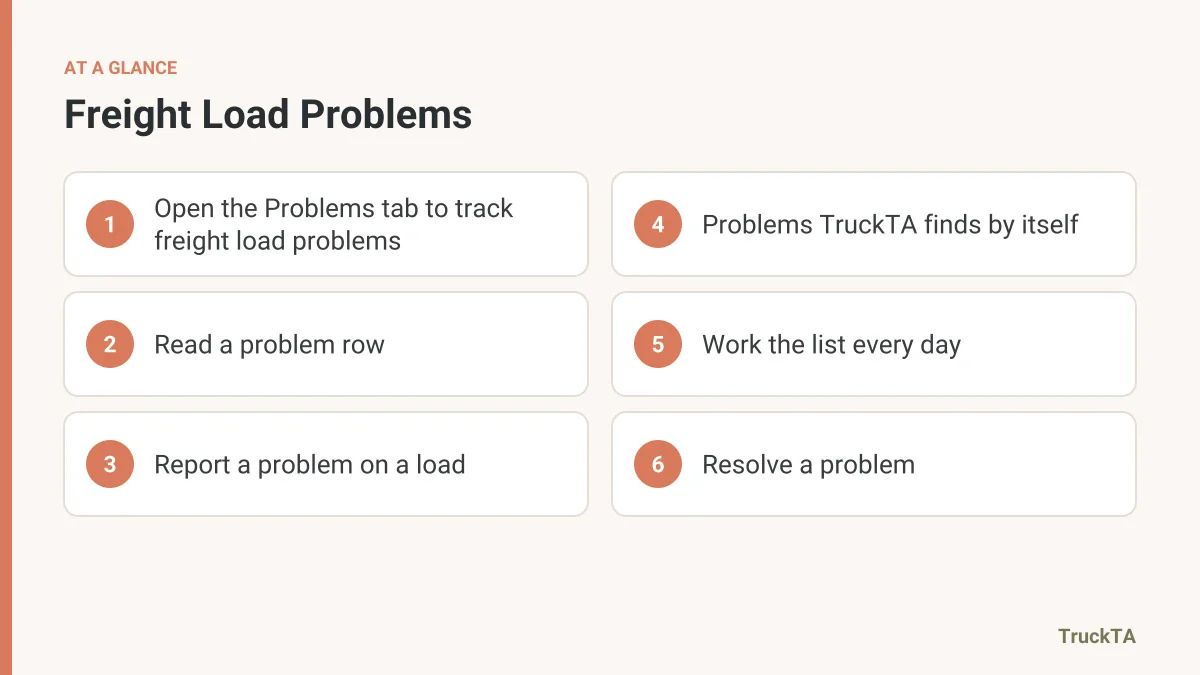
Open the Problems tab to track freight load problems
Start from Loads
From the Dashboard, open Loads in the sidebar. The Active Board shows a Problems card that counts open problems. Start there when you want to see how many issues still need attention.
Then choose the Problems tab to open the full list. The card gives you the count; the tab gives you the loads. Move into that list when you’re ready to work through individual issues.
Read a problem row

Check the mark and the note
Each row represents one load that needs attention. Look under its status for the red Problem mark. Then read the Notes column to see what went wrong in your team’s own words.
The mark identifies the problem load, but the note explains the issue. So read both before acting. Don’t treat the load’s status alone as the explanation of what your team still needs to handle.
Report a problem on a load
Write the issue, then save it
Your team reports most problems. To report a load problem, open All Loads and find the load. Then select the three dots at the start of its row and choose Report problem.
Write what’s wrong in the Problem note. Keep it short and clear enough for another dispatcher to act on. Instead of a vague description, name the issue your team needs to address.
Next, select Save Problem and return to the Problems tab. The load now appears with your note. Check that entry so you can see the explanation alongside the load that needs attention.
If you also use a workbook, keep Fleet Management Spreadsheet as separate reading. Here, use the Problem note to explain the issue rather than leaving that explanation only in a call or text.
Problems TruckTA finds by itself

Find loads detected by TruckTA
TruckTA also adds loads to the list by itself. To find those items, open Filters, choose Problem type, and select Detected by TruckTA. Use this view to check the problems TruckTA identifies.
For example, a load has reached picked-up status, but nobody has assigned a driver. That moving load needs attention, so TruckTA adds it here. Assign a driver, and the load leaves the list.
Work the list every day
Start with problems that have waited
Use the Problems tab as your daily checklist. First, open Filters, then Problem open for. Start with problems that have waited more than one, three, or seven days, using those choices to focus your review.
Then work through the loads in that view. Check the list every morning, and report new problems as they happen. Don’t wait for the next morning’s review to record an issue.
For a separate owner-level review, keep Fleet Management Monthly Report Template for Carrier Owners nearby. During this daily check, focus on the open load problems rather than expanding the review into other fleet work.
Resolve a problem
Clear the handled issue
Once your team handles a reported problem, select the three dots on that row. Then choose Resolve problem. The load leaves the Problems list, while the note stays in the load’s history.
However, starting the follow-up doesn’t mean you’ve finished the job. Leave the reported problem open while it still needs attention. Use Resolve problem when your team has dealt with the issue in the note.
Try this workflow in TruckTA: open Loads, choose Problems, and read the first load that needs attention. Use that list to track freight load problems, then clear each reported issue after your team fixes it.
Frequently asked questions
How can I check whether my Problem note is clear enough?
Read it as a dispatcher who didn’t take the original call. Can you tell what’s wrong and what needs attention? If not, rewrite it with a direct description of the issue.
Should I copy the entire call or text exchange into the note?
Keep the Problem note short and clear. Focus on what went wrong instead of copying an exchange that makes another dispatcher hunt for the issue.
Should I wait for TruckTA to detect an issue my team already knows about?
Report it when it happens. Your team reports most problems; automatic detection doesn’t replace that reporting habit.
Read the video transcript
When something goes wrong with a load, it shouldn't get lost in a call or a text. The Problems tab keeps every issue in one list, until someone fixes it. From the Dashboard, open Loads in the sidebar. The Active Board counts open problems on its Problems card. Choose the Problems tab to see the full list. Each row is one load that needs attention. The red Problem mark sits under the status. The Notes column tells you what went wrong, in your team's own words. Most problems are reported by your team. Open All Loads and find the load. Select the three dots at the start of the row, then choose Report problem. Write what's wrong in the Problem note. Keep it short and clear, so anyone on your team can act on it. Then select Save Problem. Go back to the Problems tab. The load is now on the list, with your note. It stays here until someone resolves it, even after the load is delivered. TruckTA also adds loads to this list by itself. Open Filters, then Problem type, and choose Detected by TruckTA. This load is already picked up, but no driver is assigned. A moving load with no driver needs attention, so it shows up here. Assign a driver, and it leaves the list. Use this tab as a daily checklist. Open Filters, then Problem open for. Start with the problems that have waited more than one, three, or seven days. When a reported problem is handled, clear it. Select the three dots on that row and choose Resolve problem. The load leaves the list, and the note stays in the load's history. Report problems as they happen. Check the list every morning. And resolve each one when it's done. That way, nothing waits unnoticed.
Put it into practice
Keep your operation moving with TruckTA.
More ways to use TruckTA
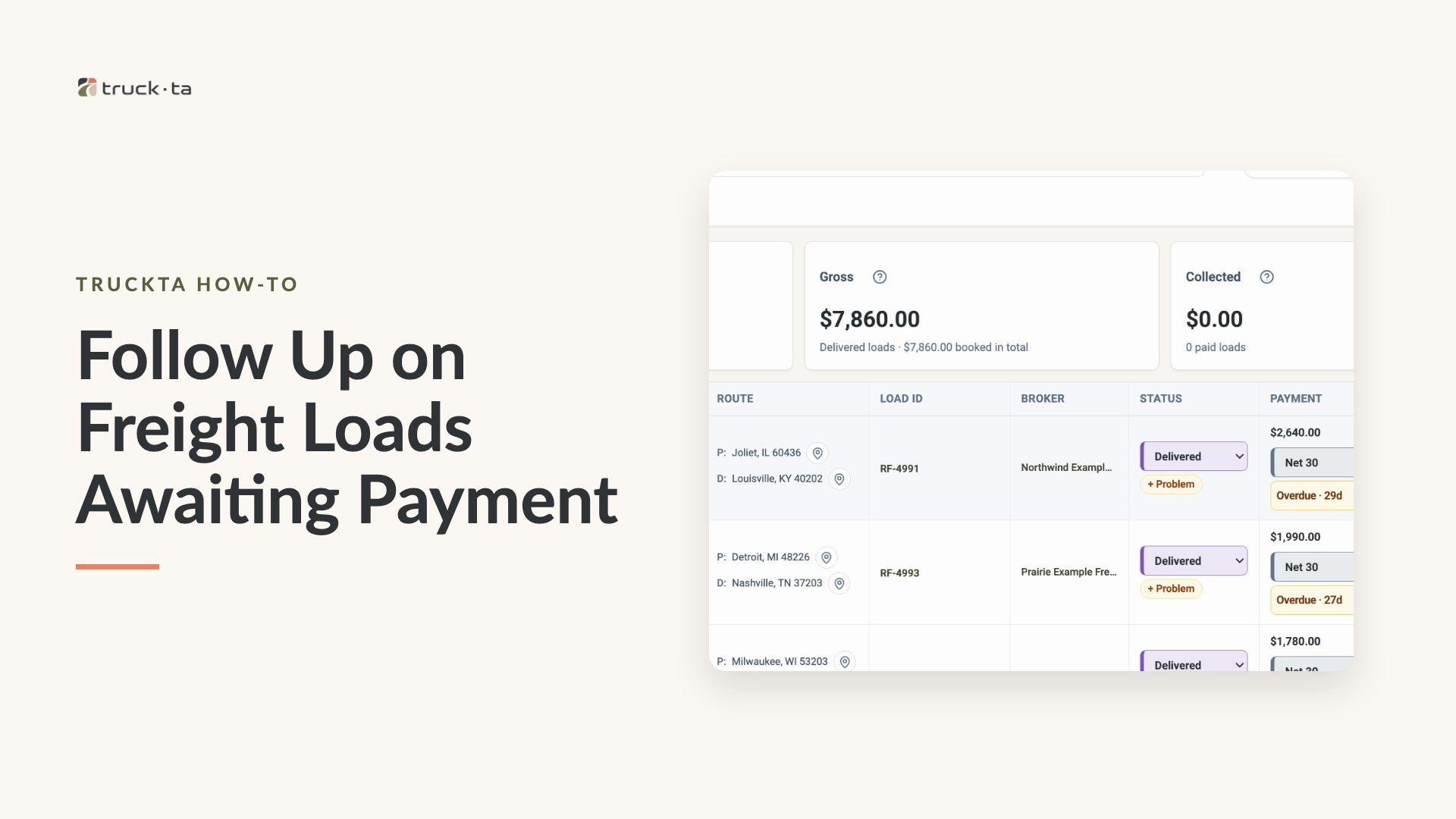
Follow Up on Freight Loads Awaiting Payment
Find unpaid freight loads in TruckTA, put overdue invoices first, and record full or partial broker payments as the money arrives.
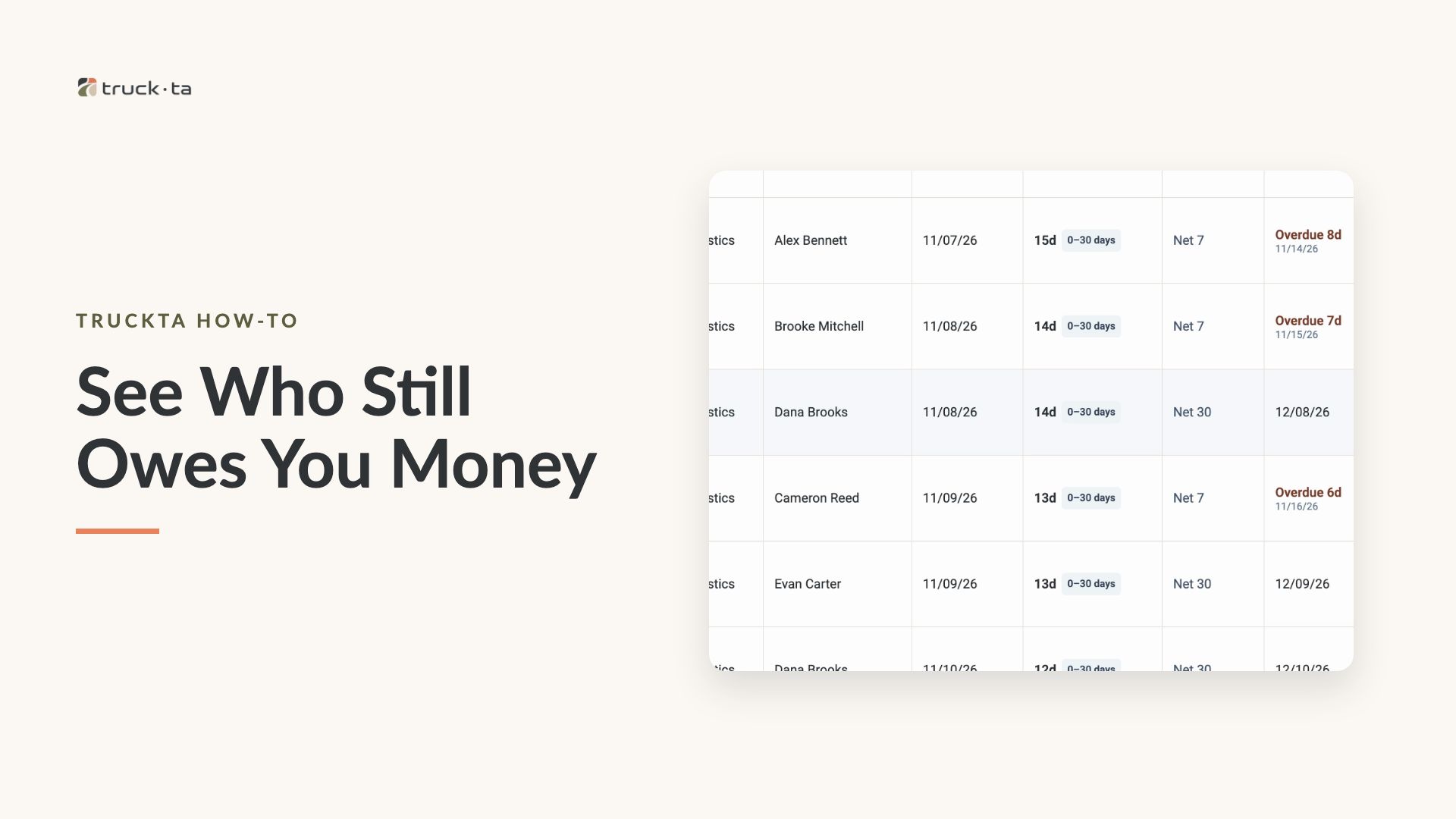
See Who Still Owes You Money
Find unpaid delivered loads in TruckTA, separate aging from overdue balances, identify who needs a call, and record a broker payment when it arrives.
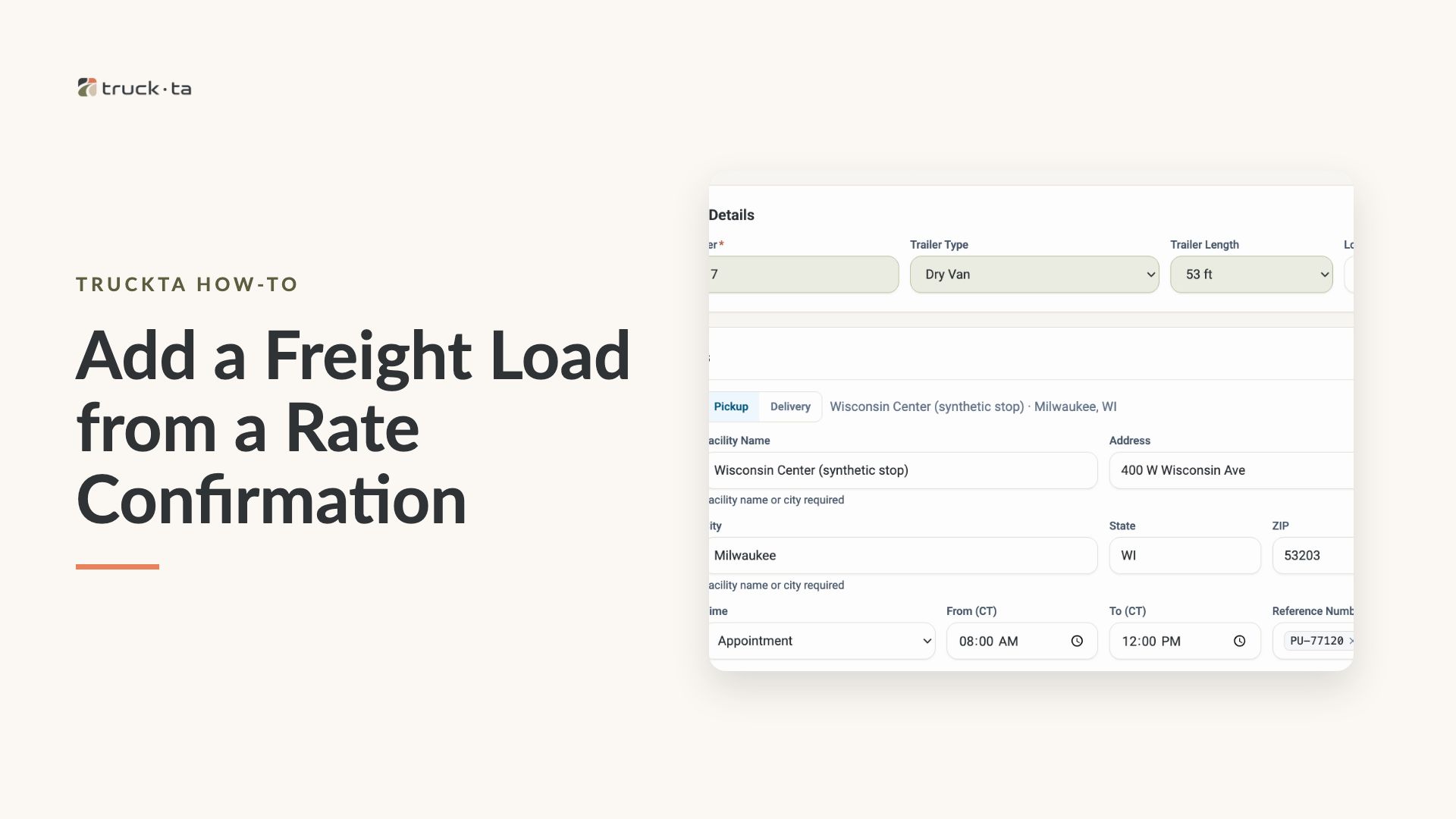
Add a Freight Load from a Rate Confirmation
Use your broker's PDF or photo to fill a freight load in TruckTA, check the highlighted fields, assign the driver, and confirm the dates.