
See Your Drivers on Live Maps in TruckTA
Open the fleet map, check a driver's location, and connect a missing driver through the Driver App invitation workflow.
By TruckTA Team · Product guidance
Reviewed by TruckTA ·
This tutorial uses an AI-generated voice. The video and article explain the same reviewed TruckTA workflow.
Put the workflow to work
Solve the task with TruckTA
In this article
Last updated: November 2026
Need to see where your trucks are? Open Live Maps from the Dashboard to see drivers sharing their location. If someone is missing, search for their name and check their signup status before connecting them through Driver App.
Follow the steps below alongside the video. For your broader dispatch routine, keep A Practical Car-Hauling Dispatch Workflow From Booking to Proof of Delivery handy.
Open Live Maps
Start from the Dashboard
In the sidebar, select Live Maps. Every driver sharing a location appears in both the list and on the map. The list groups trucks by what they're doing: Moving, Stopped, or Parked.
Check a driver
Zoom in, check the update, or call
Next, select a driver to zoom in to that truck. You'll see the address, the direction, and how long ago the location was updated. Read the update age alongside the location.
If you need to reach the driver, select Call. After checking that truck, select Fit fleet to see every truck again. That takes you back from the individual truck to the fleet view.
For related driver communication work, see Car Hauler Driver Status Update Checklist: What to Report at Every Milestone.
Find a missing driver
Search the name and read the status
If a driver isn't on the map, search for their name. Not signed up means that driver isn't using the Driver App yet. Your next task is getting them connected.
Next, open Drivers and check that the driver is on the list. They must be listed before you invite them. Once they're listed, select Driver App to begin the connection workflow.
Invite the driver

Send the personal link
Connecting a driver takes three steps: you invite them, they install TruckTA, and they sign in. Your part starts in Driver App. Select Invite a driver, then choose the driver's record.
Next, text the personal link from your phone, or send it by email. The driver opens that link and sets up their account. Then they sign in to the app and allow location on their phone.
For a separate new-driver guide, see How to Train a New Car Hauler Driver: First-Week Dispatch Checklist.
Back on the map
Confirm sign-in and truck assignment
Now go back to Live Maps. Once the driver signs in and has a truck assigned, they appear with the rest of your fleet. Sending the invitation alone doesn't finish the connection.
Try this workflow in TruckTA: check your fleet view, search for a missing driver, and use Driver App to invite anyone marked Not signed up.
Frequently asked questions
Can I see how fast a moving truck is traveling?
Yes. A moving truck shows its speed.
Who chooses the driver's email and password?
The driver chooses an email and a password after opening the personal invitation link.
Do I need to invite the same driver repeatedly?
No. Invite each driver once.
Read the video transcript
Let's see where every truck is right now, and get a new driver onto your map. From the Dashboard, select Live Maps. Every driver who shares a location appears here, in the list and on the map. The list is grouped by what each truck is doing: Moving, Stopped, or Parked. A moving truck shows its speed. Select a driver to zoom in to that truck. You'll see the address, the direction, and how long ago the location was updated. Call is right here when you need to reach the driver. Select Fit fleet to see every truck again. If a driver isn't on the map, search for their name. Not signed up means this driver isn't using the Driver App yet. The location comes from the driver's phone, so let's get them connected. Open Drivers. Your driver has to be on this list first. Then select Driver App. Connecting a driver takes three steps. You invite them, they install TruckTA, and they sign in. Select Invite a driver, and choose the driver's record. Then text the personal link from your phone, or send it by email. The driver opens the link and chooses an email and a password. Then they sign in to the app and allow location on their phone. Go back to Live Maps. Once the driver signs in and has a truck assigned, they appear here with the rest of your fleet. Invite each driver once, and Live Maps keeps you up to date from there.
Put it into practice
Keep your operation moving with TruckTA.
More ways to use TruckTA
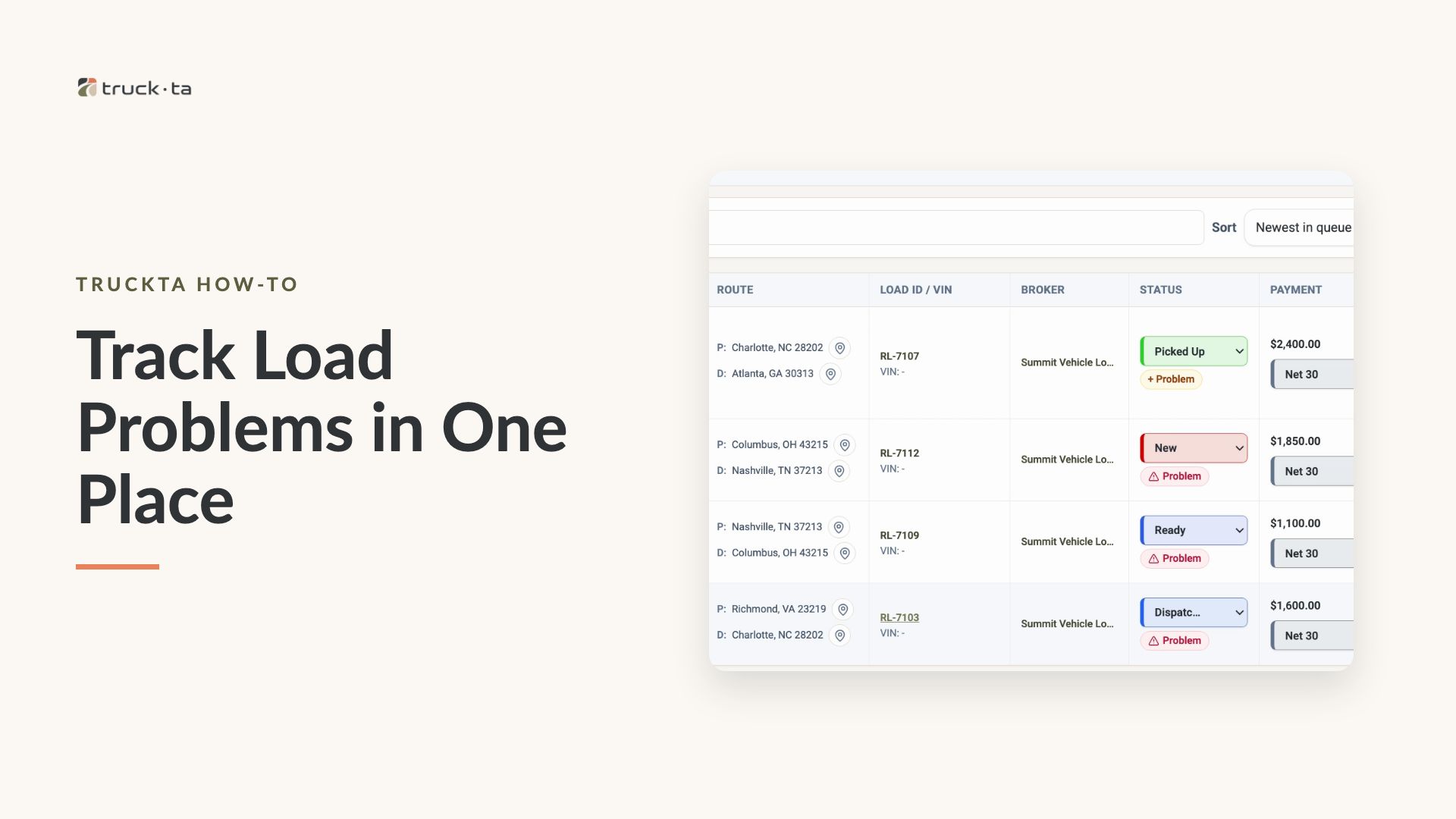
Track Load Problems in One Place
Use the Problems tab in Loads to report issues, check problems detected by TruckTA, review older items, and clear reported problems without losing their notes.
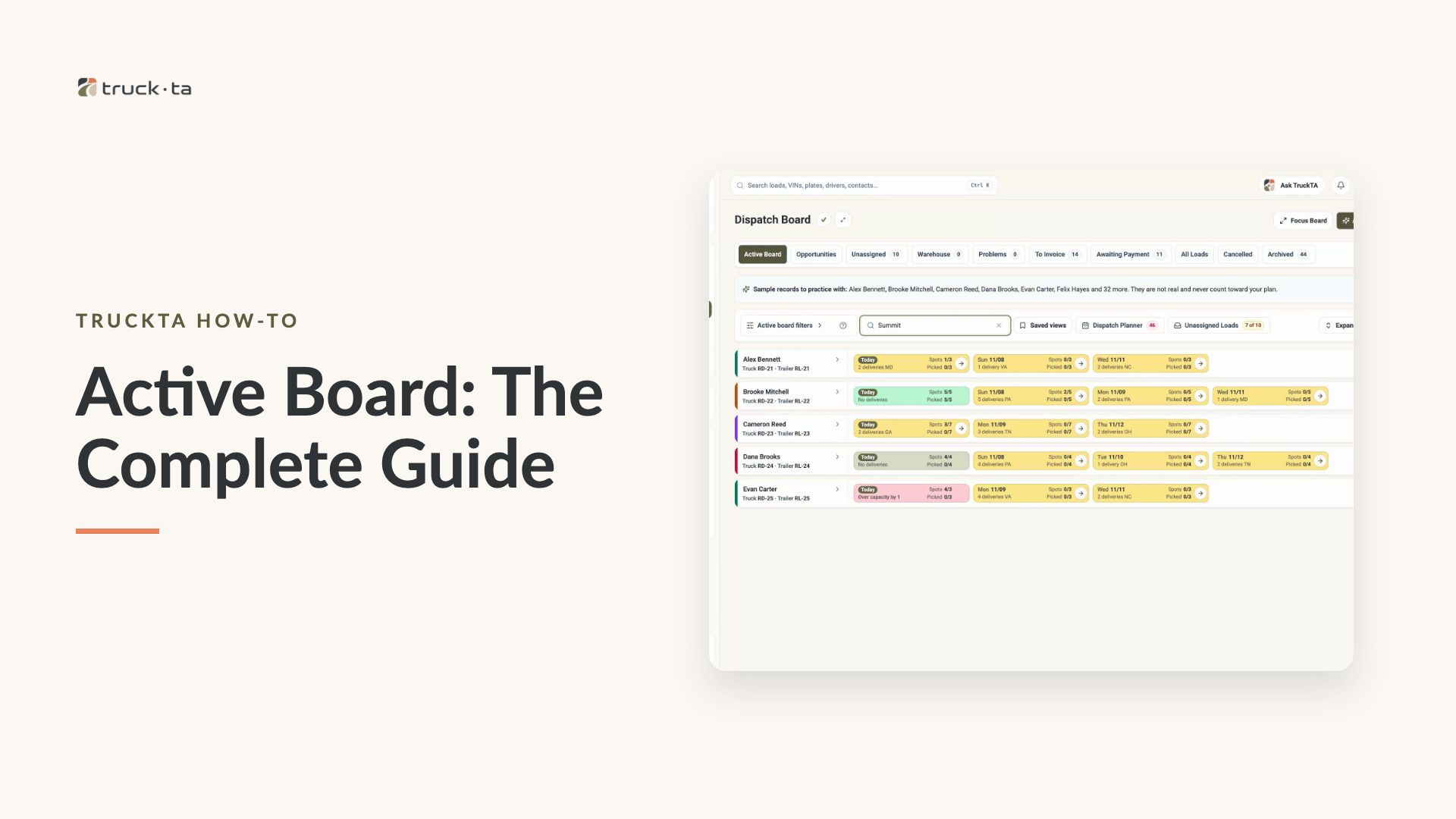
Active Board: The Complete Guide
Learn to read driver capacity, assign loads, manage status and notes, plan routes, and customize Active Board. Follow the complete walkthrough or jump to the task you need.
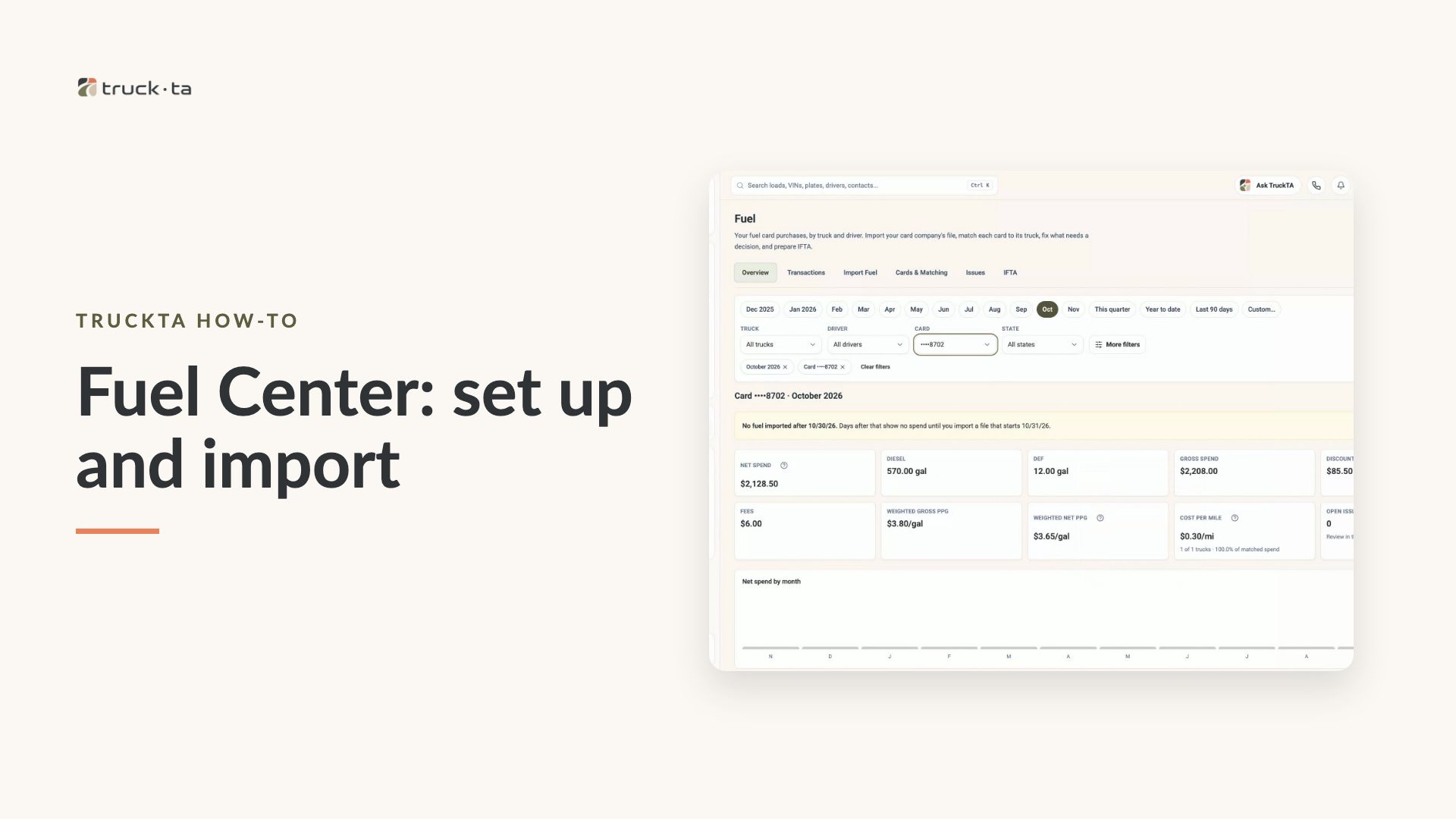
Fuel Center: Set Up Cards and Import Monthly Purchases
Set up fuel cards, import monthly CSV purchases, and connect each purchase to the right truck and driver using dated card periods and Equipment Assignment History.