
Track Load Problems in One Place
Use the Problems tab in Loads to report issues, check problems detected by TruckTA, review older items, and clear reported problems without losing their notes.
By TruckTA Team · Product guidance
Reviewed by TruckTA ·
This tutorial uses an AI-generated voice. The video and article explain the same reviewed TruckTA workflow.
Put the workflow to work
Solve the task with TruckTA
In this article
Last updated: November 2026
A load issue shouldn’t disappear into a call or text. Use the Problems tab in TruckTA to track load problems, report what went wrong, and clear reported issues once they’re handled. Your team gets one list of loads that still need attention.
Follow this workflow alongside “Track Load Problems in One Place.” For related reading, see A Practical Car-Hauling Dispatch Workflow From Booking to Proof of Delivery. Here, keep your attention on the issue itself: recording it, checking it, and resolving it.
Open the Problems tab
Start from Loads
From the Dashboard, open Loads in the sidebar. Then choose Problems. This is the list to open when you want to see which loads have an unresolved issue, rather than leave that work scattered across calls and texts.
Next, look at the number on the tab. It shows how many loads have an open problem right now. Read that as a count of loads needing attention, not as a count of messages from your team.
Read a problem row
Check the mark and the note
Each row represents one load that needs attention. Look under its status for the red Problem mark. Then read the Notes column. That’s where your team’s own words explain what went wrong with the load.
Start with the note before following up. The mark identifies the load as needing attention; the note explains the issue. For related reading on team communication, see Car Hauler Driver Status Update Checklist: What to Report at Every Milestone.
Report a problem on a load
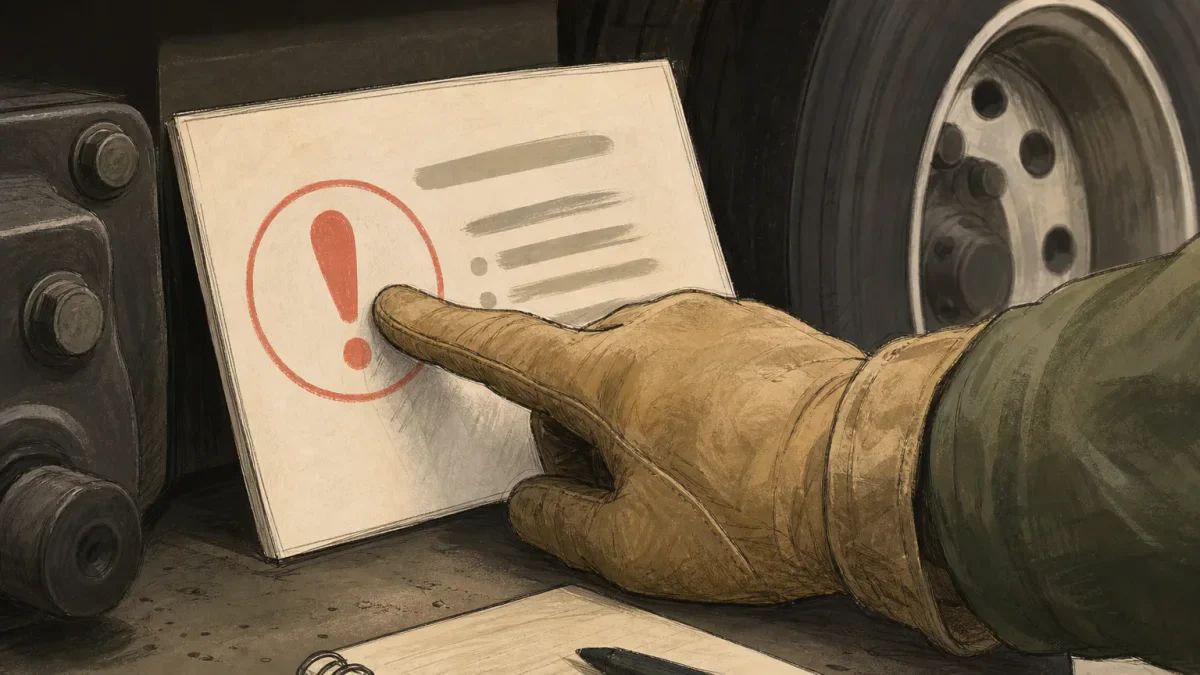
Write the issue, then save it
Most problems come from reports by your team. Open All Loads and find the load. Next, select the three dots at the start of its row. Choose Report problem to record what needs attention.
Write what’s wrong in Problem note. Keep it short and clear enough for someone else to act on. Instead of relying on what you said during a call, put the actual issue into the note. Then select Save Problem.
Go back to Problems and find the load with your note. It stays on this list until someone resolves the reported problem. Delivery doesn’t clear it, so an unresolved issue can remain after the load is delivered.
Problems TruckTA finds by itself

Show Detected by TruckTA
TruckTA also adds loads to the list by itself. To see these, open Filters, then Problem type. Choose Detected by TruckTA. This lets you focus on problems TruckTA detects rather than those your team reports.
For example, a load is already picked up, but no driver is assigned. That moving load needs attention, so it appears here. Assign a driver, and it leaves the list. The correction handles this detected problem.
Work the list every day to track load problems
Find issues that have been waiting
Check the list every morning. Open Filters, then Problem open for. Start with problems that have waited more than one, three, or seven days. Use those age choices to bring waiting issues into your daily review.
Then read the notes on those loads and follow up on what remains unresolved. Treat the tab as your daily working list, not just somewhere to report trouble. For related reading, see Car Hauler Dispatcher Responsibilities: Assignment to POD.
Resolve a problem
Clear the handled issue
Once a reported problem is handled, select the three dots on that row. Choose Resolve problem. The load leaves the list, while the note stays in the load’s history. Clearing the issue doesn’t remove that record.
Try this workflow in TruckTA: open Loads, choose Problems, and review a load that needs attention. Use the note to guide your follow-up, then resolve the reported problem when the work is done.
Frequently asked questions
How do I know whether my Problem note is clear enough?
Read it as someone who wasn’t on the call. Can that person tell what went wrong and what needs attention? If not, replace vague wording with a short description of the actual issue.
What should I leave out of a Problem note?
Leave out unrelated background that makes the issue harder to find. Keep the explanation focused on what’s wrong with this load, using plain words your team can act on.
What if a note is too vague to act on?
Ask the teammate who reported the issue to clarify what happened. Don’t guess at the problem or treat an unclear note as proof that the issue has been handled.
Read the video transcript
When something goes wrong with a load, it shouldn't get lost in a call or a text. The Problems tab keeps every issue in one list, until someone fixes it. From the Dashboard, open Loads in the sidebar. Then choose the Problems tab. The number on the tab shows how many loads have an open problem right now. Each row is one load that needs attention. The red Problem mark sits under the status. The Notes column tells you what went wrong, in your team's own words. Most problems are reported by your team. Open All Loads and find the load. Select the three dots at the start of the row, then choose Report problem. Write what's wrong in the Problem note. Keep it short and clear, so anyone on your team can act on it. Then select Save Problem. Go back to the Problems tab. The load is now on the list, with your note. It stays here until someone resolves it, even after the load is delivered. TruckTA also adds loads to this list by itself. Open Filters, then Problem type, and choose Detected by TruckTA. This load is already picked up, but no driver is assigned. A moving load with no driver needs attention, so it shows up here. Assign a driver, and it leaves the list. Use this tab as a daily checklist. Open Filters, then Problem open for. Start with the problems that have waited more than one, three, or seven days. When a reported problem is handled, clear it. Select the three dots on that row and choose Resolve problem. The load leaves the list, and the note stays in the load's history. Report problems as they happen. Check the list every morning. And resolve each one when it's done. That way, nothing waits unnoticed.
Put it into practice
Keep your operation moving with TruckTA.
More ways to use TruckTA
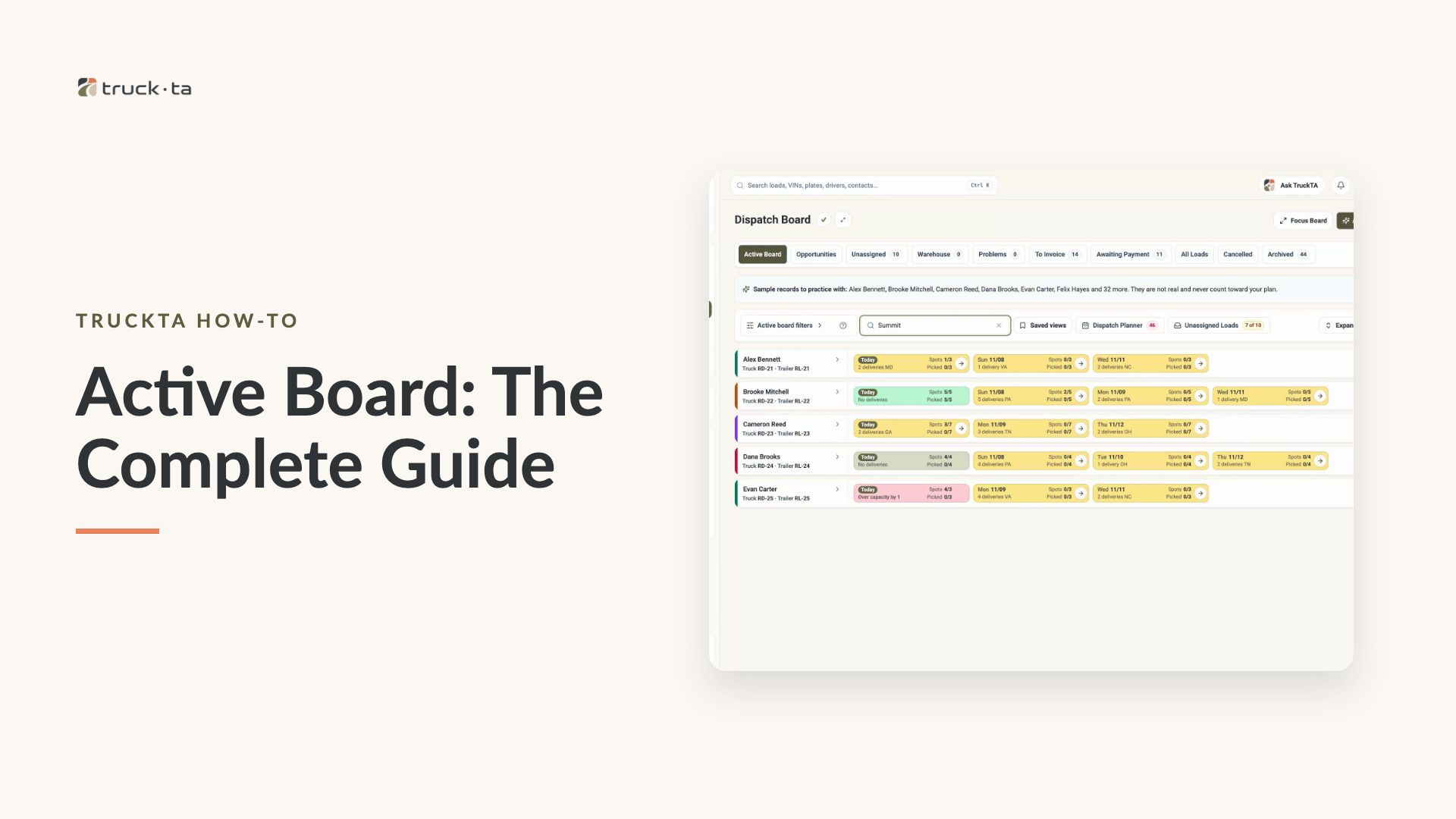
Active Board: The Complete Guide
Learn to read driver capacity, assign loads, manage status and notes, plan routes, and customize Active Board. Follow the complete walkthrough or jump to the task you need.
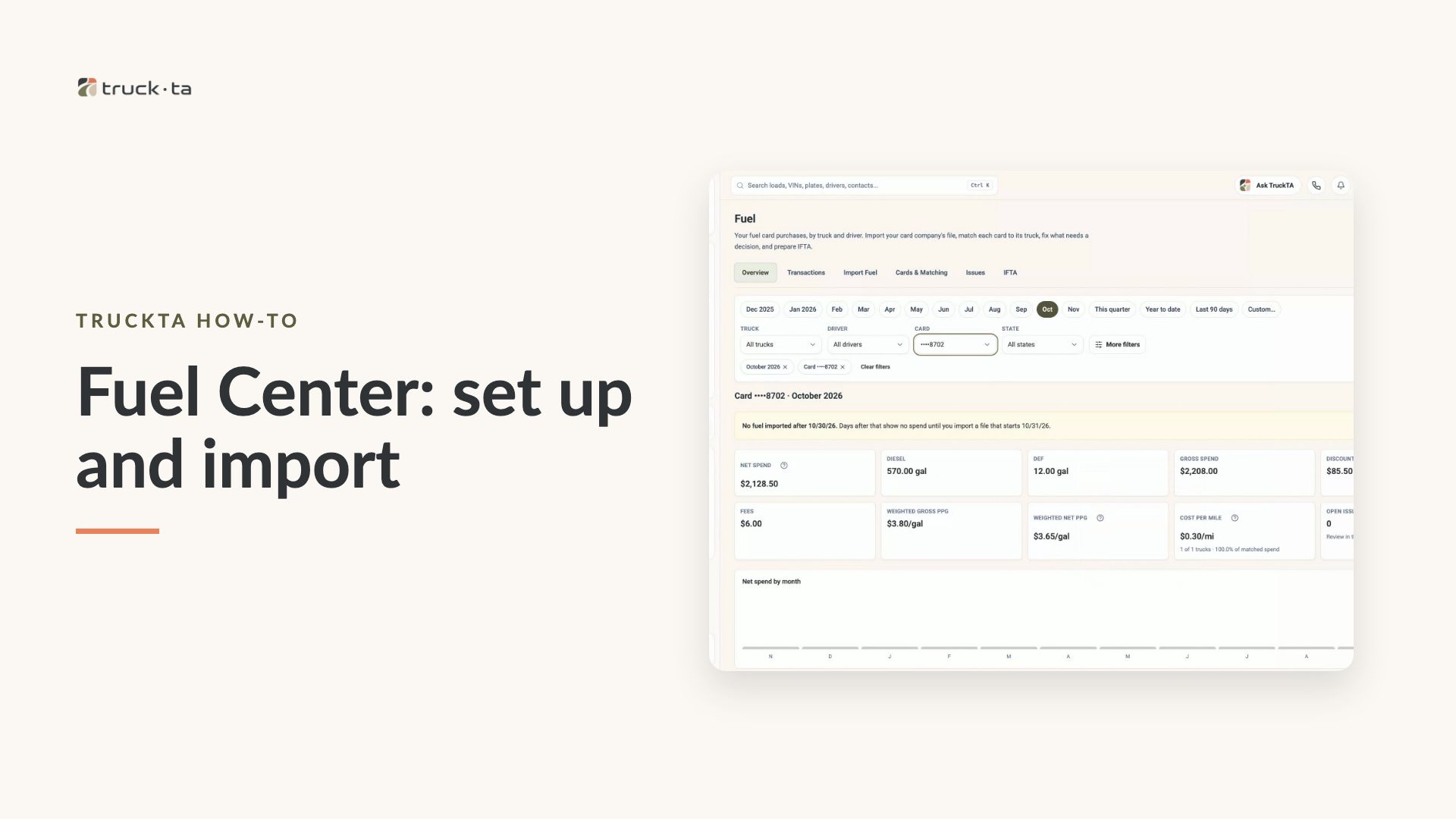
Fuel Center: Set Up Cards and Import Monthly Purchases
Set up fuel cards, import monthly CSV purchases, and connect each purchase to the right truck and driver using dated card periods and Equipment Assignment History.
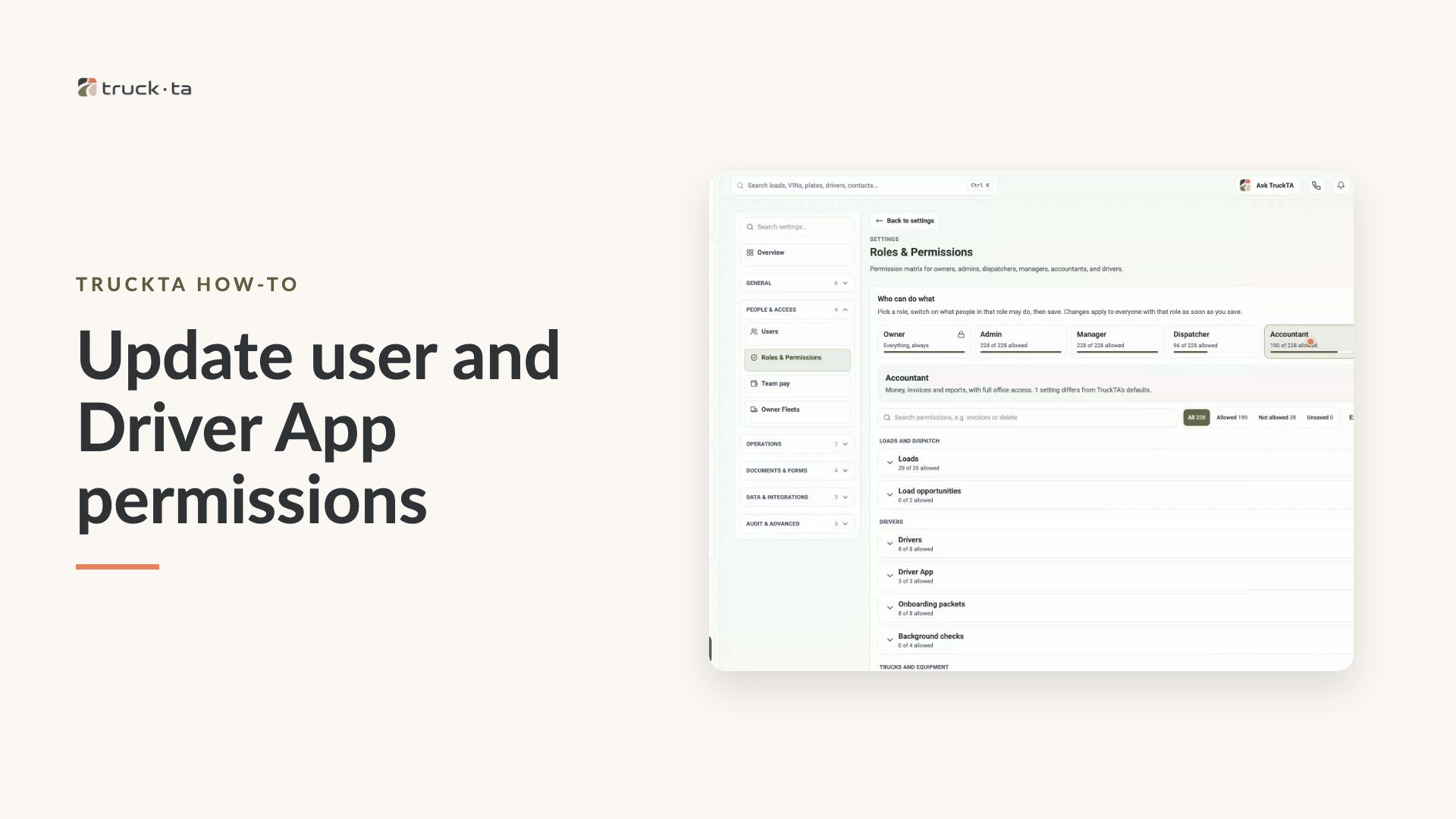
How to Update User and Driver App Permissions in TruckTA
Follow the video to assign staff roles, update shared permissions, set Driver App defaults, review pay visibility, and manage individual driver overrides.