
How to Update User and Driver App Permissions in TruckTA
Follow the video to assign staff roles, update shared permissions, set Driver App defaults, review pay visibility, and manage individual driver overrides.
By TruckTA Team · Product guidance
Reviewed by TruckTA ·
This tutorial uses an AI-generated voice. The video and article explain the same reviewed TruckTA workflow.
Put the workflow to work
Solve the task with TruckTA
In this article
You need to change what someone can do in TruckTA, but the right control depends on whose access you’re updating. Staff roles and Driver App permissions are separate. Assigning a staff role, editing that role’s permissions, and changing one driver’s app access are different actions.
This guide follows the TruckTA video “Update user and Driver App permissions” in order. Taylor Brooks and Adrian Cole are demo-company examples, not actual staff records you need to find. The permission values shown demonstrate the controls; they aren’t recommendations for your company.
Assign a staff role
Start on the Dashboard. Open Settings at the bottom of the sidebar, then choose Users under People and access. Find the person whose staff access you want to update and select Edit. In the video, that person is Taylor Brooks in the demo company.
Open the Account type menu. It includes staff roles such as Accountant and Manager. Select the role that matches the person’s responsibilities, then choose Save account type. Wait for the updated role to appear before moving on.
This action assigns the selected role’s permissions to that person. It doesn’t edit the permission template itself. If you only need to assign a different staff role, this is the control shown for that task. If you need to change what everyone with that role can do, continue to the role settings.
Update role permissions
Close the person editor, then choose Roles & Permissions from the settings navigation. Pick the role you want to change. The video selects Accountant as its example. The role tabs show how many permissions are allowed.
Use Search permissions to find a setting. In the demonstration, the search term is “telematics,” and the setting is See ELD and telematics connections. The video turns that permission off for Accountant to show how a role permission is changed.
Select Save changes, review the confirmation, and select Save changes again. Wait for Permission changes saved. The confirmation is part of the save sequence shown in the video, so don’t stop at the first selection.
Keep the scope of this edit in mind: saved changes apply to everyone with that role, not just the person you edited earlier. The Owner role always keeps every permission. Once you’ve reviewed the saved staff permissions, move to the separate Driver App settings.
Set Driver App company defaults
Select Drivers from the sidebar, then Driver App. Choose Permissions. These company defaults control what drivers can do and see unless an individual driver has an override. Review each permission’s description before changing it.

The video uses View delivered load history as an example. This permission controls access to the driver’s own completed load history. The demonstration turns the checkbox off, then selects Save permission defaults and waits for Company default permissions saved.
That save changes the company default. It doesn’t remove a saved driver-specific override, which can still replace the default for one driver. When you’re checking an individual driver’s access, the company checkbox alone therefore doesn’t tell the whole story.
Keep this separate from the staff role change you just reviewed. A saved staff permission and a saved Driver App default control different access settings. Use the permission descriptions here to decide what to change, rather than copying the demonstration’s checkbox value.
Review Money and pay
Choose Money and pay to review financial visibility in the Driver App. This section separates the load price from the driver’s own pay and earnings. Treat those as separate visibility decisions as you review the controls.
Review the controls for pay summary, gross, and deductions carefully. After making a change, save the appropriate section. The video directs you to review these controls; it doesn’t prescribe a set of financial visibility values for your company.
Giving a staff role access does not configure these Driver App settings. For example, the earlier Accountant role edit is not a substitute for reviewing Money and pay. Finish the financial visibility review in its own section before moving to an individual driver’s overrides.
Manage individual driver overrides
To change just one driver, open Settings from the sidebar, then Users. In Driver records, find the driver and choose Edit access. The video uses Adrian Cole as its demo example.

Check the linked login and Effective app access before continuing. Then select Manage overrides. Each permission shows both the company default and the effective result, so you can review the default alongside the access that applies to this driver.
For View delivered load history, the demonstration chooses Disabled for this driver and selects Save overrides. The saved result shows Effective Off. This is an individual exception; other drivers keep their own effective permissions.
To let the driver follow future company changes again, select Inherit company default and save the overrides. Enabled and Disabled are explicit exceptions. Inherit company default removes the exception rather than setting another fixed value.
Check the effective result after saving either choice. Also keep the link check separate from the role label: a Driver role alone does not replace a valid Driver App link.
Review the saved result
Finish each change by checking what was saved. For a staff assignment, wait for the updated role to appear. For a role edit, complete the confirmation sequence and wait for Permission changes saved. Remember that the role edit applies to everyone assigned that role.
For Driver App defaults, wait for Company default permissions saved. For Money and pay, save the section you changed. For an individual override, check the effective result after saving, whether you selected an explicit exception or returned the driver to the company default.
Don’t treat a successful save in one area as a change to every area. Staff roles, role permissions, Driver App defaults, and driver overrides each have their own scope. Review the resulting access after each save before moving on.
Read the video transcript
Choose what your staff can do in Truck T A, and control Driver App permissions separately. Here is how to update both. Start on the Dashboard. Open Settings at the bottom of the sidebar, then choose Users under People and access. Find the person you want to update, and select Edit. In this example, we are editing Taylor Brooks in our demo company. The Account type menu includes staff roles such as Accountant and Manager. Select the role that matches this person's responsibilities, then choose Save account type. Wait for the updated role to appear. This assigns the role's permissions to that person; changing the permission template itself is the next step. Close the person editor, then choose Roles and Permissions from the settings navigation. Pick the role you want to change. We will select Accountant. The role tabs show how many permissions are allowed. Changes here apply to everyone with that role as soon as you save. Use Search permissions to find the setting you need. We will search for telematics and turn off See E L D and telematics connections for Accountant. Select Save changes, review the confirmation, and select Save changes again. Wait for Permission changes saved. The Owner role always keeps every permission. Staff permissions and Driver App permissions are separate. To open the mobile settings, select Drivers from the sidebar, then Driver App. Choose Permissions. These company defaults control what drivers can do and see unless a driver has an individual override. Review each permission's description before changing it. For example, View delivered load history controls access to the driver's own completed load history. Turn the checkbox off, then choose Save permission defaults. Wait for Company default permissions saved. This changes the company default. A saved driver-specific override can still replace that default for one driver. Choose Money and pay to review financial visibility. This section separates the load price from the driver's own pay and earnings. Review the controls for pay summary, gross, and deductions carefully. Save the appropriate section after making a change. Giving a staff role access does not configure these Driver App settings. To change just one driver, open Settings from the sidebar, then Users. In Driver records, find the driver and choose Edit access. We will use Adrian Cole. Check the linked login and Effective app access before continuing, then select Manage overrides. Each permission shows the company default and the effective result. For View delivered load history, choose Disabled for this driver, then Save overrides. The saved result now shows Effective Off for this driver. Other drivers keep their own effective permissions. To let this driver follow future company changes again, select Inherit company default and save the overrides. Enabled and Disabled are explicit exceptions; Inherit removes the exception. Check the effective result after saving. A Driver role alone does not replace a valid Driver App link. Assign the right staff role, review changes that affect the whole role, and manage Driver App defaults and individual overrides separately. After each save, check the resulting access before moving on.
Put it into practice
Keep your operation moving with TruckTA.
More ways to use TruckTA
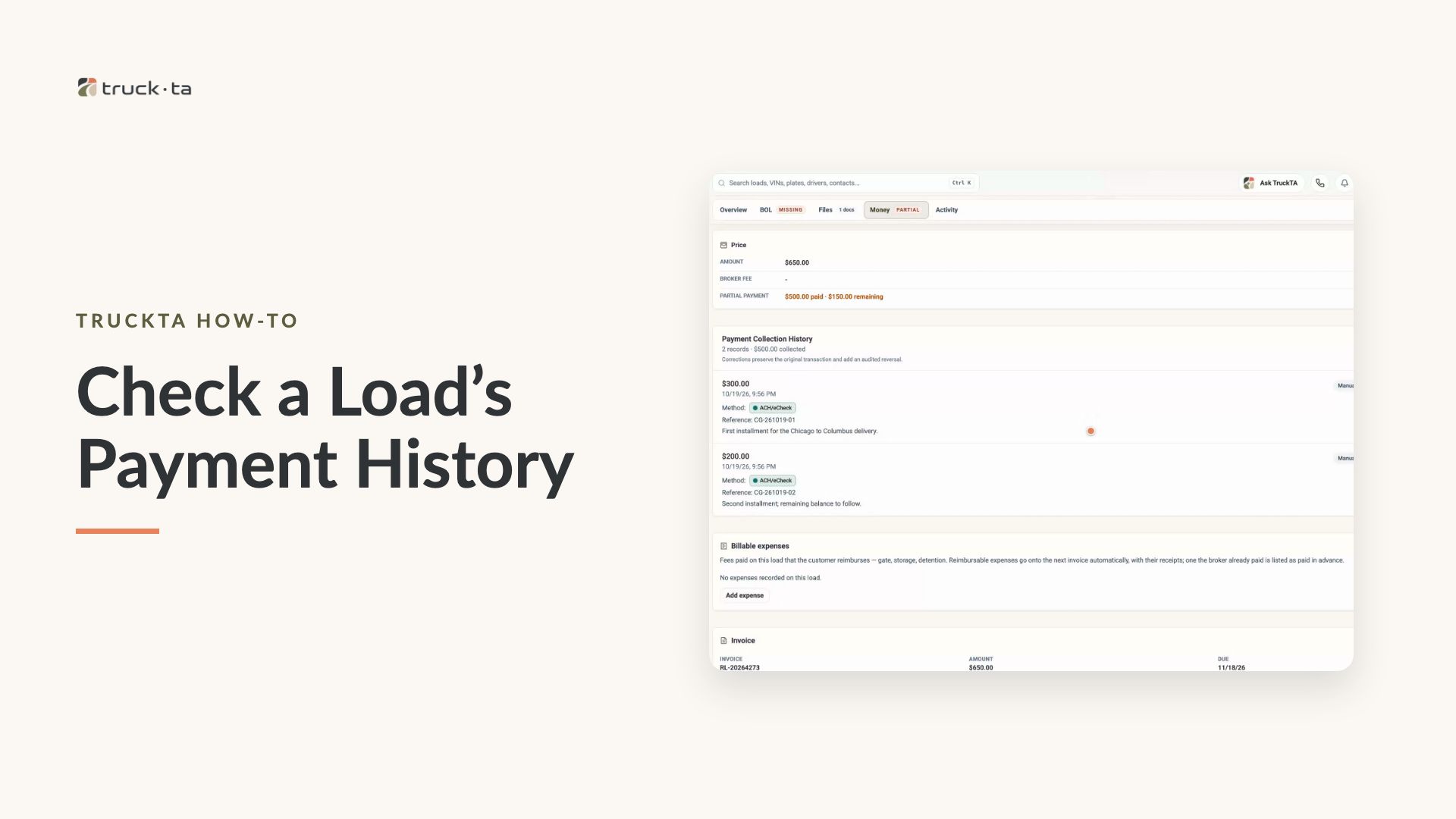
Check a Load’s Payment History in TruckTA
Find a load by order number, review its recorded payment details, and compare Load pays, Collected, and Balance in TruckTA.
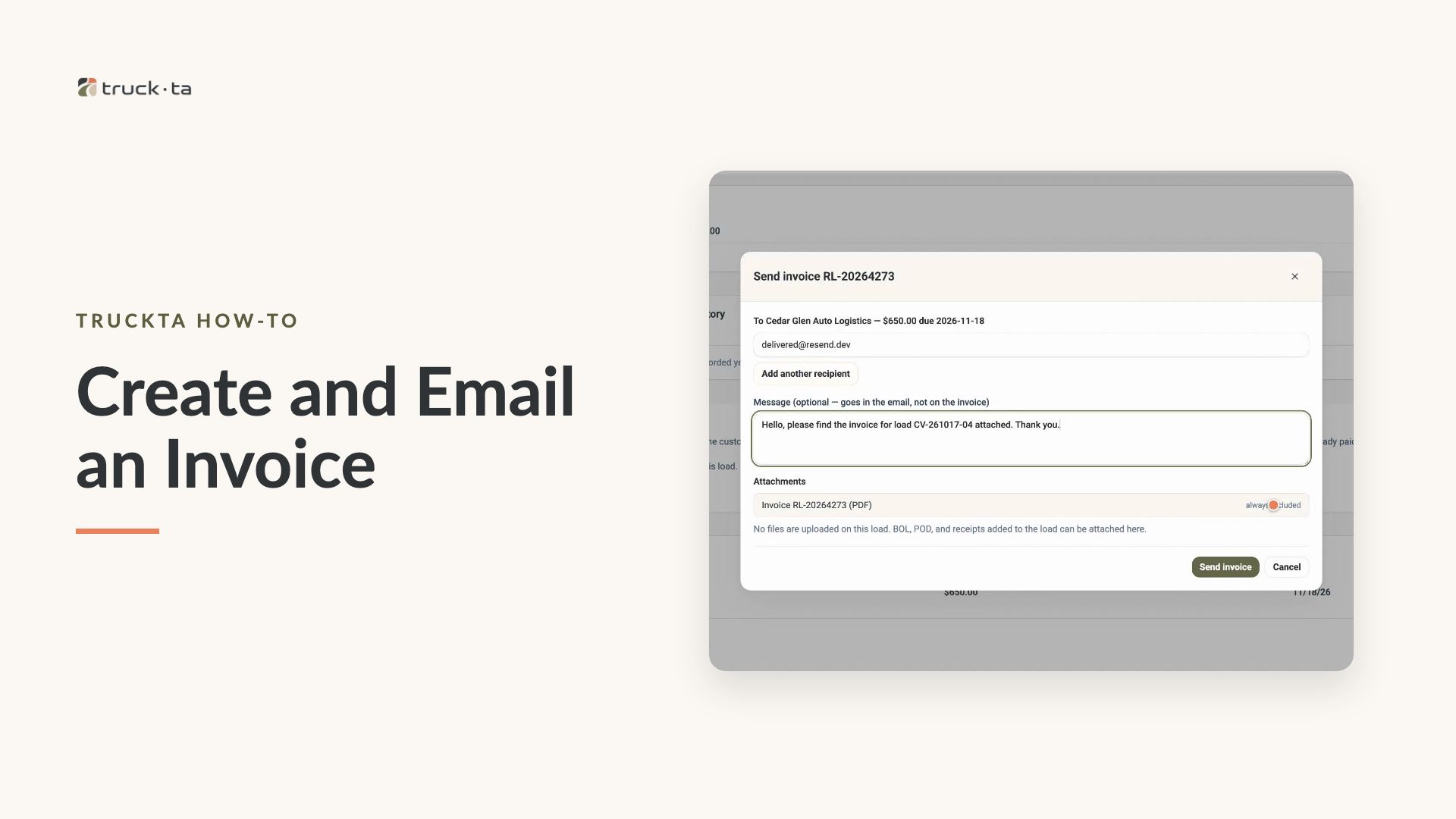
Create and Email an Invoice from TruckTA
Follow the video workflow to check invoicing settings, create a draft for a delivered load, review the PDF, email the invoice, and verify its sent status in TruckTA.
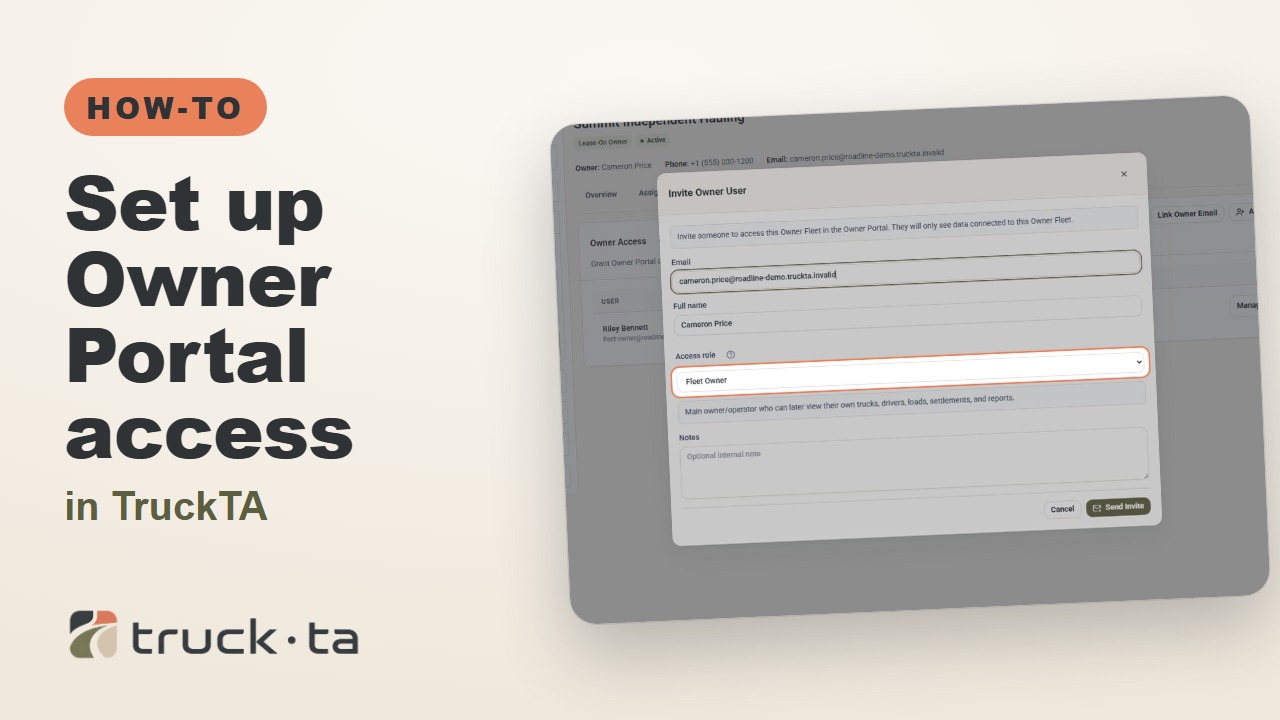
Set Up Owner Portal Access in TruckTA
Give a lease-on owner their own TruckTA Owner Portal login. Follow the invitation, account setup, portal views, and final access check shown in the video.