
Create and Email an Invoice from TruckTA
Follow the video workflow to check invoicing settings, create a draft for a delivered load, review the PDF, email the invoice, and verify its sent status in TruckTA.
By TruckTA Team · Product guidance
Reviewed by TruckTA ·
This tutorial uses an AI-generated voice. The video and article explain the same reviewed TruckTA workflow.
Put the workflow to work
Solve the task with TruckTA
In this article
Your load is delivered, and you’re ready to invoice it. In TruckTA, you’ll create a draft from the load, review the invoice PDF, prepare the email, and send it. Keep those actions separate: creating the draft doesn’t email the customer, and sending the invoice doesn’t record a payment.
This guide follows the TruckTA video “Create and Email an Invoice” in the same order. Use it alongside the video when preparing a car hauling invoice. The demonstration uses fictional staging data, so work from your own delivered load’s details and intended recipient rather than copying the example.
Check Invoicing Settings
From the Dashboard, open Settings in the sidebar. Under Operations, choose Invoicing. The setting Create and send invoices from TruckTA must be enabled for this workflow.
An owner or admin can review the invoice numbering, invoice payment terms, and reply-to address here. These are the account details shown at the beginning of the video, before the demonstration moves into a delivered load. If you’re the owner or admin handling that review, check those details in Settings > Invoicing.
The demonstration account is already set up. Treat that as context for what you see on screen, not confirmation that your own account is ready. Start with this settings check, then move to the load you intend to bill.
Open the Delivered Load
Use the search bar at the top of TruckTA to find the load by its order number. Open the matching result, then choose the Money tab. This takes you into the load used for the invoice workflow.
In the video, the delivered load is a Toyota Camry with a $650 price and Net thirty terms. Those details are fictional staging examples, not an amount or payment term you should enter for your customer.
Follow the same search-and-open sequence with your own order number. The task here is to reach the matching delivered load and its Money tab. The next review happens on that load’s Invoice card, where you’ll check the billing details before creating anything.
Create the Draft
Scroll to the Invoice card in the Money tab. Before selecting Create invoice, confirm the amount, payment terms, and bill-to contact. Read those details for the load you’ve opened rather than relying on the values shown in the demonstration.

When those details are correct, select Create invoice. TruckTA assigns an invoice number and saves a draft. At this point, nothing has been emailed. You’ve created the invoice for review, not sent it to the recipient.
That distinction matters as you follow along: the draft is an intermediate step, not the end of the billing task. Review its details before moving toward sending. The video’s next action is to download the invoice PDF so you can check the file itself.
Review Before Sending
Select View invoice PDF to download the invoice for review. Open the file and check the customer, load, amount, and payment details. Don’t stop at confirming that a PDF downloaded; this is the point in the workflow where you review what the invoice actually says.
Work through each of those details deliberately. Confirm the customer and load, then check the amount and payment information. The Invoice card review came before creating the draft; this review covers the resulting invoice file before you prepare the email.
Back in TruckTA, the draft stays available until you’re ready. There’s no need to treat draft creation as the instruction to send immediately. When the details are correct, choose the send button to open the email dialog. Opening that dialog is the next preparation step; the final sending action comes after you check the email.
Prepare the Email
Check the recipient carefully in the email dialog. Use the intended recipient for your invoice. The video uses a provider test address so no real customer receives the demonstration; that address is staging data, not a recipient to use for your load.
You can add another recipient and include an optional message. Review the recipients before moving on, including any additional recipient you add. A message is optional, so concentrate first on confirming who should receive the invoice.
The invoice PDF is always included. Files already uploaded to the load can also be attached in this dialog. Review the attachments you intend to send along with the recipient details.
Keep the PDF review and email review distinct. You’ve already checked the customer, load, amount, and payment details in the invoice file. Now you’re checking the recipient, any optional message, and the attachments before selecting the final sending action.
Send and Verify
Once the recipient and attachments are correct, select Send invoice. Wait for the confirmation, then check the invoice’s sent status in TruckTA. Follow that sequence rather than stopping as soon as you select the button.

If the email status reports a delivery problem, follow up on it. The workflow includes checking the status after sending; selecting Send invoice is not a substitute for that check. Pay attention to what TruckTA reports before moving on.
Sending the invoice does not record a payment. Keep payment collection separate from the email task. A sent invoice and a collected payment are different things, so continue monitoring the invoice until payment has actually been collected.
Find the Invoice Again
To locate the invoice later, open Finance Center in the sidebar, then select Invoices. Choose Sent and locate the invoice number and load. This is the route shown in the video for finding the invoice after sending it.
You can review its amount and due date here. Use the invoice number and load to identify the invoice you’re looking for, then keep an eye on it until payment has actually been collected. Finding it among sent invoices doesn’t change the distinction between sending and payment.
For the delivered load you’re billing now, finish the workflow: review your draft and its recipient, send the invoice, and verify its sent status in TruckTA.
Read the video transcript
Create a draft, check the details, and email an invoice directly from TruckTA. Here's the workflow on a delivered load. From the Dashboard, open Settings in the sidebar, then choose Invoicing under Operations. Create and send invoices from TruckTA must be enabled. An owner or admin can review the invoice numbering, payment terms, and reply-to address here. This account is already set up. We're using fictional staging data. Use the search bar at the top to find your load by its order number. Open the matching result, then choose the Money tab. Our example is a delivered Toyota Camry, with a six-hundred-fifty-dollar price and Net thirty terms. Scroll to the Invoice card. Confirm the amount, terms, and bill-to contact, then select Create invoice. TruckTA assigns an invoice number and saves a draft. Nothing has been emailed yet. Review these details before you move on to sending. Select View invoice PDF to download the invoice for review. Check the customer, load, amount, and payment details in the file. Back in TruckTA, the draft stays available until you're ready. When the details are correct, choose the send button to open the email dialog. Check the recipient carefully. You can add another recipient and include an optional message. The invoice PDF is always included. Files already uploaded to the load can also be attached here. This example uses a provider test address, so no real customer receives the demonstration. Once the recipient and attachments are correct, select Send invoice. Wait for the confirmation, then check the invoice's sent status. Sending the invoice does not record a payment. Keep payment collection separate, and follow up on delivery problems if the email status reports one. To find the invoice later, open Finance Center in the sidebar, then select Invoices. Choose Sent and locate the invoice number and load. You can review its amount and due date here. Keep an eye on the invoice until payment has actually been collected. Check your draft and its recipient. Send the invoice, then verify its status in Truck T A.
Put it into practice
Keep your operation moving with TruckTA.
More ways to use TruckTA
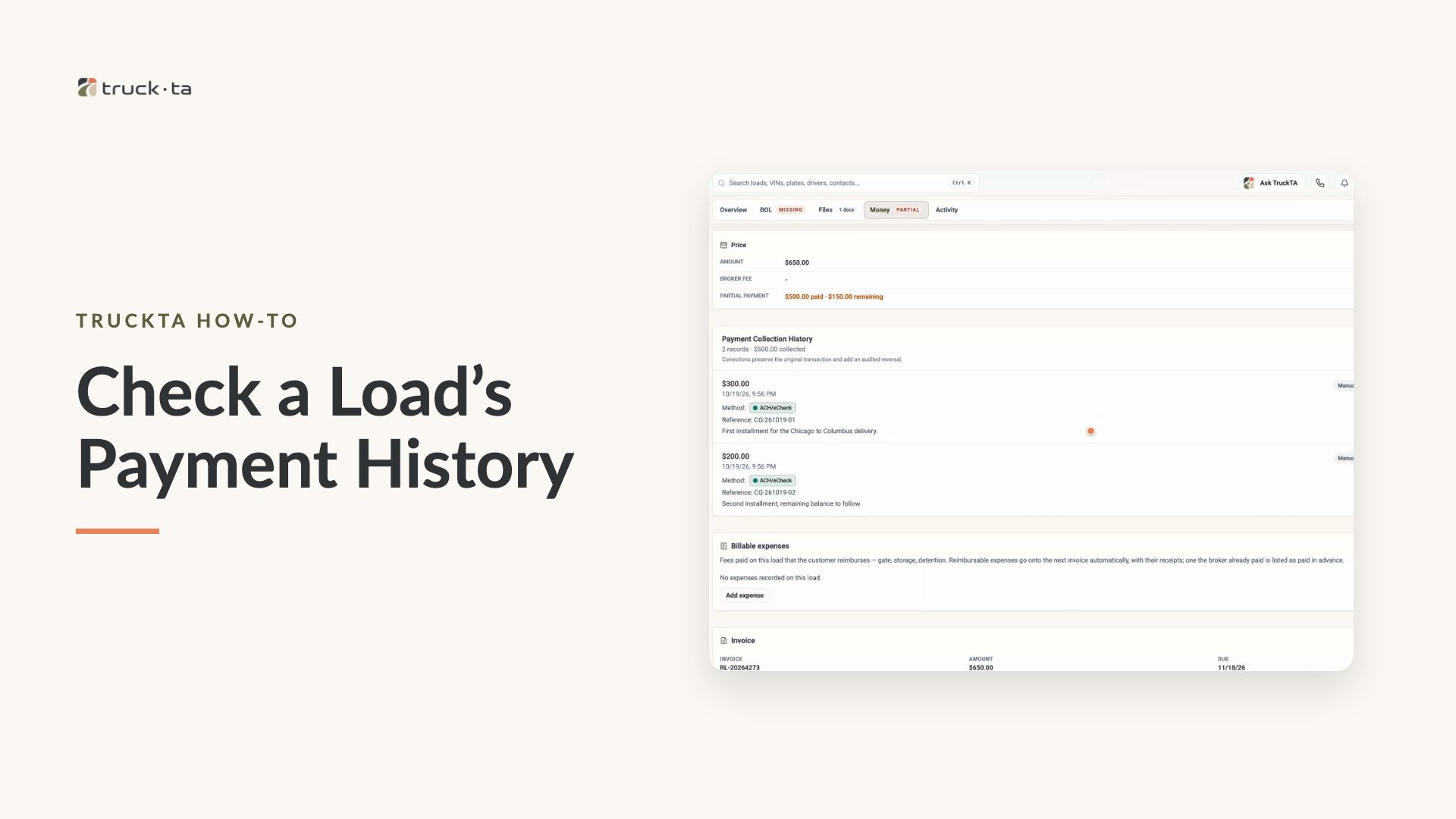
Check a Load’s Payment History in TruckTA
Find a load by order number, review its recorded payment details, and compare Load pays, Collected, and Balance in TruckTA.
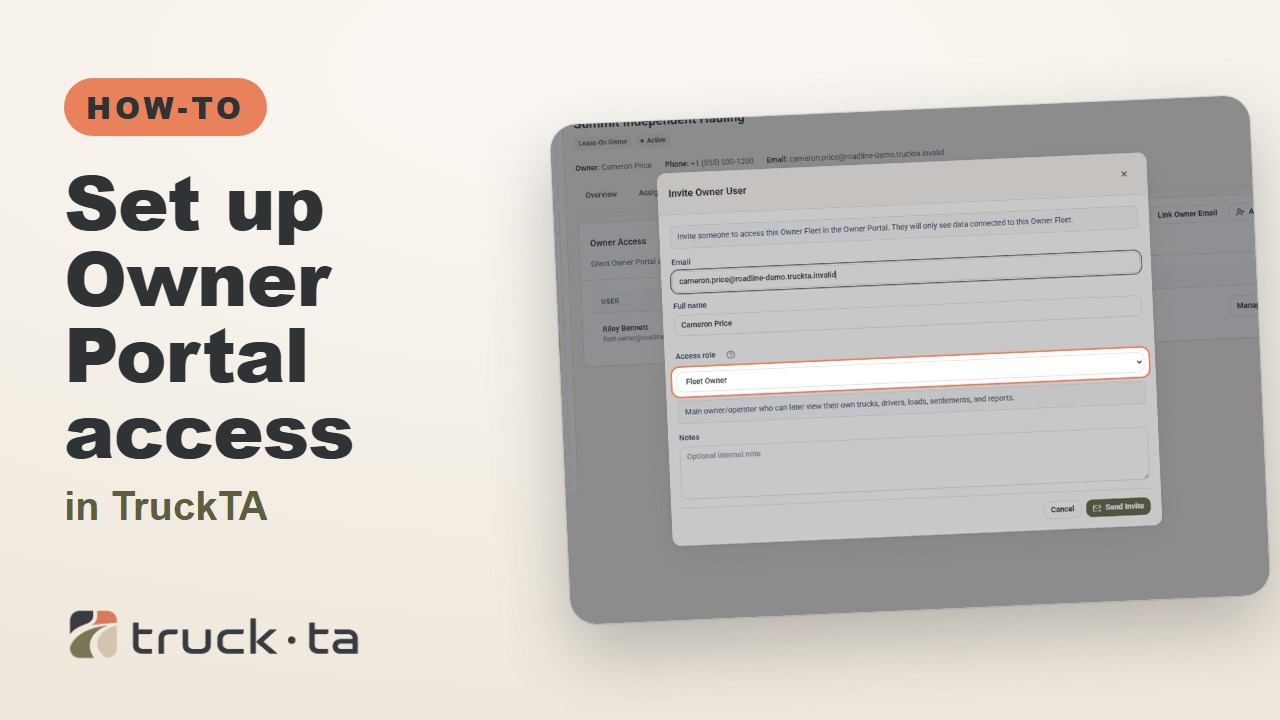
Set Up Owner Portal Access in TruckTA
Give a lease-on owner their own TruckTA Owner Portal login. Follow the invitation, account setup, portal views, and final access check shown in the video.
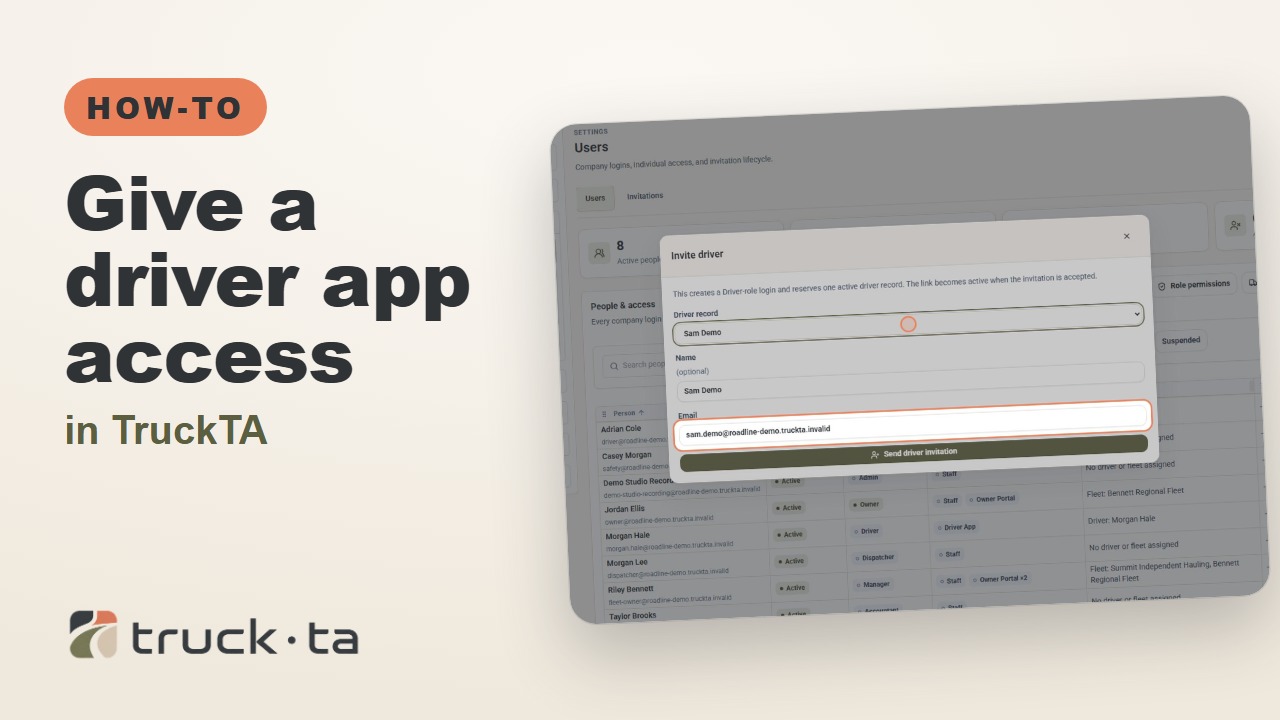
Give a Driver App Access in TruckTA
Send a personal invitation from TruckTA, then follow the driver through acceptance, app installation, and sign-in. Here’s how to confirm they’re connected to your company.