
Check a Load’s Payment History in TruckTA
Find a load by order number, review its recorded payment details, and compare Load pays, Collected, and Balance in TruckTA.
By TruckTA Team · Product guidance
Reviewed by TruckTA ·
This tutorial uses an AI-generated voice. The video and article explain the same reviewed TruckTA workflow.
Put the workflow to work
Solve the task with TruckTA
Need to see what’s been collected on a load and how much remains? Open the load in TruckTA, review the entries under Payment Collection History, then compare the totals on the Payment card. Start by confirming that you’re looking at the right load, so the payment details you review belong to the order you intended to check.
This guide accompanies the TruckTA how-to video “Check a Load’s Payment History” and stays within that read-only review. The video’s $650 load, $300 and $200 ACH entries, $500 collected total, and $150 balance are a fictional demonstration, not your balances. Follow the same review using the details displayed on your own load.
Find the Load
From the Dashboard, use the search bar at the top to find the load by its order number. Select the matching result to open it. That gets you to the load you want to review; the next part is checking its identity before you look at the money.
Check the load number, vehicle, and route on the opened load. Read those details together rather than relying only on the search result. You’re confirming that the load on screen is the one whose recorded collections you need to examine.
Open the History
Select the Money tab on the load. Scroll down to Payment Collection History. This is the section to use when you want to examine the recorded collections individually, rather than looking only at the load’s overall collected amount.

Read the heading before going through the entries. It shows how many records are listed and the total collected. Those are separate pieces of information: the record count tells you how many entries you’re reviewing, while the collected total gives you their combined amount.
In the fictional demonstration, the heading shows two records totaling $500. Treat that as the summary of the example’s payment history, not as a statement that the load has been fully collected. You’ll check the remaining balance on the Payment card after reviewing the individual records.
Review the Records
For each payment, read the amount and collection date, then check the method and transaction reference. Use those details together to match the entry to your own payment records.
Check the recorded method, then read the transaction reference alongside it. In the fictional example, both payments use ACH: one is $300, and the other is $200. They share a method, but they remain separate entries to review against your own records.
Look underneath each entry for notes, which appear when provided. If a note is present, read it as part of that payment’s details. Notes are optional in the demonstrated workflow, so the review is to read them when shown, not to expect a note underneath every payment.
Together, the example’s $300 and $200 entries account for the $500 collected total shown in the history heading. That connects the individual records to the summary you read above them. Your task here remains a review of the recorded payments and a comparison with your own payment records.
Check the Balance
After reviewing the entries, scroll back up to the Payment card. Compare Load pays, Collected, and Balance. Read all three together: the collected figure is only part of the answer when you also need to know how much remains on the load.

| Payment card field | Fictional demonstration |
|---|---|
| Load pays | $650 |
| Collected | $500 |
| Balance | $150 |
| Status | Partial |
Read the status as well. The example shows Partial, so collection is not complete. Don’t stop at the fact that payments are listed: the Payment card shows the collected amount alongside the load’s pay and remaining balance.
The history and the card answer different parts of the same question. The history provides the individual recorded payment details; the card provides the comparison between Load pays, Collected, and Balance. Open the right load, review its recorded payments, and check its remaining balance.
Read the video transcript
Need to check what has been collected on a load? Here is how to review its payment history in TruckTA. From the Dashboard, use the search bar at the top to find your load by its order number. Select the matching result, then check the load number, vehicle, and route to make sure you opened the right load. On the load, select the Money tab. Scroll down to Payment Collection History. The heading shows how many records are listed and the total collected. This example has two records totaling five hundred dollars. Read each payment's amount and collection date, then check its method and transaction reference. Notes appear underneath when provided. Here, the two ACH payments are three hundred dollars and two hundred dollars. Use those details to match each entry to your own payment records. Scroll back up to the Payment card. Compare Load pays, Collected, and Balance. This load pays six hundred fifty dollars, with five hundred collected and one hundred fifty remaining. Its status shows Partial, so the collection is not complete. Find the right load, review each payment, and check the remaining balance. That is your payment history review in TruckTA.
Put it into practice
Keep your operation moving with TruckTA.
More ways to use TruckTA
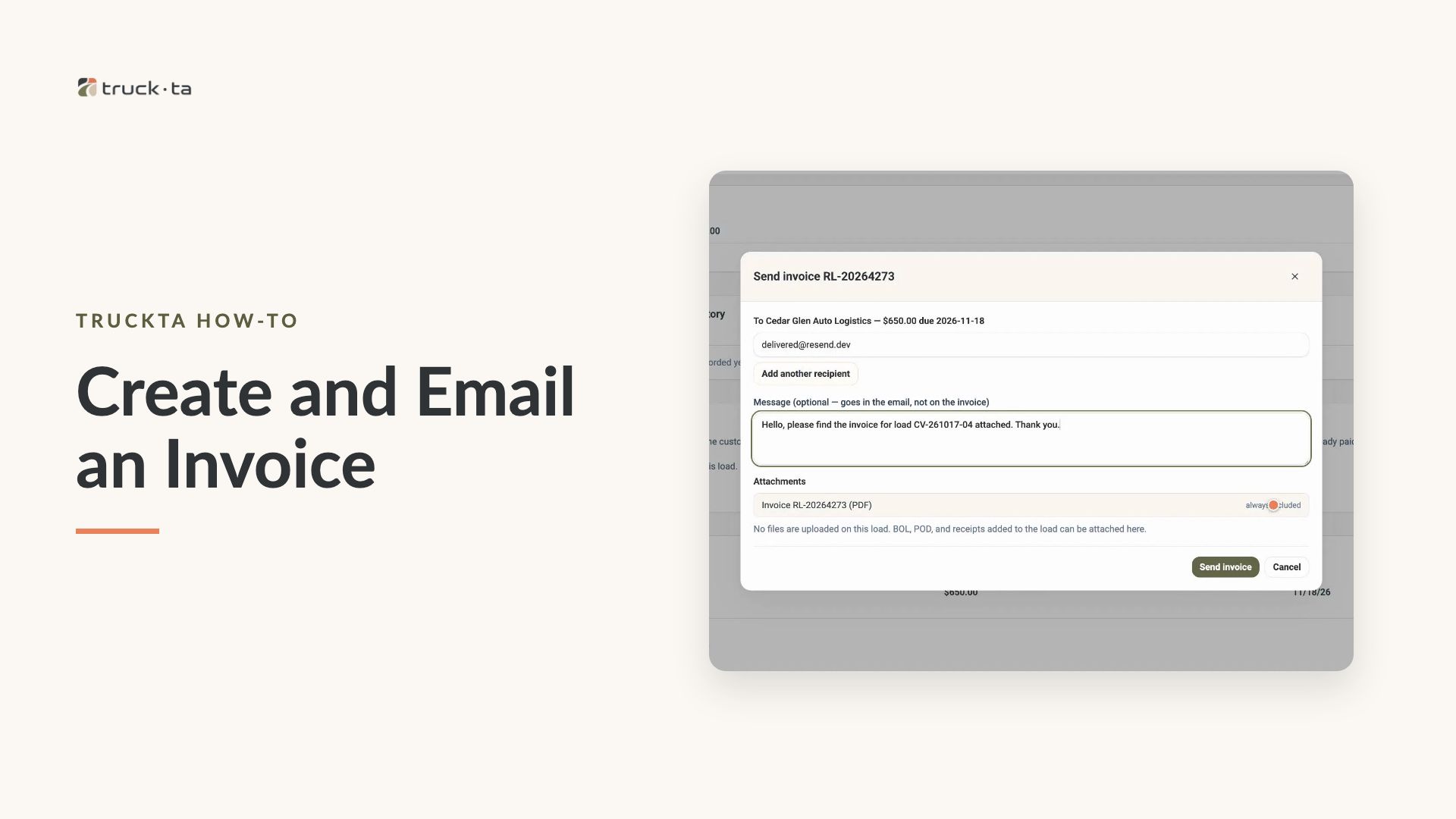
Create and Email an Invoice from TruckTA
Follow the video workflow to check invoicing settings, create a draft for a delivered load, review the PDF, email the invoice, and verify its sent status in TruckTA.
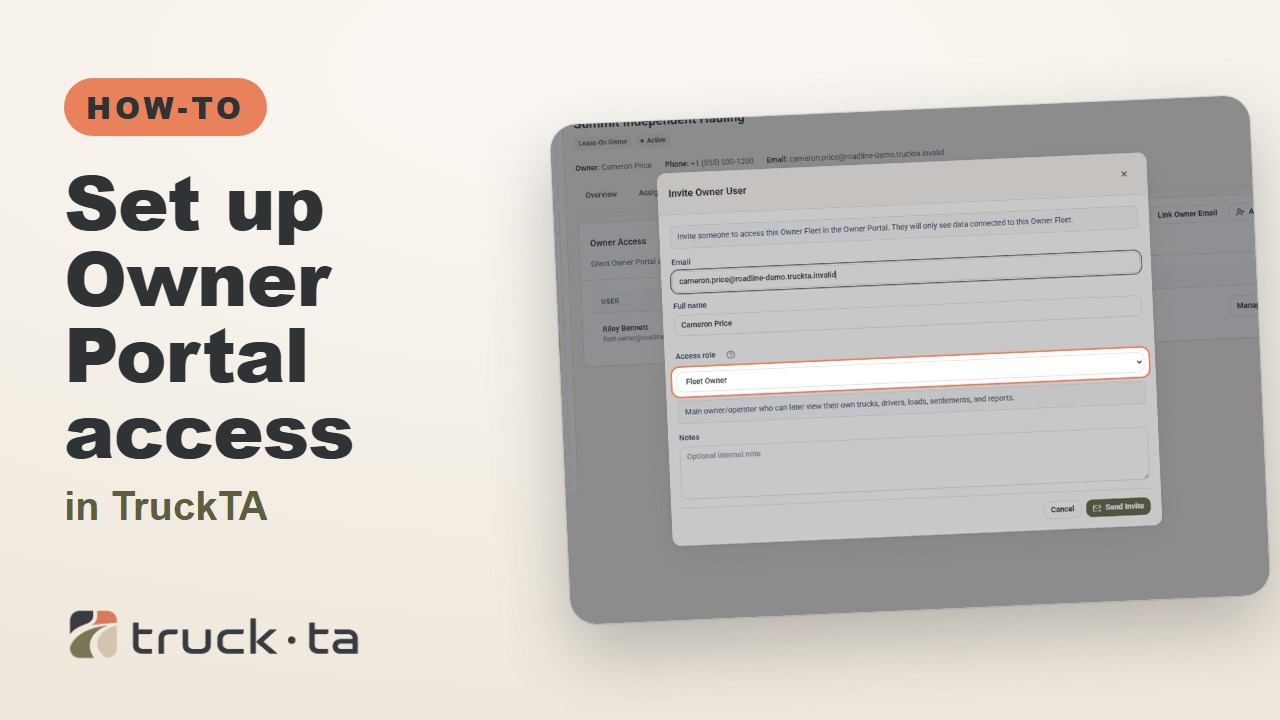
Set Up Owner Portal Access in TruckTA
Give a lease-on owner their own TruckTA Owner Portal login. Follow the invitation, account setup, portal views, and final access check shown in the video.
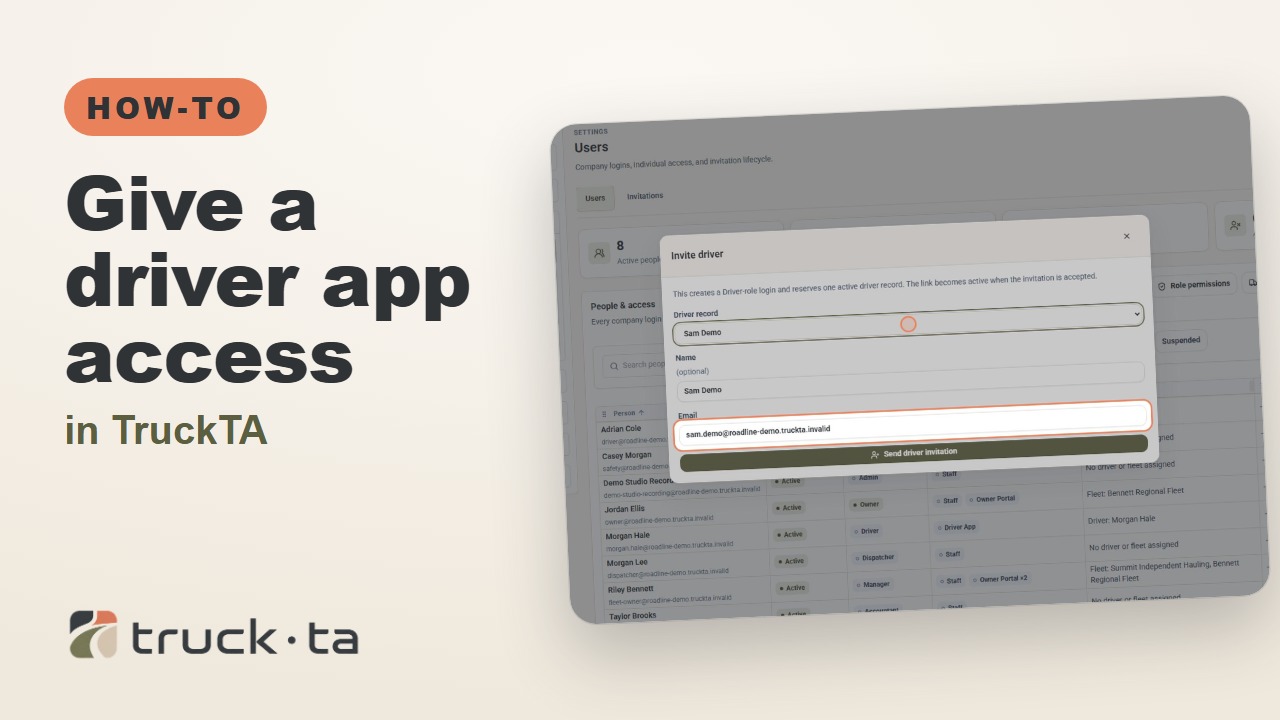
Give a Driver App Access in TruckTA
Send a personal invitation from TruckTA, then follow the driver through acceptance, app installation, and sign-in. Here’s how to confirm they’re connected to your company.