
Set Up Owner Portal Access in TruckTA
Give a lease-on owner their own TruckTA Owner Portal login. Follow the invitation, account setup, portal views, and final access check shown in the video.
By TruckTA Team · Product guidance
Reviewed by TruckTA ·
This tutorial uses an AI-generated voice. The video and article explain the same reviewed TruckTA workflow.
Put the workflow to work
Solve the task with TruckTA
In this article
Your lease-on owner needs to follow their trucks, loads, and pay. Assigning their trucks in TruckTA is part of the setup, but it doesn’t create an Owner Portal login. You’ll give them access separately, then they’ll accept an emailed invitation and create their account.
This guide accompanies the video “Set up Owner Portal access in TruckTA.” It follows the same workflow: open the owner fleet, send the invitation, follow the owner into the portal, and return to confirm their access is active.
Open the owner fleet
From the Dashboard, open Settings in the sidebar. Under People and access, select Owner Fleets. Each owner fleet shows its owner, phone, and email, so you can identify the fleet you’re opening before continuing.
Select View on the owner’s fleet. In the video, that’s Summit Independent Hauling, a lease-on fleet owned by Cameron Price. Cameron also drives, but for this walkthrough he only needs the Owner Portal.
There’s a separate option to keep in mind when an owner also uses the Driver App: Set up owner-operator access gives them one login for both. The video mentions that option, then continues with Cameron’s Owner Portal setup.
Open the Assignments tab. The trucks and drivers assigned here are what the owner will see in the portal. Review those assignments before moving on. This tab establishes which trucks and drivers belong in the owner’s view; the next tab is where you give the owner access to that view.
Invite the owner
Open the Access tab and select Invite Owner User. Keep the distinction clear: assignments and portal access are separate. Having trucks assigned to the fleet doesn’t mean the owner already has a login.
TruckTA fills in the owner’s email and name from the fleet. Check the email before sending the invitation. It’s the address the owner will use to sign in, not just the address where they’ll receive the invitation.
The access role starts on Fleet Owner, which is for the main owner. Owner Staff, Accountant, and Viewer are for people who work with them. Each of these roles sees only this fleet’s data. For the main-owner setup shown in the video, Cameron’s role is Fleet Owner.
Select Send Invite. TruckTA emails the invitation, and it appears under Pending Owner Portal Invites until the owner accepts. You can resend or cancel it there. At this point, you’ve sent the invitation; the owner still needs to complete the acceptance process.
What the owner gets
Cameron receives an email titled “You’ve been invited to TruckTA Owner Portal.” It names the fleet and his role, giving him the context for the invitation before he accepts it.

The email also says he’ll be able to view the fleet’s loads, equipment, drivers, and settlements. That’s the owner-facing side of the workflow: access to the information for his fleet.
When you explain the invitation to an owner, point them to the fleet name and role in the email. In Cameron’s case, it’s Owner Portal access for Summit Independent Hauling, with the Fleet Owner role. He continues by selecting Accept invitation.
Accept the invitation
The invitation page shows your company, Cameron’s email, his Owner Portal role for Summit Independent Hauling, and when the invitation expires. The owner can review those details on the acceptance page before creating the account.
Cameron’s name is already filled in. He creates a password with at least eight characters, using letters and a number or symbol, then selects Create account and accept invitation. TruckTA opens his Owner Portal.
This is the handoff from your office to the owner. You send the invitation from the fleet’s Access tab; the owner follows the email and creates their password. The invitation page also shows the expiry information, so check that displayed detail rather than assuming a fixed invitation window.
The Owner Portal
The Owner Portal Overview shows the fleet, its status, and Cameron’s role. It also shows his assigned trucks, trailers, drivers, and saved settlements. This is the first view he reaches after creating his account and accepting the invitation.

Loads opens on last week. For each truck, Cameron can see the vehicles, gross, and driver pay. The arrows move one week at a time. If you’re walking an owner through this screen, start with the displayed week, then show how the arrows move between weeks.
Settlements shows the statements you saved for his fleet. The statement calculation is gross, minus driver pay and deductions, plus adjustments, which adds up to his net. Keep that distinction in your walkthrough: Loads shows the weekly vehicles, gross, and driver pay by truck; Settlements shows the saved statements for the fleet.
For older statements, Cameron selects Show all history. That gives you a specific place to point an owner who wants to view an earlier saved settlement rather than the statements already in view.
Maintenance lists service records for his trucks. Accidents lists any accidents involving his drivers. These views sit alongside the load and settlement information the video demonstrates.
For future sign-ins, Cameron uses the same email and password. He can sign in on a computer, through a phone browser, or through the TruckTA app.
Check the access
Back in TruckTA, open Settings, select Owner Fleets, and choose View on the owner’s fleet again. Open the Access tab. After Cameron accepts, he appears there as an active Fleet Owner, rather than an invitation waiting for acceptance.
The Access tab also provides Revoke. It removes his access without deleting his login. That distinction matters when you’re checking or changing owner fleet access.
Use TruckTA to organize your next owner invitation around this workflow. Start with the fleet’s Assignments tab, check the owner’s email when you invite them, and return to Access after acceptance to confirm they’re active.
Read the video transcript
Owner-operators who lease on with you can follow their own trucks, loads, and pay in the TruckTA Owner Portal. In this video, you'll invite an owner, then follow them as they accept and open the portal. From the Dashboard, open Settings in the sidebar. Under People and access, select Owner Fleets. Each owner fleet shows its owner, phone, and email. Select View on the owner's fleet. Here it's Summit Independent Hauling, a lease-on owner. Cameron Price owns it, and he also drives. If an owner uses the Driver App too, Set up owner-operator access gives them one login for both. Cameron only needs the Owner Portal. Select the Assignments tab. The trucks and drivers assigned here are what the owner will see in the portal. Now open the Access tab. Assigning trucks doesn't create a login: you give portal access here. Select Invite Owner User. TruckTA fills in the owner's email and name from the fleet. Check the email: the owner will sign in with it. The access role starts on Fleet Owner, for the main owner. Owner Staff, Accountant, and Viewer are for people who work with them. Each one sees only this fleet's data. Select Send Invite. TruckTA emails the invitation, and it waits under Pending Owner Portal Invites until the owner accepts. You can resend or cancel it here. Cameron gets an email: You've been invited to TruckTA Owner Portal. It names the fleet and his role, and says he'll be able to view the fleet's loads, equipment, drivers, and settlements. He selects Accept invitation. The invitation page shows your company, Cameron's email, his Owner Portal role for Summit Independent Hauling, and when the invitation expires. His name is already filled in. He creates a password with at least eight characters, using letters and a number or symbol, then selects Create account and accept invitation. TruckTA opens his Owner Portal. Overview shows the fleet, its status, and Cameron's role, with his assigned trucks, trailers, drivers, and saved settlements. Loads opens on last week, with the vehicles, gross, and driver pay for each truck. The arrows move one week at a time. Settlements shows the statements you saved for his fleet: gross, minus driver pay and deductions, plus adjustments, adds up to his net. Show all history lists older statements. Maintenance lists the service records for his trucks, and Accidents lists any accidents involving his drivers. Next time, Cameron signs in with the same email and password, on a computer, a phone browser, or the TruckTA app. Back in TruckTA, open Settings once more, select Owner Fleets, and view Summit Independent Hauling. On the Access tab, Cameron is now an active Fleet Owner. Revoke removes his access without deleting his login. Your owner-operators can now follow their trucks, loads, and pay. Start free at truckta dot com.
Put it into practice
Keep your operation moving with TruckTA.
More ways to use TruckTA
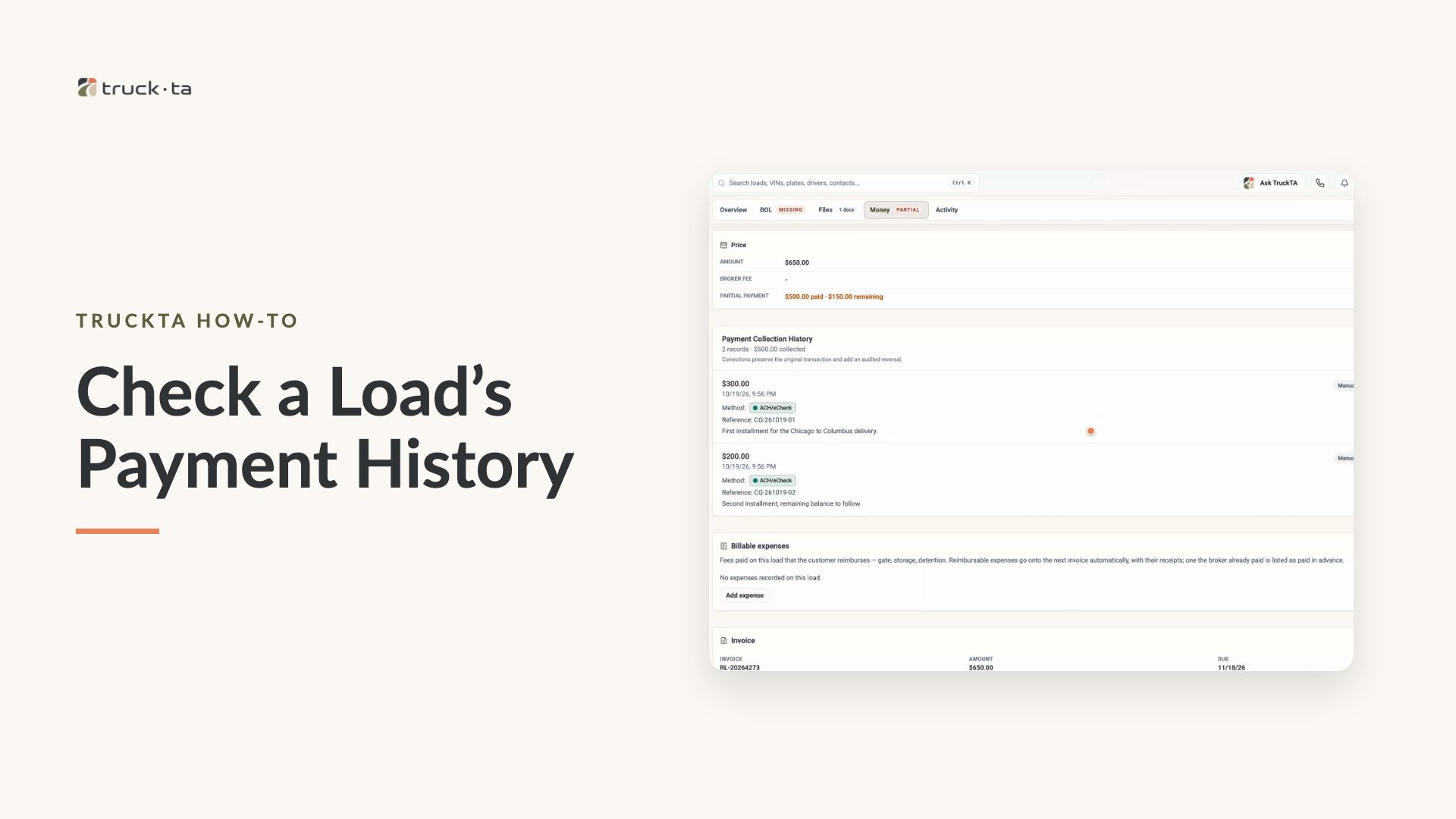
Check a Load’s Payment History in TruckTA
Find a load by order number, review its recorded payment details, and compare Load pays, Collected, and Balance in TruckTA.
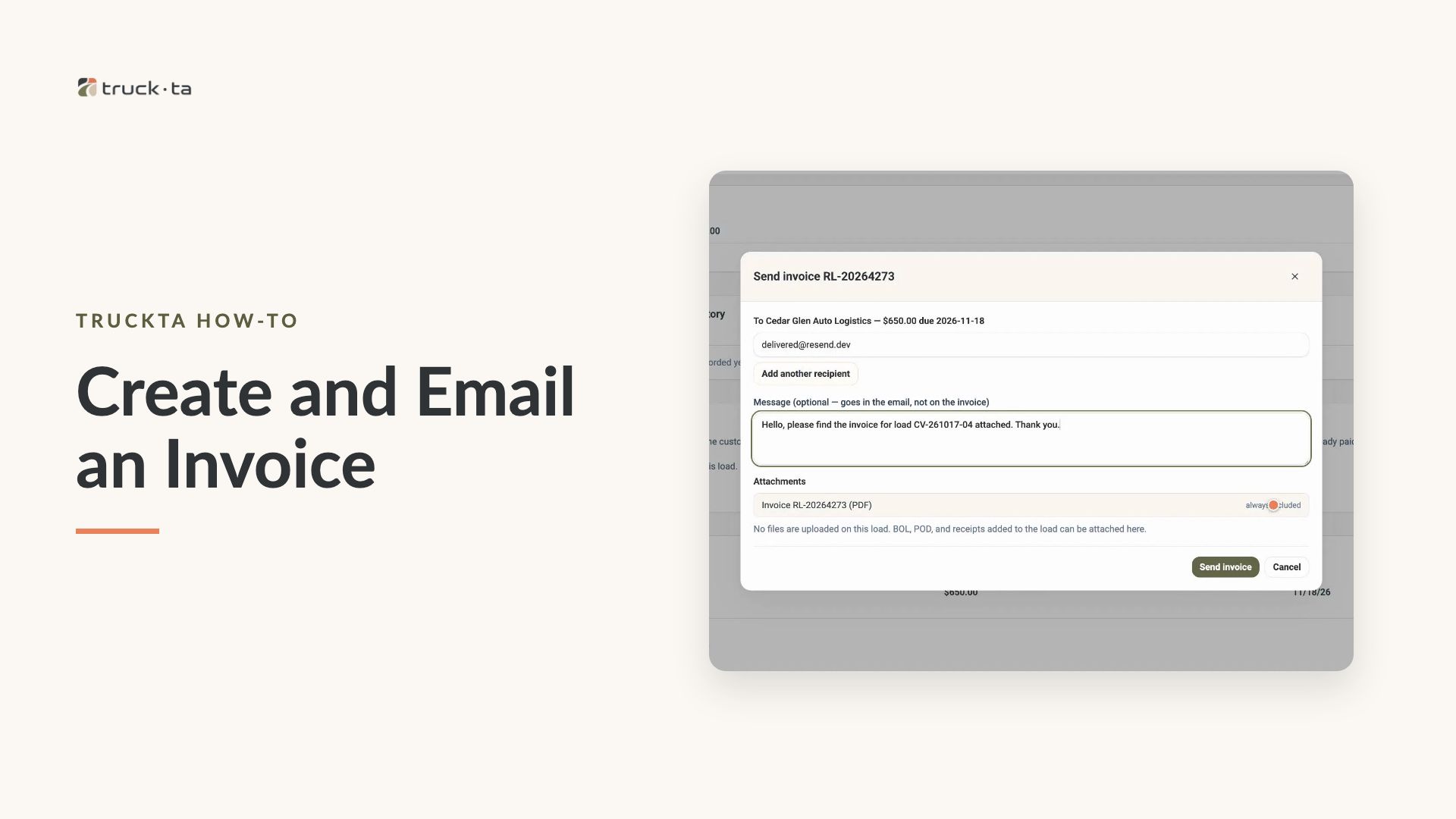
Create and Email an Invoice from TruckTA
Follow the video workflow to check invoicing settings, create a draft for a delivered load, review the PDF, email the invoice, and verify its sent status in TruckTA.
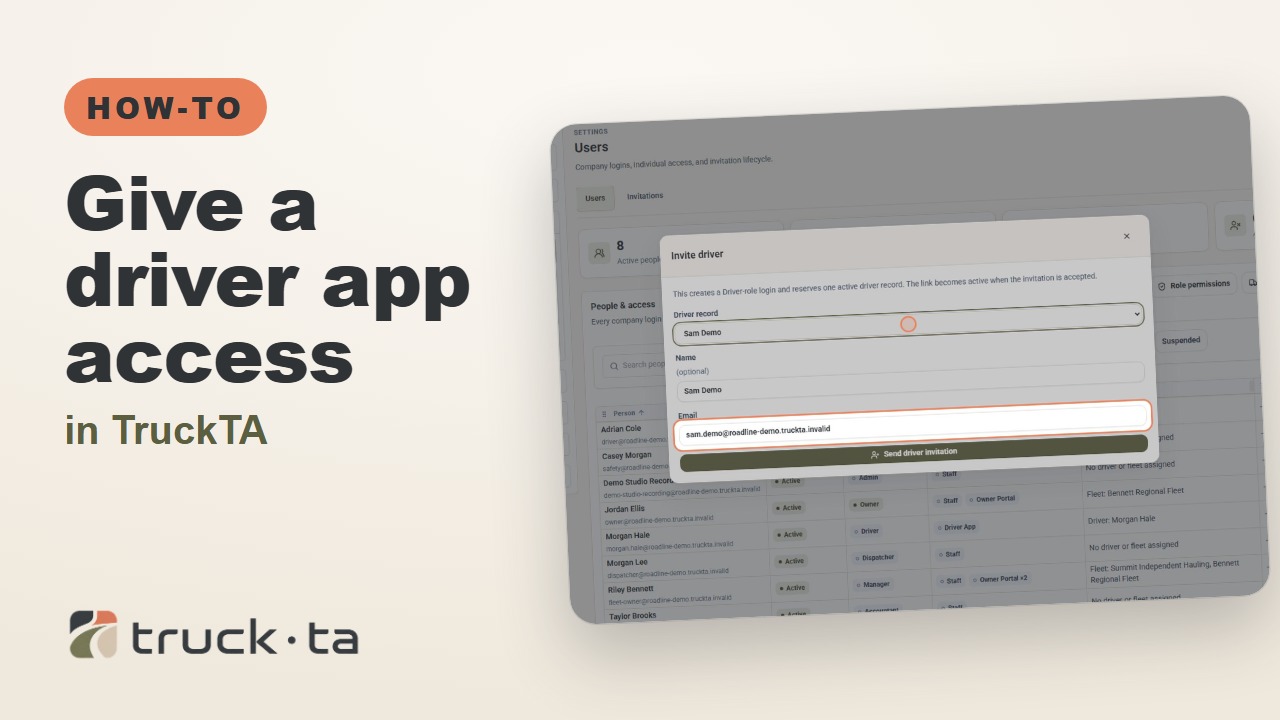
Give a Driver App Access in TruckTA
Send a personal invitation from TruckTA, then follow the driver through acceptance, app installation, and sign-in. Here’s how to confirm they’re connected to your company.