
Give a Driver App Access in TruckTA
Send a personal invitation from TruckTA, then follow the driver through acceptance, app installation, and sign-in. Here’s how to confirm they’re connected to your company.
By TruckTA Team · Product guidance
Reviewed by TruckTA ·
This tutorial uses an AI-generated voice. The video and article explain the same reviewed TruckTA workflow.
Put the workflow to work
Solve the task with TruckTA
In this article
Your driver needs the TruckTA Driver App to see their loads and documents on the road, but downloading the app alone doesn’t connect them to your company. You need to send a personal invitation. The driver then accepts it, creates a password, installs TruckTA, and signs in with the invited email address.
This guide follows the video “Give a driver app access in TruckTA”, from the invitation you send in the office to the connection you check afterward. Start in your company’s TruckTA account; the driver takes over when the invitation arrives by email.
Invite your driver
From the Dashboard, open Drivers in the sidebar and select the Driver App tab. Its Overview shows the setup sequence: invite your drivers, install TruckTA, and sign in. This is where you begin giving a driver access to the app.
You’ll see options to Copy download link and Copy setup message, along with a QR code drivers can scan. These provide ways to get the download link or setup information to a driver. They don’t replace the personal invitation that connects the driver to your company, so don’t stop at sharing the download.
Select Invite a driver. In the invitation form, choose the driver record. TruckTA fills in the driver’s name and email from their profile. Check the email carefully before sending: it’s both the address receiving the invitation and the address the driver will use to sign in.
Select Send driver invitation. TruckTA emails the invitation and also provides a personal invitation link you can copy. Keep that separate from the general download link: the personal invitation is part of connecting this particular driver to your company.
In the people list, the driver’s Driver App access shows Pending until they accept. If the driver can’t find the email, open Edit access to resend the invitation. That same area also lets you cancel it. Sending the invitation starts the process; acceptance is still the driver’s next step.
What the driver gets
The driver receives an email titled “You’ve been invited to the TruckTA Driver App.” It lays out their part of the setup: accept the invitation, install TruckTA, and sign in with the email address shown.
If you’re walking the driver through setup, use that email as the starting point. It contains the invitation and the app download buttons, but those serve different purposes. The driver should tap Accept invitation first. Downloading TruckTA does not accept the invitation, even when the download starts from a button in that same email.
Accept the invitation
After the driver taps Accept invitation, the invitation page shows your company, the invited email address, the driver role, and when the invitation expires. These are the details presented before the driver creates the account and accepts access.
The driver checks their first and last name, then creates a password. The password must contain at least eight characters, using letters and a number or symbol. This is the password they’ll enter later when signing in to the Driver App.
Once those details are ready, the driver taps Create account and accept invitation. That action completes the acceptance step. Opening the email or reaching the invitation page is not the same as completing this action.
TruckTA accepts the invitation and opens the app instructions. The instructions include the email address the driver will use to sign in. At this point, the driver has accepted the company invitation and created the password; the next task is installing the app, not starting another invitation.
Install the app
The driver now installs TruckTA from the App Store on an iPhone or Google Play on Android. Both download buttons are on the app-instructions page that opens after acceptance. They’re also in the invitation email.
Use the button for the driver’s phone and install the app. If you’re following along from the office, keep the distinction clear: accepting the invitation connects the setup to your company, while installing puts TruckTA on the device. The driver still needs to open the installed app and sign in using the credentials from the acceptance step.
Sign in
The driver opens TruckTA, enters the invited email address and the password they just created, then taps Sign in. Use the email shown in the invitation and app instructions. It’s the same address you checked in the driver’s profile before sending access.
On the first sign-in, the app asks whose device this is: the driver’s own phone or a device your company owns. The driver selects the option that matches the device they’re using.
The driver then reaches Home, connected to your company. Until you assign a truck, the app shows No truck assigned. That message can appear while the driver is connected; a truck assignment and app access are separate things to check. What the driver sees in the app depends on the permissions you set under Driver App.
Check the connection
Back in your company’s TruckTA account, open Drivers from the sidebar again and select the driver. On their Overview, check Driver App Access. It now shows the linked email address and that the app is active.
This is the office-side check that completes the walkthrough. Earlier, the people list showed Pending while the invitation awaited acceptance. After the driver has followed the setup through sign-in, you can return to their record and confirm the linked email and active app access.
Use this sequence in TruckTA to organize your next driver setup: start under Drivers > Driver App, send the personal invitation, and finish by checking the connection in the driver’s record.
Read the video transcript
Your driver needs the TruckTA Driver App to see their loads and documents on the road. In this video, you'll send the invitation, then follow the driver as they accept it, install the app, and sign in. From the Dashboard, open Drivers in the sidebar, then select the Driver App tab. Overview shows the three steps: invite your drivers, install TruckTA, and sign in. You can copy the download link or the setup message, or let drivers scan this code. Downloading alone doesn't connect a driver to your company, so send each driver a personal invitation. Select Invite a driver. Choose the driver record. TruckTA fills in the name and the email from the driver's profile. Check the email carefully, because the driver signs in with it. Select Send driver invitation. TruckTA emails the invitation, and also gives you a personal link you can copy and send yourself. In the people list, the driver's Driver App access is Pending until they accept. If they can't find the email, Edit access lets you resend or cancel the invitation. The driver gets an email: You've been invited to the TruckTA Driver App. It lists the three steps: accept the invitation, install TruckTA, and sign in with this email address. Downloading the app doesn't accept the invitation, so the driver taps Accept invitation first. The invitation page shows your company, the invited email, the driver role, and when the invitation expires. The driver checks their first and last name. Next, they create a password with at least eight characters, using letters and a number or symbol. Then they tap Create account and accept invitation. TruckTA accepts the invitation and opens the app instructions, with the email the driver will sign in with. Now the driver installs TruckTA: from the App Store on an iPhone, or Google Play on Android. Both buttons are right on this page, and in the email. The driver opens TruckTA, enters the invited email and the password they just created, and taps Sign in. The first time, the app asks whose device this is: the driver's own phone, or a device your company owns. The driver picks one. Then the driver is on Home, connected to your company. Until you assign a truck, the app shows No truck assigned. What the driver sees depends on the permissions you set under Driver App. Back in TruckTA, open Drivers from the sidebar once more, and select the driver. On Overview, Driver App Access now shows the linked email and the app is active. Your driver is connected and ready for the road. Start free at truckta dot com.
Put it into practice
Keep your operation moving with TruckTA.
More ways to use TruckTA
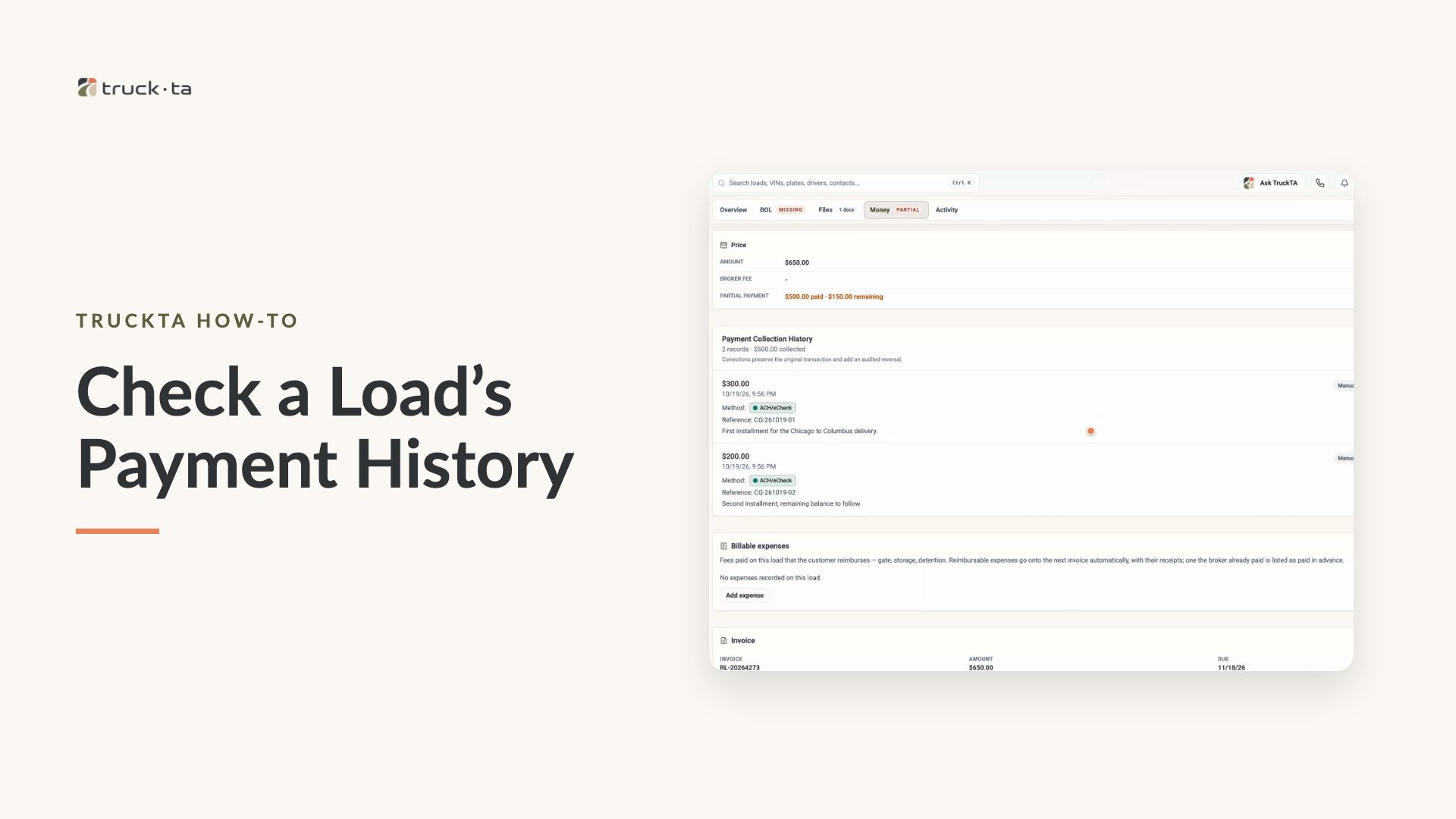
Check a Load’s Payment History in TruckTA
Find a load by order number, review its recorded payment details, and compare Load pays, Collected, and Balance in TruckTA.
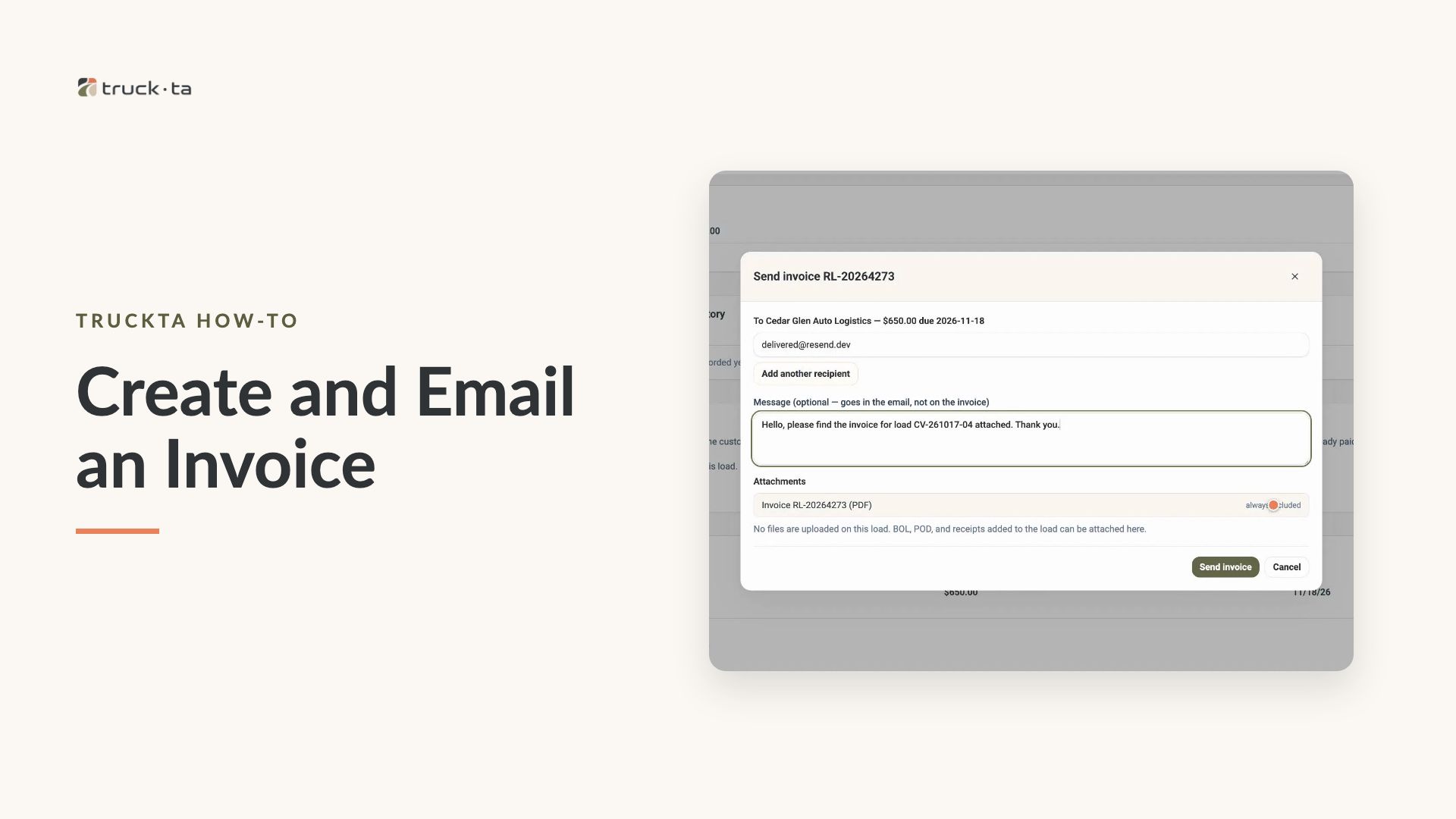
Create and Email an Invoice from TruckTA
Follow the video workflow to check invoicing settings, create a draft for a delivered load, review the PDF, email the invoice, and verify its sent status in TruckTA.
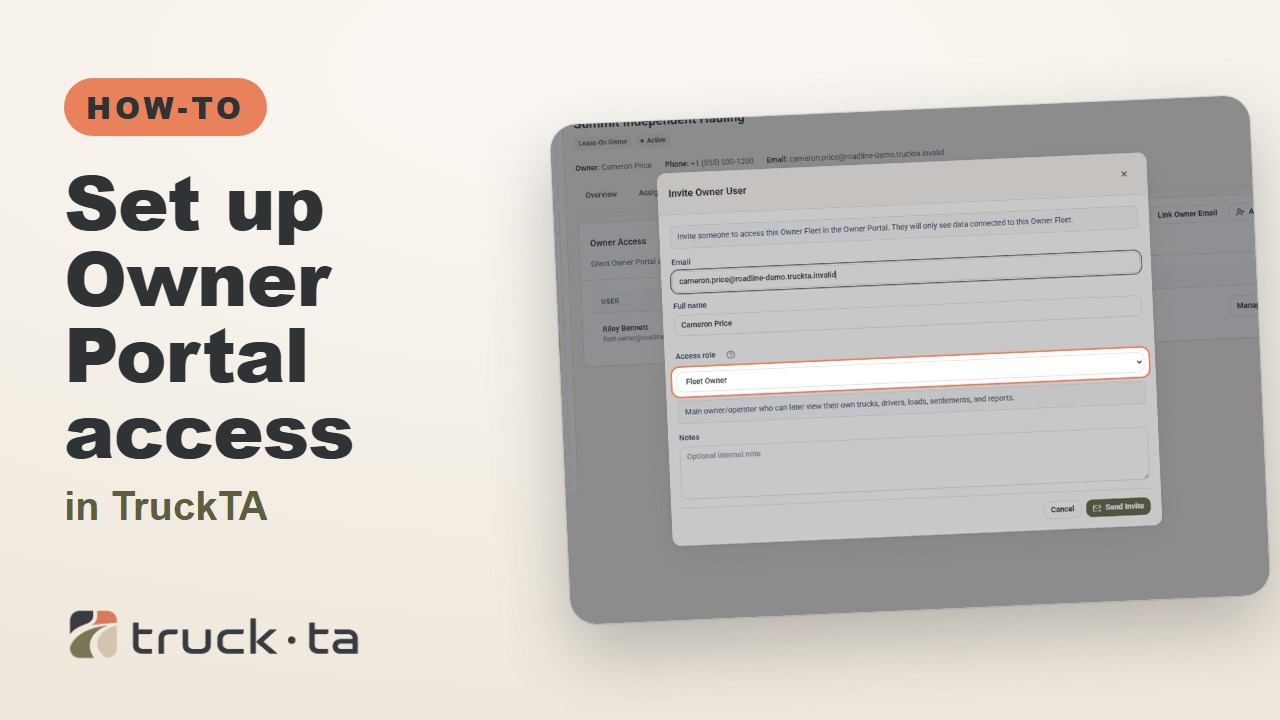
Set Up Owner Portal Access in TruckTA
Give a lease-on owner their own TruckTA Owner Portal login. Follow the invitation, account setup, portal views, and final access check shown in the video.