
What Is TruckTA? A Guide to Every Part of the Platform
See what you can do in each part of TruckTA, from planning loads and viewing your fleet to managing settlements, documents, and record follow-up.
By TruckTA Team · Product guidance
Reviewed by TruckTA ·
This tutorial uses an AI-generated voice. The video and article explain the same reviewed TruckTA workflow.
Put the workflow to work
Solve the task with TruckTA
In this article
When dispatch lives in a spreadsheet, driver updates arrive by text, and paperwork sits in separate folders, you have several places to check before you can act. TruckTA brings dispatch, drivers, equipment, paperwork, money, and compliance records into one system for your car-hauling business.
The overview video above walks through that system. This guide follows the same order, showing what you can do in each area and where to go for a particular task. If you’re comparing car hauling software, start with the work your team needs to organize.
Dashboard
Start on the Dashboard when you need a picture of the day before opening individual records. You can see active loads, loads that still need a driver, open problems, and deliveries waiting to be invoiced.
Today’s pickups and deliveries appear alongside outstanding receivables and documents approaching expiration. That puts dispatch work, unpaid money, and upcoming document dates in the same view.
Every number is also a shortcut. Select it to open the exact list behind it. If your first task is assigning uncovered loads, use that number to reach the list rather than treating the Dashboard as a report you only look at.
Live Map
Open Live Map to see where your fleet is right now. Drivers connect through the TruckTA Driver App, available on iPhone and Android. Once they connect, their trucks appear on the map.
You can see who is moving, who is stopped, and who needs attention without calling each driver for that update. The connection through the Driver App is the starting point for this view.
Use the Dashboard for the day’s work lists and Live Map for the fleet’s current location and movement status. They answer different questions: what needs doing, and where are your trucks?
Owner Fleets
If you dispatch for other fleets or work with owner-operators, Owner Fleets lets you keep each fleet separate. Create a fleet, assign its trucks and drivers, and give the owner their own access.
That owner can see their loads, equipment, and settlements, but not another fleet’s information. You can organize the fleets you work with in TruckTA while keeping each owner’s view limited to their own operation.
This is the area to use for fleet ownership and access. The weekly amounts owed to those owners are handled in Owner Settlements, covered below under Finance Center.
Loads
Loads is the center of dispatch work in TruckTA. It starts with the Dispatch Board, then gives you views for planning, reviewing offers, following load progress, and finding records.
Active Board: Each driver has a row, with each day shown as a card. The cards show how many trailer spots are filled and how many vehicles have already been picked up. You can look across the week to see open capacity instead of checking each driver’s load list separately.
Route planning: Open a driver’s route plan from the board to see pickups and deliveries on the map. Put the stops in the right order before the truck leaves the yard. The Active Board shows capacity; the route plan lets you work through the pickup and delivery sequence.
Opportunities: New load offers come together in one queue. Your team can review them, reach out, and turn the ones you choose into loads. Use this area for offers you’re considering, rather than confusing them with loads already on the board.
Load queues: The rest of the board follows the work through its life. You can find unassigned loads waiting for a driver, vehicles in the warehouse, problems needing a decision, deliveries to invoice, and invoices awaiting payment. Choose the queue that matches the task in front of you.
All Loads: When you need the full list rather than a particular queue, open All Loads. Filters and totals help you review the records in that view.
Smart Import: You can enter a load by hand or use Smart Import to read its details from a dispatch sheet. These are the two load-entry options described in the overview, so you can start with the information you already have.
Drivers
Drivers keeps each driver’s profile in one place. You can find contact details, license and medical card dates, the assigned truck and trailer, pay setup, and documents.
Use this area when the question is about the driver’s record rather than a particular load. For example, you can check the equipment assignment and pay setup within the same profile instead of looking for them in separate files.
You also control each driver’s access to the TruckTA Driver App here. Driver profiles and app access sit together, while Live Map provides the fleet view once drivers connect through the app.
Equipment
Equipment organizes the records for your trucks and trailers. Each equipment record brings together registration and inspection dates, maintenance history, the assigned driver, and documents.
You get a clear warning when something is missing or approaching expiration. Open this area when you need to check a unit’s records, look at its maintenance history, or see which driver is assigned.
Drivers and Equipment give you two ways to approach an assignment: start with the person when reviewing a driver profile, or start with the truck or trailer when reviewing the equipment record.
Contacts
Contacts stores the brokers and customers you work with. It’s the part of TruckTA for those business contacts, separate from your driver profiles and equipment records.
When your task concerns a broker or customer contact rather than a truck, driver, or load, start here.
Finance Center
Finance Center follows the money from delivery to payout. Start with Accounts Receivable to see what needs an invoice and what remains unpaid. Invoices tracks everything you’ve sent.
Those views separate two different billing tasks. A delivered load waiting for an invoice needs different attention from an invoice that has already gone out but hasn’t been paid. You can choose the view that matches the work you’re doing.
Expenses and Fuel record what each load and each truck costs you. Truck Summary shows how every truck is performing, giving you a truck-level view alongside the load and equipment cost records.
Driver Settlements and Owner Settlements calculate what you owe each driver and fleet owner, week by week. For an owner or office manager, this is where the overview moves from money coming into the business to amounts owed to the people and fleets doing the work.
Compliance Center
Compliance Center keeps your safety records together. You can check a carrier or broker against FMCSA records, keep your accident register, track violations and tickets through to their results, and record background checks.
You can also send new drivers an onboarding packet they can complete from their phone. That gives you a place for the packet workflow alongside the other records described in this area.
Use this section of the tour to identify where those recordkeeping tasks live. The functions described here are software capabilities, not a statement of which legal requirements apply to your company.
Audit Readiness
Audit Readiness shows what is ready and what needs attention across your company, driver, and equipment files. It gives you a view of the files together rather than requiring you to begin with one driver or one truck.
You can also use it to prepare an audit packet. In this overview, the focus is on reviewing file readiness and preparing the packet, not predicting an audit outcome.
Open this area when you want to review preparation across those files. For missing information, duplicates, and expired dates in your records, the next area is Data Health.
Data Health
Data Health checks the quality of your own records. It finds missing information, duplicates, and expired dates, then scores each area.
Use it to see where your records need attention. This is a different task from viewing today’s pickups or checking a truck’s location: you’re looking at the information your team has in the system.
The scores and findings show the record-quality issues. When you’re ready to assign the follow-up and track the work, move to Action Center.
Action Center
Action Center turns those findings into a to-do list. You can review each item, assign it, and track it until it is fixed.
The distinction is straightforward: Data Health finds record-quality problems; Action Center gives you a place to manage the follow-up. If you’re coordinating office work, this is where you move from seeing an issue to assigning it and following its progress.
Company Documents
Company Documents holds your operating authority, insurance certificate, and W-9. When you need to send company paperwork, select the documents you need and send them as one packet.
Use this area for that company-level document task, rather than starting in a driver profile or equipment record. You choose what goes into the packet from the company documents held here.
TruckTA AI
TruckTA AI answers questions about your business today or how to do something in TruckTA. It draws from your own data and the Help Center, within the permissions of the person asking.
That gives you another starting point when you have a question instead of a particular screen in mind. You can ask about the business or about using TruckTA; the answers remain within your access permissions.
Ready to try it? Start free with TruckTA. Begin with the part of your workflow you want to organize: review the day on the Dashboard, plan work in Loads, or bring driver and equipment records together.
Read the video transcript
TruckTA is one place to run a car-hauling business. Dispatch, drivers, equipment, paperwork, money, and compliance all live in the same system, so your team stops jumping between spreadsheets, texts, and folders. Here is a quick tour of everything inside. The Dashboard is where the day starts. At a glance you see active loads, loads that still need a driver, open problems, and deliveries waiting to be invoiced. Today's pickups and deliveries sit next to your outstanding receivables and the documents that are about to expire. Every number is a shortcut: select it and you land on the exact list behind it. Live Map shows where your fleet is right now. Drivers connect through the TruckTA Driver App on iPhone and Android, and once they do, their trucks appear on the map. You can see who is moving, who is stopped, and who needs attention, without calling anyone to ask. If you dispatch for other fleets or work with owner-operators, Owner Fleets keeps each of them separate. Create a fleet, assign its trucks and drivers, and give the owner their own access. They see their loads, their equipment, and their settlements, and nothing that belongs to anyone else. Loads is the heart of TruckTA, and it starts with the Dispatch Board. The Active Board shows every driver as a row and every day as a card. Each card tells you how many spots on the trailer are filled and how many vehicles are already picked up, so you can see open capacity for the whole week in one view. Planning happens right on the board. Open a driver's route plan to see their pickups and deliveries on the map, and put the stops in the right order before the truck leaves the yard. Opportunities collects new load offers in one queue, so your team can review them, reach out, and turn the good ones into loads. The rest of the board follows a load through its life. Unassigned loads waiting for a driver. Vehicles in the warehouse. Problems that need a decision. Deliveries to invoice, and invoices awaiting payment. And when you need everything, All Loads gives you the full list with filters and totals. Adding a load is fast, too. Enter it by hand, or use Smart Import to read the details from a dispatch sheet. Drivers keeps every driver's profile in one place: contact details, license and medical card dates, assigned truck and trailer, pay setup, and documents. You also control each driver's access to the Driver App from here. Equipment does the same for trucks and trailers. Registration and inspection dates, maintenance history, assigned driver, and documents, with a clear warning when something is missing or about to expire. Contacts stores the brokers and customers you work with, so their details are ready the next time you enter a load. Finance Center follows the money from delivery to payout. Accounts Receivable shows what needs an invoice and what is still unpaid. Invoices tracks everything you have sent. Expenses and Fuel record what each load and each truck costs you. Truck Summary shows how every truck is performing. And Driver Settlements and Owner Settlements calculate what you owe each driver and each fleet owner, week by week. Compliance Center keeps your safety records together. Check a carrier or broker against FMCSA records. Keep your accident register. Track violations and tickets through to the result. Record background checks. And send new drivers an onboarding packet they can complete from their phone. Audit Readiness shows how prepared you would be if an audit started today. It lists what is ready and what needs attention across your company, driver, and equipment files, and it can prepare an audit packet when you need one. Data Health checks the quality of your own records. It finds missing information, duplicates, and expired dates, and scores each area, so small gaps get fixed before they become real problems. Action Center turns those findings into a to-do list. Review each item, assign it to someone on your team, and track it until the underlying issue is fixed. Company Documents holds the files you share most: your operating authority, insurance certificate, and W-9. Select what you need and send it as one packet, instead of hunting through email. And TruckTA AI is there whenever you have a question. Ask it what is happening in the business today, or how to do something in TruckTA, and it answers from your own data and the Help Center, within the permissions of the person asking. That is TruckTA: dispatch, drivers, equipment, finance, and compliance, working together in one place. Start free at truckta dot com.
Put it into practice
Keep your operation moving with TruckTA.
More ways to use TruckTA
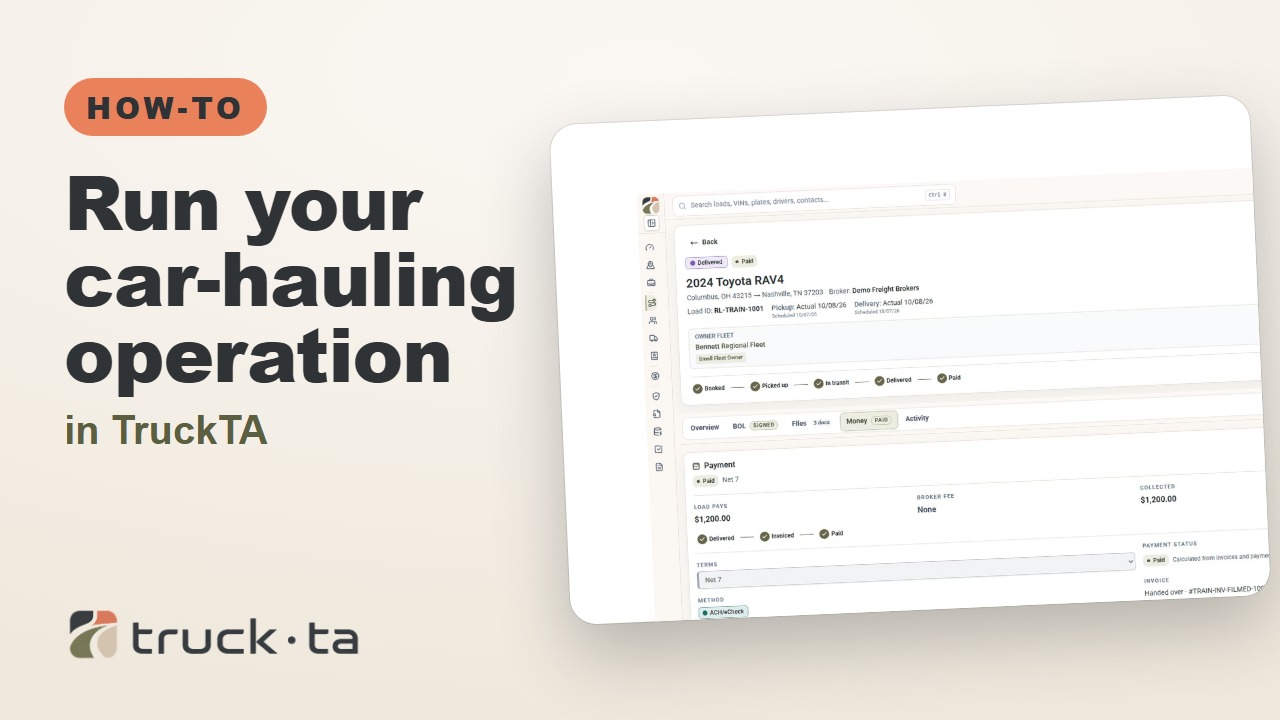
Run Your Car-Hauling Operation in TruckTA
Follow a job through preparation, dispatch, driver work, financial close, and owner-operator access, with a practice checkpoint for each part of the six-part TruckTA course.
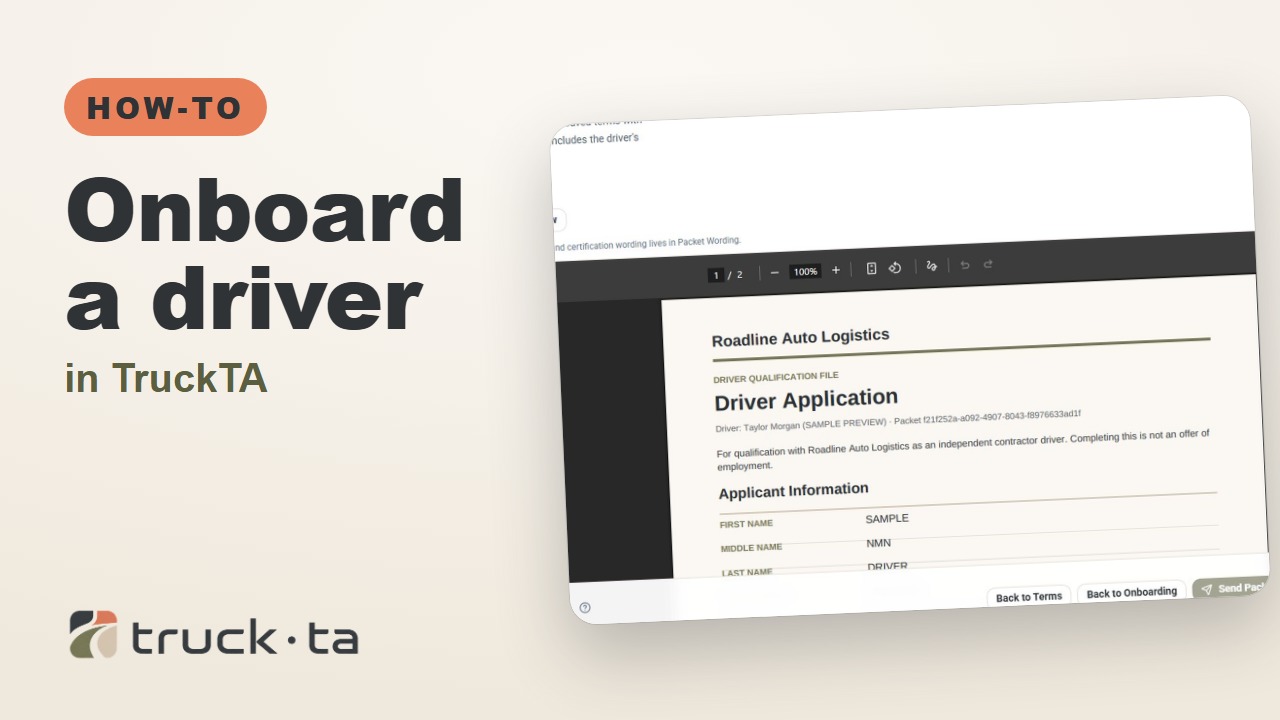
Onboard a Driver in TruckTA
Follow the TruckTA video to prepare an applicant packet, check company-approved terms, and preview the documents. Then see how submission, review, signing, and the Driver record fit together.
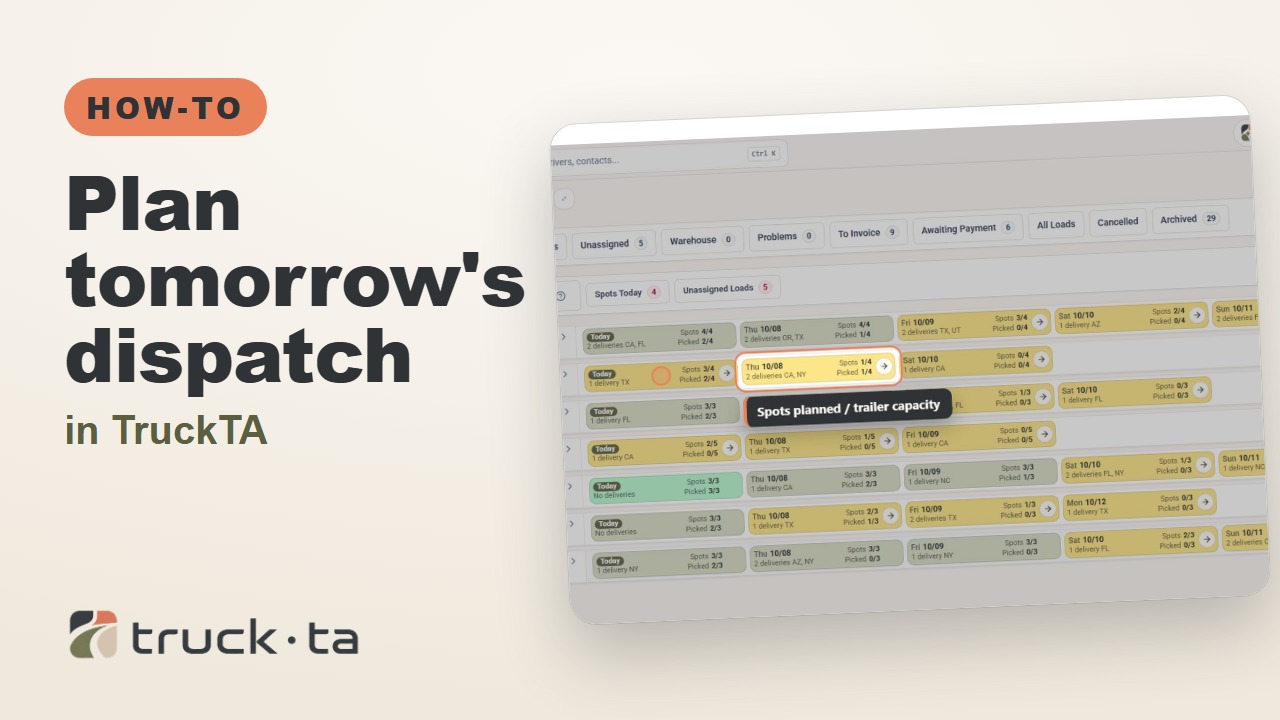
Plan Tomorrow's Dispatch in TruckTA
Review planned work, tomorrow’s open trailer spots, unassigned loads, and driver availability in TruckTA before assigning the next load.