
Track Billable Expenses on a Load in TruckTA
Record gate, storage, and detention fees on a load, attach the receipt to the next invoice, and track broker reimbursement separately from driver repayment in TruckTA.
By TruckTA Team · Product guidance
Reviewed by TruckTA ·
This tutorial uses an AI-generated voice. The video and article explain the same reviewed TruckTA workflow.
Put the workflow to work
Solve the task with TruckTA
Your driver paid a gate fee at the auction. You need to record it against the load, bill the customer, and keep track of whether the driver has been paid back. Recording the fee is only part of the job. You also need to know whether the broker has reimbursed your company.
This guide follows the TruckTA video “Track billable expenses on a load in TruckTA.” You’ll start with the load, add the fee and receipt, record driver repayment, then review expenses across your loads. The same workflow covers the billable gate, storage, and detention fees described in the video.
Open the load
From the Dashboard, type the Load ID into the search bar at the top and select your load. That’s the starting point for recording the fee against the load it belongs to.
Open the Money tab, then scroll down to the Billable expenses card. This is where you record fees paid on that load that the customer pays back. For the auction gate fee shown in the video, you’ll add the expense here rather than start from the company-wide expense view.
Keep the distinction between the expense and its reimbursement in mind as you work. The expense records what was paid on the load. TruckTA then tracks whether the broker has paid it back and whether the driver who fronted the money has been repaid. Those are separate questions, even though they belong to the same fee.
Add the expense
Select Add expense. Enter what was paid for and the amount. In the video, the expense is the gate fee at the auction. The description identifies the charge you’re recording; the amount records what was paid.

Next, add a category and the date the fee was paid. This date belongs to the original expense. Later, when you mark a repayment, you’ll check the date for that payment separately. You’re recording the fee first, then tracking the money paid back against it.
Under Paid with, choose Own card for the driver-paid expense shown in the video. TruckTA fills in the driver as the person who paid it. That connects the fee to the driver who fronted the money, which is the driver repayment you’ll track in the next part of the workflow.
Select Upload receipt and choose the receipt photo or PDF. TruckTA saves the upload to the load’s files and attaches it to this expense. The receipt is therefore connected to the specific fee, as well as saved with the load.
Leave Bill this to the customer turned on. With that option on, the fee goes onto the next invoice with its receipt. This is the billing step in the expense-entry workflow: you’re not just recording that the driver spent money, you’re including that expense and its supporting receipt on the customer’s next invoice.
Then select Add expense to finish adding the record. At this point, you’ve entered what was paid for, the amount, category, payment date, and who paid it. You’ve also attached the receipt and left customer billing on. The repayment tracking comes next; adding the expense is not the same action as marking either party paid.
Pay your driver back
Each expense tracks both sides of reimbursement: whether the broker has paid it back and whether the driver who fronted it has been paid. Use the driver action to record driver repayment, not the broker’s payment status.
When you pay your driver back, select Mark paid to driver. Check the date, choose how you paid, and select Mark paid. The sequence matters: this action records the repayment after you pay the driver. It’s the point where the expense record reflects that the driver has received the money back.
For the auction gate fee, this closes the driver-repayment side of that expense. The broker-reimbursement side is tracked separately. A driver repayment tells you the driver has been paid back; it doesn’t answer whether the broker has reimbursed your company for the fee.
Every payment mark is kept in the load’s activity. If you make a mistake, Undo reverses it. That gives you a way to correct a mistaken mark while keeping the payment-marking activity with the load.
Think of the expense as having separate payment questions rather than a single “paid” answer. You’ve recorded the original fee and dealt with the driver’s repayment. Next, use the broader expense view to see what the broker owes and what still needs to be paid back across your loads.
Track every expense
Open Finance Center from the sidebar, then select Expenses. This page shows every billable expense across all your loads for the months you choose. The load’s Money tab is where you entered the individual fee; the Finance Center Expenses page brings those billable load expenses together.

The tiles total everything recorded, what the broker still owes, what the broker has paid, and what you still owe drivers and owners. Those totals keep the incoming reimbursement and outgoing repayment amounts distinct. You can see the recorded expenses without treating money owed by brokers as the same thing as money owed to the people who paid the fees.
When the broker’s money arrives, change Paid by broker directly in the expense row. Check the date, then select Mark paid by broker. This records the broker-reimbursement side of the expense, just as the earlier driver action recorded repayment to the driver.
There’s also an invoice-linked path. If the expense is on an invoice that gets paid, TruckTA marks the expense for you. In the video, that expense shows with the invoice. The broker payment can therefore be reflected through the paid invoice rather than through the manual row action.
Filter the Expenses page by broker, driver, or status to review the expenses you need to see. Use Download CSV to download the expense records for your accountant. The page supports reviewing expenses across loads, while the filters let you focus on a particular broker, driver, or payment status.
Use TruckTA to organize this workflow on your next billable load fee: find the load, record the expense with its receipt, leave customer billing on, and mark repayments when they happen. Then return to Finance Center Expenses to track load expenses across the months you choose and see which reimbursements remain outstanding.
Read the video transcript
Gate fees, storage, detention. Your drivers pay them on the road, and your customer should pay you back. In this video, you'll record an expense on a load and track it until everyone is paid. From the Dashboard, type the Load ID in the search bar at the top, and select your load. Open the Money tab, and scroll down to Billable expenses. These are fees paid on this load that the customer pays back. Select Add expense. Type what was paid for, here the gate fee at the auction, and the amount. Add a category and the date it was paid. Under Paid with, choose Own card. TruckTA fills in the driver as the one who paid it. Select Upload receipt and pick the photo or PDF. TruckTA saves it to the load's files and attaches it to this expense. Leave Bill this to the customer on, so the fee goes onto the next invoice with its receipt. Then select Add expense. Every expense tracks two things: whether the broker has paid it back, and whether the driver who fronted it has been paid. When you pay your driver back, select Mark paid to driver. Check the date, choose how you paid, and select Mark paid. Every mark is kept in the load's activity, and Undo reverses a mistake. Now open Finance Center from the sidebar, then Expenses. Here is every billable expense across all of your loads, for the months you choose. The tiles total everything recorded, what the broker still owes, what the broker has paid, and what you still owe drivers and owners. When the broker's money arrives, change Paid by broker right in the row. Check the date, and select Mark paid by broker. If the expense is on an invoice that gets paid, TruckTA marks it for you. This one says, with the invoice. Filter by broker, driver, or status, and download a CSV of everything for your accountant. Your fees are recorded, billed, and paid back. Next, import your fuel card statement. Start free at truckta dot com.
Put it into practice
Keep your operation moving with TruckTA.
More ways to use TruckTA
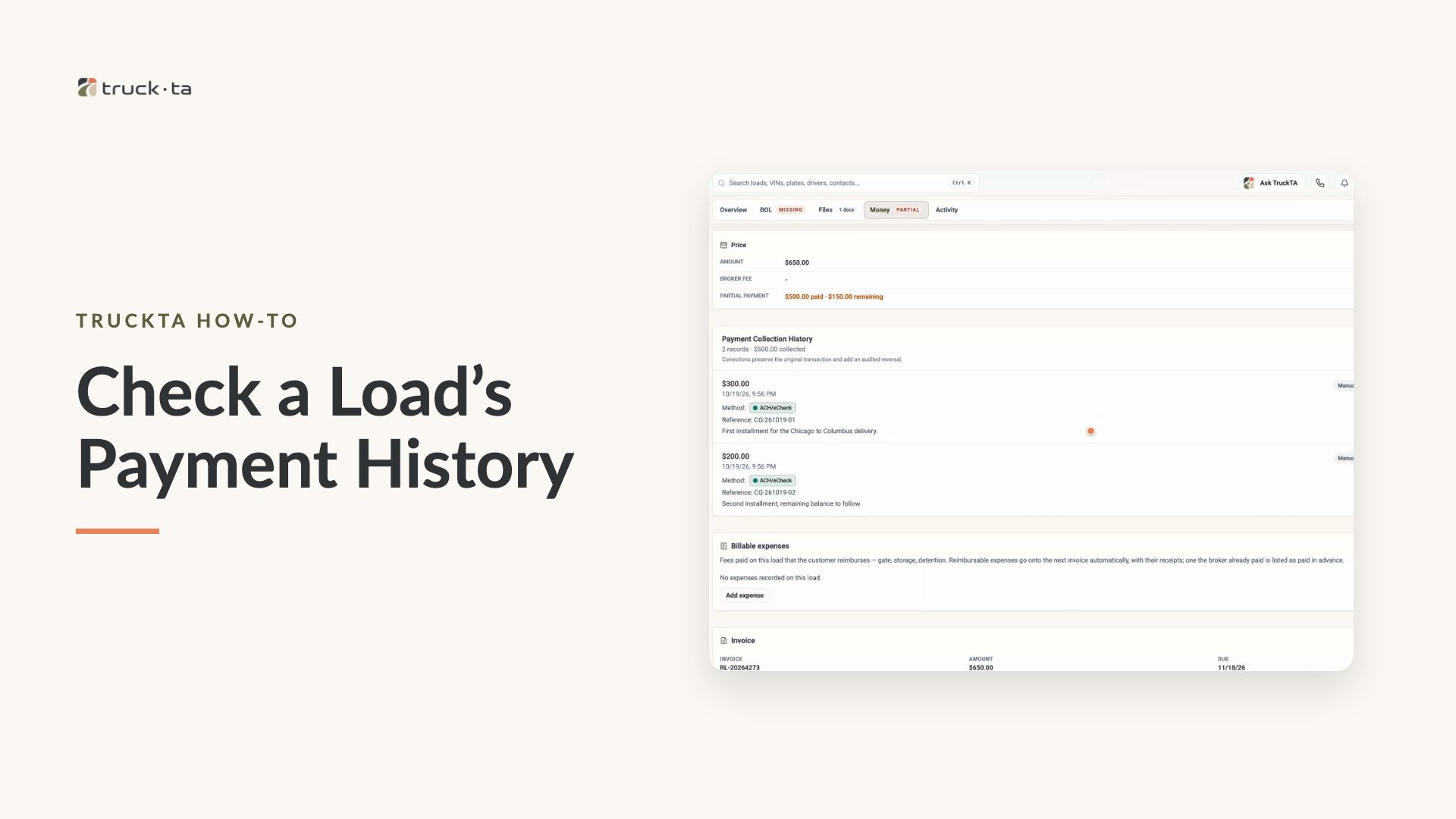
Check a Load’s Payment History in TruckTA
Find a load by order number, review its recorded payment details, and compare Load pays, Collected, and Balance in TruckTA.
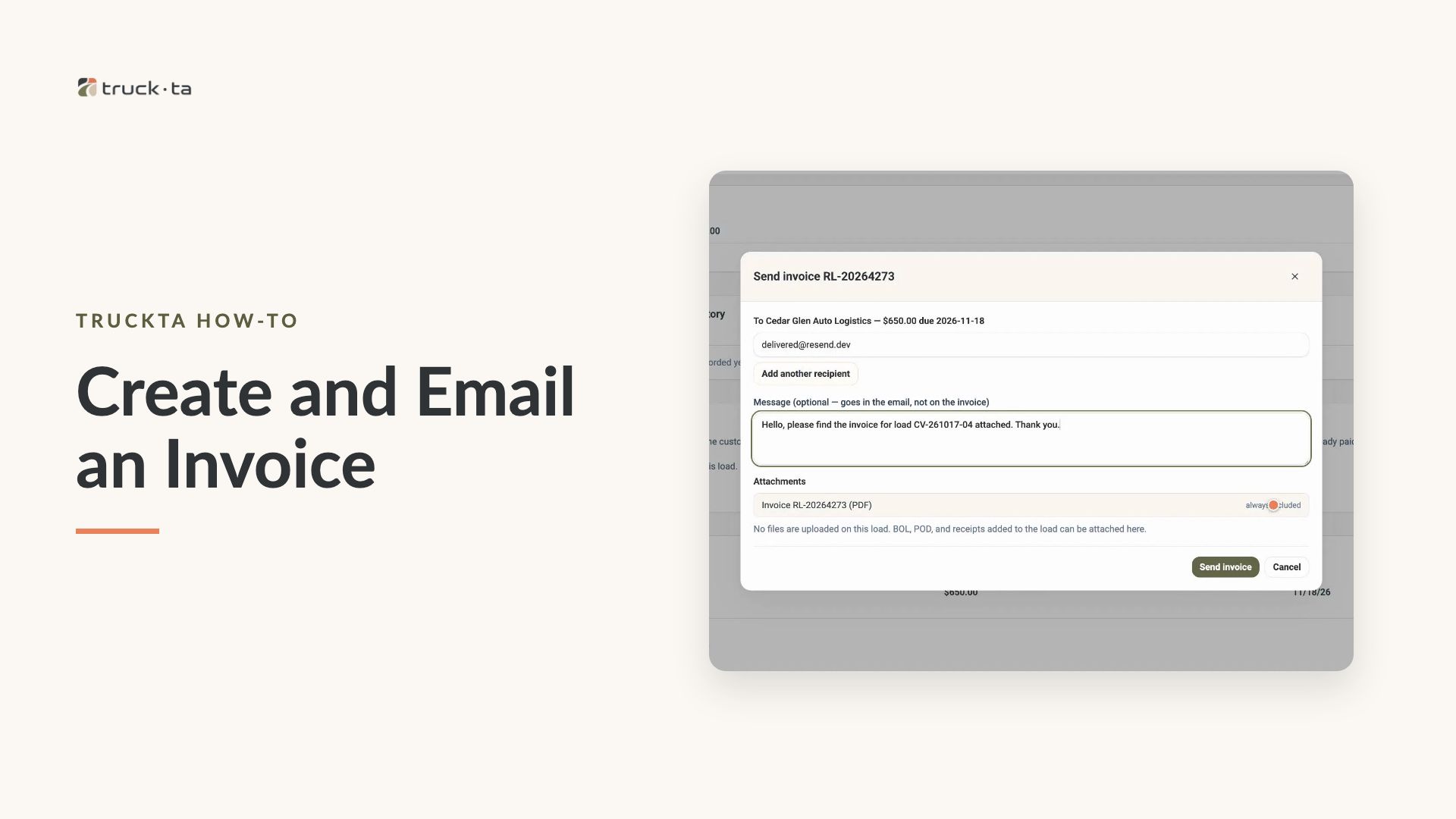
Create and Email an Invoice from TruckTA
Follow the video workflow to check invoicing settings, create a draft for a delivered load, review the PDF, email the invoice, and verify its sent status in TruckTA.
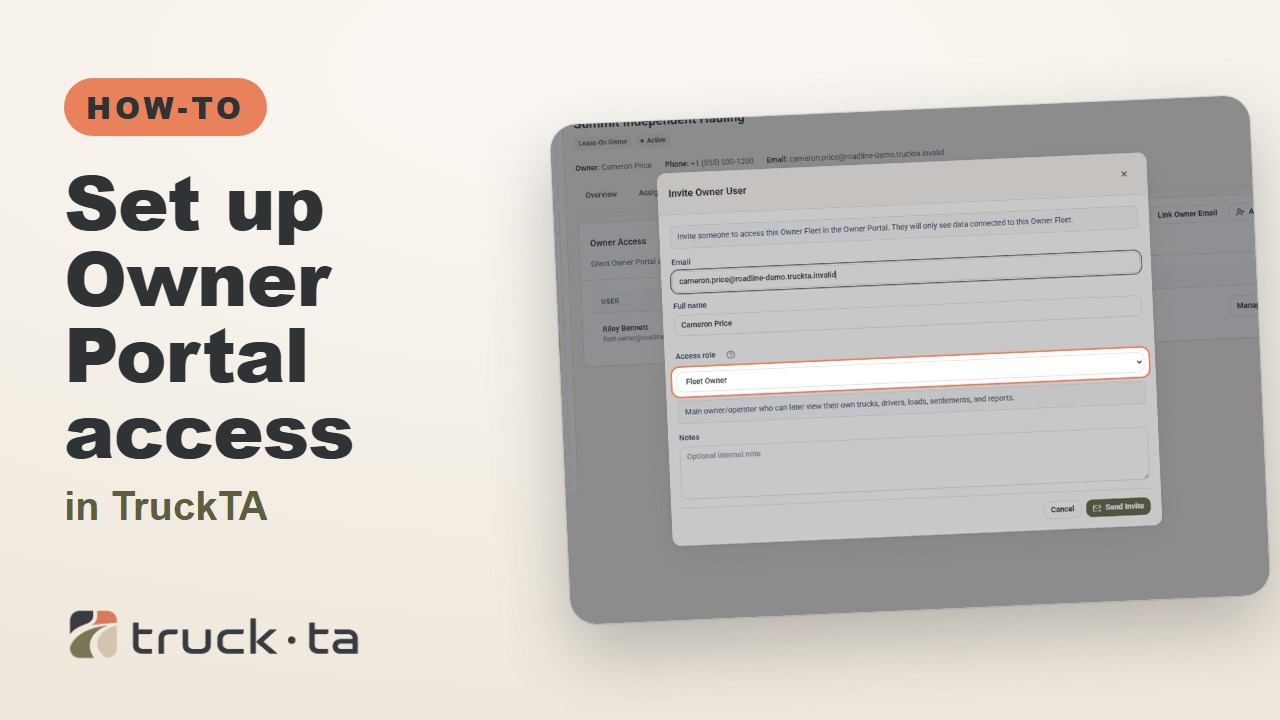
Set Up Owner Portal Access in TruckTA
Give a lease-on owner their own TruckTA Owner Portal login. Follow the invitation, account setup, portal views, and final access check shown in the video.