
Start Your Day on the Freight Dashboard in TruckTA
Start on the Dashboard, open the loads behind the counters, check today's pickups and deliveries, and use Jump to for your next page.
By TruckTA Team · Product guidance
Reviewed by TruckTA ·
This tutorial uses an AI-generated voice. The video and article explain the same reviewed TruckTA workflow.
Put the workflow to work
Solve the task with TruckTA
In this article
Last updated: November 2026
You need the freight loads behind the numbers, not just a morning count. Start with your freight dispatch dashboard. Select a counter to open its loads. Then check pickups and deliveries and use the page shortcuts to reach your next task.
Read the counters on your freight dispatch dashboard
Select the loads you want to see
At the top of the Dashboard, you’ll see Active loads, Unassigned, Problems, and Invoice needed. Each counter is a shortcut to the freight loads behind that number.
For example, select Unassigned when you want to open those loads. You land on the same loads the counter represents. After checking them, go back to the Dashboard for the next part of your morning review.
Check today's dispatch

Open pickups under Due today
Next, look at Dispatch today. It shows your pickups and deliveries across Due today, Past due, and Tomorrow. Read the pickup or delivery grouping alongside its timing before choosing the loads you want to open.
To follow along, select the pickups under Due today. That selection opens exactly those freight loads. You’re opening the pickups for that timing group, rather than just reading their count.
Jump to a page
Choose your next destination
Now return to the Dashboard. Use Jump to when you need a page rather than a group of loads. Choose the destination you need, such as Drivers, Live Map, or Maintenance.
Check the snapshot time
Lower down, you’ll find Expiring soon. It presents a snapshot and shows its build time. As you read it, check that time so you know when the snapshot came together.
Try this workflow in TruckTA at your next morning check: open the Dashboard and select the counter for the freight loads you want to review.
Frequently asked questions
How many pickups does the walkthrough open?
The walkthrough opens one pickup after selecting pickups under Due today. That count belongs to the example.
What does Expiring soon cover?
Expiring soon covers driver licenses, medical cards, registrations, and inspections.
Are Drivers, Live Map, and Maintenance the complete Jump to list?
The walkthrough names those destinations as examples, not as a complete list.
Read the video transcript
Let's start the day from the Dashboard, and open the freight loads behind every number. The Dashboard is your starting point. Four counters sit at the top: Active loads, Unassigned, Problems, and Invoice needed. Each counter is a shortcut. Select Unassigned, and you land on those same loads. Go back to the Dashboard. Dispatch today shows your pickups and deliveries: due today, past due, and tomorrow. Select the pickups due today, and you open exactly those loads. Here, that's one pickup. Return to the Dashboard once more. Jump to opens the page you need, like Drivers, Live Map, or Maintenance. Lower down, Expiring soon covers driver licenses, medical cards, registrations, and inspections. It's a snapshot, and it shows the time it was built. Start here each morning, and follow the numbers to the work.
Put it into practice
Keep your operation moving with TruckTA.
More ways to use TruckTA
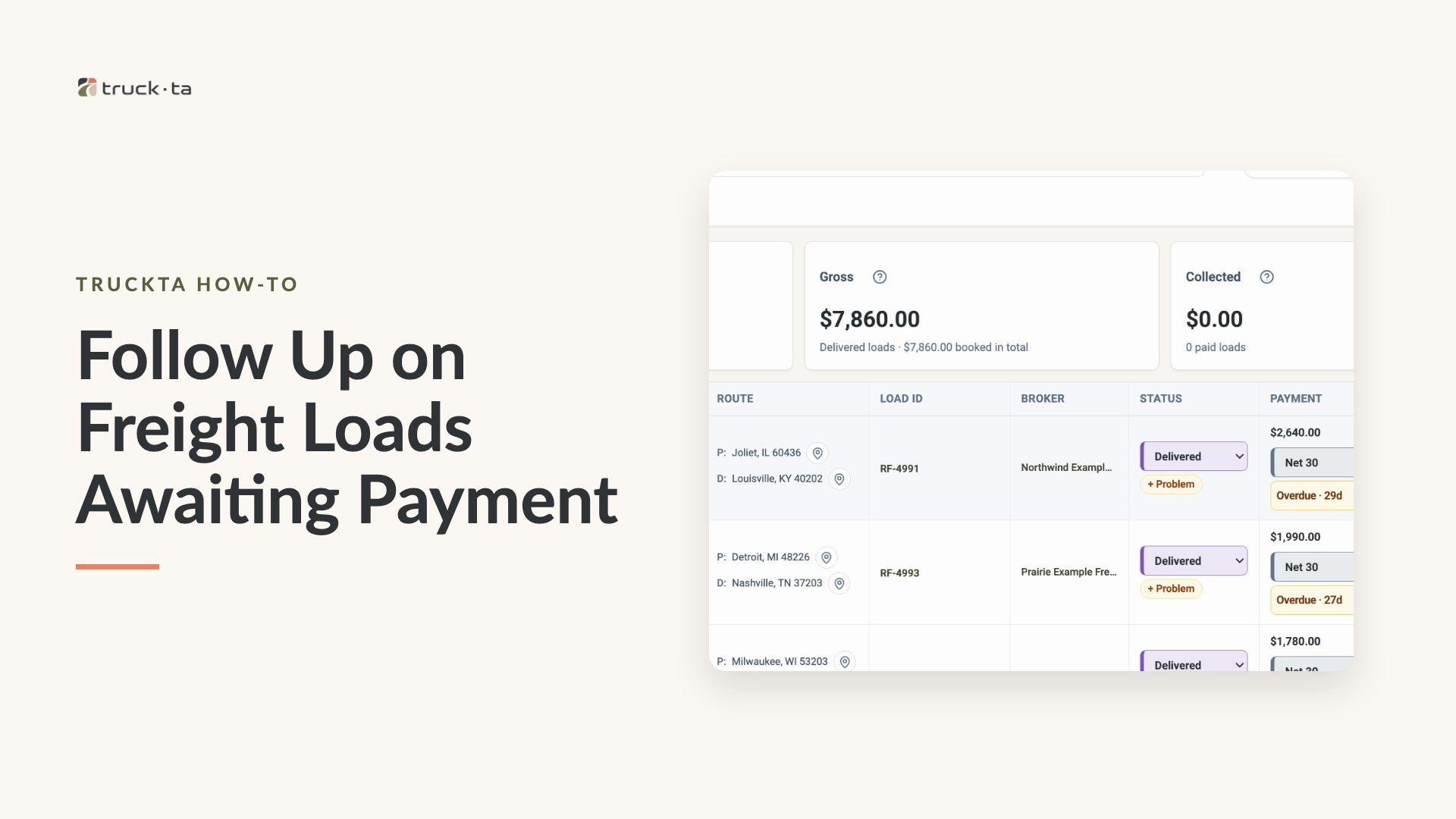
Follow Up on Freight Loads Awaiting Payment
Find unpaid freight loads in TruckTA, put overdue invoices first, and record full or partial broker payments as the money arrives.
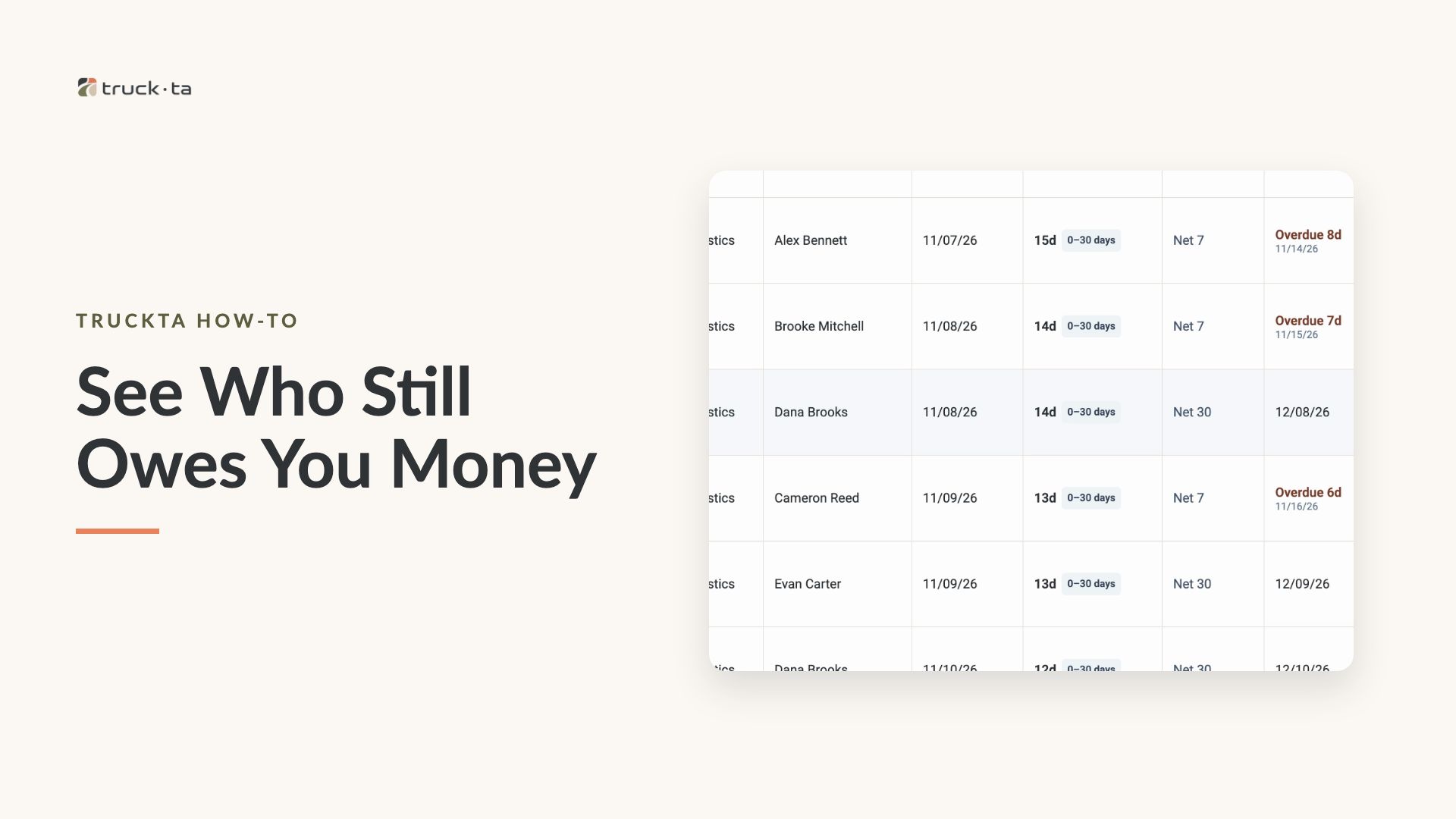
See Who Still Owes You Money
Find unpaid delivered loads in TruckTA, separate aging from overdue balances, identify who needs a call, and record a broker payment when it arrives.
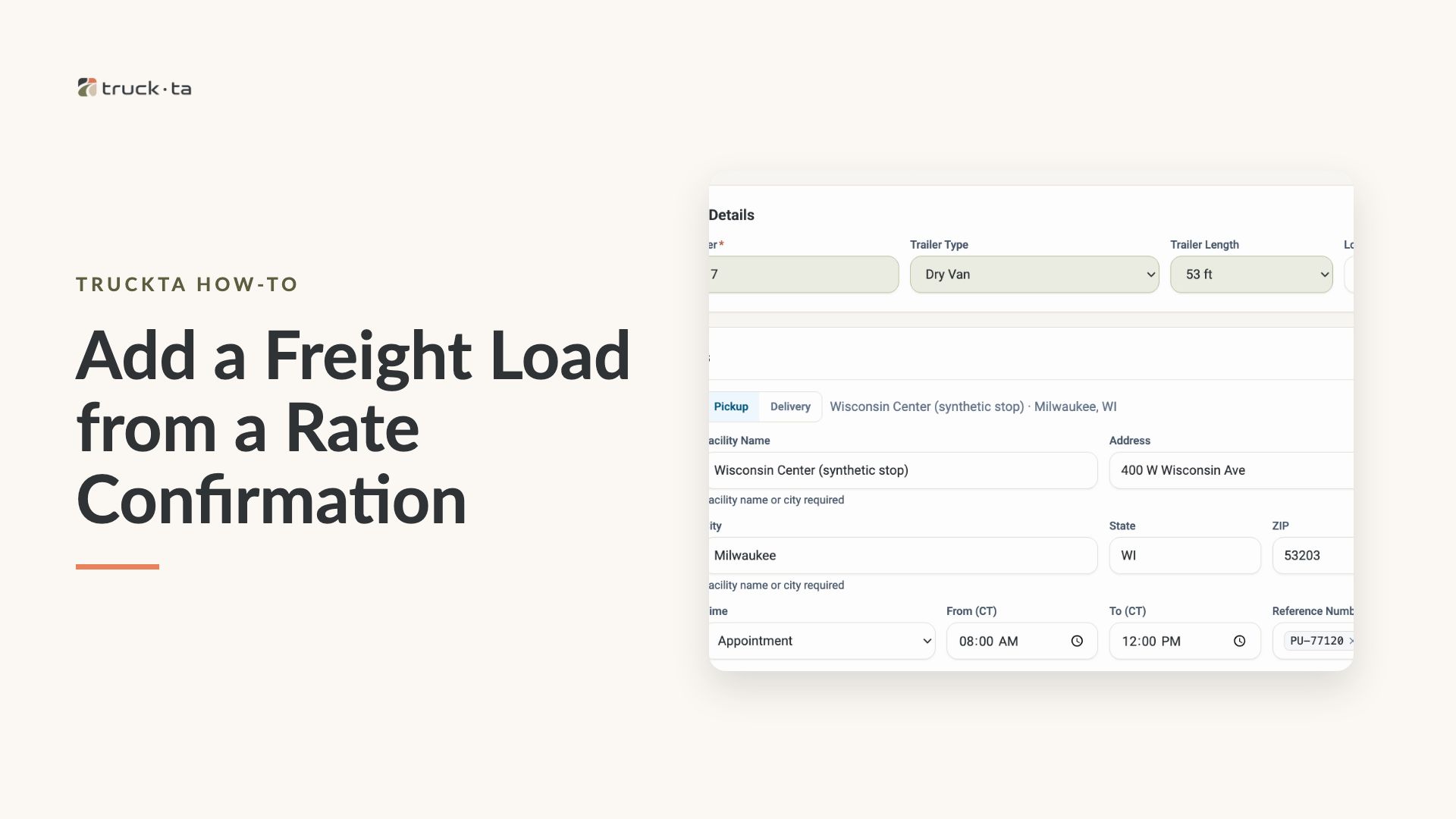
Add a Freight Load from a Rate Confirmation
Use your broker's PDF or photo to fill a freight load in TruckTA, check the highlighted fields, assign the driver, and confirm the dates.