
Start Your Day on the Dashboard in TruckTA
Read the Dashboard counters, check Dispatch today, and use Jump to to reach the page you need. Follow the video’s morning workflow.
By TruckTA Team · Product guidance
Reviewed by TruckTA ·
This tutorial uses an AI-generated voice. The video and article explain the same reviewed TruckTA workflow.
Put the workflow to work
Solve the task with TruckTA
In this article
Last updated: November 2026
You’ve opened your trucking dashboard. Now, get to the work behind the numbers: select a counter, check pickups and deliveries in Dispatch today, or use Jump to to open the page you need.
Follow along with “Start your day on the Dashboard.” The walkthrough starts with Unassigned, moves to Past due, and finishes with page shortcuts and the Expiring soon snapshot.
Read the counters on your trucking dashboard
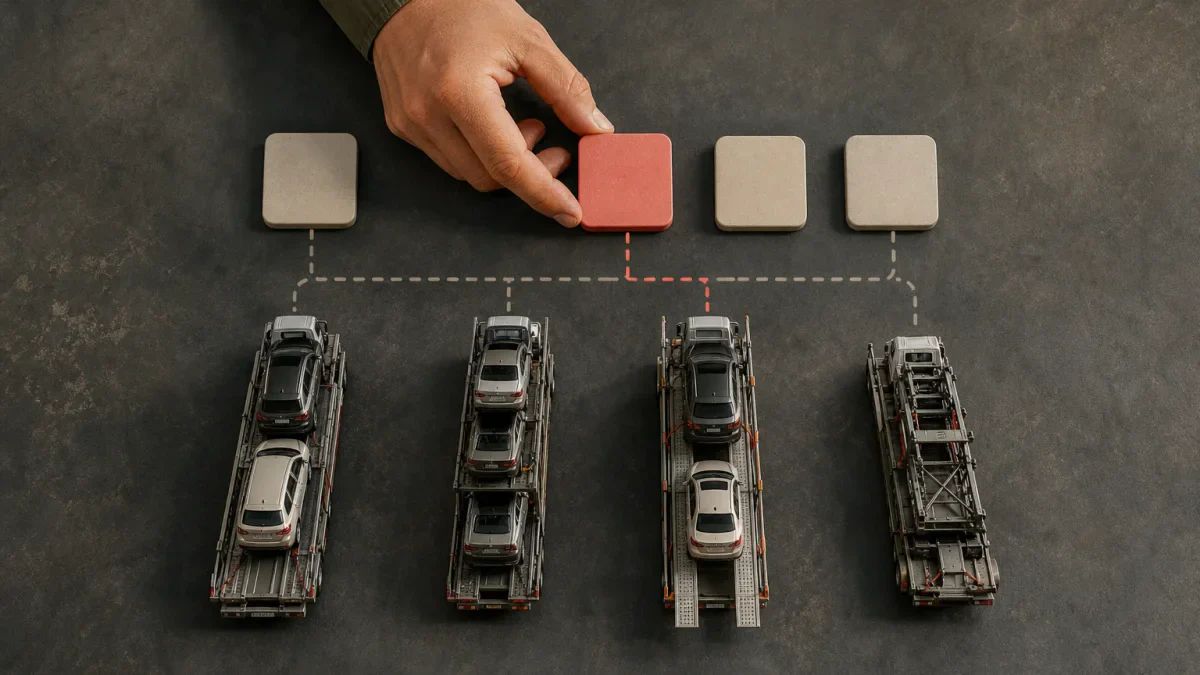
First, look across the top of the Dashboard for Active loads, Unassigned, Problems, and Invoice needed. Each counter is a shortcut, so you can select it to reach the work behind the number.
Select Unassigned to open those loads
Start with Unassigned. Select it, and you land on those same loads. That’s the example to follow in the video: move from the counter into the loads it represents.
For related billing reading, see Car Hauler Load File Checklist for Billing. Then, return to the Dashboard to continue the walkthrough with your pickups and deliveries.
Check today's dispatch
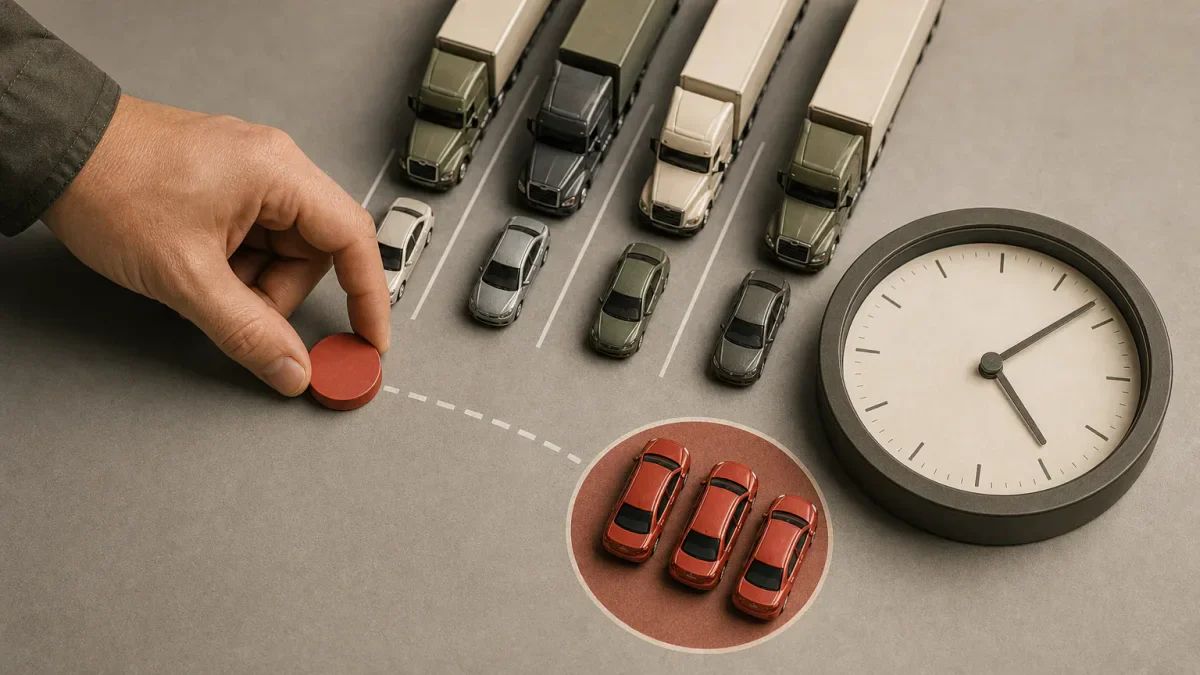
Next, look at Dispatch today. It shows your pickups and deliveries under Due today, Past due, and Tomorrow. Here, you’re checking the work by timing rather than starting from the top counters.
Follow Past due into the load list
Past due turns red when something is late. Select it to open exactly those loads. The count matches the Dashboard count, connecting the number you just saw with the work you’ve opened.
For related dispatch reading, see A Practical Car-Hauling Dispatch Workflow From Booking to Proof of Delivery. Then, return to the Dashboard once more to reach the page shortcuts.
Jump to a page
Choose a destination and read the badge
Now, use Jump to when you need a page such as Drivers, Live Map, or Maintenance. The badge on Violations counts the ones still open, rather than every violation.
Check when Expiring soon was built
Lower down, Expiring soon covers driver licenses, medical cards, registrations, and inspections. However, read it as a snapshot: it shows the time it was built. Check that time as you review it.
For related fleet reading, see Fleet Management Checklist. To put this walkthrough into practice, try starting your next morning in TruckTA on the Dashboard, then select Unassigned to open those loads.
Frequently asked questions
Should I use Unassigned or Past due when checking late loads?
Use Past due in Dispatch today. Unassigned opens the loads represented by the Unassigned counter; Past due opens the late loads.
Is the Violations badge another pickup or delivery count?
No. The Violations badge counts violations still open. Dispatch today shows pickups and deliveries.
Does Expiring soon cover only driver records?
No. Along with driver licenses and medical cards, it covers registrations and inspections.
Read the video transcript
Let's start the day from the Dashboard, and open the work behind every number. The Dashboard is your starting point. Four counters sit at the top: Active loads, Unassigned, Problems, and Invoice needed. Each counter is a shortcut. Select Unassigned, and you land on those same loads. Go back to the Dashboard. Dispatch today shows your pickups and deliveries: due today, past due, and tomorrow. Past due turns red when something is late. Select it to open exactly those loads. The count is the same. Return to the Dashboard once more. Jump to opens the page you need, like Drivers, Live Map, or Maintenance. The badge on Violations counts the ones still open. Lower down, Expiring soon covers driver licenses, medical cards, registrations, and inspections. It's a snapshot, and it shows the time it was built. Start here each morning, and follow the numbers to the work.
Put it into practice
Keep your operation moving with TruckTA.
More ways to use TruckTA
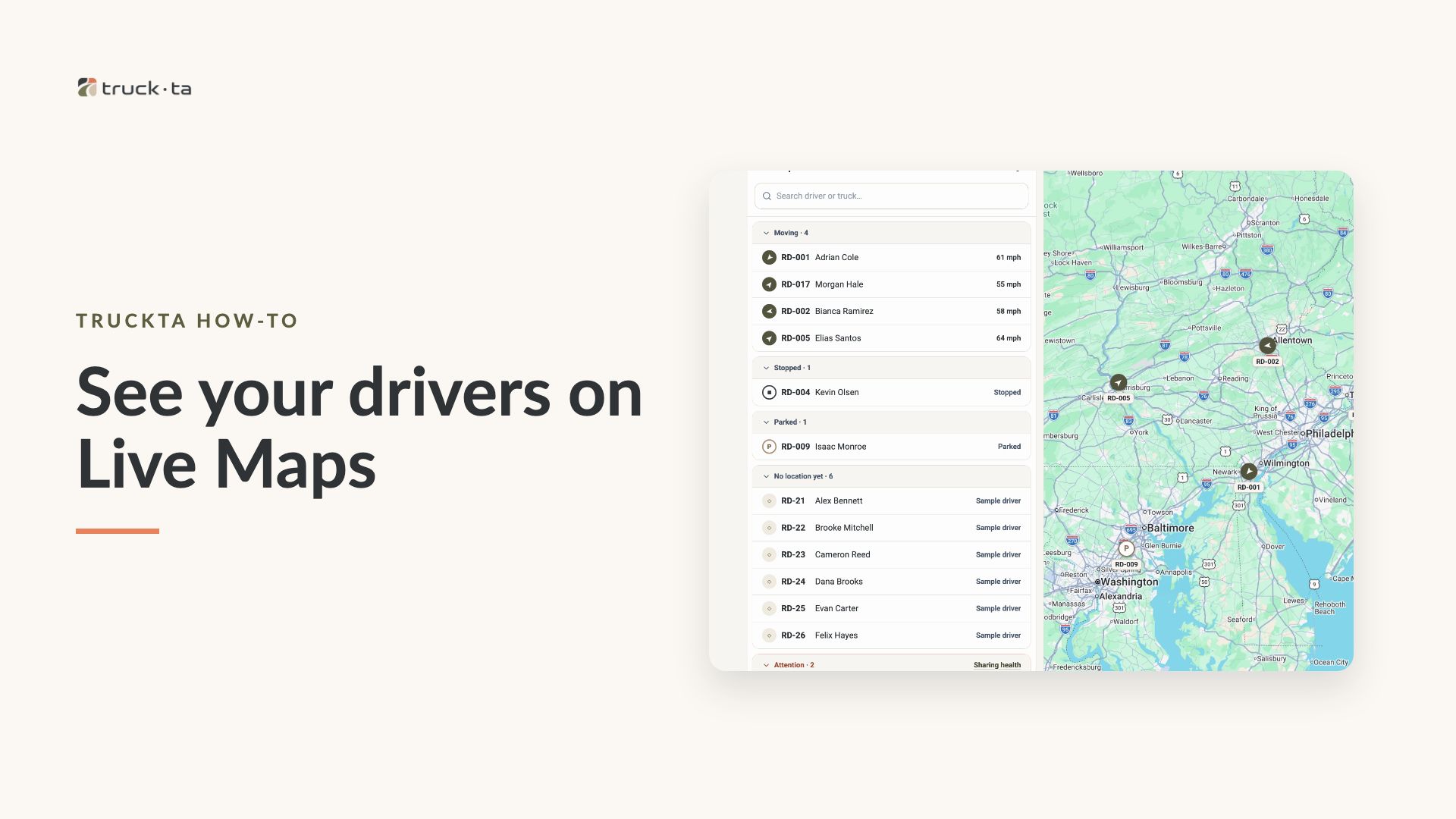
See Your Drivers on Live Maps in TruckTA
Open the fleet map, check a driver's location, and connect a missing driver through the Driver App invitation workflow.
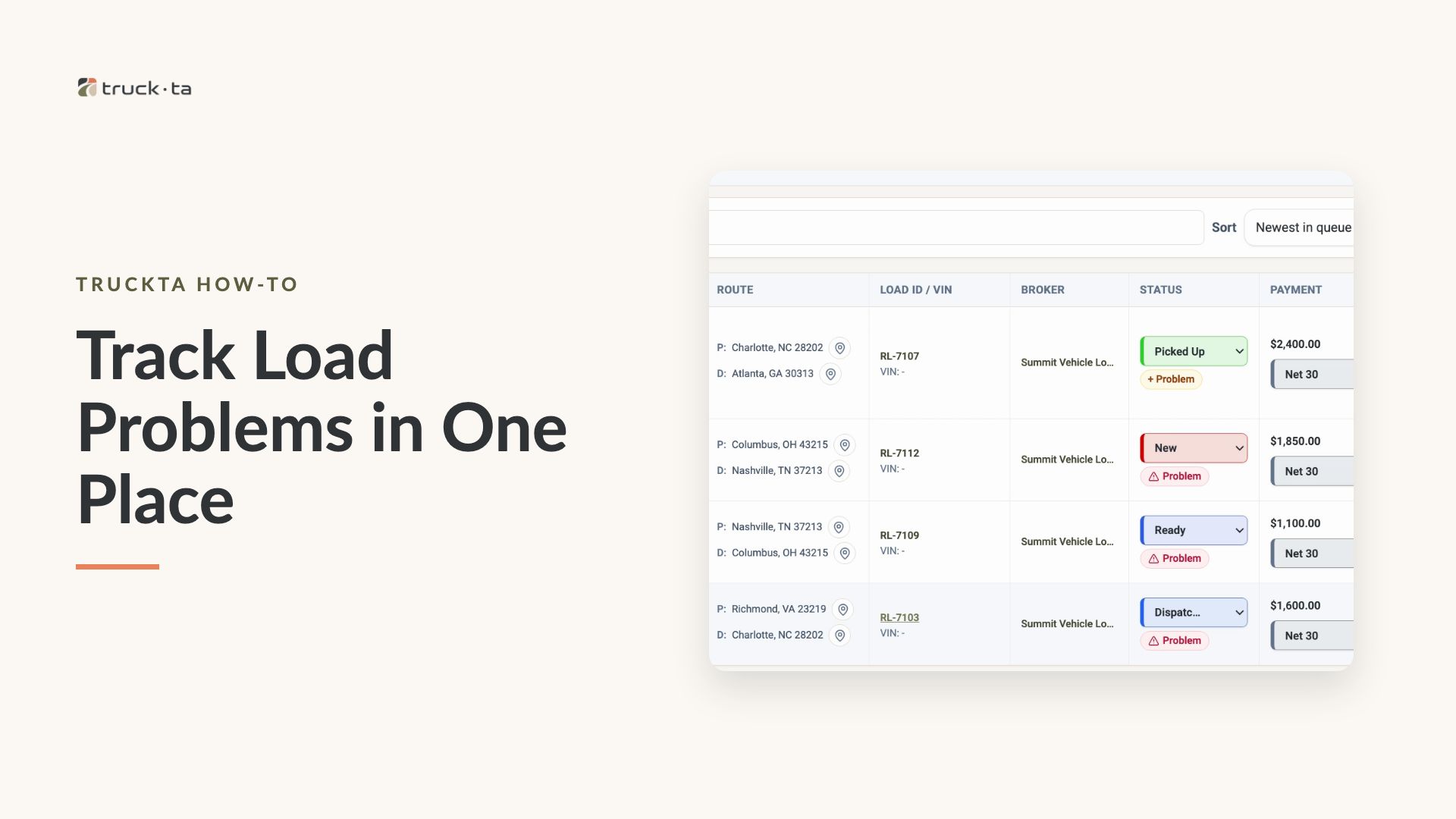
Track Load Problems in One Place
Use the Problems tab in Loads to report issues, check problems detected by TruckTA, review older items, and clear reported problems without losing their notes.
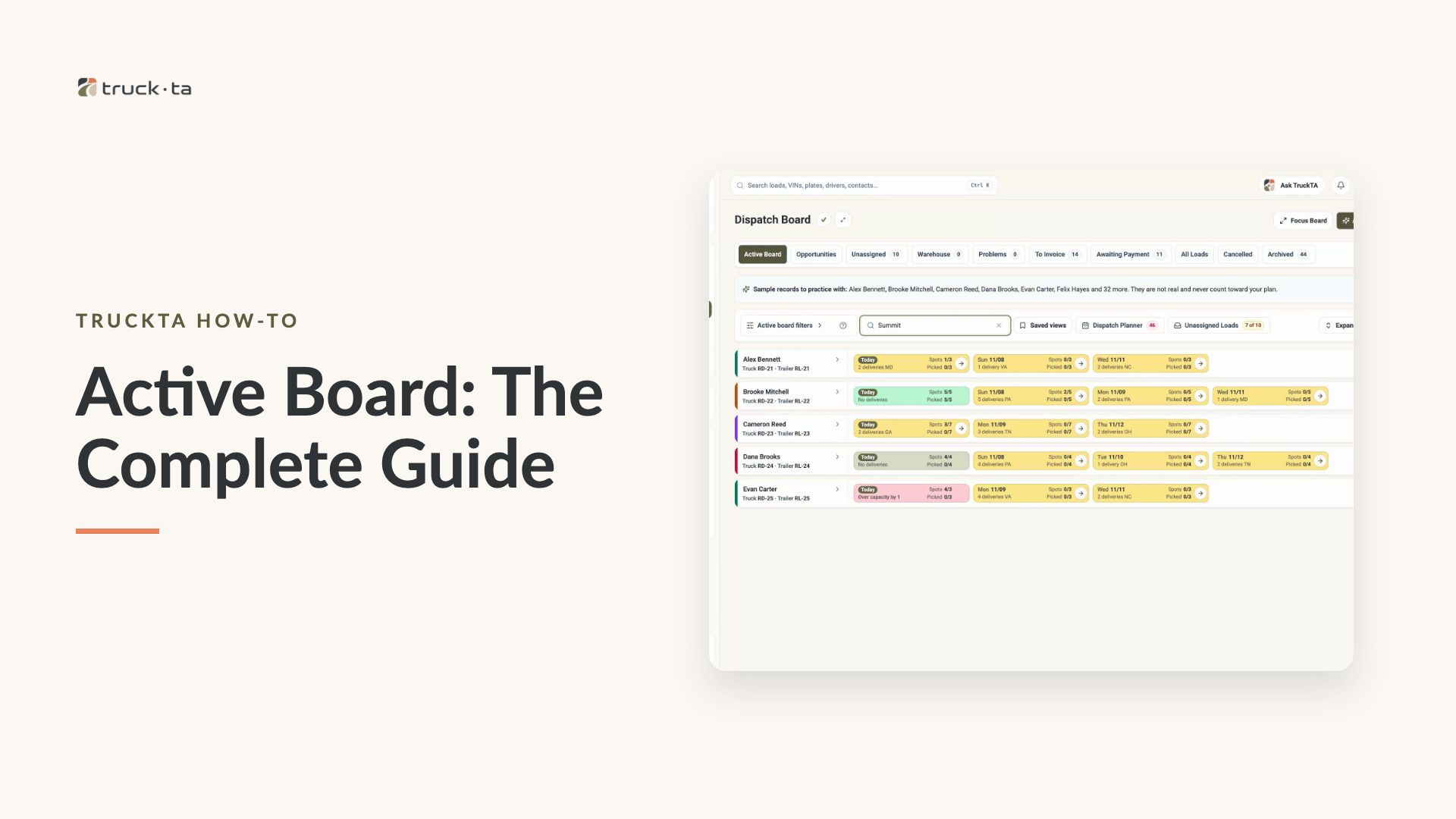
Active Board: The Complete Guide
Learn to read driver capacity, assign loads, manage status and notes, plan routes, and customize Active Board. Follow the complete walkthrough or jump to the task you need.