
Set Up Your Company in TruckTA: From Signup to Company Profile
Follow the TruckTA setup video from signup through Company Profile, FMCSA data, logo upload, and company documents ready to share with brokers.
By TruckTA Team · Product guidance
Reviewed by TruckTA ·
This tutorial uses an AI-generated voice. The video and article explain the same reviewed TruckTA workflow.
Put the workflow to work
Solve the task with TruckTA
In this article
You’ve decided to try TruckTA. Start with your company details before moving on to drivers, trucks, and loads. Your Company Profile supplies the information used in onboarding packets, document reminders, and the paperwork you prepare for brokers, so this is the first place to work.
Follow along with the video “Set up your company in TruckTA.” The walkthrough below keeps the same order, from creating your login to adding company files and finding help when a field isn’t clear.
1. Create your account
Go to TruckTA and sign up with your name, work email, and a password. These are the login details you’ll use each day. Your first two months are free, and there’s no card to enter.
Next, enter your company name and phone number, choose the kind of hauling you do, and tell TruckTA how many trucks you run. You can change these details later. Confirm the information, then open the link in the email TruckTA sends you. Your workspace is ready after that confirmation.
The new workspace includes a sample driver, a sample truck, and three sample loads so you can try the screens right away. Those samples let you explore, but the first setup stop is your own company information.
When you first sign in, the welcome window points you to Company Profile. Open it there, or use the sidebar or Settings to reach it later.
2. Fill in Company Profile
Work down the form in order. Start with your legal company name, which is the only required field. If you do business under another name, enter that in the DBA field. TruckTA shows the DBA name instead when you add one.
Next, add your DOT number, MC number, and EIN. Don’t guess at a number just to fill the space. If you don’t have it handy, leave that field blank and come back to it later. Your DOT number is also what TruckTA uses for the FMCSA lookup in the next part of this walkthrough.
Choose your operation type and fleet size, then set your operations time zone. Load statuses and activity times across TruckTA use that time zone. This setting applies beyond the profile page, so give it a deliberate look rather than treating it as another contact detail.
Add your company representative, then set your default reminder days. This number controls how many days before a document expires TruckTA starts flagging it as expiring soon. The default is 30 days. Keep that setting or change it to the reminder window you want to use.
Continue with your company address, phone number, and email. Below those contact details, enter your insurance company, policy number, and policy expiration date, followed by your factoring company. These are the remaining company details covered in the video before saving.
Look over what you’ve entered, then select Save profile. Wait for Saved to appear. That confirmation is your checkpoint: the saved details now flow into onboarding packets, reminders, and your company documents. You can return to Company Profile from the sidebar or Settings whenever you need to work on it again.
3. Check your FMCSA summary
Your FMCSA summary is at the top of the form. Select Load official data to have TruckTA look up your public FMCSA record using your DOT number. The summary checks registration, authority, insurance, BOC-3, safety, and filings separately.
If the official record differs from your Company Profile, TruckTA displays each difference side by side. Review the comparison before choosing anything. Loading the record does not change your profile by itself.
Tick the fields you want to use, then select Apply selected fields. Nothing changes until you make those selections and apply them. That keeps the lookup and the profile update as separate actions: first see the differences, then choose which fields to apply.
You can also check another carrier or broker from this area. FMCSA data is for information only. Confirm anything critical in official FMCSA systems.
4. Add your company logo
Choose your company logo file. TruckTA accepts PNG, JPEG, or WebP, up to two megabytes. If you want the logo on generated PDFs, use PNG or JPEG. Make that format choice before uploading, especially if your aim is to put your company logo on documents.
Select Upload. Your logo appears right away in the sidebar and on generated documents such as onboarding packets. The sidebar gives you an immediate place to see the uploaded branding; the document use is why the PNG or JPEG choice matters for PDFs.
5. Add company documents and prepare them for brokers
At the bottom of the page, add your company documents. The video’s examples are your operating authority, insurance certificate, and W-9. TruckTA AI reads each file and fills in its document type and expiration date for you.
When a broker asks for paperwork, open Company Files. Select the documents they need and prepare one ZIP. This is the step for gathering the requested files into a package, rather than working through the company details again.
You can also copy your broker basics in a single click. Use the ZIP option for the selected documents or copy the basics when that’s what you need to provide. The company information comes from the profile you just set up.
6. Ask TruckTA AI when you’re unsure
If you’re unsure what belongs in a field, select Ask TruckTA. TruckTA AI answers from the Help Center and your own company data, right beside the page you’re working on. You can use it while you’re completing the profile rather than guessing what goes where.
That completes the company setup covered in the video. The next step is to add your drivers and trucks before moving on to your first dispatch.
Ready to begin? Start free with TruckTA and set up your company profile today. Your first two months are free, no card is needed, and Company Profile is your first stop once you’ve confirmed your account.
Read the video transcript
Your company profile is where TruckTA starts. Your onboarding packets, document reminders, and the paperwork you send to brokers all draw from it. In the next few minutes, you'll create your account, fill in your profile, check your FMCSA record, and add your logo. Sign up at truckta dot com with your name, your work email, and a password. That's the login you'll use every day. There's no card to enter: your first two months are free. Next, tell TruckTA about your company: its name, phone number, the kind of hauling you do, and how many trucks you run. You can change all of it later. Confirm, then open the link in the email TruckTA sends you, and your workspace is ready. Your new workspace even comes with a sample driver, a sample truck, and three sample loads, so you can try every screen right away. When you first sign in, a welcome window points you to the first stop: Company Profile. You can always open it from the sidebar, or from Settings. Company Profile holds who you are. Your legal name is the only required field. If you do business under another name, add it as your DBA, and TruckTA shows that name instead. Then add your DOT number, MC number, and EIN. If you don't have a number handy, leave the field blank rather than guess. You can fill it in later. Choose your operation type and fleet size. Then set your operations time zone: load statuses and activity times across TruckTA use it. Add your company representative, and set your default reminder days. That's how many days before a document expires TruckTA starts flagging it as expiring soon. Thirty days is the default. Below that, add your address, phone, and email, then your insurance company, policy number, policy expiration date, and factoring company. When everything looks right, select Save profile. You'll see Saved, and your details now flow into onboarding packets, reminders, and your company documents. Your FMCSA summary sits at the top of the form. Select Load official data, and TruckTA looks up your public FMCSA record by your DOT number. Registration, authority, insurance, BOC-3, safety, and filings are each checked separately. If the official record differs from your profile, TruckTA lists each difference side by side. Nothing changes until you tick the fields you want and select Apply selected fields. You can check another carrier or broker from here, too. Keep in mind that FMCSA data is for information only: confirm anything critical in official FMCSA systems. Now make it yours. Choose your logo file: PNG, JPEG, or WebP, up to two megabytes. If you want your logo on generated PDFs, use PNG or JPEG. Select Upload, and your logo appears right away in the sidebar, and on generated documents such as onboarding packets. At the bottom of the page, add your company documents, like your operating authority, insurance certificate, and W-9. TruckTA AI reads each file and fills in the type and expiration date for you. When a broker asks for your paperwork, open Company Files. Select what they need and prepare one ZIP, or copy your broker basics in a single click. It all comes from the profile you just set up. And whenever you're unsure what goes where, select Ask TruckTA. TruckTA AI answers from the Help Center and your own company data, right beside the page you're working on. That's your company set up in TruckTA. Next, add your drivers and trucks, and you're ready to dispatch your first load. Start free at truckta dot com.
Put it into practice
Keep your operation moving with TruckTA.
More ways to use TruckTA
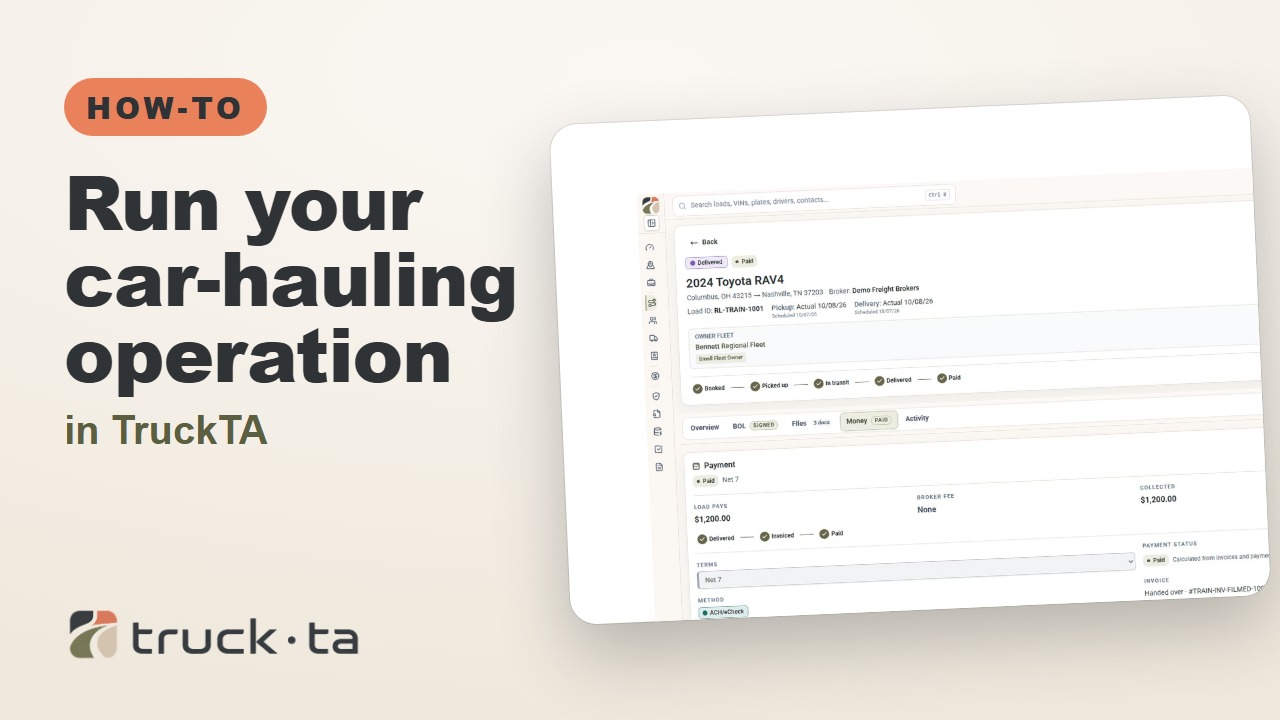
Run Your Car-Hauling Operation in TruckTA
Follow a job through preparation, dispatch, driver work, financial close, and owner-operator access, with a practice checkpoint for each part of the six-part TruckTA course.
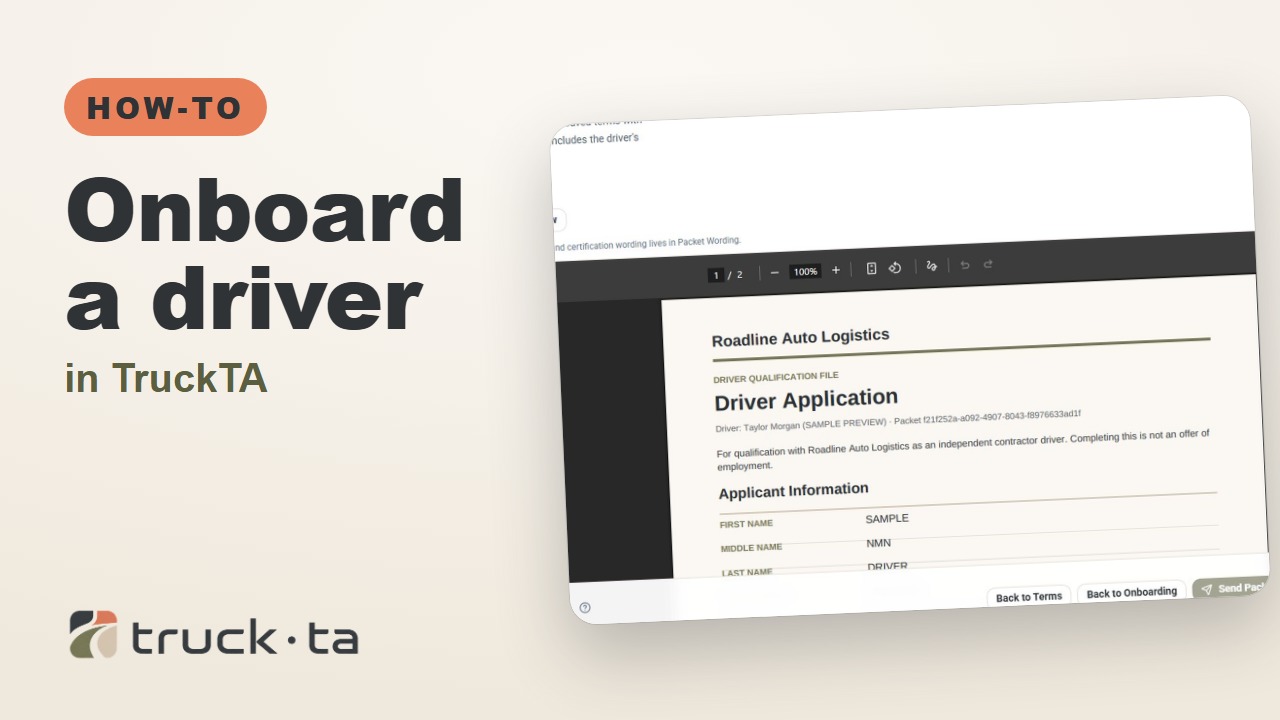
Onboard a Driver in TruckTA
Follow the TruckTA video to prepare an applicant packet, check company-approved terms, and preview the documents. Then see how submission, review, signing, and the Driver record fit together.
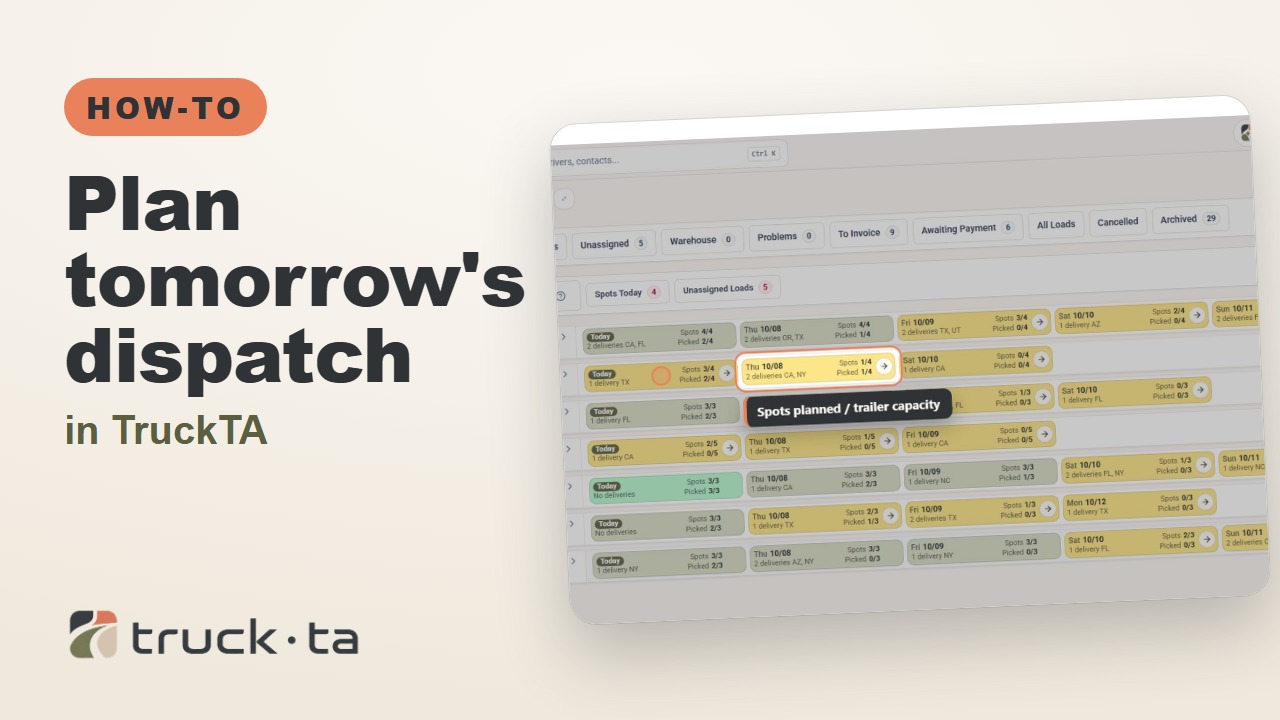
Plan Tomorrow's Dispatch in TruckTA
Review planned work, tomorrow’s open trailer spots, unassigned loads, and driver availability in TruckTA before assigning the next load.