
Plan Tomorrow's Dispatch in TruckTA
Review planned work, tomorrow’s open trailer spots, unassigned loads, and driver availability in TruckTA before assigning the next load.
By TruckTA Team · Product guidance
Reviewed by TruckTA ·
This tutorial uses an AI-generated voice. The video and article explain the same reviewed TruckTA workflow.
Put the workflow to work
Solve the task with TruckTA
In this article
Before you assign tomorrow’s work, check what’s already planned, where trailer space may open, and which drivers are available. Follow the TruckTA video “Plan tomorrow’s dispatch” in order: start with the current board, review next-day capacity, then check unassigned work and availability. This is a dispatch planning review, not a completed assignment.
Open the board
From the Dashboard, go to the sidebar on the left and open Loads. The page opens to the Dispatch Board with Active Board selected. Start here to review your drivers and the work already planned around them, rather than beginning with the loads that still need a driver.
Each driver has a row. Under the driver’s name, find the truck and trailer line and hover over it to check trailer capacity. Make that your first equipment check before planning more vehicles for the driver. You’ll use that capacity when reading the dated cards and comparing the work already in the plan with potential openings.
Read the plan
Read the dated cards from left to right. Spots shows vehicles in the plan against trailer capacity. Picked tells you how many vehicles are already picked up. Read those counts together: planned vehicles and picked-up vehicles describe different parts of the driver’s work.
Don’t treat vehicles waiting for pickup as unused capacity. A full trailer waiting for pickup is different from a card with room, even though the pickup work hasn’t happened yet. Use Spots to compare the plan with capacity, then use Picked to check how much of that work has already been picked up.
Below each date, check the delivery information. Look at where the driver is delivering and where space may open as those deliveries happen. Keep that information alongside the counts as you read across the row; tomorrow’s capacity review also considers openings from deliveries.
Use the numbers as well as the colors. Your company can choose its planning colors, so don’t rely on a particular color to tell you whether a driver has room. The Spots and Picked counts give you the clearest comparison between room in the plan and work that is already picked up.
Check tomorrow’s capacity
Above the board, open Spots Today, then select Tomorrow inside the window. Despite its name, Spots Today is also where you check the next day. Confirm the date shown beside Open pickup spots before using the figures to plan tomorrow’s work.

Read the total as an estimate of how much work is needed, based on delivery openings and trailer capacity. Then move to the driver-level information below it. Compare each driver’s open spots, delivery locations, Deliveries, and Pickups planned. The total is your starting point; the individual rows are where you compare the drivers’ planned work and openings.
Check the delivery locations alongside the open spots rather than reading capacity alone. You’re reviewing both the room that may open and where the driver’s deliveries are planned. Keep Deliveries and Pickups planned in the same comparison so you’re considering the planned work as well as the available space.
Treat these figures as planning guidance. Before assigning work, confirm the actual equipment, route, and timing. Checking capacity does not assign or reschedule a load, and an open spot is not a completed assignment.
Close Spots Today to return to the board. Open Active board filters when you want to narrow the current driver view. Select Has room to find drivers with spare capacity. When you want the full picture again, select All drivers. Close the filters before moving on to the unassigned-work review.
Review unassigned work
Look at Unassigned Loads above the board. This is the starting point for active work that has not begun pickup and still needs a driver. Check its count to see what remains to be planned, then consider that work alongside the capacity you’ve just reviewed.
For a particular driver, use the plus button on that driver’s row to open assignment review. Compare the pickup date, route, vehicle count, capacity, and availability. Review any warning before you confirm. Don’t stop at the vehicle count: the review also needs to account for when the pickup is planned, the route, and whether the driver is available.
Keep the two entry points distinct. Unassigned Loads shows where to begin reviewing work that still needs a driver; the plus button opens assignment review for a particular driver. The demonstration shows these entry points, but it does not complete an assignment. Reviewing the board or checking open spots by itself does not place a load with a driver.
Check availability
Use the availability button at the right of a driver’s row to open Mark not working. If the driver will be unavailable, choose the final date in Not working until, then select Save. The selected final day is included in the absence; it is not the day the driver becomes available again.

Review the driver’s existing work before finishing the plan. An absence does not cancel or reassign existing loads. Keep that distinction clear when comparing availability with open capacity: recording that a driver is not working does not move their assigned work to someone else.
In the demonstration, select Cancel to leave the demo driver’s availability unchanged and return to the board. The video explains the date field and the save action, but it does not save an absence. If you’re following the demonstration without recording an actual absence, follow that cancellation step.
Finish the review
Before you finish, check the equipment and assigned spots, tomorrow’s open capacity, and the work still waiting for an available driver. If you use the arrow on a planning card, remember that it moves one open capacity slot to the next day. It does not reschedule a load.
Review tomorrow’s dispatch in TruckTA: check the plan, compare capacity, and confirm who’s available before assigning the next load.
Read the video transcript
Tomorrow's dispatch starts with a clear picture of today's work. In this video, you'll review your drivers, check tomorrow's open trailer spots, find where to review unassigned loads, and check driver availability in TruckTA. From the Dashboard, move to the sidebar on the left and open Loads. When the page opens, you'll see the Dispatch Board with Active Board selected. Start here to see your drivers and the work already planned around them. Each driver has a row. Start with the truck and trailer under the driver's name. Hover that line to check the trailer capacity before you plan more vehicles for that driver. Read the dated cards from left to right. Spots shows vehicles in the plan against trailer capacity. The Picked count tells you how many vehicles are already picked up. Below the date, check the delivery information to see where space may open as the driver delivers. Use the numbers as well as the colors. A card with room is different from a full trailer waiting for pickup. Your company can choose its planning colors, so the Spots and Picked counts give you the clearest comparison. Open Spots Today above the board, then select Tomorrow. Despite the window's name, you can use it to check the next day. Confirm the date shown beside Open pickup spots before you plan. The total estimates how much work is needed from delivery openings and trailer capacity. Below it, compare each driver's open spots, delivery locations, Deliveries, and Pickups planned. This is planning guidance: confirm the actual equipment, route, and timing before assigning work. Close Spots Today to return to the board. Open Active board filters when you want to narrow the current driver view. Has room helps you find drivers with spare capacity; select All drivers again when you want the full picture. Close the filters and look at Unassigned Loads above the board. This is the starting point for active work that has not begun pickup and still needs a driver. Its count helps you see what remains to be planned. For a particular driver, use the plus button on that driver's row to open assignment review. Compare the pickup date, route, vehicle count, capacity, and availability. Review any warning before you confirm. Checking capacity by itself does not assign a load. Use the availability button at the right of a driver's row to open Mark not working. If the driver will be unavailable, choose the final date in Not working until, then Save. The selected final day is included. An absence does not cancel or reassign the driver's existing loads. Review that work before you finish the plan. Here, select Cancel to leave the demo driver's availability unchanged and return to the board. Before you finish, check three things: the equipment and assigned spots, tomorrow's open capacity, and the work still waiting for an available driver. The arrow on a planning card moves one open capacity slot to the next day; it does not reschedule a load. That's your next-day dispatch review in TruckTA. Check the plan, match the capacity, and confirm who's available before assigning the next load. Keep your team working from the same board at truckta dot com.
Put it into practice
Keep your operation moving with TruckTA.
More ways to use TruckTA
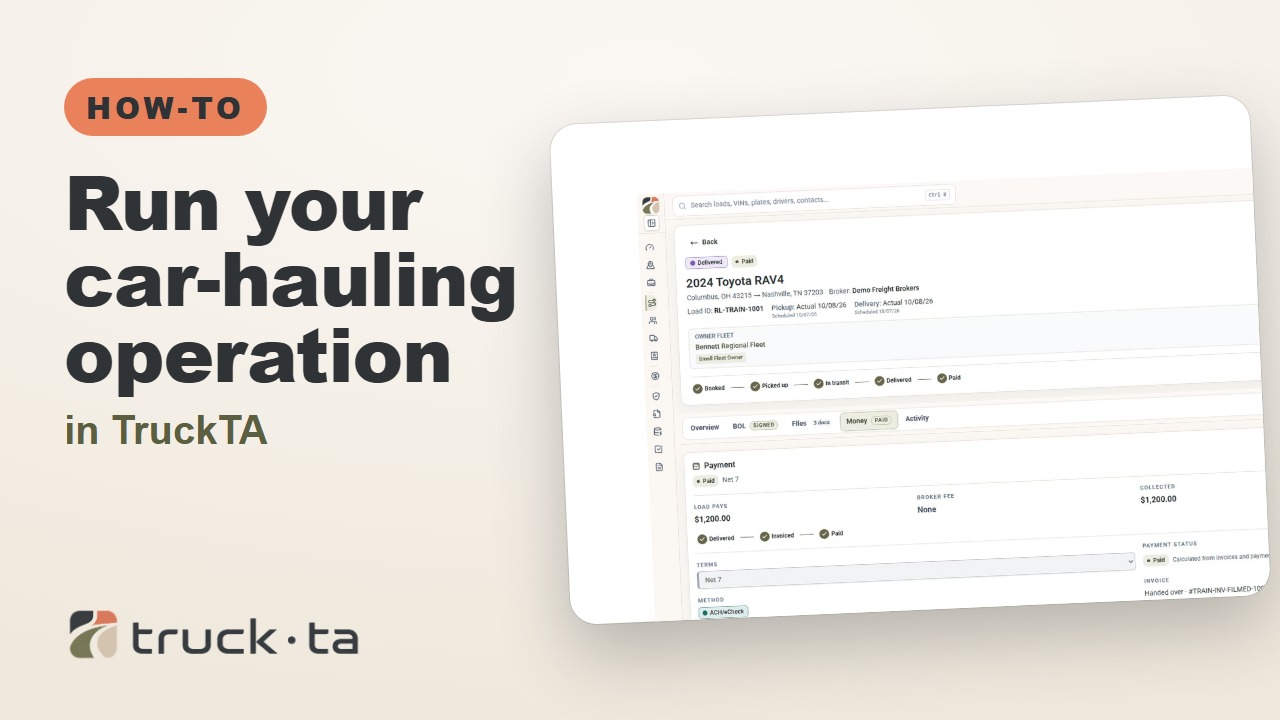
Run Your Car-Hauling Operation in TruckTA
Follow a job through preparation, dispatch, driver work, financial close, and owner-operator access, with a practice checkpoint for each part of the six-part TruckTA course.
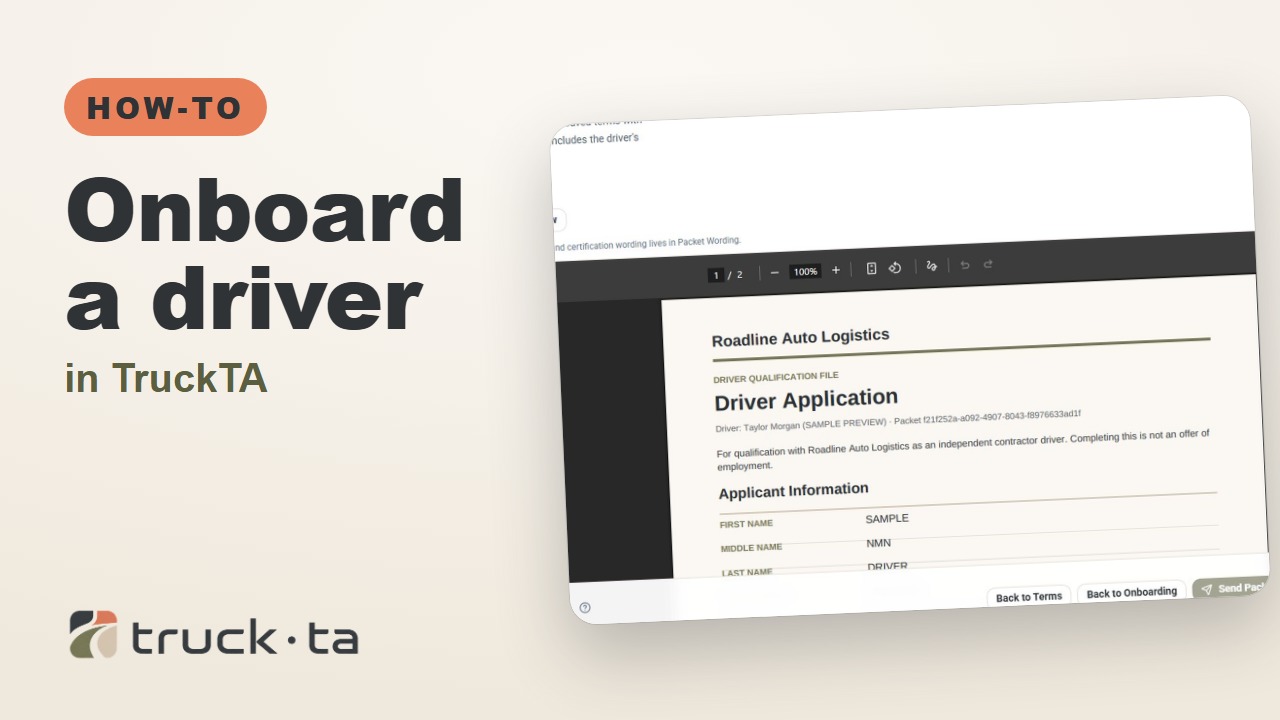
Onboard a Driver in TruckTA
Follow the TruckTA video to prepare an applicant packet, check company-approved terms, and preview the documents. Then see how submission, review, signing, and the Driver record fit together.
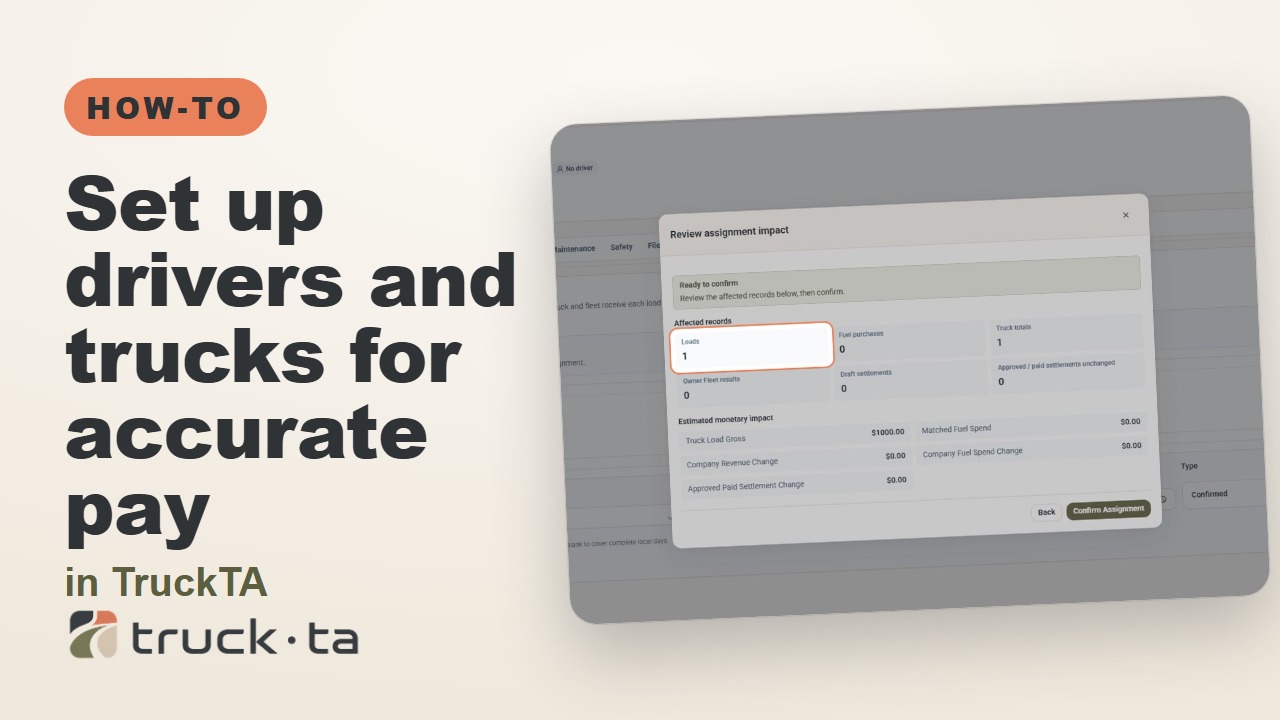
Set Up Drivers and Trucks for Accurate Pay in TruckTA
When driver pay or truck totals look wrong, check the records behind the delivery date. Follow the video’s workflow for load details, dated compensation, truck assignments, owner fleets, and saved settlements.