
Keep Your Driver and Truck Documents Up to Date in TruckTA
Find documents that need attention, replace an expired truck registration, add a driver’s medical card, and choose when TruckTA flags documents as expiring soon.
By TruckTA Team · Product guidance
Reviewed by TruckTA ·
This tutorial uses an AI-generated voice. The video and article explain the same reviewed TruckTA workflow.
Put the workflow to work
Solve the task with TruckTA
In this article
You’ve kept the registration and medical card on file, but a document can still expire without anyone noticing. The task now is to find what needs attention, put the replacement in the right profile, and check the result. In TruckTA, that workflow starts on the Dashboard and continues in the truck’s or driver’s Files tab.
This guide accompanies the video “Keep your driver and truck documents up to date in TruckTA.” Follow along to replace an expired registration, add a new medical card, and set the window for document expiration tracking. The dates and reminder settings described below are the examples shown in the video, not settings you should assume are in your own account.
Find what needs attention on the Dashboard
Start on the Dashboard and look at the Expiring soon card. It counts driver licenses, medical cards, registrations, and inspections that are coming due. A red pill on a row means some documents have already expired. That distinction gives you something specific to look for: the card covers upcoming dates, while the red pill points out documents already past their expiration.
In the video, Registrations shows one expired document. Select that pill. TruckTA opens the Equipment list, filtered to expired documents, so you can continue from the registration finding to the equipment record that needs attention.
The truck shown in the filtered list has a registration that ran out in July. This is the expired truck registration used for the replacement walkthrough. Follow that record into the truck profile next; the Dashboard identifies the issue, and the truck’s Files tab is where the video shows you adding its replacement.
Replace an expired registration
Select the truck to open its profile, then open the Files tab. The current registration is marked Expired. You’re now looking at the document attached to that truck, rather than the Dashboard count or the filtered Equipment list.
Select Add document and choose the new registration. A PDF or a photo both work. TruckTA AI starts reading the file right away. In the video, it takes a few seconds to fill in the document type and expiration date, and each field is marked Read from the file.
Pause at those fields before saving. Check the document type and expiration date against the preview beside them. The preview and populated fields are shown together, so use that view to compare what TruckTA read with what the registration actually says. Read from the file tells you where the values came from; the next action in the walkthrough is still to check them.
Once the values match, select Save Registration. In this example, the new registration becomes the current one and is valid through July of the following year. That date belongs to the registration in the demonstration. For your replacement, check the expiration printed on the file you’ve chosen.
The previous registration isn’t lost when you save the new one. It moves to Archived / Previous Documents. The result shown is a current replacement with the older registration kept separately, rather than the expired registration remaining as the current document.
Add a driver's medical card
Next, open Drivers from the sidebar and select the driver. Open the driver profile’s Files tab. Driver documents follow the same general upload-and-check workflow, but the starting issue in this example is different from the truck’s expired registration.

The existing medical card has no expiration date, so TruckTA marks it Missing Expiration. Read that label as the issue shown in this record: the date is missing. The video does not describe this medical card as expired. Keeping those labels distinct helps you follow what each example is fixing.
Select Add document and choose the new card. TruckTA reads it, sets the document type to Medical Card, and fills in the expiration date printed on the card. It also lists anything you should check.
Review the type, the date, and anything TruckTA has listed for checking. When everything matches, select Save Medical Card. The new card is then on file. Don’t end the walkthrough at the upload, though. The next view shows the result for this medical card and makes clear whether another finding remains on the driver’s profile.
Check the result
Open the driver’s Overview tab. In the video, Data Health no longer lists the medical card after the new card is saved. Next expiration shows the earliest date to watch. These are the two details to look at in this part of the walkthrough: the medical-card finding is gone, and the next date is visible.

There’s still one finding left in the example. The driver license needs its expiration date. Saving the medical card has addressed the medical-card issue, not the separate missing date on the license. Don’t read the disappearance of one finding as the disappearance of every finding.
This check closes the loop on the card you just added. You’ve moved from Missing Expiration in Files to a saved replacement, then checked the Overview rather than assuming the whole driver profile is finished. The remaining license finding tells you what still needs attention; the video does not walk through updating that license.
Set the reminder window
To choose how early TruckTA flags a document, open Settings from the sidebar. Under Documents and Forms, select Reminders. This is where the video shows the window that determines when a document appears as expiring soon.
Default reminder days sets the window for the whole company. The example uses 30 days. Each document type can also have its own setting, so the company-wide window isn’t the only value to look at when checking how early a particular type will be flagged.
The medical-card setting shown is 60 days. With that setting, a medical card shows as expiring soon two months ahead, as described in the video. Keep the distinction clear: the expiration date is read from the document, while the reminder window controls how early TruckTA flags it as coming due.
Use TruckTA to organize your next paperwork update around this workflow. Start with the Dashboard’s Expiring soon card, follow the expired registration into its truck profile, and compare the replacement’s fields before saving. For the driver’s medical card, finish by checking Overview so you can see the result and any finding still left to address.
Read the video transcript
A registration or a medical card can expire without anyone noticing. In this video, you'll find the documents that need attention, replace a truck's expired registration, and add a driver's new medical card. Start on the Dashboard. The Expiring soon card counts the driver licenses, medical cards, registrations, and inspections that are coming due. A red pill on a row means some have already expired. Registrations shows one expired. Select the pill, and the Equipment list opens, filtered to expired documents. This truck's registration ran out in July. Select the truck to open its profile, then open the Files tab. The current registration is marked Expired. Select Add document, then choose the new registration. A PDF or a photo both work. TruckTA AI starts reading the file right away. In a few seconds, it fills in the document type and the expiration date, and marks each one Read from the file. Check them against the preview beside the fields, then select Save Registration. The new registration is now the current one, valid through July of next year. The old one isn't lost. It moves to Archived, Previous Documents. Driver documents work the same way. Open Drivers from the sidebar, then select your driver. Open the Files tab. This medical card has no expiration date, so TruckTA marks it Missing Expiration. Select Add document and choose the new card. TruckTA reads the card, sets the type to Medical Card, and fills in the date printed on it. It also lists anything you should check. When everything matches, select Save Medical Card, and the new card is on file. Open the Overview tab. Data Health no longer lists the medical card, and Next expiration shows the earliest date to watch. One finding is left: the driver license still needs its expiration date. To choose how early TruckTA flags a document, open Settings from the sidebar, then select Reminders, under Documents and Forms. Default reminder days sets the window for the whole company, thirty days here. Each document type can have its own. This medical card setting is sixty days, so a card shows as expiring soon two months ahead. That's how you keep driver and truck documents current in TruckTA. Start free at truckta dot com.
Put it into practice
Keep your operation moving with TruckTA.
More ways to use TruckTA
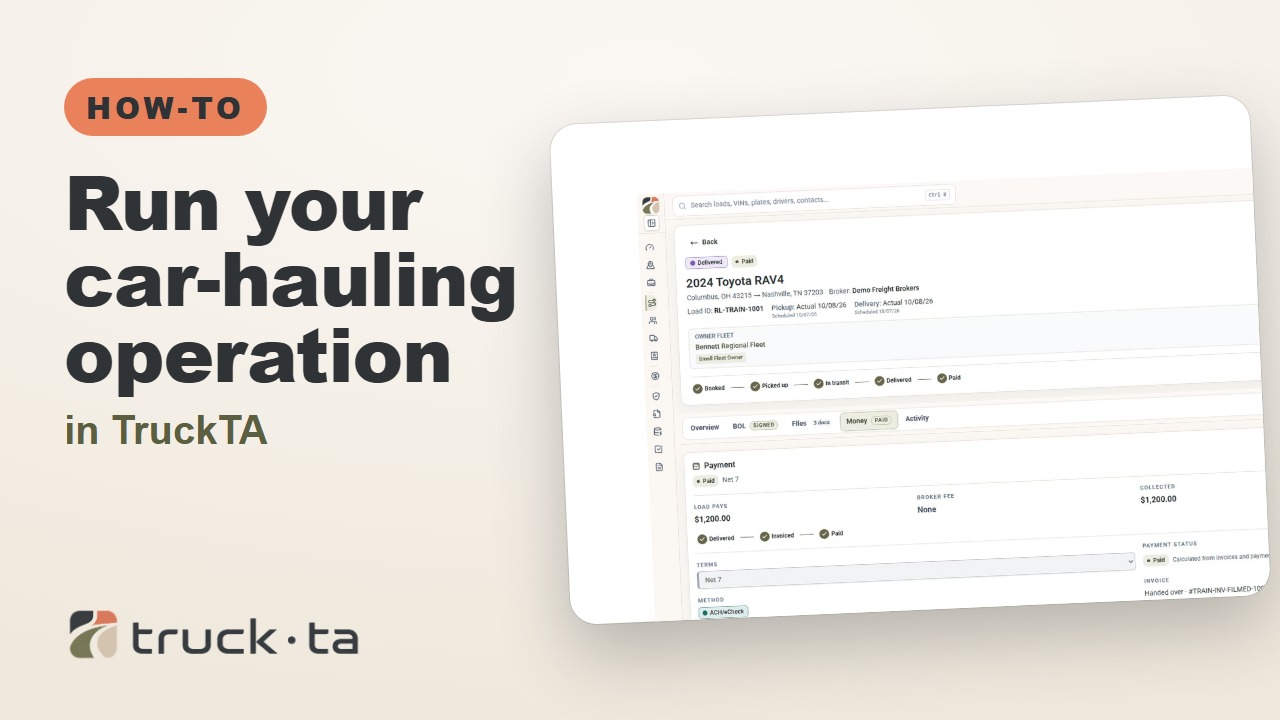
Run Your Car-Hauling Operation in TruckTA
Follow a job through preparation, dispatch, driver work, financial close, and owner-operator access, with a practice checkpoint for each part of the six-part TruckTA course.
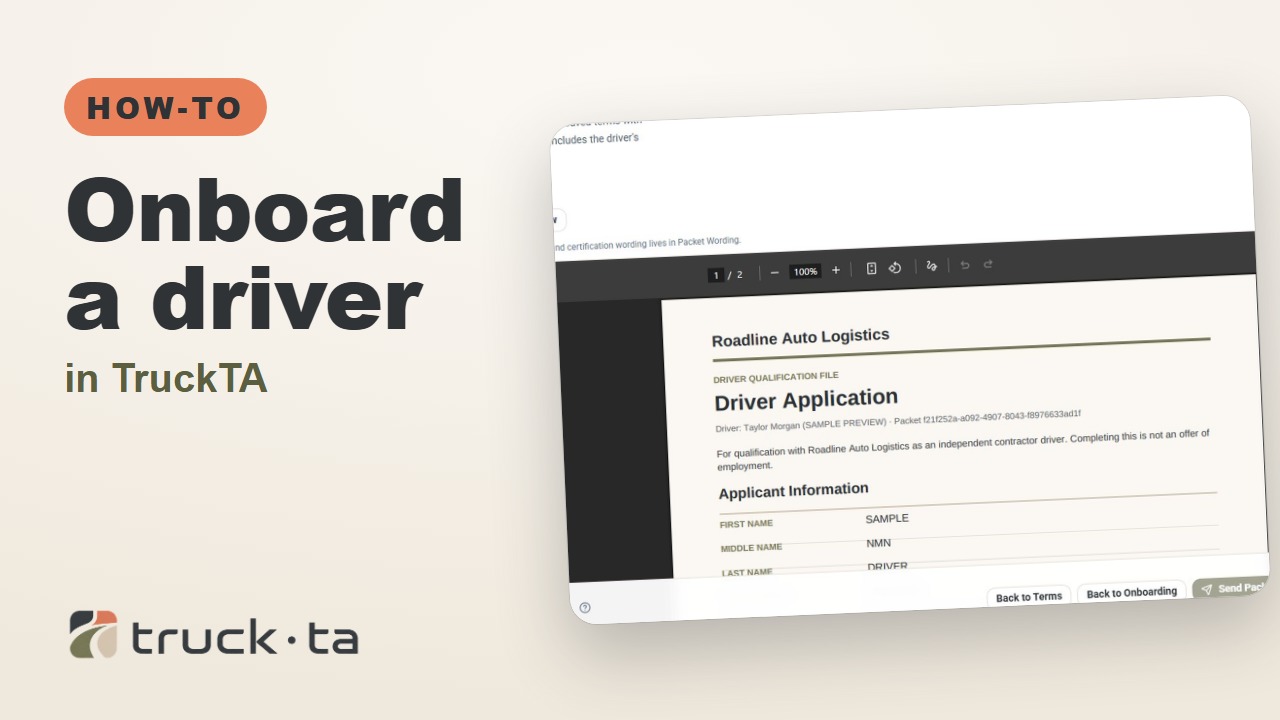
Onboard a Driver in TruckTA
Follow the TruckTA video to prepare an applicant packet, check company-approved terms, and preview the documents. Then see how submission, review, signing, and the Driver record fit together.

Plan Tomorrow's Dispatch in TruckTA
Review planned work, tomorrow’s open trailer spots, unassigned loads, and driver availability in TruckTA before assigning the next load.