
Invoice Every Delivered Load
Find delivered loads that still need an invoice, record invoices sent through a broker portal, and prepare invoice drafts in TruckTA.
By TruckTA Team · Product guidance
Reviewed by TruckTA ·
This tutorial uses an AI-generated voice. The video and article explain the same reviewed TruckTA workflow.
Put the workflow to work
Solve the task with TruckTA
In this article
Last updated: November 2026
The load is delivered, but someone still has to bill it. To invoice delivered loads, open Loads in TruckTA, choose the To Invoice tab, and either record an invoice you've already sent or create one in TruckTA.
This walkthrough follows the “Invoice Every Delivered Load” video, from finding unbilled loads to recording a batch. For related reading, keep Car Hauler Load File Checklist for Billing alongside your billing routine.
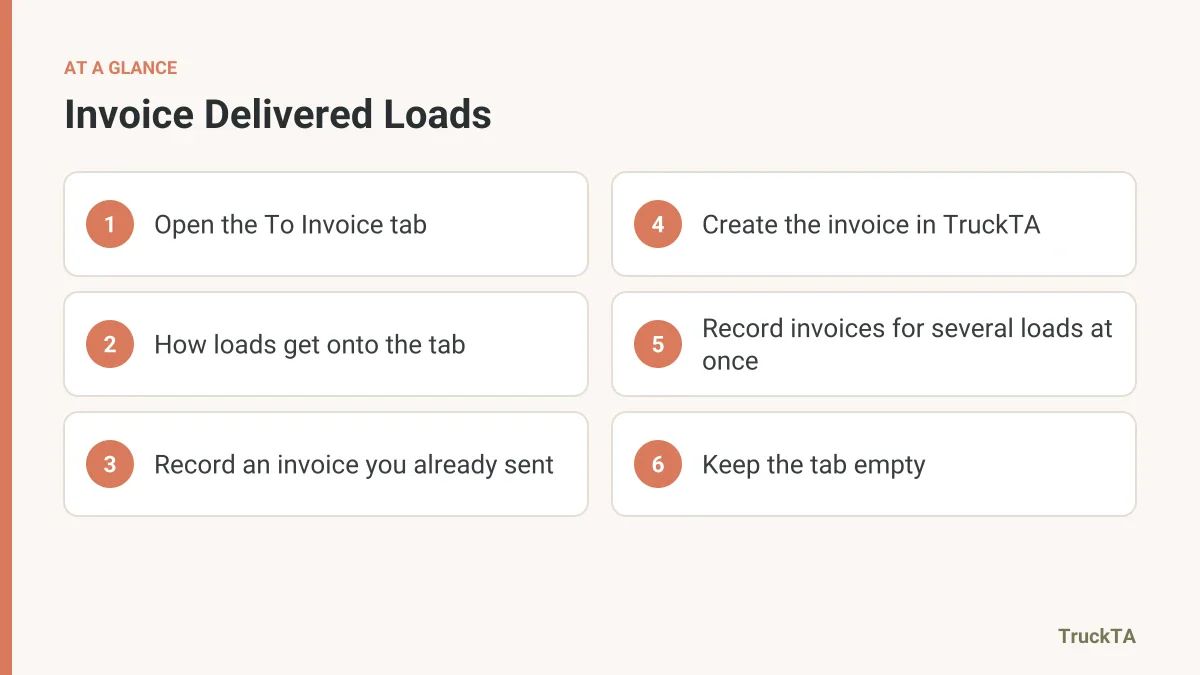
Open the To Invoice tab: invoice delivered loads
Find the count and read the Payment column
From the Dashboard, open Loads in the sidebar. Then choose the To Invoice tab. The number on that tab tells you how many delivered loads still need an invoice, giving you a starting point for the billing work.
Each row represents a delivered load. In the Payment column, look for the amount, payment terms, and yellow To Invoice mark. Above the list, the Outstanding card adds up what's still unpaid.
However, those displays answer different questions. Use the tab's number to see how many loads need invoices. Use the Outstanding card to see what's still unpaid, rather than treating it as another load count.
How loads get onto the tab
Change the load status in All Loads
You don't manually add a load to this list. Instead, open All Loads, search for the load, and change its status to Delivered. TruckTA puts the delivered load on the To Invoice tab for you.
Next, return to To Invoice. The load appears at the top of the list, and the tab's number increases by one. That gives you a visible way to follow the change from delivery status to billing work.
Record an invoice you already sent
Use Record Invoice for a broker portal submission
Already sent the invoice through a broker portal? Open the three-dot menu in that load's Payment column and choose Record Invoice. This is the recording path for an invoice you've already sent, rather than the draft-creation path.
Then choose how the invoice was sent and pick the portal. Select Record Invoice to finish. The load leaves To Invoice and moves to Awaiting Payment, so it no longer sits among the loads waiting for an invoice.
Create the invoice in TruckTA

Review the draft before anything is sent
If you want to invoice delivered loads inside TruckTA instead, open the same three-dot menu in the Payment column. This time, choose Create Invoice. TruckTA prepares a draft for you to review before anything is sent.
At this point, you're reviewing a draft, not recording a previous portal submission. Choose the path that matches the work you've actually done. For related reading, see Trucking Invoice Template for Vehicle Transport Loads.
Record invoices for several loads at once

Select the loads already invoiced through the same portal
If you've sent a batch to the same portal, choose Select loads. Tick each load you invoiced. Then select Record Invoice in the bar above the list, rather than opening each load's Payment menu separately.
One form covers the selected loads. Next, pick the portal and select Record Invoice. TruckTA confirms how many invoices it recorded, and those loads move to Awaiting Payment together. You're recording the batch already sent to that portal.
Keep the tab empty
Make the remaining rows your daily billing work
Check To Invoice every day. Work through the remaining loads, recording invoices already sent or creating invoices where needed. Keep going until the tab is empty. However, an empty billing queue doesn't mean those invoices have been paid.
For another related resource, bookmark Monthly Bookkeeping Checklist for a Trucking Company: Month-End Closeout. For now, keep your next action focused on the delivered loads still waiting for an invoice.
Try TruckTA with your next billing session: open Loads, choose To Invoice, and start with a remaining row. Record an invoice you've already sent, or choose Create Invoice to prepare a draft for review.
Frequently asked questions
Should I select every load when recording a portal batch?
Select the loads you actually invoiced through that portal. The batch workflow records invoices already sent; it isn't the Create Invoice workflow.
Do I need to create a TruckTA invoice after recording one sent through a portal?
For the workflow shown, record the invoice you already sent. Record Invoice moves that load to Awaiting Payment; creating another invoice isn't part of that path.
Where should I look for a load after recording its invoice?
Look in Awaiting Payment. TruckTA moves the load there when you finish recording its invoice, including when you record several invoices together.
Read the video transcript
A delivered load isn't money yet. Someone still has to send the invoice. The To Invoice tab lists every delivered load that's waiting for one, so nothing gets missed. From the Dashboard, open Loads in the sidebar. Then choose the To Invoice tab. The number on the tab shows how many delivered loads still need an invoice. Each row is one delivered load. The Payment column shows the amount, the payment terms, and a yellow To Invoice mark. Above the list, the Outstanding card adds up what's still unpaid. You don't add loads to this list. TruckTA does it for you. Open All Loads, search for a load, and change its status to Delivered. Now go back to To Invoice. The load is at the top of the list, and the number went up by one. Loads paid on delivery or at pickup skip this tab. They don't need an invoice. Already sent the invoice another way, like through a broker portal? Just record it here. Select the three dots in the Payment column, then choose Record Invoice. Choose how the invoice was sent, and pick the portal. Then select Record Invoice. The load leaves this list and moves to Awaiting Payment. To make the invoice in TruckTA instead, open the same menu and choose Create Invoice. TruckTA prepares a draft for you to review before anything is sent. Sent a whole batch to the same portal? Choose Select loads, and tick each load you invoiced. Then select Record Invoice in the bar above the list. One form covers them all. Pick the portal, then select Record Invoice. TruckTA confirms how many it recorded, and those loads move to Awaiting Payment together. Check To Invoice every day. Record or create an invoice for each load. And keep going until the tab is empty. That way, every delivered load gets billed.
Put it into practice
Keep your operation moving with TruckTA.
More ways to use TruckTA
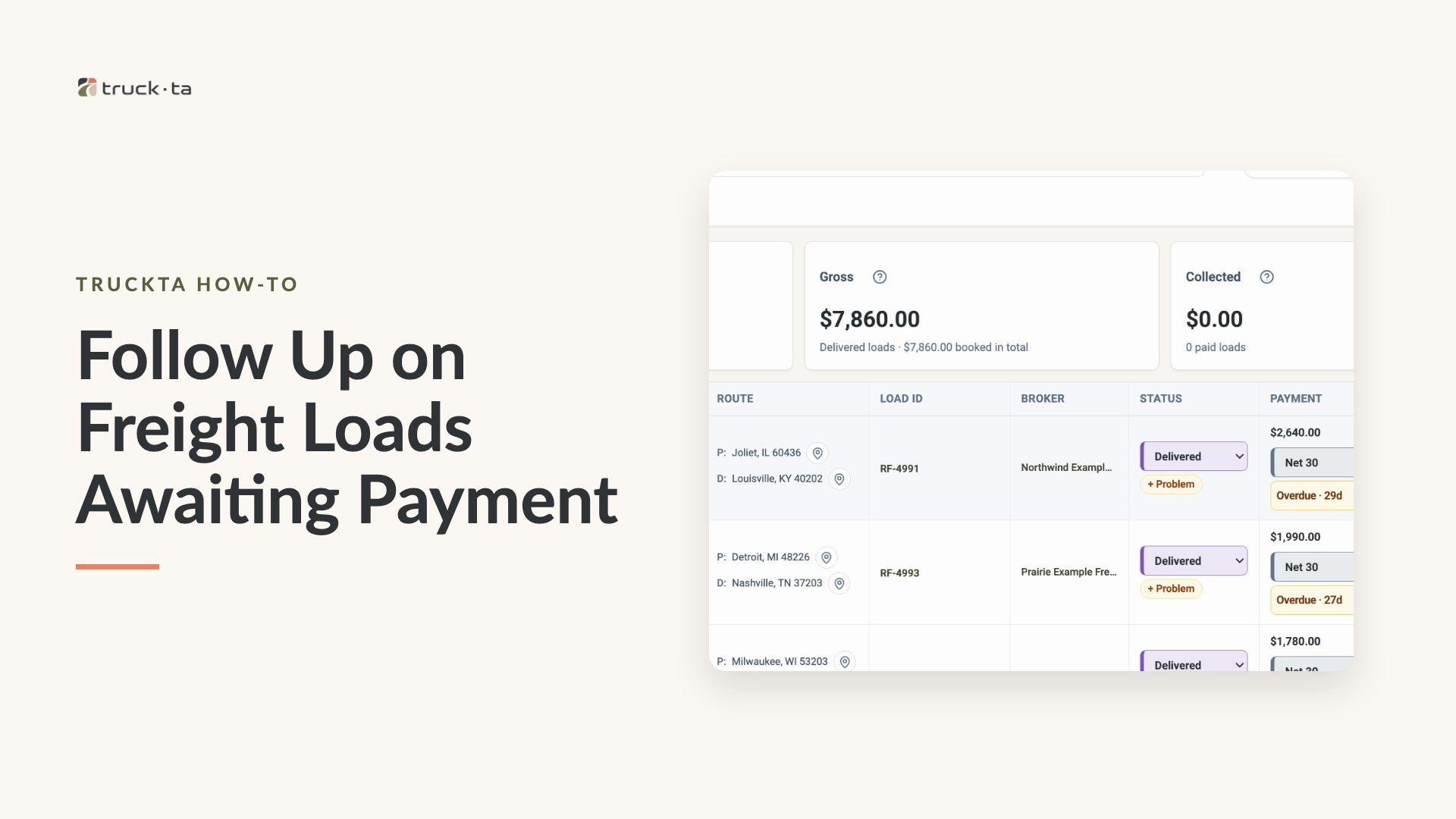
Follow Up on Freight Loads Awaiting Payment
Find unpaid freight loads in TruckTA, put overdue invoices first, and record full or partial broker payments as the money arrives.
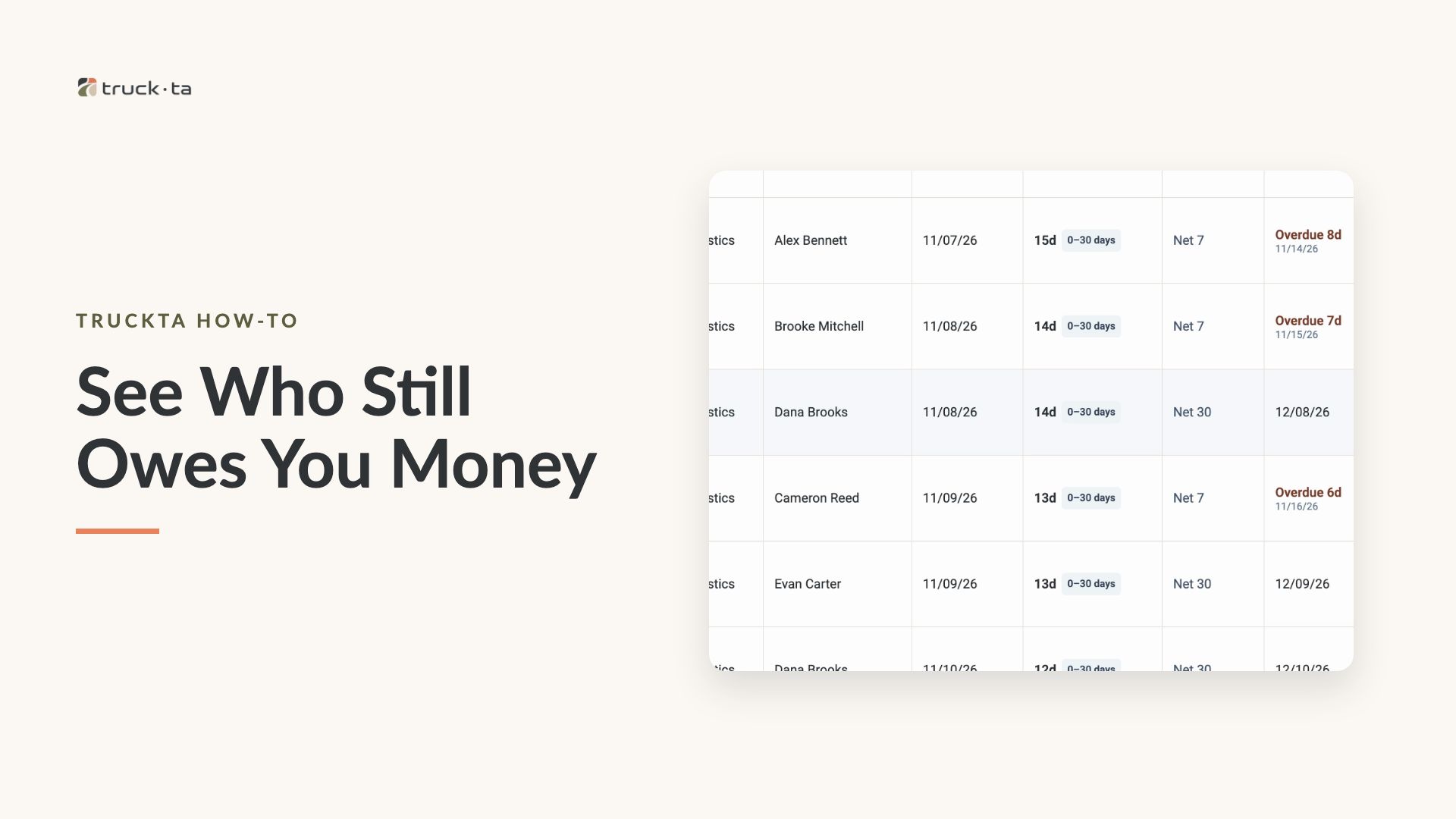
See Who Still Owes You Money
Find unpaid delivered loads in TruckTA, separate aging from overdue balances, identify who needs a call, and record a broker payment when it arrives.
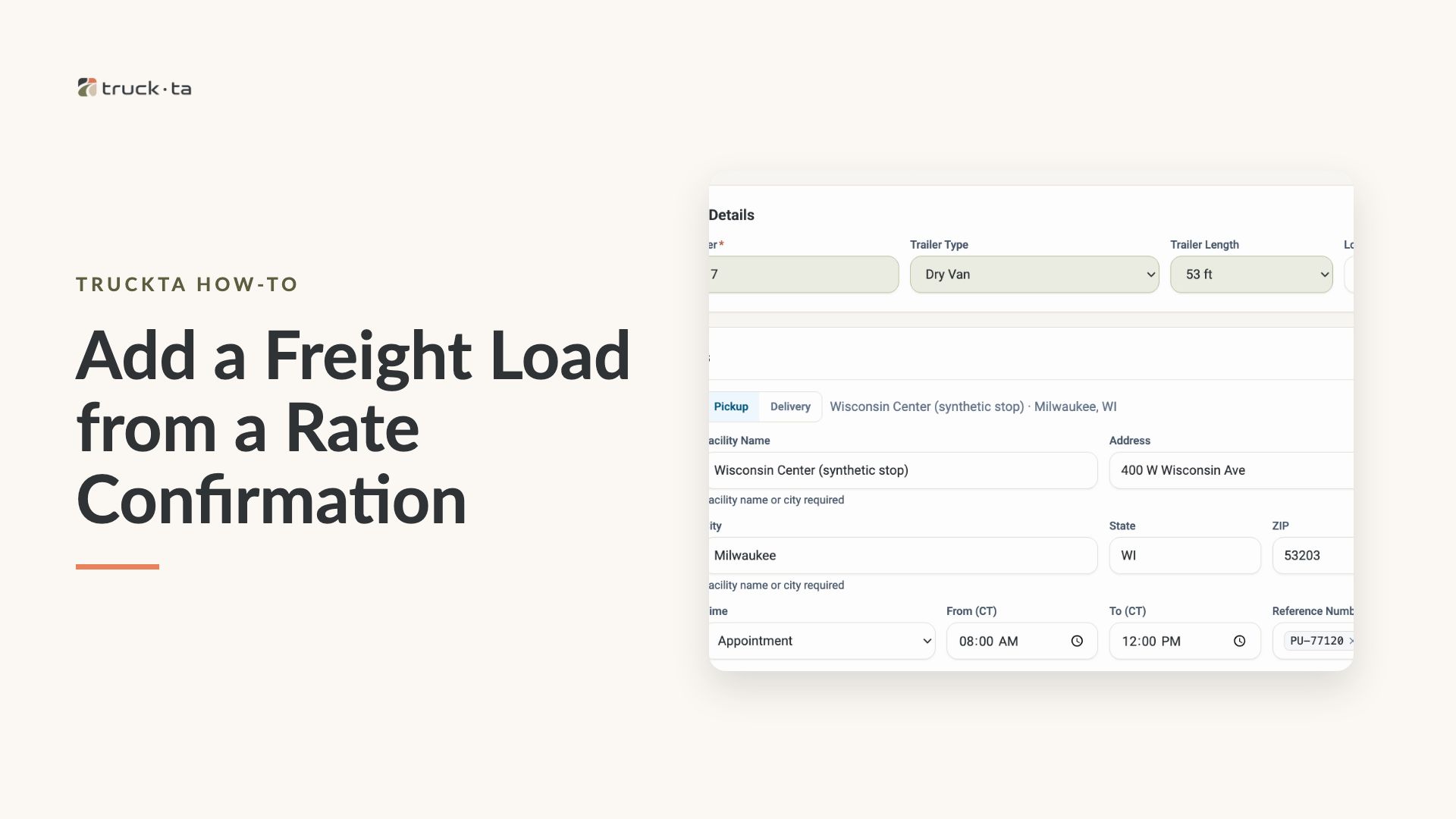
Add a Freight Load from a Rate Confirmation
Use your broker's PDF or photo to fill a freight load in TruckTA, check the highlighted fields, assign the driver, and confirm the dates.