
Import a Fuel Card Statement in TruckTA
Bring a CSV or text-based PDF fuel statement into TruckTA, review the column mapping, match cards to trucks, and see purchases and totals by truck, driver, and state.
By TruckTA Team · Product guidance
Reviewed by TruckTA ·
This tutorial uses an AI-generated voice. The video and article explain the same reviewed TruckTA workflow.
Put the workflow to work
Solve the task with TruckTA
In this article
Your fuel card statement has the purchases. Now you need to connect them to the trucks and drivers buying diesel and DEF, then see where the money went. In TruckTA, that workflow starts in the Finance Center Fuel page: upload the statement, review its columns, match the cards to trucks, and confirm the import.
This guide follows the video “Import a fuel card statement in TruckTA” in the same order. Follow along with your downloaded statement, then use the Fuel tabs to move between individual purchases, fuel spend by truck and driver, and state totals.
Open Fuel
From the Dashboard, open Finance Center in the sidebar and select Fuel. When the Fuel page opens, select the Import Fuel tab. This is where you bring the statement into TruckTA; you’ll use the other tabs to see the purchases and totals after importing.
TruckTA takes a statement as a CSV file or a text-based PDF. Select Choose file, then pick the statement you downloaded from your fuel card company. The file is uploaded, and TruckTA reads its columns.
The next part of the video deals with columns TruckTA doesn’t recognize. If it doesn’t recognize every column in your statement, it asks you to review the column mapping. You’re checking how the statement’s fields line up with the information TruckTA uses for each purchase, before moving on to the truck matches.
Map the columns
In the video’s statement, most columns are already matched: date, card number, unit, truck stop, city, state, product, gallons, and price per gallon. Review the column mapping to see which fields are recognized and which still need to be set.
The example has two unmatched columns. Set Purchase Amount to net amount, and set the receipt number column to provider transaction ID. Those are the specific mappings shown in the walkthrough. They connect the statement’s purchase amount and receipt reference to their corresponding TruckTA fields.
Keep the amount fields straight here. The statement in the video includes both price per gallon and Purchase Amount. Price per gallon is already matched; Purchase Amount is the column you map to net amount. The receipt number goes to provider transaction ID, not to the card number field.
TruckTA needs at least the date and net amount. Those are the minimum fields identified in the video, but the walkthrough has you finish setting every column before continuing. Once every column is set, select Save mapping.
That completes the column-mapping step. Next, you’ll connect the cards on the statement to your trucks so the imported purchases have an equipment match.
Match cards to trucks
Match every fuel card to a truck. TruckTA suggests the truck using the unit number on the statement, so you have a suggested match to check rather than just a card number to work from. Check each card before saving the matches.

The driver is determined differently. TruckTA uses the truck’s assignment history on each purchase date to identify the driver. The statement’s unit number supplies the truck suggestion; the truck’s dated assignment history supplies the driver.
That distinction matters when you look at the results later. The driver attached to a purchase comes from the assignment on that purchase date. The Cards & Matching tab, by contrast, shows each card’s current truck and driver. Those views answer different questions: who is associated with the purchase, and who is currently associated with the card.
Once you’ve checked each card’s truck match, select Save matches. TruckTA then takes you to the import preview, where you can review the purchases and totals before importing the transactions.
Review and import
The import preview brings the purchase counts and fuel totals together. It counts new purchases, duplicates skipped, and purchases that need review. Read those categories separately: the preview distinguishes new purchases from duplicates and from purchases needing attention.

It also shows diesel and DEF gallons, along with the net amount. This is the point in the walkthrough where you can review both the purchase counts and the fuel quantities before confirming. The counts tell you how the purchases are categorized; the gallons and net amount show the quantities and money in the preview.
When the preview looks right, select Confirm import, then Import transactions. Keep that order: the video shows confirmation first, followed by the action that imports the transactions.
With the import complete, move to the Fuel page’s viewing tabs. Start with the individual purchases, then open the totals and matching views.
See your fuel
Open the Transactions tab to see every purchase listed with its card, truck, driver, location, product, and net amount. Use this view when your question is about a particular purchase rather than the overall fuel total. The card, equipment, driver, and purchase information appear together.
Next, open the Overview tab. It shows total gallons, net spend, and price per gallon, with spend by truck, driver, and state. This is the view for seeing how fuel spending is distributed across your operation, rather than reading through individual transactions.
Open Cards & Matching to see each card’s current truck and driver. Keep the distinction from the Transactions tab in mind: this tab shows the current card match, while purchase drivers come from the truck’s assignment history on each purchase date. Anything TruckTA can’t match waits in the Issues tab.
The IFTA tab adds up the gallons you bought in each state. Its scope is fuel purchases only: it does not include mileage or tax due. For state-level viewing, that gives you a useful distinction within the Fuel page: Overview shows spend by state, while IFTA shows purchased gallons by state.
Use your next downloaded statement to follow this workflow in TruckTA. Finish by opening Transactions to see the purchases and Overview to see the totals. Your fuel purchases are then organized by card, truck, and driver, with state views available for spend and purchased gallons.
Read the video transcript
Your fuel card company sends a statement with every purchase. In this video, you'll bring that statement into TruckTA, match each card to a truck, and see your fuel by truck, driver, and state. From the Dashboard, open Finance Center in the sidebar, and select Fuel. When the Fuel page opens, select the Import Fuel tab. TruckTA takes a statement as a CSV file or a text based PDF. Select Choose file, and pick the statement you downloaded from your fuel card provider. TruckTA uploads the file and reads its columns. When it doesn't recognize every column, it asks you to review the column mapping. Most columns are already matched: the date, card number, unit, truck stop, city, state, product, gallons, and price per gallon. Two columns are not. Set Purchase Amount to net amount, and the receipt number column to provider transaction ID. TruckTA needs at least the date and the net amount. When every column is set, select Save mapping. Next, match every fuel card to a truck. TruckTA suggests the truck from the unit number on the statement. The driver comes from the truck's assignment history on each purchase date. Check each card, and select Save matches. The import preview counts new purchases, duplicates skipped, and purchases that need review. It also shows the diesel and DEF gallons, and the net amount. When it looks right, select Confirm import, then Import transactions. Open the Transactions tab. Every purchase is listed with its card, truck, driver, location, product, and net amount. Open the Overview tab for the totals: gallons, net spend, and the price per gallon, with spend by truck, driver, and state. Open the Cards and Matching tab. Each card shows its current truck and driver. Anything TruckTA can't match waits in the Issues tab. Open the IFTA tab. It adds up the gallons you bought in each state. It covers the fuel purchase part only, not mileage or tax due. Your fuel is in TruckTA, by card, truck, and driver. Start free at truckta dot com.
Put it into practice
Keep your operation moving with TruckTA.
More ways to use TruckTA
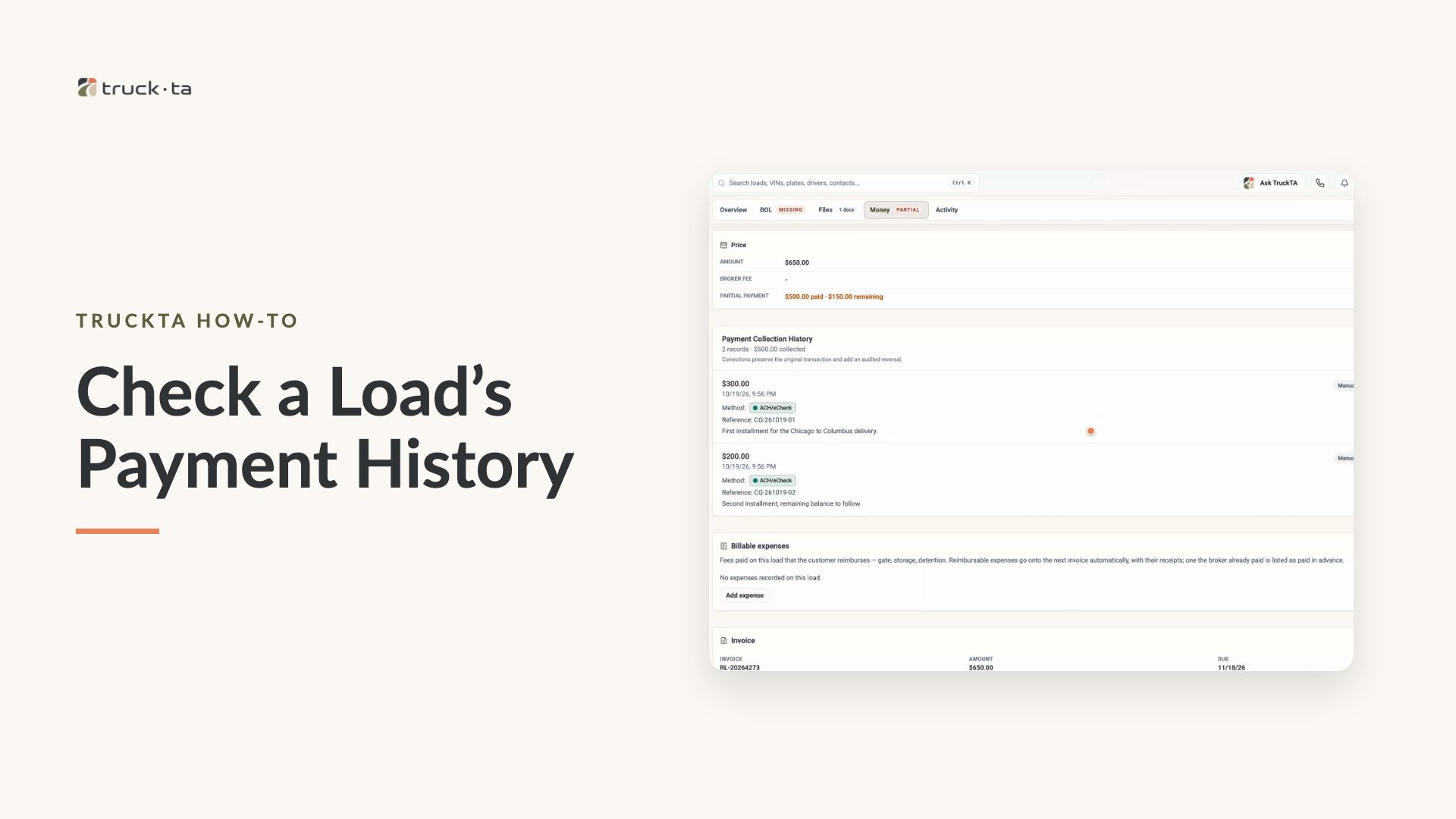
Check a Load’s Payment History in TruckTA
Find a load by order number, review its recorded payment details, and compare Load pays, Collected, and Balance in TruckTA.
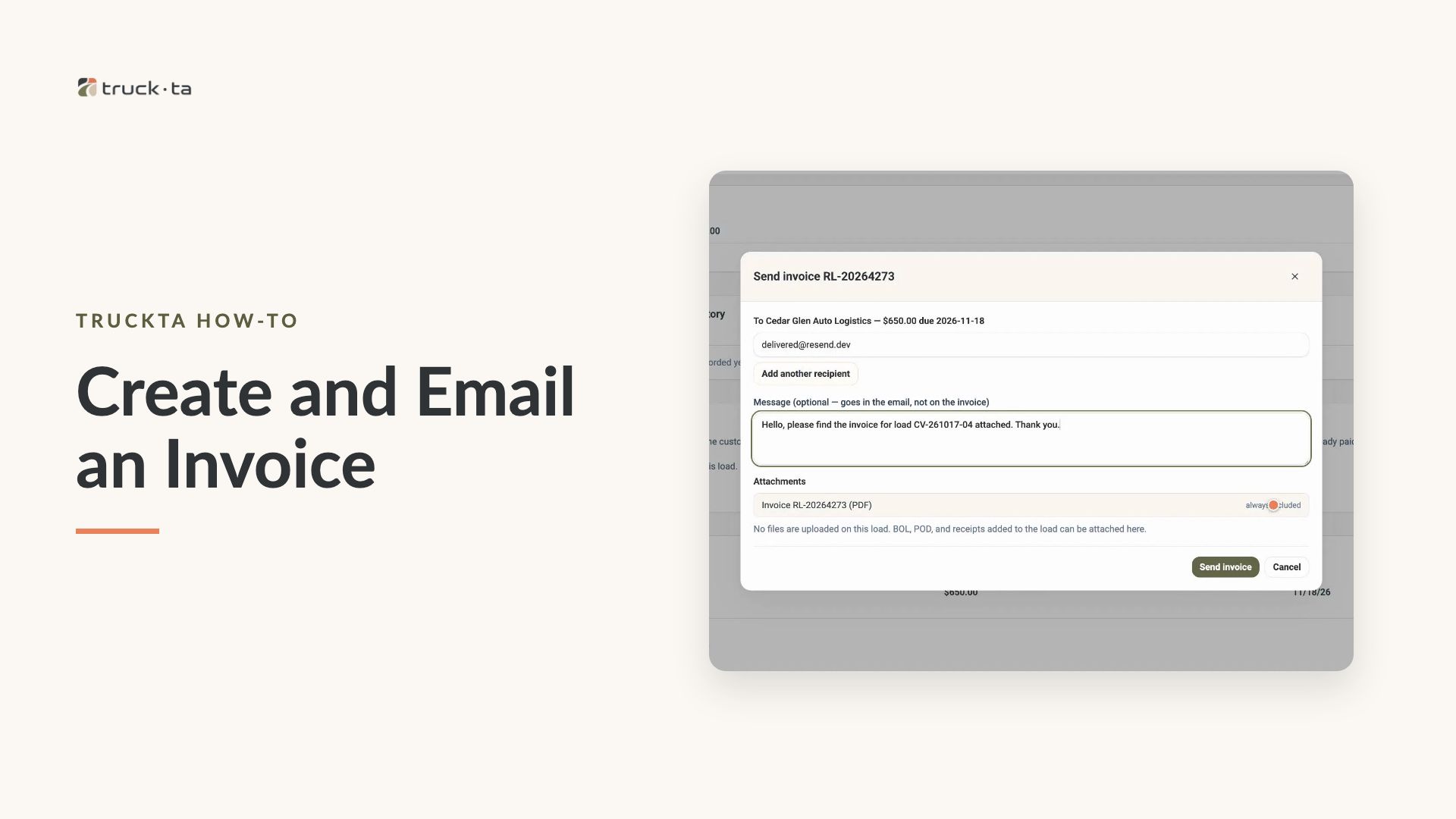
Create and Email an Invoice from TruckTA
Follow the video workflow to check invoicing settings, create a draft for a delivered load, review the PDF, email the invoice, and verify its sent status in TruckTA.
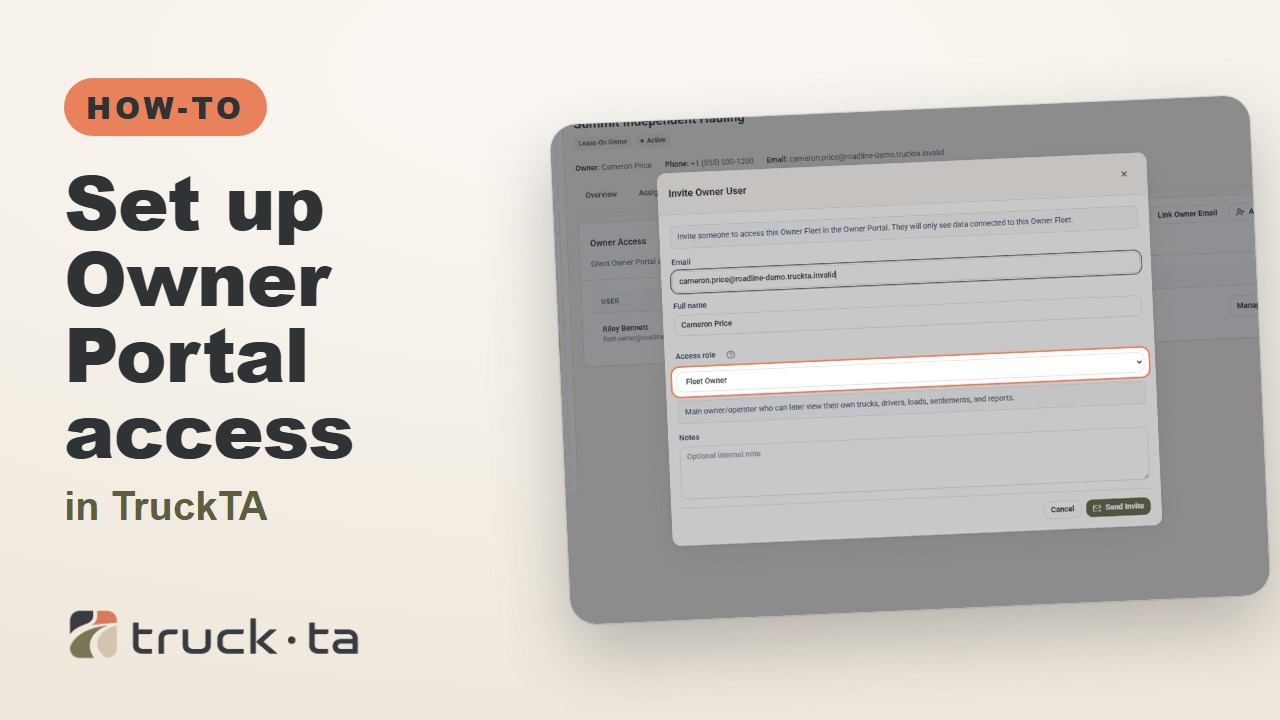
Set Up Owner Portal Access in TruckTA
Give a lease-on owner their own TruckTA Owner Portal login. Follow the invitation, account setup, portal views, and final access check shown in the video.