
Follow Your Freight on the Active Board in TruckTA
Open the TruckTA Active Board, read your load cards from left to right, and use each card’s button to take its next step.
By TruckTA Team · Product guidance
Reviewed by TruckTA ·
This tutorial uses an AI-generated voice. The video and article explain the same reviewed TruckTA workflow.
Put the workflow to work
Solve the task with TruckTA
In this article
Last updated: November 2026
Need to see what each open load needs next? Your freight dispatch board in TruckTA shows each load’s stage, next task, and date. Read the Active Board from left to right, then use the button on each card for its next step.
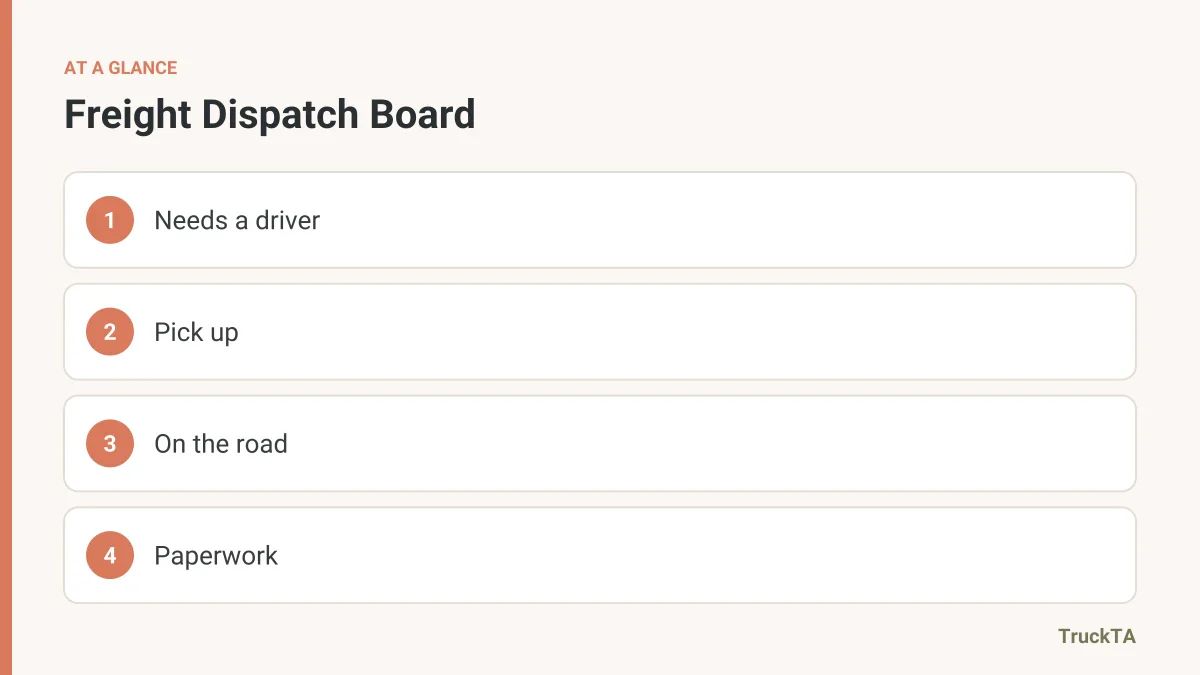
Open the freight dispatch board
Start from Dashboard
From Dashboard, select Loads. The Active Board opens first. Start with the line beside the title, which sums up your day. Then check the counts below for today’s pickups and deliveries, and anything late.
Read the lanes
Find the load’s stage and next task
Every open load appears as a card in one of four lanes: Needs a driver, Pick up, On the road, and Paperwork. Loads move from left to right, so read the lanes in that order.
Next, read the card itself. It shows the route, the freight, and the rate. Under those details, you’ll find the one thing the load needs next, along with its date.
Move a load forward
Use the card’s step button
Each card has one button for its step. Match your load’s lane to the button below, then use that button for the next action in the workflow:
- Needs a driver: Choose a driver.
- Pick up: Mark Picked Up.
- On the road: Mark Delivered.
- Paperwork: Upload POD.
Then look below the lanes at Trucks today. It shows what each driver is doing now and what’s next, alongside the load-by-load work shown in the cards above.
Try this workflow in TruckTA each morning: open Loads, then work your cards from left to right.
Frequently asked questions
Do I need to select Active Board after opening Loads?
No. From Dashboard, select Loads; the Active Board opens first.
Should I check a load card or Trucks today for my next action?
Use the load card for that load’s next task, date, and step button. Use Trucks today to see what each driver is doing now and what’s next.
Does a card show all the workflow buttons at once?
Each card has one button for its current step: Choose a driver, Mark Picked Up, Mark Delivered, or Upload POD.
Read the video transcript
Here's how to follow every freight load on the Active Board, and see what each one needs next. From the Dashboard, select Loads. The Active Board opens first. The line beside the title sums up your day. The counts below show today's pickups and deliveries, and anything late. Every open load is a card in one of four lanes: Needs a driver, Pick up, On the road, and Paperwork. Loads move from left to right. Each card shows the route, the freight, and the rate. Under that is the one thing the load needs next, with its date. Each card has one button for its step. Choose a driver, Mark Picked Up, Mark Delivered, and then Upload POD. Below the lanes, Trucks today shows what each driver is doing now, and what's next. Open Loads each morning, and work your cards from left to right.
Put it into practice
Keep your operation moving with TruckTA.
More ways to use TruckTA
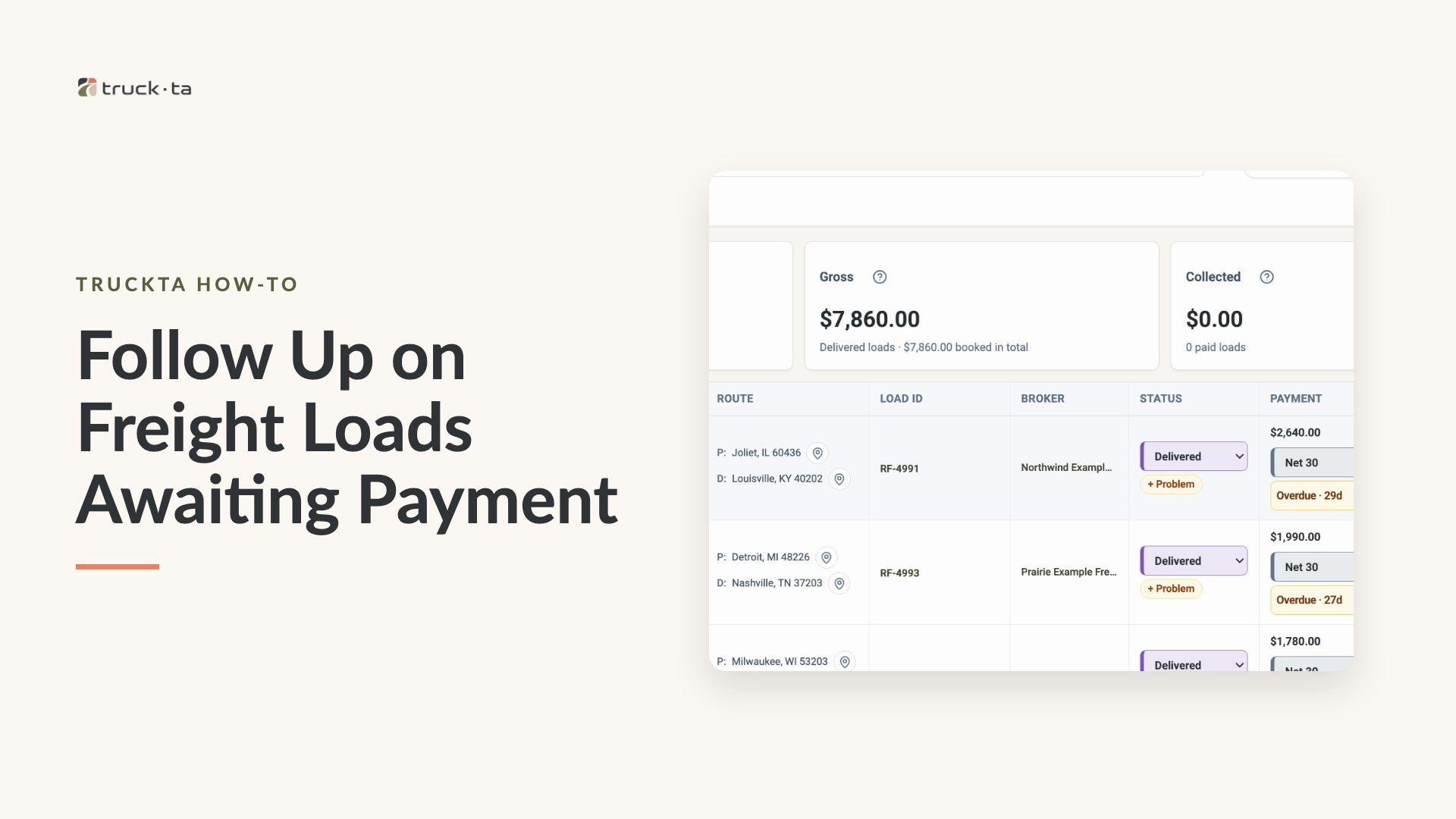
Follow Up on Freight Loads Awaiting Payment
Find unpaid freight loads in TruckTA, put overdue invoices first, and record full or partial broker payments as the money arrives.
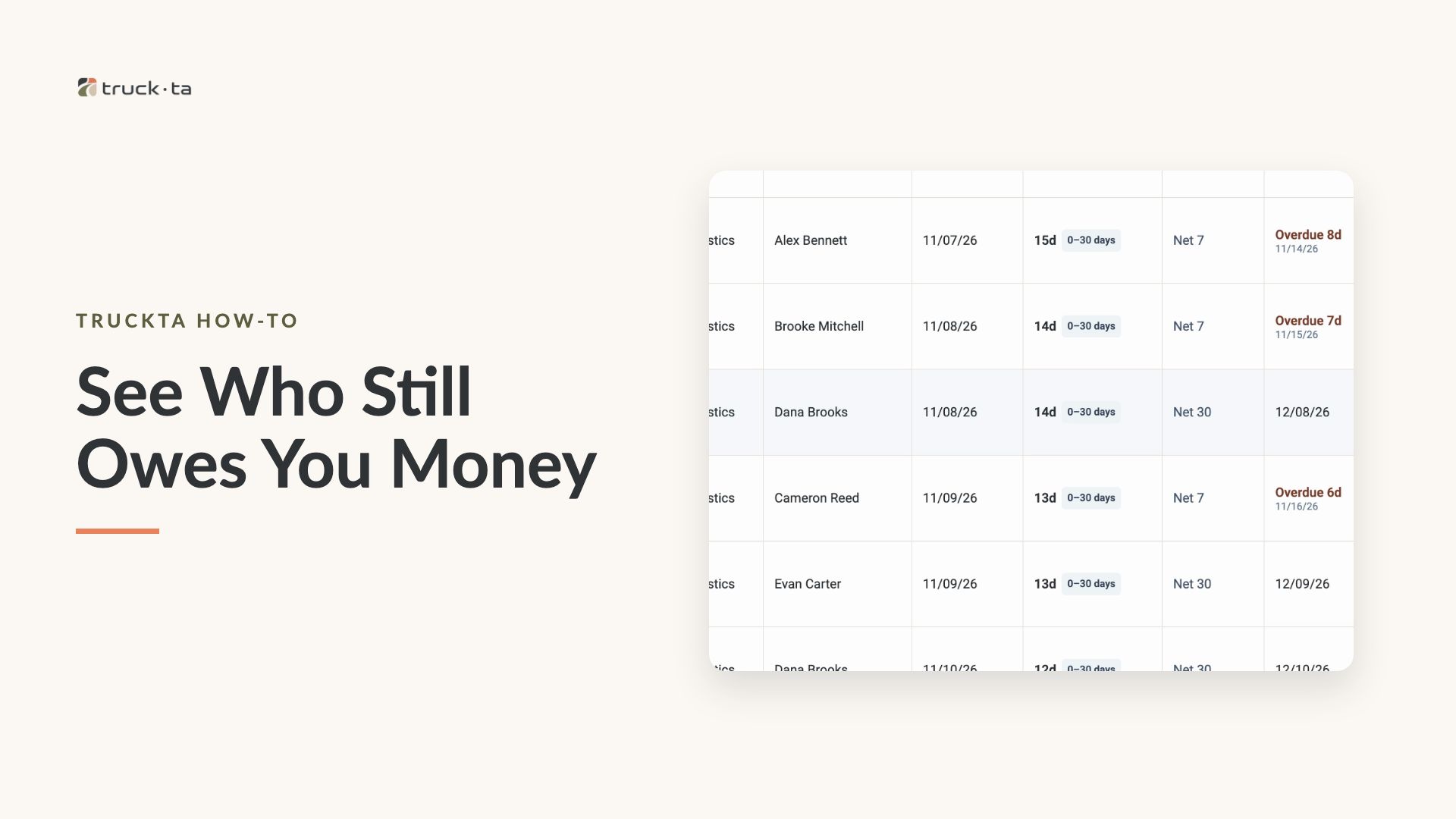
See Who Still Owes You Money
Find unpaid delivered loads in TruckTA, separate aging from overdue balances, identify who needs a call, and record a broker payment when it arrives.
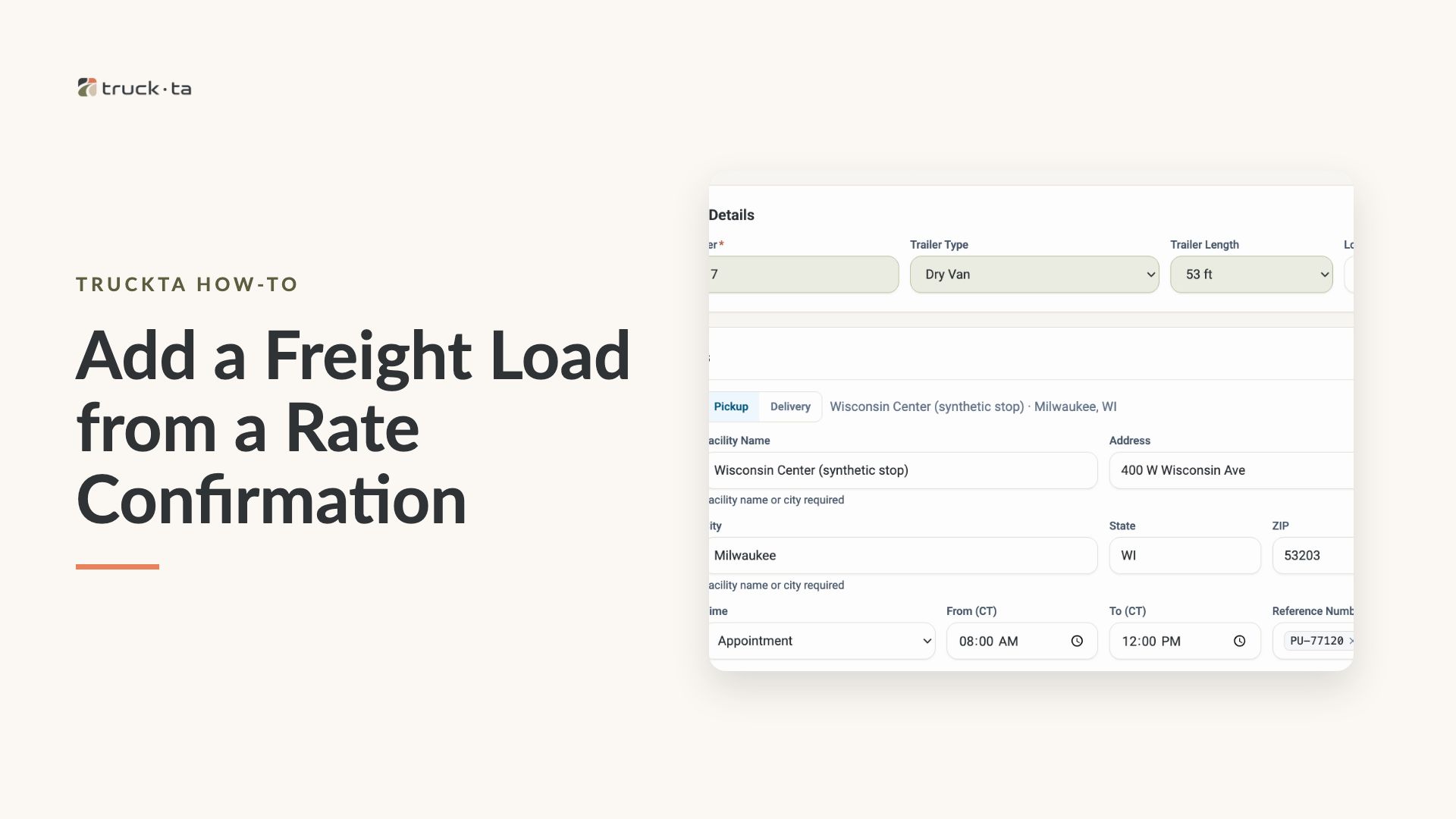
Add a Freight Load from a Rate Confirmation
Use your broker's PDF or photo to fill a freight load in TruckTA, check the highlighted fields, assign the driver, and confirm the dates.