
Create a Load from a Rate Confirmation PDF in TruckTA
Upload your broker’s rate confirmation, review the details TruckTA reads, and confirm the import. Here’s how to create the load without entering it all by hand.
By TruckTA Team · Product guidance
Reviewed by TruckTA ·
This tutorial uses an AI-generated voice. The video and article explain the same reviewed TruckTA workflow.
Put the workflow to work
Solve the task with TruckTA
In this article
You’ve got the broker’s rate confirmation, but the load still needs to get into TruckTA. Typing the vehicle, dates, route, and payment details by hand takes time, and it’s easy to miss something while copying from the PDF. Instead, you can upload the document, check what TruckTA reads, and confirm it as a new load.
This guide follows the video “Create a load from a rate confirmation PDF in TruckTA.” The Smart Load Import workflow keeps you involved at the point that matters: reviewing the details before the load is created. You’re checking the information against the rate confirmation rather than entering the whole load from scratch.
Open Smart import
Open Loads from the sidebar. When the Dispatch Board opens, select Smart import at the top of the page. That’s where you start the document-upload workflow shown in the video.
The sequence is straightforward: choose the rate confirmation, let TruckTA read it, review the draft, and confirm the import. Opening Smart import isn’t the same as creating a load. Nothing is created or changed until you’ve reviewed the load and confirmed it.
Keep that distinction in mind as you work through the upload. The document supplies the information for the draft; your review comes before that draft becomes a new load. You’ll have a chance to compare the values and change fields before importing.
Upload the rate confirmation
Drop your rate confirmation into the upload area, or click to choose the file. TruckTA accepts a PDF up to 25 MB. With TruckTA AI turned on, you can also upload a photo. For the PDF workflow in this guide, choose the broker’s rate confirmation PDF.
Once you choose the file, TruckTA uploads the document and reads it. This can take a little while. The review opens when the draft is ready, so the next part of the process begins after TruckTA has prepared the information for you to check.
At this stage, you’re still working toward a draft, not a created load. Uploading the rate confirmation doesn’t bypass your review or confirm the import for you. Wait for the Review page, then work through the information against the document.
Review what TruckTA read
When the draft is ready, the page moves to Review. At the top, TruckTA lists what it read, using the exact words from your document. Use that list to cross-check each value before moving through the load below it.

There are two parts to pay attention to here: the information TruckTA read at the top and the load itself underneath. The list lets you compare what was read with the document’s wording. The load below is where you check the fields that will become part of the imported load.
Start with the vehicle, load ID, and pickup and delivery dates. Compare each against the rate confirmation. Check the pickup date and the delivery date individually rather than treating the dates as a single detail. Do the same with the vehicle and load ID: each needs its own comparison with the document.
Next, check the payment amount and payment terms. Don’t stop at the amount. Terms are required before you can import, so make sure that field is filled in and matches the rate confirmation. The amount and the terms are separate parts of this review.
Scroll down to the route. The pickup and delivery come in with their address, contact, and phone number. Review the pickup details, then review the delivery details against the document. You can change any field before you import, so make corrections here if a value doesn’t match.
Give the contact information the same attention as the addresses. For each end of the route, compare the address, contact, and phone number with the corresponding information on the rate confirmation. This keeps the review tied to the actual fields rather than a quick glance at the route as a whole.
The notes for your driver and the broker’s details are filled in too. Read through both before confirming. If you want the broker saved for your next load, leave Save as reusable broker ticked. That option lets the broker details carry forward for reuse rather than serving only this import.
The goal here isn’t to retype the PDF in a different screen. It’s to check the draft TruckTA prepared, correct any fields that need attention, and make sure the details match before you create the load.
Import the load
When everything matches your rate confirmation, select Confirm import. TruckTA creates the load and opens it. This is the action that turns the reviewed draft into a new load.

Every imported load starts with status New, no driver or truck assigned, and not paid. Those are the starting conditions for the imported load. Importing the rate confirmation doesn’t assign the work to a driver or truck, and it doesn’t mark the payment as received.
That separates load entry from the next dispatch action. First, confirm the information you’ve reviewed. Once TruckTA opens the created load, you can check the result and continue with the driver assignment.
Check the new load
The new load opens with the route, payment, and broker from the rate confirmation. Check those details in the created load. You’ve now moved from reviewing an import draft to working with the load itself.
The rate confirmation is saved under Files, so the paperwork stays with the load. That gives you the imported load details and the original rate confirmation together, rather than leaving the document behind at the upload step.
From here, assign a driver and send the load to them the same way as any other load. For your next broker rate confirmation, open TruckTA’s Smart import and use this upload-and-review workflow to organize the load entry without typing every detail by hand.
Read the video transcript
Typing a load in from a rate confirmation takes time, and it's easy to miss a detail. In this video, you'll upload the rate confirmation, check what TruckTA read from it, and import it as a new load. Start by opening Loads from the sidebar. When the Dispatch Board opens, select Smart import, at the top of the page. Drop your rate confirmation here, or click to choose the file. TruckTA takes a PDF up to twenty-five megabytes, and with TruckTA AI turned on, a photo too. Nothing is created or changed until you review the load and confirm it. Once you choose the file, TruckTA uploads the document and reads it. This can take a little while, and the review opens when the draft is ready. When the draft is ready, the page moves to Review. At the top, TruckTA lists what it read, with the exact words from your document, so you can cross-check each value. Below the list is the load itself. Check the vehicle, the load ID, and the pickup and delivery dates against your document. Then check the payment amount and the payment terms. Terms are required before you can import. Scroll down to the route. The pickup and the delivery come in with their address, contact, and phone number, and you can change any field before you import. The notes for your driver and the broker's details are filled in too. Leave Save as reusable broker ticked, and the broker is saved for your next load. Every imported load starts the same way: status New, no driver or truck assigned, and not paid. When everything matches your document, select Confirm import. TruckTA creates the load and opens it. Here's the new load, with the route, the payment, and the broker from the rate confirmation. The rate confirmation itself is saved under Files, so the paperwork stays with the load. From here, assign a driver and send the load to them, the same way as any other load. That's a rate confirmation turned into a load in TruckTA. Start free at truckta dot com.
Put it into practice
Keep your operation moving with TruckTA.
More ways to use TruckTA
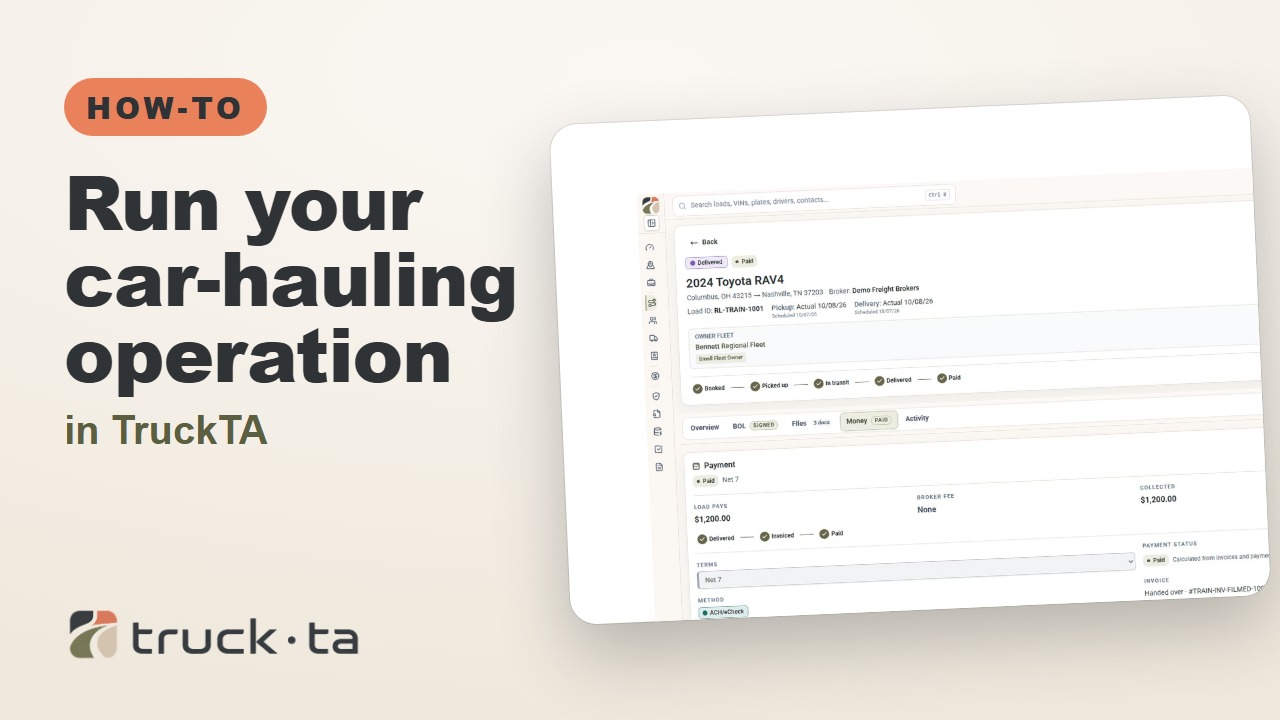
Run Your Car-Hauling Operation in TruckTA
Follow a job through preparation, dispatch, driver work, financial close, and owner-operator access, with a practice checkpoint for each part of the six-part TruckTA course.
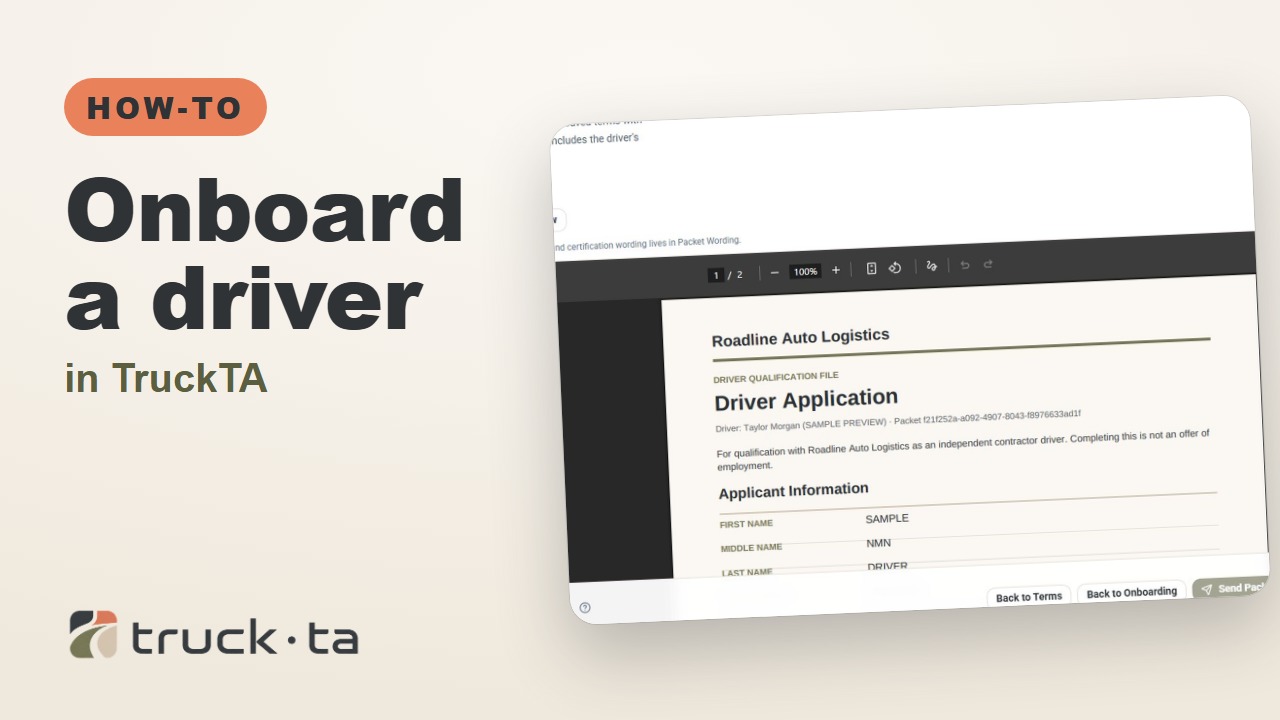
Onboard a Driver in TruckTA
Follow the TruckTA video to prepare an applicant packet, check company-approved terms, and preview the documents. Then see how submission, review, signing, and the Driver record fit together.
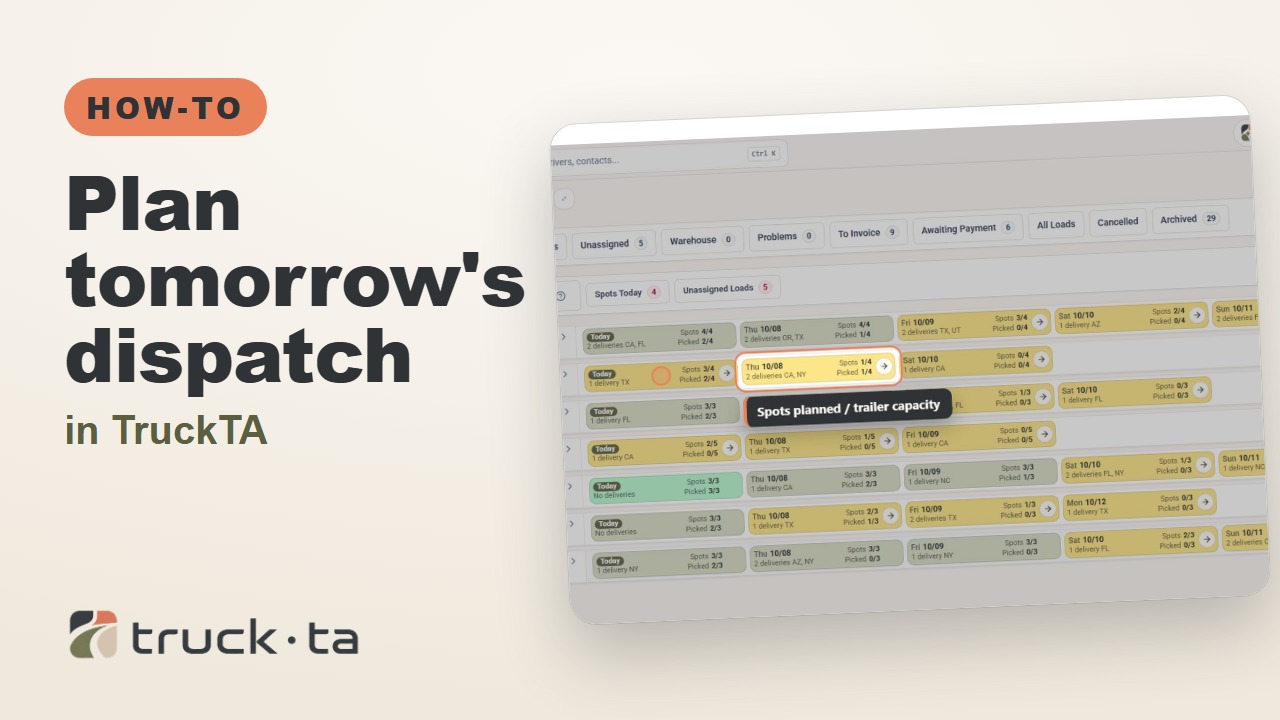
Plan Tomorrow's Dispatch in TruckTA
Review planned work, tomorrow’s open trailer spots, unassigned loads, and driver availability in TruckTA before assigning the next load.